

Wallet Cards
Issue digital passes for Apple Wallet and Google Wallet to identify customers
Wallet Cards provide customers with a digital identity that can be scanned and recognized across the platform.
Wallet cards allow businesses to quickly identify customers, retrieve their profiles, and interact with them operationally.
Each wallet card is linked to a specific customer and can be added to Apple Wallet or Google Wallet.
Wallet cards can be used for many purposes, including:
- Membership identification
- Loyalty cards
- Customer identification
- Access credentials
- Event passes
Wallet cards cannot be used as payment cards.
Navigating to Wallet Cards
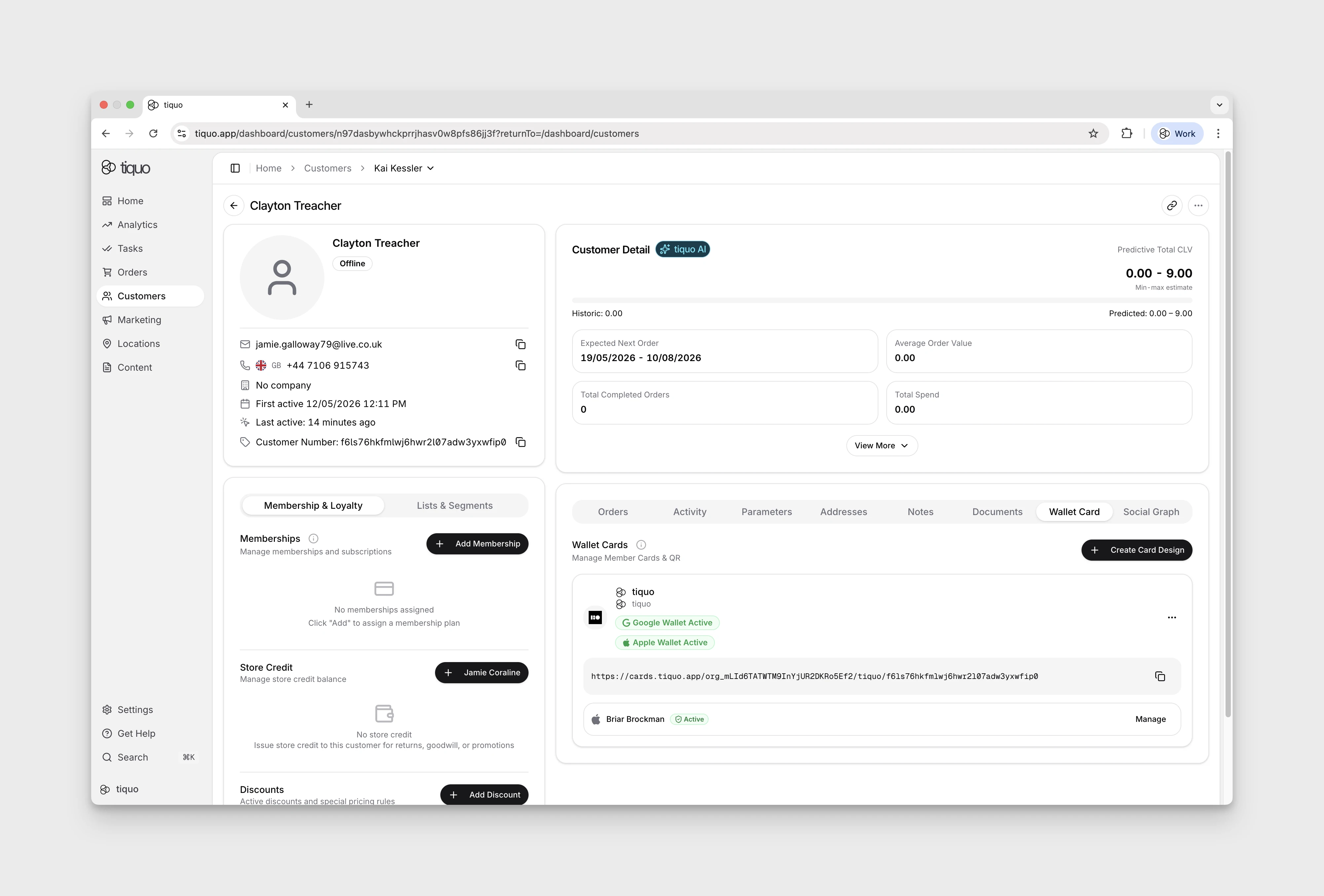
Wallet Cards are accessed from a customer profile. Open the customer's profile and go to the Wallet Cards section to view, install, or revoke that customer's wallet cards.
Wallet Card Structure
Every wallet card is linked to a customer UUID, which uniquely identifies the customer within the system.
The QR code displayed on the wallet card contains the customer UUID. When scanned, the platform retrieves the associated customer profile.
Wallet card installation links follow a structured format that includes:
- Organization ID
- Wallet card design name
- Customer UUID
This ensures each card is unique and securely linked to a specific customer.
Installing Wallet Cards
Customers can install wallet cards using a unique installation link.
These links can be distributed through various channels such as:
- Websites
- Customer portals
- Embedded booking flows
Once opened, customers can add the card directly to Apple Wallet or Google Wallet.
Wallet cards are not automatically installed. Customers must install them using the provided link.
Staff can send the installation link to the customer by email from the Wallet Cards section. The email uses the organisation's configured branding where available and gives the customer a direct way to add the card to their device.
Wallet Card Designs
Organizations can create multiple wallet card designs.
Each design can represent a different type of card, such as:
- Membership cards
- Loyalty cards
- Event passes
- Customer identification cards
Customers can hold multiple wallet cards simultaneously if they belong to multiple card designs.
Wallet card designs can be edited after creation. When a design is updated, the changes automatically apply to all existing cards using that design.
Scanning Wallet Cards
Wallet cards can be scanned using:
- The Tiquo QR code scanner
- The iPad camera
Scanning a wallet card retrieves the associated customer profile.
From the customer profile, staff can:
- View bookings
- View memberships
- Create orders
- Manage customer interactions
If a wallet card is scanned while creating an order, the customer is automatically attached to the order.
QR Code and Barcode Scanning
Tiquo devices can scan a wide range of 1D and 2D codes, including:
- QR codes
- Barcodes
Codes containing either the customer UUID or the customer number will automatically resolve to the associated customer profile.
This allows organizations to use existing identification systems alongside wallet cards if required.
Revoking Wallet Cards
Wallet cards can be revoked from the customer profile.
If a wallet card is revoked:
- The installation link will no longer allow the card to be installed
- Existing wallet cards will no longer function for identification
Wallet cards are also automatically revoked if a customer is:
- Banned
- Deleted
Wallet Cards and Memberships
Wallet cards can display membership information.
When scanned, the system displays the customer's current membership status.
If a membership has expired, the scan will still identify the customer but will indicate that the membership is no longer active.
Wallet Updates
Wallet cards update automatically when customer information changes.
This ensures the information displayed in Apple Wallet and Google Wallet remains accurate.
Examples of updates include:
- Membership status changes
- Customer information updates
- Wallet card design updates
These updates are reflected automatically on installed wallet cards.