

Customer Connections
Map relationships between customers using the Social Graph
Customer Connections represent relationships between customers within the Tiquo CRM.
These relationships form a network known as the Social Graph, which visualizes how customers are connected to each other.
The Social Graph helps businesses understand customer networks, group behavior, and organizational relationships.
Connections may represent relationships such as:
- Colleagues
- Friends and acquaintances
- Family, including spouses, parents and grandparents
- Assistants
Social Graph overview
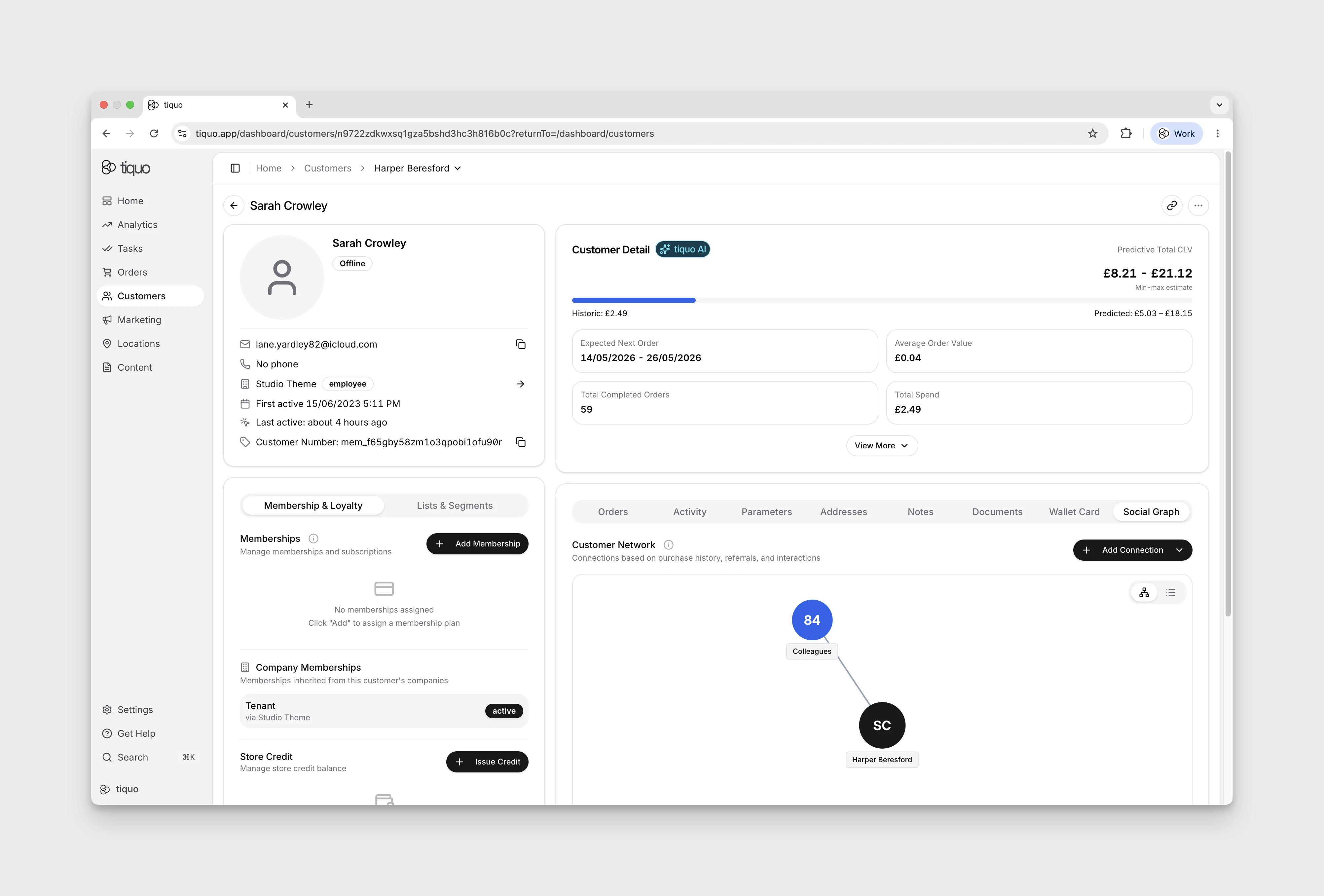
Open the Social tab on a customer profile to view Customer Network, a network of connected customers.
The graph visually represents relationships between customers using nodes and connection lines.
The structure typically appears as:
- The current customer appears as the central node
- Connected customers appear as surrounding nodes
- Each connection represents a defined relationship
This visualization allows staff to quickly understand how a customer relates to other individuals within the system.
Connection types
Every connection has a relationship type that describes how two customers are related.
| Type | How it reads on each profile |
|---|---|
| Colleague | Colleague of, on both profiles |
| Friend | Friend of, on both profiles |
| Acquaintance | Acquaintance of, on both profiles |
| Relative | Relative of, on both profiles |
| Spouse | Spouse of, on both profiles |
| Parent / Child | Parent of on one profile, Child of on the other |
| Grandparent / Grandchild | Grandparent of on one profile, Grandchild of on the other |
| Assistant | Assistant to on one profile, Has assistant on the other |
| Other | Connected to, on both profiles |
When you add a directional connection, you choose which side the current customer is on. For example, pick Parent if the current customer is the parent, or Child if the connected customer is the parent.
Settings > Relationships shows every supported relationship type and its direction, including the roles customers and companies can have on orders and enquiries.
Creating connections
Connections between customers can be created in two ways.
Manual connections
Staff can manually create connections between customers.
To add a connection:
- Open a customer profile
- Open Social > Customer Network
- Open Add Connection, then choose Add Connection Manually from the menu. The menu also offers Import Connections.
- Search for the customer to connect
- Select a connection type
- Save the connection
Once saved, the relationship appears in the Social Graph.
To get every connection out of Tiquo, use the Social Graph export under Settings > Import & Export. Its columns match the connections import, so a file grouped by main customer can be imported back from that customer's Social tab with Import Connections. See Import data.
Automatic connections
The platform can also automatically infer connections between customers based on system signals.
Examples include:
- Shared company email domains
- Inferred relationships between coworkers
- Customer interaction patterns
- Referrals
- Shared activity or behavior within the platform
These automatically inferred connections help reveal natural customer networks without requiring manual input.
Connections on both profiles
When a connection is created between two customers, it appears on both customer profiles.
Mutual types read the same way on both sides. If Customer A is a Colleague of Customer B, Customer B is also shown as a Colleague of Customer A.
Directional types read differently on each side. If Customer A is the Parent of Customer B, Customer B's profile shows Customer A as their parent and Customer A's profile shows Customer B as their child.
Visual graph layout
The Social Graph displays customers using a network-style visualization.
Graph elements include:
- Customer nodes
- Connection lines
- Relationship labels
- Customer avatars or initials
The current customer appears at the center of the graph, with connected customers arranged around them. Colleagues who share a company are grouped into one bubble labelled Colleagues at followed by the company name.
Graph views
The Social Graph supports multiple viewing modes.
Users can switch between:
- Visual graph view
- List view of connections
The list view provides a structured overview of all customer relationships for easier browsing, including a Tags column with each connected customer's tags.
Common use cases
Use the Social Graph to see colleagues who visit together, friends attending events, families sharing memberships, and networks within coworking spaces.