

Table & Pick Up QR Tags
Physical QR tags for Order to Table and Order & Pick Up channels
Table and Pick Up QR tags are physical tags that let customers open the correct ordering channel from a fixed location or collection point. They are designed for restaurants, bars, cafes, members clubs, hospitality spaces, and any workflow where customers order from a table or collect from a designated point.
Each tag shows customer-facing text, such as a table number or pick up label, and includes a QR code that opens the matching ordering channel for the selected sublocation.
Tag layout
Tags can be previewed with different shapes, materials, mounting options, fonts, and optional branding.
The QR code contains the ordering channel, organization identifier, and sublocation identifier, so scanning it opens the correct ordering flow.
Ordering tags
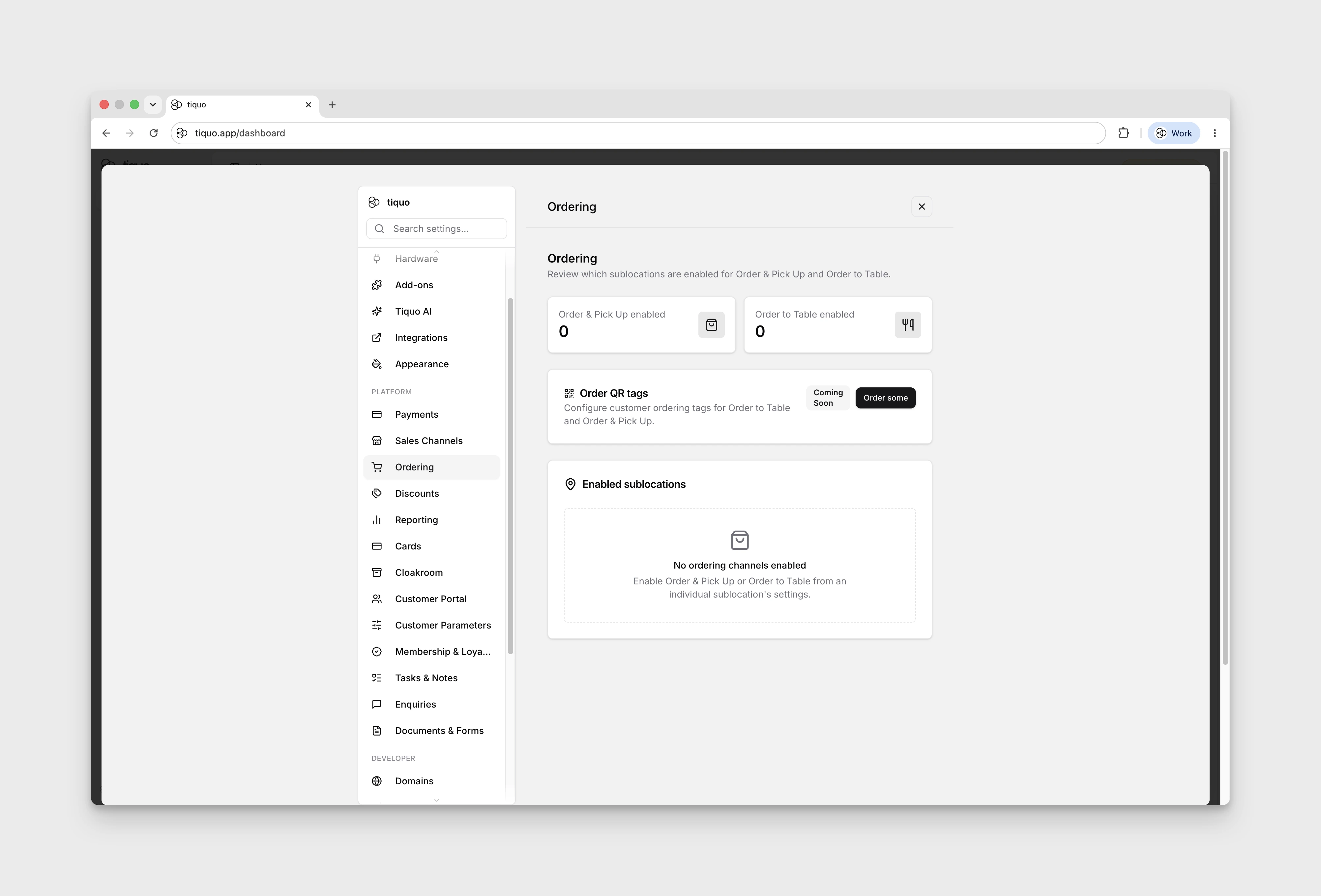
Open Settings → Ordering, then select Order some to open the Order QR tags preview.
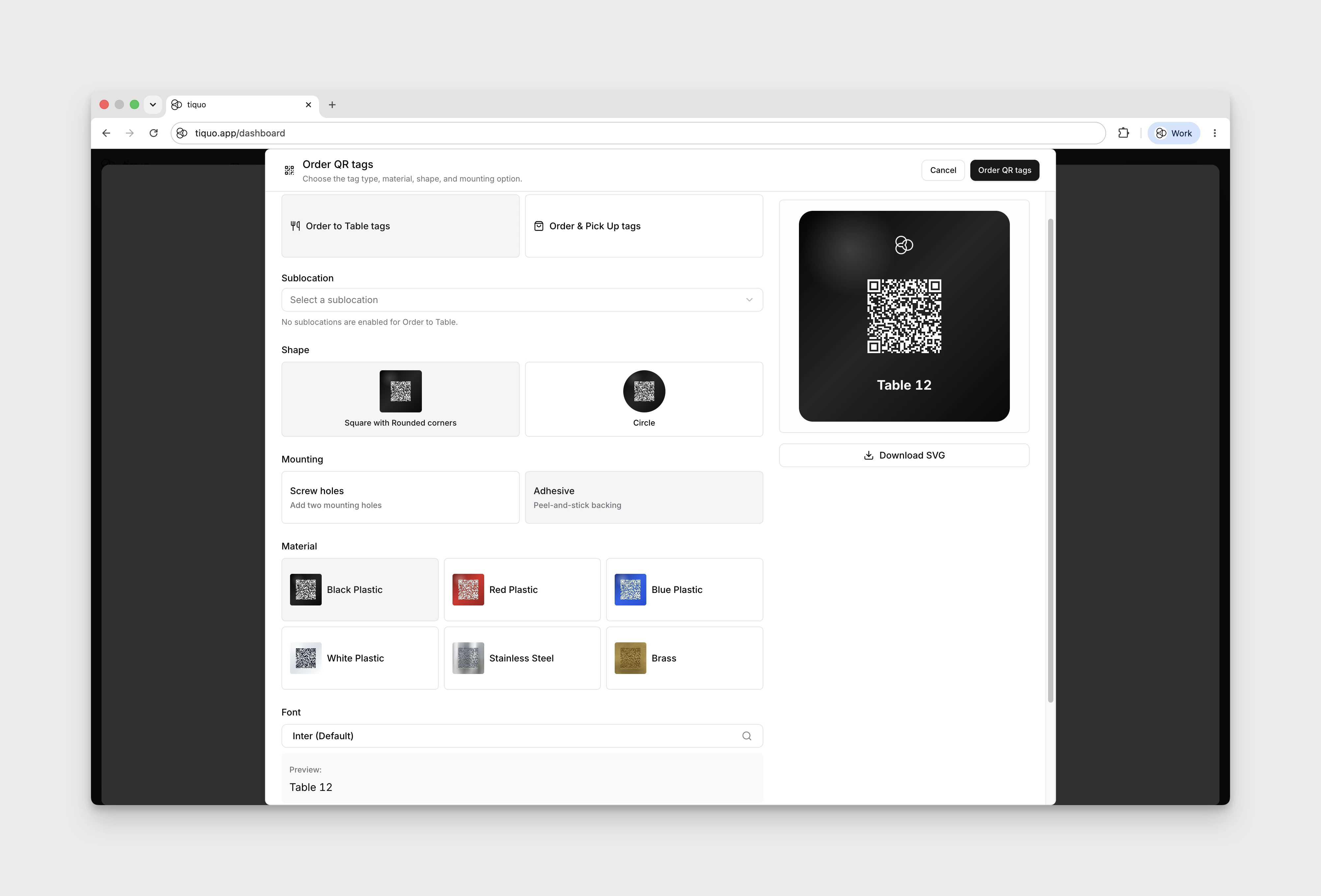
The ordering workflow lets you preview tag designs for Order to Table and Order & Pick Up. You can choose:
- Tag type
- Sublocation with the selected ordering channel enabled
- Shape: Square with Rounded corners or Circle
- Mounting: Screw holes or Adhesive
- Material
- Font
- Optional logo
Available material previews include black plastic, red plastic, blue plastic, white plastic, stainless steel, and brass. Metal previews show the number, logo, and QR code as etched markings rather than printed ink.
For Order & Pick Up tags, the preview includes a Tag text field. Choosing Circle exposes Straight and Curved around circle options for either the table number or pick-up text.
If no sublocation has the selected channel enabled, Select a sublocation is disabled and a message explains the missing prerequisite. You can still explore the design controls.
Tag ordering is marked Coming Soon, and the final Order QR tags button is disabled. Select Cancel to close the preview.
Logos
If logo engraving is enabled, you can select a logo from the organization's custom dashboard themes or upload a one-off logo for the tag preview.
Turn Logo off to enter Top text instead.
Logos are rendered as a single-colour mark so the preview behaves like a laser-etched tag. This is especially useful for brass and stainless steel, where the result should look engraved rather than printed.
Enabled sublocations
Open Settings → Ordering and check Enabled sublocations to see which sublocations have Order & Pick Up or Order to Table enabled. The overview also shows a count for each channel.
If neither channel is enabled, the overview shows No ordering channels enabled. Enable the required channel from the individual sublocation settings before selecting that sublocation in the tag preview.
Use this table to confirm which ordering channels are available before preparing tags for a venue or service area.
Pickup orders in Tiquo
A customer who orders through Order & Pick Up without signing in types a name for the order. Tiquo saves that name as the order's name, whatever the sublocation's name-only setting, so the order shows under it in order lists, in search, and on the order's Customers card. No customer profile is created. The pickup line on KDS cards and kitchen tickets still shows the name for the collection label. A signed-in customer's order is associated with their profile as usual.
Recommended workflow
- Enable Order & Pick Up or Order to Table from the relevant sublocation settings.
- Open Settings → Ordering.
- Select Order some and preview the tag type, shape, mounting option, material, font, and logo for each ordering channel. Select Cancel when finished.
- Use the Enabled sublocations table to confirm the ordering channel is active for the correct sublocation.