

Bookings
Manage scheduled reservations for services with availability, capacity, and resource allocation
A booking reserves a time-based service in Tiquo. It records when the service takes place, the capacity it uses, and the resources assigned to it.
Examples include:
- Massage appointment
- Spa treatment
- Fitness class
- Meeting room reservation
- Workshop session
Bookings can be created by either customers or staff.
Navigating to bookings
The Bookings page is found in the main sidebar under Orders → Bookings, alongside Enquiries.
Customer bookings are also visible on each customer's profile. From a customer profile, open the Orders tab and select the Bookings sub-tab to see every booking linked to that customer.
The bookings page
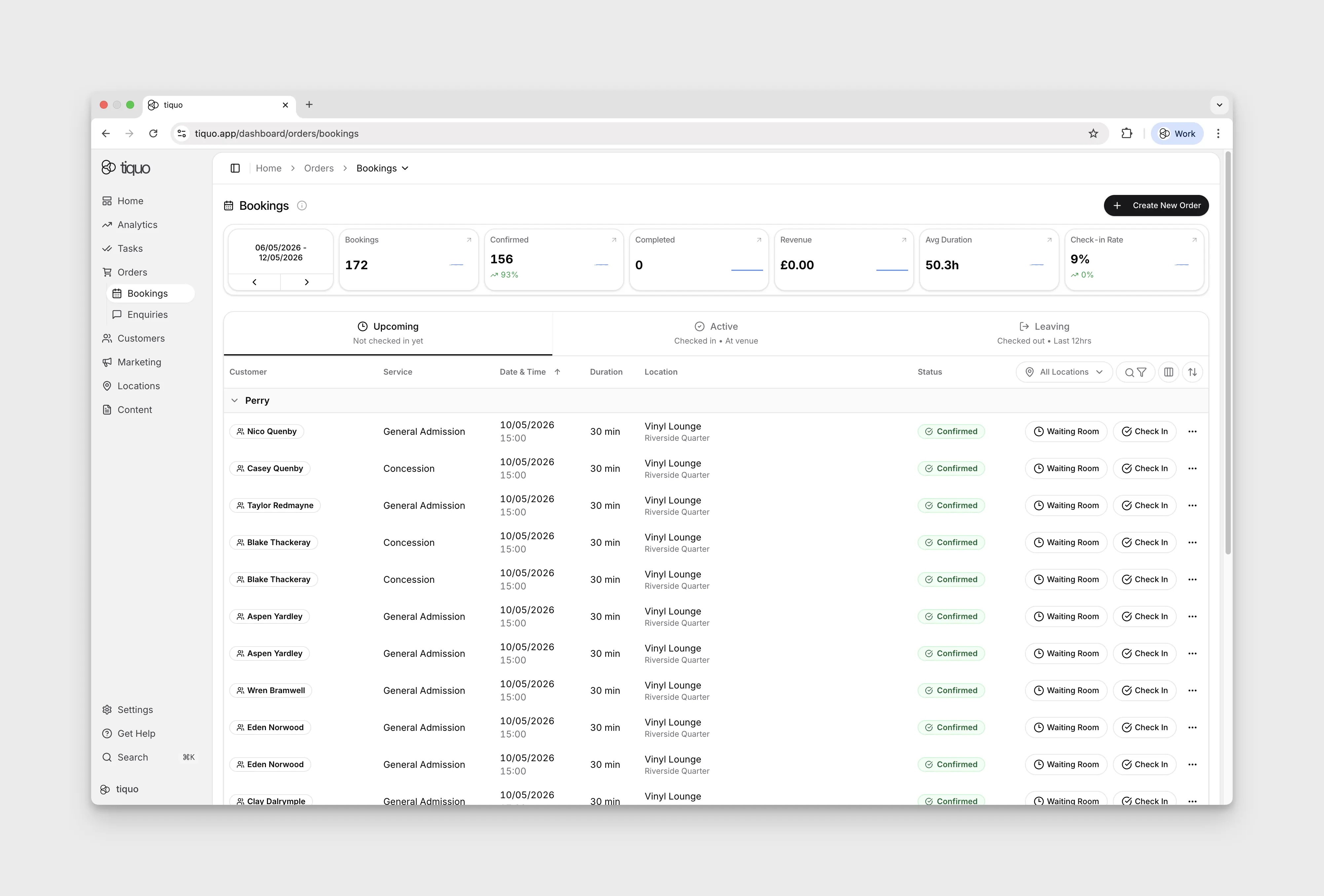
The Bookings page is organised into three zones:
1. Metric cards
A row of six cards summarises booking performance for a selected date range:
- Bookings
- Confirmed
- Completed
- Revenue
- Avg Duration
- Check-in Rate
The date range picker at the left of the row defaults to the last seven days and can be stepped backward or forward.
2. Lifecycle tabs
Below the metric cards, tabs filter the list by lifecycle state:
- Upcoming: scheduled, not yet checked in
- Active: checked in, currently at venue
- Leaving: checked out within the last 12 hours
Booking dates follow each venue's local time. A booking shows on the day it takes place at its venue wherever you view it from, and the split between upcoming and overdue bookings uses the venue's clock rather than yours.
3. Controls row
To the right of the tabs:
- All Locations: filter bookings by location or sublocation
- Search & Filter: free-text search and advanced filters
- Column customiser: show, hide, and reorder table columns
- Sort: change the sort field and direction
Default table columns: Customer, Service, Date & Time, Duration, Location, Status.
Bookings can be associated to a new order by pressing + Create New Order in the top-right, which opens the order flow with the booking item.
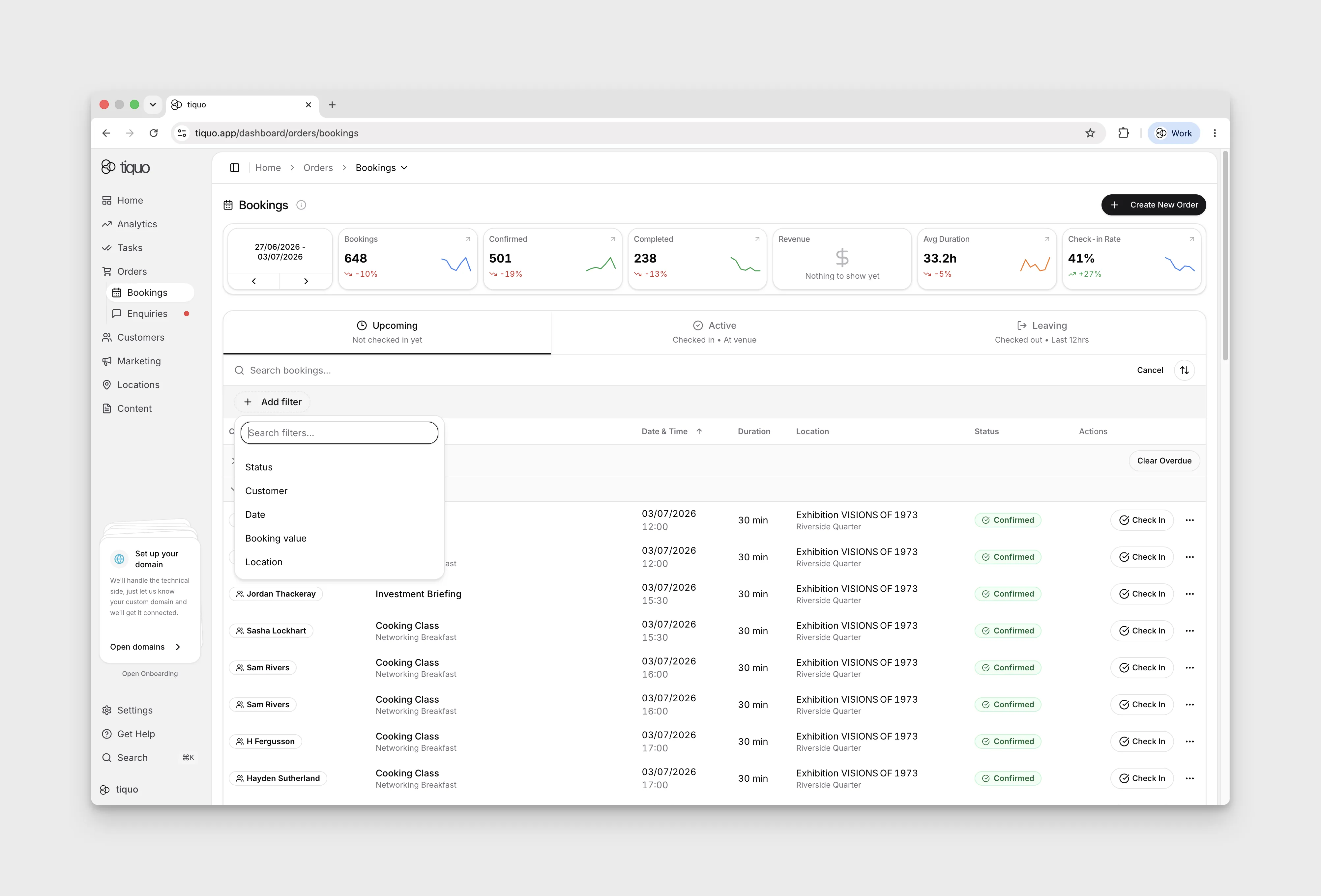
Filtering bookings
Open Search & Filter, then Add filter. Available filters include Status, Customer, Date, Booking value, and Location. When your venues use more than one currency, Currency is also available.
Booking values are kept in each venue's own currency and are never converted. Booking value compares the range you enter with each booking's value in its venue's currency, so a range of 50 to 100 matches €80 at one venue and £80 at another. Add a Currency filter to compare bookings in a single currency. The range shows a currency symbol only when the Currency filter is set or every venue in view uses the same currency, and each booking's total is shown in its venue's currency.
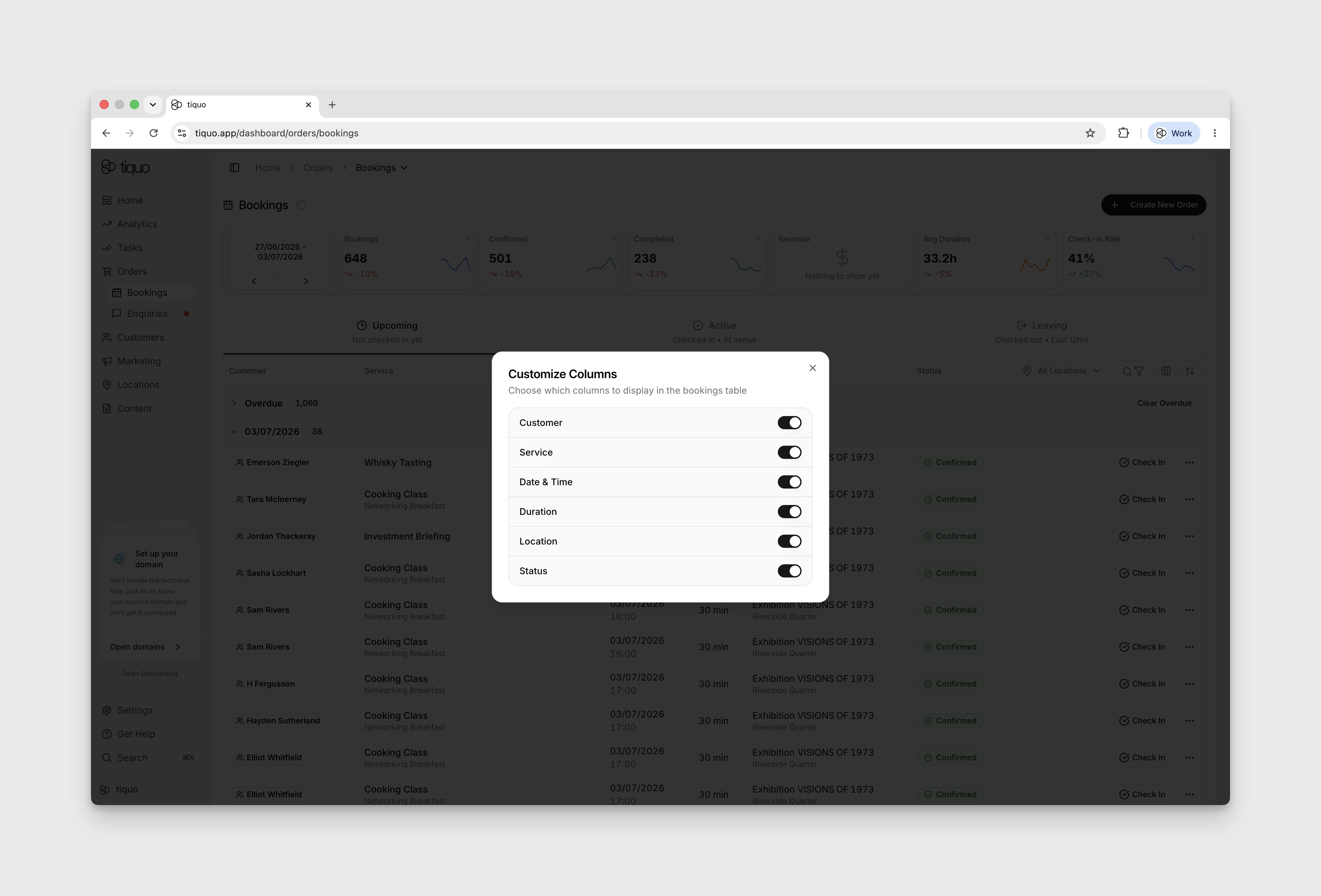
Customising columns
Click Customize Columns next to Filter at the top right of the bookings page to add, remove, or reorder columns.
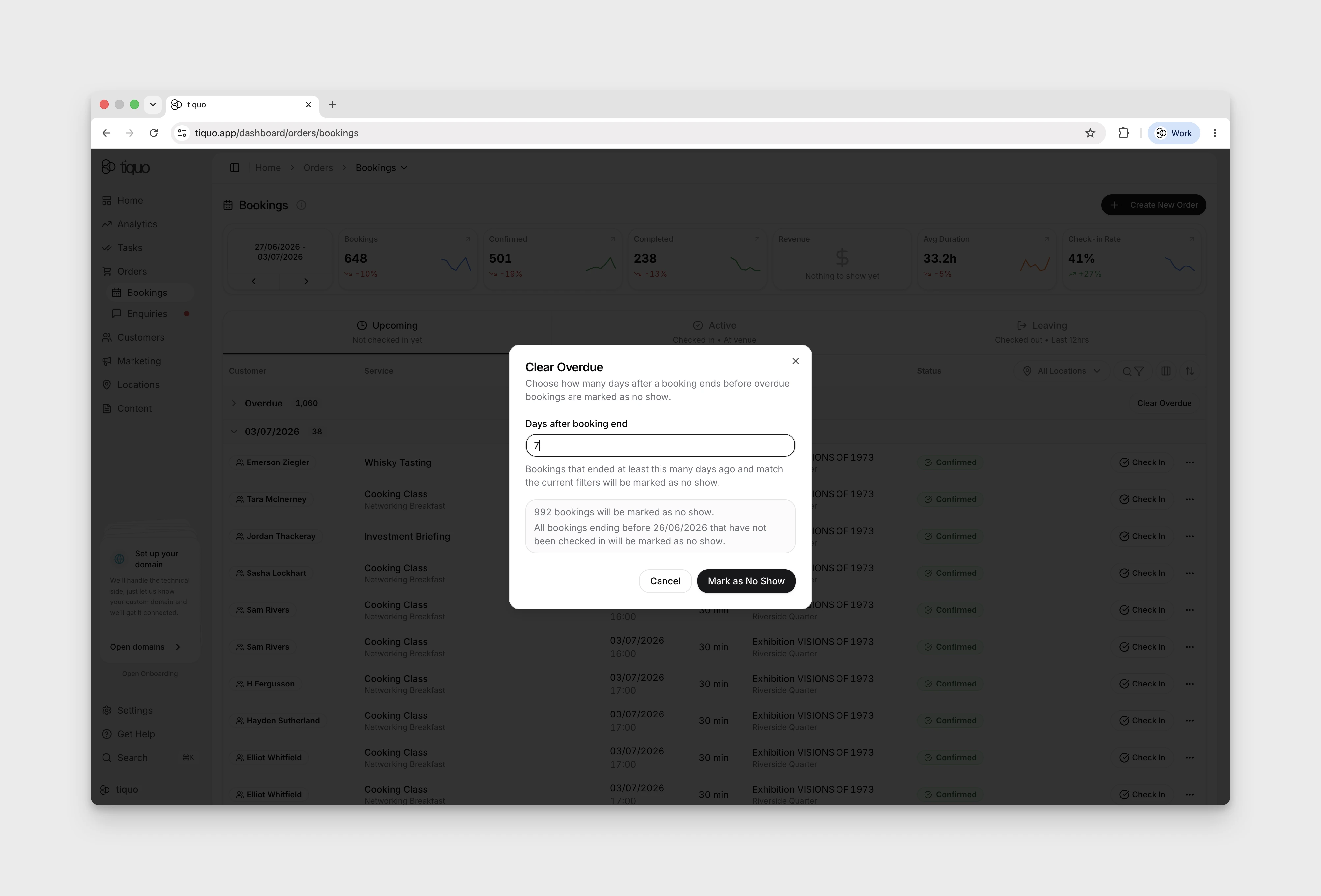
Clear overdue
The Clear Overdue modal lets you sweep through overdue bookings in bulk. It needs the Clear overdue bookings permission as well as Create & manage orders; staff without it don't see the button. Any booking that ended at least a specified number of days ago and matches the current filters will be marked as No Show. This keeps the booking list tidy without staff having to update overdue entries one by one.
Booking calendar
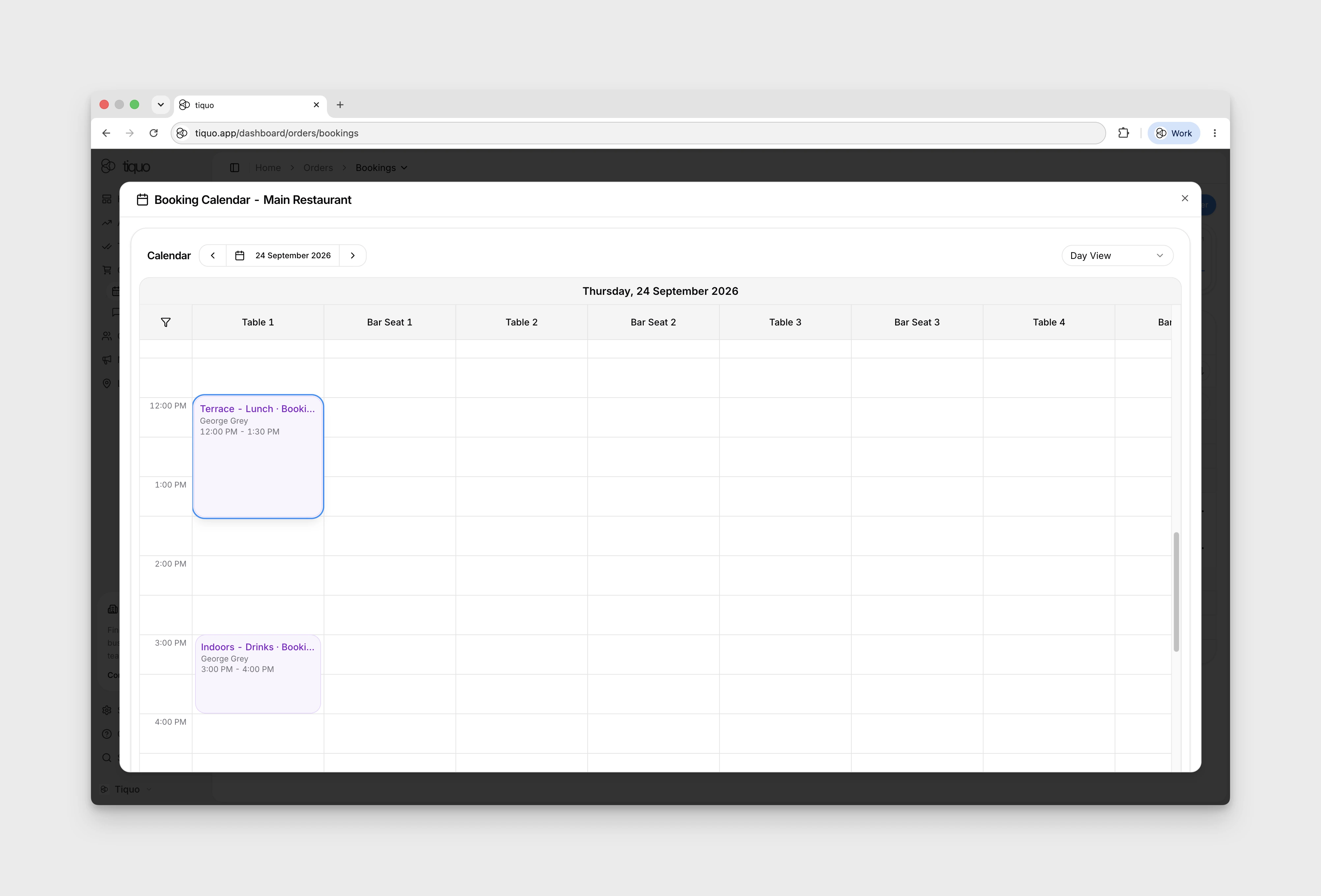
Open Orders → Bookings, then use a booking row’s three-dot More menu and choose View in Calendar. For older entries, expand Overdue to reveal the rows.
The action opens Booking Calendar for the sublocation. If a warning says the booking cannot be shown because its event or service may have been deleted, do not assume the calendar has located or highlighted that booking correctly.
Calendar views
A sublocation's calendar has a view picker with Day View, Week View, Month View, Timeline Day View, Timeline Week View, and Agenda View. The selected view is remembered for each sublocation in your browser.
When the calendar opens without a specific date, it starts on the first day from today that has an active slot or availability window, looking up to a year ahead. A venue whose schedule begins next month opens on that day instead of an empty today. This happens once when the calendar loads and never overrides a date you pick.
The two timeline views have a toggle next to the view picker:
- Infinite keeps scrolling through the days in either direction. The header date follows the day pinned at the left edge, and the arrows and date picker move along the same strip. Bookings load a month at a time as you scroll.
- 1 Day (on Timeline Day View) or 1 Week (on Timeline Week View) shows one day or one week at a time.
Timeline Week View starts on Infinite and Timeline Day View starts on 1 Day. Your choice is remembered for each sublocation in your browser and also applies to the full-screen calendar. Selecting a booking in the full-screen calendar opens its details on top of the calendar.
Scheduled bookings that still have money to collect show in amber as Awaiting Payment. See Awaiting Payment.
Moving bookings on the calendar
Drag a booking to another time, day, or resource to move it. If Tiquo refuses the move, the calendar shows the reason, for example that the table or inventory you dropped it on is not available, or that Mews does not allow the change for a stay. Only an unexplained failure shows Failed to move booking.
Stays on the calendar
A stay (a booking measured in nights, including stays synced from Mews) appears on each of its days, led by the guest's name. The arrival day shows Check-in with the arrival time, the days in between show In house with the night number (for example night 2 of 3), and the departure day shows Check-out with the departure time. Timeline Week View draws the stay as one bar across its nights, and agenda rows and the month's list of all bookings give its length in nights and the day it ends.
The per-day copies cannot be dragged. Move a stay by dragging its bar on Timeline Week View, or with Change dates on a Mews stay.
How bookings work
Bookings are created from services and connected to inventory resources.
The relationship between systems works as follows:
Service → Booking → Order Item → Order
This means:
- The service defines what is being booked
- Inventory provides the required resource
- The booking schedules the reservation
- The order manages the commercial transaction
This separation allows bookings to operate independently from payments.
Booking information
Each booking records:
- Service name
- Booking date
- Start time
- Duration
- Party size
- Assigned inventory resource
- Associated customer
Booking creation
Bookings can be created through several workflows.
Customer booking
Customers can create bookings through customer booking flows. These flows guide customers through selecting:
- Service
- Date and time
- Party size
- Payment details (if required)
Staff booking
Staff members can create bookings directly from the platform. Staff booking flows allow bookings to be created from:
- The dashboard
- Mobile devices
- Point-of-sale devices
Staff can book appointments on a customer's behalf.
Booking lifecycle
A booking represents a time-based service and moves through several statuses from creation to completion. The full set of statuses tracked by Tiquo is:
| Status | When it applies |
|---|---|
| Draft | Created but not yet committed (rare - typically used internally when a booking is being prepared) |
| Scheduled | Created and on the calendar, but not yet confirmed |
| Confirmed | Accepted and locked in; inventory is reserved |
| Reminder Sent | An automated reminder has been sent to the customer |
| Waiting Room | Customer is in a virtual waiting room before the service begins |
| Waiting List | On the waiting list for a slot that is currently unavailable |
| Checked In | Customer has checked in at the venue |
| Active | Customer is present and orders can be added to this booking |
| In Progress | The service itself is underway |
| Completed | Service completed and customer has checked out |
| Cancelled | Cancelled before completion; reserved inventory is released |
| No Show | Customer did not arrive |
| Rescheduled | Booking moved to a different time slot |
A typical lifecycle for an appointment-style booking is:
Scheduled → Confirmed → Reminder Sent → Checked In → Active → In Progress → Completed
The user-facing Bookings page groups these statuses into three lifecycle tabs: Upcoming, Active, and Leaving. This is what most operators interact with day to day. The full status list above is what's used by the API, automations, and reporting.
Draft
Draft bookings are not yet committed and are typically used internally during creation flows.
Scheduled
The booking exists on the calendar and inventory has been provisionally allocated, but the booking has not yet been confirmed.
Confirmed
Once a booking is accepted, it moves to Confirmed:
- The booking is scheduled
- The required inventory resources are reserved
- The booking appears in operational schedules and calendars
Reminder sent
Automated reminders (email, SMS, or push) have been sent to the customer ahead of the appointment.
Waiting room
Used in flows that include a pre-arrival waiting room, for example online consultations or queue management.
Waiting list
The booking is on a waiting list for a slot that is currently full. If an opening becomes available, the booking can be promoted to Scheduled or Confirmed.
Checked in
The customer has arrived and been checked in at the venue.
Active
The booking is active. The customer is present and additional orders or items can be added to the associated order.
In progress
The service itself is underway (e.g. the treatment is being delivered, the class is running).
Completed
When the customer checks out, the booking moves to Completed:
- The service has finished
- The booking is closed
- Items can no longer be added to the associated order
If additional purchases are required after checkout, they must be created as a new order.
Cancelled
The booking has been cancelled before completion:
- The booking is closed
- Any reserved inventory resources are released
No show
The booking time passed without the customer arriving. No-shows are tracked separately from cancellations for reporting and follow-up.
Rescheduled
The booking has been moved to a different time slot, for example by an automation. It keeps its booking number, and the original time becomes available again. A booking that staff or the customer reschedule keeps its current status instead; see Reschedule a booking.
Awaiting Payment
A booking is saved as Scheduled to hold its place while its order is still owed: the customer is on the payment step, a payment link has not been paid, the booking is pay later, or a payment failed. Staff views label these bookings Awaiting Payment in amber, so Scheduled is left for bookings that are paid, free, or waiting for approval.
The label appears in the bookings list, the sublocation calendar and its pop-ups, order details, the bookings tabs on customer and company profiles, and the booking dialog. It is display only. The stored status stays Scheduled, so capacity, analytics, and automations are unchanged. A booking whose deposit has been paid, or whose order is an open tab, is not shown as awaiting payment.
Active bookings
A booking is considered active from the moment the customer checks in until they check out.
Examples of active bookings include:
- A customer currently receiving a massage
- A guest currently staying in a hotel room
- A customer currently attending a class or event
Booking duration
The duration of a booking is determined by the service configuration.
Examples include:
- 60 minute massage
- 90 minute treatment
- Full day rental
The duration determines how long the inventory resource is reserved.
Party size
Some services allow multiple participants.
Party size defines how many people are included in the booking.
Examples include:
- Spa treatments for two
- Group classes
- Workshops
The service configuration defines the minimum and maximum party size allowed.
Inventory allocation
When a booking is created, Tiquo assigns an available inventory resource.
Example:
Service: Massage Appointment
Available inventory:
- Treatment Room 1
- Treatment Room 2
If Treatment Room 1 is available at the requested time, it will be assigned to the booking. If it is unavailable, another available resource may be used.
Booking availability
Availability is determined by a combination of:
- Service scheduling rules
- Inventory availability
- Booking limits
If no inventory resource is available, the booking cannot be scheduled for that time.
Booking limits
Services can apply booking limits such as:
- Minimum advance booking time
- Maximum advance booking time
- Cancellation deadlines
These rules determine when bookings can be created or modified.
Auto checkout
Turn on Auto check out after the booking ends on a service, then choose how long after the booking's end time it should run. The booking is checked out at that point, whatever orders it has.
The one exception is a location with Require paid orders before booking checkout turned on in Sublocation Settings. There, a booking with unpaid orders stays checked in until its orders are paid.
Bookings and orders
Bookings appear in orders as order items.
Example:
Order:
- Massage Appointment (booking)
- Herbal Tea (product)
- Face Cream (product)
The booking manages the scheduling of the service, while the order manages the commercial transaction.
Reschedule a booking
Staff with the Create & manage orders permission can move a single booking to another date or time. Reschedule is available from:
- the booking row's three-dot menu in Orders → Bookings
- the booking's menu in an order, in both the Order Details dialog and the full order page
- the booking's menu on a customer's or company's bookings tab
- the Reschedule button in the booking dialog that opens when you select a booking in a customer's activity
Reschedule booking shows the booking's current date and time above a month calendar. Highlighted dates have free times. Pick a date, then a time; times with limited capacity show how many places are left. Select Move booking to save.
What can be rescheduled
Bookings that are Scheduled, Confirmed, Reminder Sent, or Rescheduled can be moved. Both slot bookings and calendar bookings are supported. A calendar booking keeps its current room, table, or resource when it is free at the new time; otherwise Tiquo assigns another available one.
The dialog explains when a booking can't be moved this way:
- Stays (nightly or daily services): use Change dates on a Mews stay, or drag the stay to its new dates on the calendar.
- Combined tables: a party seated across combined tables is moved on the floor plan.
- Inactive inventory: no times are offered while the booking's inventory is inactive or in maintenance mode.
- Waitlist requests: offer the place or remove the request instead.
Times staff can choose
Times are offered from today up to a year ahead and never in the past. Staff are not held to the customer's cancellation deadline or to the service's minimum and maximum advance booking, but availability and capacity still apply. The booking can move to a time that overlaps its current one.
If the customer's online cancellation deadline has already passed, the dialog says so: the customer can no longer cancel or reschedule online, but you can still move the booking.
Emailing the customer
The checkbox to email the customer the updated booking is ticked by default and shows the customer's name. Leave it ticked to send the booking confirmation again with the new date and time, or untick it to move the booking without an email. If the customer has no email address, the dialog says that no confirmation will be sent.
After the move
A rescheduled booking keeps its booking number and status. The move is recorded in the activity log as rescheduled by staff.
Reminder and follow-up emails follow the booking. Whenever it moves (rescheduled by staff or by the customer, dragged on the calendar, or moved by an automation), they are scheduled again for the new start time, even if a reminder was already sent for the old time.
Booking cancellation
Bookings can be cancelled according to the cancellation rules configured in the service. Cancelling a booking releases any reserved inventory resources.
Marking a no-show
Open a booking and choose the no-show action when the customer does not attend. If the booking has an accepted card guarantee, the confirmation shows the agreed fee and whether it can be charged. Staff can charge the fee and mark the booking as a no-show in one action, or mark it without charging.
The card guarantee is not a deposit. No money is taken at checkout, and Tiquo does not charge the card until a staff member confirms the no-show action. If a charge fails, the booking and fee result remain visible for follow-up.
Waitlist offers
A customer can join a waitlist when the required inventory is full and the inventory has waitlists enabled. No payment is taken when they join. If a place opens, Tiquo sends a time-limited offer. The offer may be free or may require the customer to complete payment.
When the service has a no-show card guarantee with Collect card when joining the waitlist turned on, the customer saves a card and accepts the no-show policy before joining. Nothing is charged and no funds are held. Without that setting, the card is collected only if a place is offered. When staff add a customer to such a waitlist from a new order, the Card required for the waitlist dialog asks for the card and for confirmation that the customer agreed to the no-show policy. Closing it without saving a card leaves the customer off the waitlist.
An accepted offer creates the booking. An expired offer returns the request to the waitlist so it can be offered again later.
Guest invitations
Where the booking flow allows invitations, the booking owner can invite guests through a secure email link. Staff can see invitation delivery failures and send the corrected invitation again. An invitation link cannot be reused after it has been accepted.
Booking invitations are separate from Guest Pass pre-registration. Neither a booking invitation nor booking check-in consumes an Access Pass or Guest Pass. Passes are used by customer registration when staff record access to a sublocation.
Calendar subscriptions
Service-capable sublocations can create read-only calendar feeds from Sublocation Settings > iCal Links. Each link can include one or more active calendar or slot inventory items and can be subscribed to from Apple Calendar, Google Calendar, Outlook, or another iCal-compatible application.
Select Edit on a link to rename it or change which inventory it includes. The URL stays the same, so subscribers pick up the change the next time their calendar refreshes. A booking only appears in a feed if its inventory is on the link.
Calendar apps decide how often they re-read a feed. Google Calendar and Outlook can take up to 24 hours to show new or changed bookings, so a booking that is missing from a subscribed calendar may simply not have been fetched yet.
Anyone with a subscription URL can view booking times, services, booking references, and the names and email addresses of customers associated with each booking or order. Notes and phone numbers are not included. Share links only with their intended recipients, and revoke a link immediately if it is shared with the wrong person. Editing a link does not change its URL, so revoke it rather than editing it if the wrong person has it. Revocation is permanent, so a new link must be created if access is needed again.
Booking notifications
Services can trigger automated booking notifications.
Examples include:
- Booking confirmation emails
- Appointment reminders
- Cancellation notifications
- Follow-up emails
Booking confirmation emails include a Manage Booking button when your organisation has an active Customer Portal. It opens the booking in the portal's upcoming bookings after the customer signs in, where they can see the details and, if the service allows it, cancel or reschedule. The link uses your primary portal, or the first active portal if the primary one is not active, on its custom domain when one is set. Booking reminder emails use the same link. Organisations without an active portal get no button.
To hide the button or change its wording, open the confirmation email with Edit & preview in the flow's notification settings. Turn off Show button, or select the button text in the preview and type the new label.
Approve or reject a booking request
With Auto-confirm Bookings off, a new booking remains scheduled for staff review. Where checkout consists entirely of bookings awaiting approval, Tiquo can authorise the customer's card without taking the money yet.
For a held-card order, settlement waits until staff have decided every request. If at least one booking is approved, Tiquo captures the held amount and refunds any rejected booking lines after settlement. If every request is rejected, it releases the hold. Orders that also contain products or already-confirmed bookings charge at checkout; rejected booking lines are refunded when staff reject them.
A card hold has an expiry. An expired hold cannot be charged, so ask the customer to complete payment again before approving. An unpaid request without a valid hold is also blocked from approval. A deposit-paid, paid, or free request can be approved when its other conditions are met.
Customer cancellation and rescheduling
Customer portal booking details show Cancel and Reschedule when the service permits them. Customers can reschedule both slot and calendar bookings: they pick a new date on a month calendar, then a time. A customer's change must respect the service's minimum and maximum advance booking, and Tiquo emails the customer the updated confirmation.
The service's Cancellation Deadline controls how long online changes stay open. A blank deadline means 24 hours before the start, and 0 allows changes right up to the start time. Once the deadline has passed, the portal explains that online cancellation has closed and asks the customer to contact the venue. Staff can still reschedule or cancel the booking from the dashboard.
Customers can't cancel or reschedule imported bookings, such as stays synced from Mews or bookings added through a data import. The portal hides Cancel and Reschedule for these and asks the customer to contact the venue to change or cancel the booking. Stays and bookings seated across combined tables can't be rescheduled online either.
The Manage Booking button in confirmation and reminder emails opens the specific booking after sign-in.
Book several named prices
A customer flow can let a customer select several named fixed-price choices in one booking, such as a member ticket and guest tickets. Each choice keeps its own quantity and per-customer limit. Restricted prices depend on the customer's identity and eligibility.
The selected booking length stays on the saved order line when a service offers length choices, so reopening an open tab retains the booked duration and price.