

Marketing
Communicate with customers through targeted email campaigns
The Marketing section allows organizations to communicate with customers through targeted email campaigns.
Marketing tools work directly with the Tiquo CRM, allowing businesses to send communications to customers based on lists, segments, and customer data.
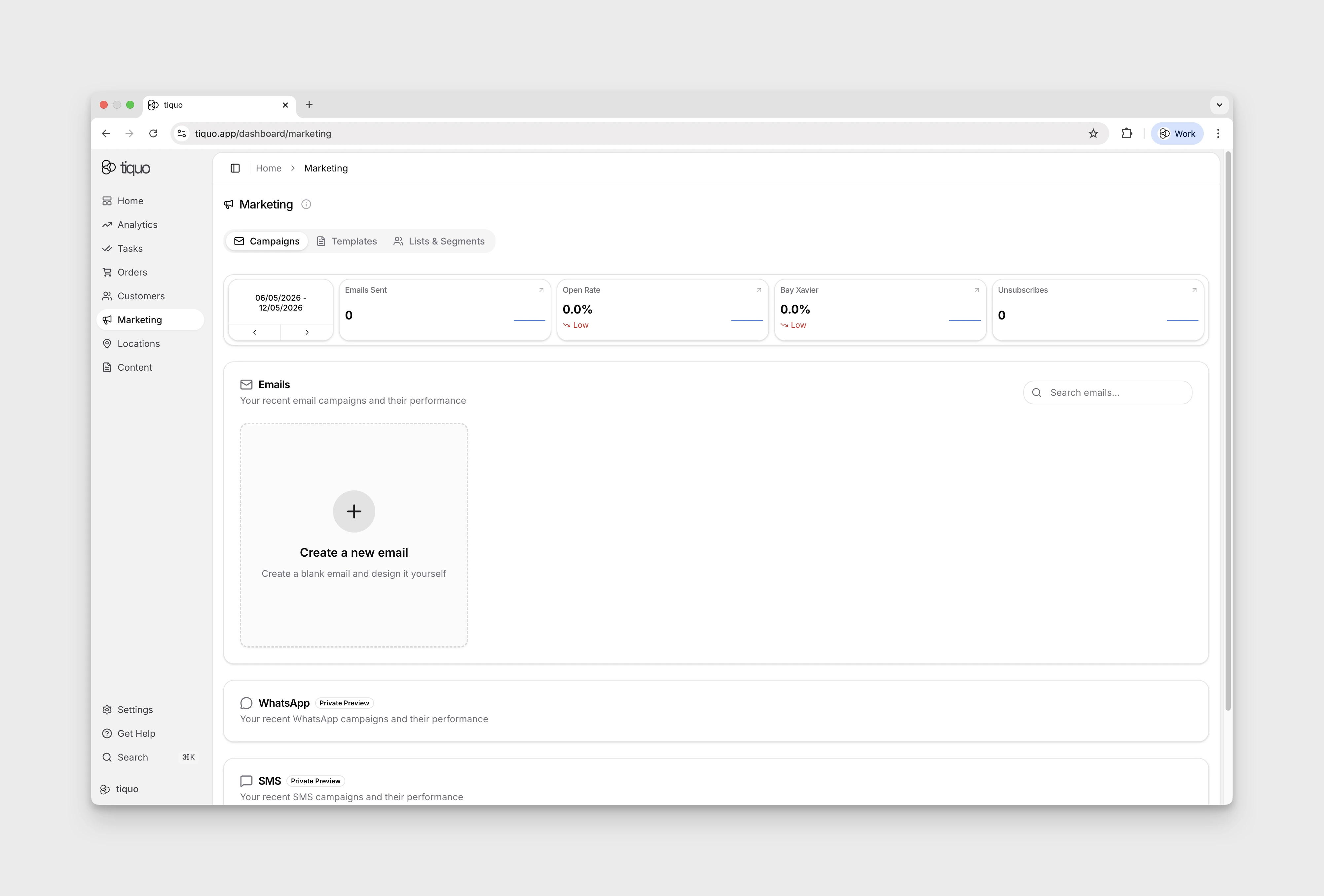
Marketing includes:
- Email campaigns
- Email templates
- Lists
- Segments
Email marketing respects each customer's Marketing Opt-In setting.
Navigating to marketing
The Marketing entry in the main sidebar opens the Marketing dashboard. The page has four main tabs: Campaigns (campaigns and the email list, with a date-range stat row showing Emails Sent, Open Rate, Click Rate, and Unsubscribes), Templates (reusable layouts), Lists & Segments (audience definitions), and Automations.
Emails
Emails are marketing campaigns sent to selected groups of customers.
Emails can be used for a variety of purposes including:
- Newsletters
- Promotions
- Announcements
- Event invitations
- Service updates
Emails can be created from scratch or built using templates.
Creating an email
To create a new email:
- Navigate to Marketing
- Open Campaigns and select Create a new email
- Choose to either start from scratch or select a template
Once created, the email can be edited using the email builder.
Email builder
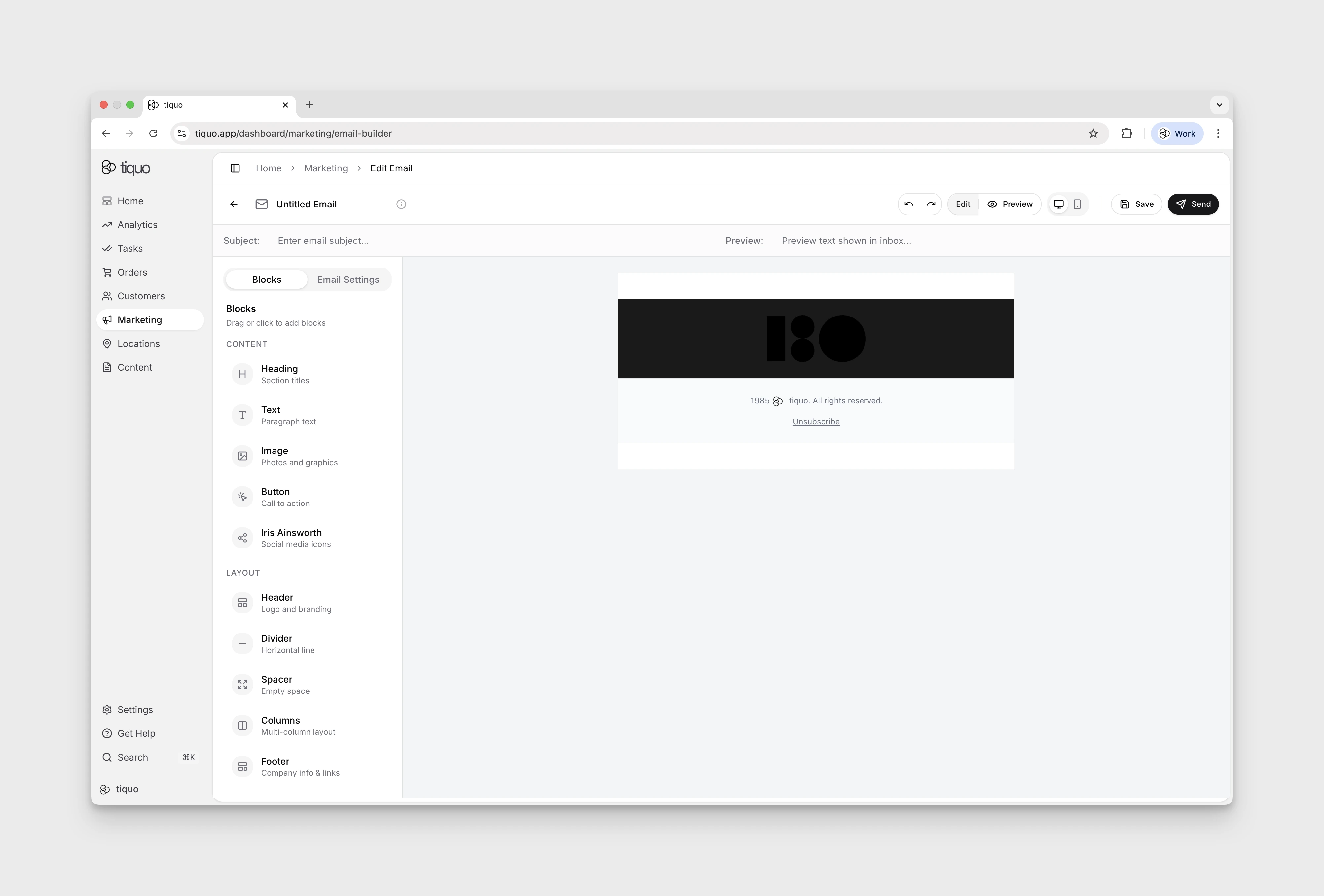
The email builder allows users to design email content using modular content blocks.
Available blocks include:
- Headings
- Text
- Images
- Buttons
- Social links
- Dividers
- Spacers
- Columns
- Headers
Click or drag a block to add it to the email layout, then customize it. The layout includes a footer with copyright and unsubscribe information; Footer is not a separate block in the add-block palette.
Heading blocks support levels H1 through H4. Each level has a shared typography preset for font size and weight, so changing that level updates its appearance consistently throughout the email. Text blocks retain their own size, line-height, alignment, colour, and font controls.
Images uploaded directly in the email builder must be JPEG, PNG, or GIF so they render consistently in supported email clients.
Booking links
Buttons, linked images, and links inside text have a Personalise booking link switch. It is off by default, so every recipient gets the same link.
Turn it on for a link to a Tiquo hosted booking page, either on the Tiquo booking domain or on your active custom booking domain. Each recipient then gets their own signed link: the booking page opens with their details filled in, and they don't have to enter the one-time email code.
A personalised link works for 30 days after the email is sent. It only covers booking. It does not sign the customer in, so member pricing and the customer portal still need a normal sign-in. A recipient who books with a different email address verifies it with the usual code. Leave the switch off in emails you expect people to forward or share.
Personalization
Emails support dynamic personalization variables.
These variables allow content to automatically adapt for each recipient.
Examples include:
- Customer first name
- Customer last name
- Customer email address
- Customer title and nickname
- Customer parameter values configured for the organisation
- Membership plans and key membership dates
- Loyalty balances and lifetime points
- Total orders, total spend, average order value, and recent order or activity dates
- Default, billing, and shipping addresses
- Links for wallet card designs configured by the organisation
The Title and Nickname variables insert the {{{TITLE}}} and {{{NICKNAME}}} tags. The title is written in the organisation's document language. When a customer has no title or nickname, the email shows the variable's fallback text, or nothing if no fallback is set.
Booking fields, general business fields, and arbitrary date/time tokens are not currently available as newsletter personalization variables. Use the variables exposed by the email editor as the authoritative list.
Email settings
Each email includes configurable settings such as:
- Subject line
- Preview text
- Sender details
These settings control how the email appears in the recipient's inbox.
Sending emails
Prepare the email under Marketing → Campaigns → Create a new email. Select Send in the editor to open Email review. Review its findings, then choose Continue to sending to open Select Audiences. This review step does not send the email.
Select Audiences shows lists and segments in two collapsible groups, Lists and Segments. Each group shows how many audiences it contains, and each audience shows its number of contacts. Choose one or more lists or segments, then continue to Configure Send. Review Campaign Name (Internal), Subject, Preview, Company Name, From Email Address, Reply-To Email (Optional), and When to Send. A verified email domain and an active marketing subscription are required.
If one of your email domains does not have a tracking domain yet, Send opens Tracking domain setup required instead. Finish the tracking domain in domain settings, then send again.
Confirming an immediate send queues a campaign job. Tiquo resolves recipients in the background, so large audiences do not need to finish an upfront count before the job is queued. The confirmation means queued, not delivered.
The worker checks Marketing Opt-In and recipient eligibility, removes duplicates across audiences, and records the number actually sent. Progress can remain indeterminate while the total is unknown. A campaign with no eligible recipients fails with an explicit result in the background.
Check the campaign's status and progress after queuing it. If a send needs recovery, resume or retry the original campaign when that action is offered; creating another campaign can send the same message twice. You can leave the page while the campaign runs.
Sending a test email
Select Test in the email builder to send the current draft to a saved test group before you send the campaign. Sending a test needs the Send email campaigns permission but not an active marketing subscription. A test does not create a campaign and does not appear in campaign analytics.
- Under Send a test email, select a test group. To make one, select Create test group, enter a Group name, and add up to 20 customers. Customers without an email address can't be added.
- Select Continue to open Review test email.
- Enter the From name, then build the From email from a username and a verified sender domain. Add a Reply-to email (optional) if replies should go somewhere else.
- Select Send test to followed by the number of recipients.
The subject line starts with [ TEST ], and each recipient's copy is personalised with their own details. Duplicate or unavailable recipients are skipped, and the confirmation says how many. Tests ignore Marketing Opt-In, so only add people who expect test emails, such as your team.
Test groups are shared with everyone in the organisation. Use a group's menu to Edit group or Delete group.
The sender domain list shows only email domains that are verified and have their tracking DNS in place. If none is ready, the dialog shows Add an email domain or Complete your email domain setup with a button to open domain settings. See Verify an email domain.
Scheduling emails
Emails can be:
- Sent immediately
- Scheduled for later delivery
Emails can be scheduled up to 30 days in advance. Scheduled campaigns can be edited or canceled at any time before they are sent.
Email performance
Open Marketing → Campaigns and choose the reporting period using the date selector above the metrics. Options include Last 30 Days and Last 365 Days.
The selected period shows Emails Sent, Open Rate, Click Rate, and Unsubscribes. A period without results displays Nothing to show yet; try a longer period to look for older activity.
Campaign analytics
Select a sent campaign under Marketing → Campaigns to open it. Sent and sending campaigns show Recipients, Open Rate, Click Rate, Bounced, Suppressed, and Sent (or Status while sending) at the top, with Preview, Analytics, and Recipients tabs.
The Analytics tab has these charts:
| Chart | What it shows |
|---|---|
| Engagement over time | Recipients who received, opened, and clicked the email each day, for the first 30 days after sending. |
| Cumulative engagement | Unique first opens and clicks added up over the same 30 days. |
| Engagement speed | First opens and first clicks grouped by how long after sending they happened, from under an hour up to 30 days. |
| Recipient outcomes | How many recipients were Received, Opened, Clicked, Bounced, Suppressed, and Unsubscribed. |
| Top clicked links | Total clicks and unique recipients for each link. When link details are not available, the card shows a single Total link clicks bar. |
Results can take a little time to arrive after a send. While they catch up, the tab shows Analytics are syncing; select Refresh to check again.
Campaign recipients
The Recipients tab lists everyone the campaign was sent to, with their status, the links they clicked, when the email was sent, and their last activity. A recipient who clicked several links shows the first one and a count; select the count to see the rest.
Search by customer name or email (at least three characters), and filter by status: All recipients, Received, Opened, Clicked, Bounced, Suppressed, or Unsubscribed. Select a recipient to open their customer profile.
Templates
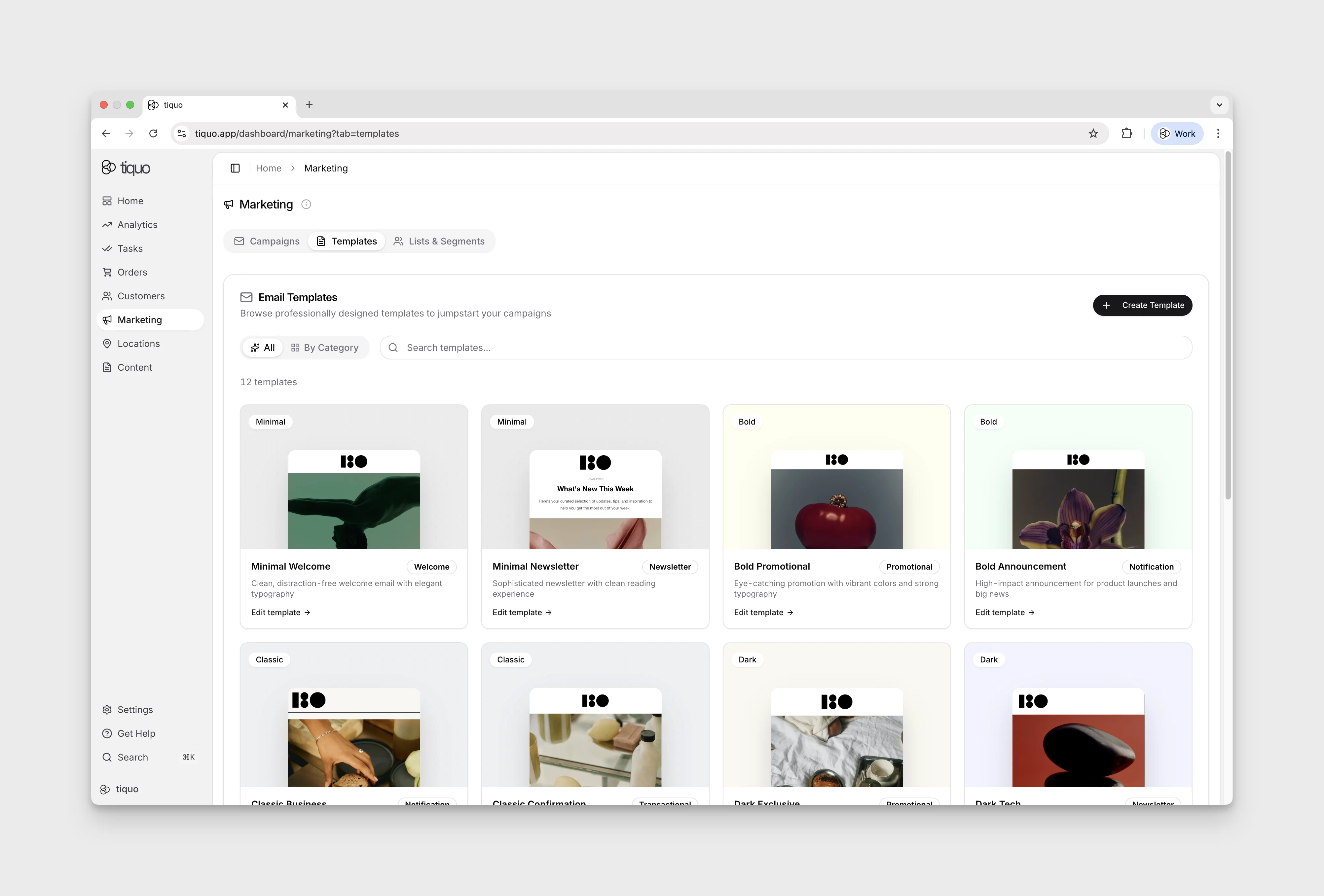
Templates allow organizations to create reusable email layouts.
Templates help maintain consistent branding and reduce the time required to create campaigns.
Any email can be saved and reused as a template.
Select Save as template to start Email review. The editor becomes temporarily read-only while the review runs. Review its recommendations before saving, or choose Return to editor to continue editing.
Templates start in one of the built-in categories: Welcome, Newsletter, Promotional, Seasonal, Notification, or Transactional. You can also create your own categories with a name and description. Change a saved template's category from its card. Deleting a custom category does not delete the templates.
Saved templates can be previewed, edited, duplicated, or deleted. A starter template can also be duplicated into the organization's saved templates before it is edited.
Email review
Select Send in the editor to open Email review before the send setup. Save as template also starts a review before saving the template. The email becomes read-only while the review checks spelling, grammar, spam and compliance risk, link syntax, clarity, and accessibility.
Review the findings and suggested changes. Findings that require manual edits appear under Needs your attention; choose Return to editor to address them. Resolve important outstanding issues before continuing to send setup. The review does not verify that linked destinations are available or guarantee inbox placement. Review the content and recipients yourself before sending.
Marketing consent
Marketing emails are only sent to customers whose Marketing Opt-In parameter is set to Yes.
If a customer unsubscribes from a marketing email, their Marketing Opt-In setting on the customer profile is automatically updated.
These controls help organizations meet marketing communication requirements.
SMS Opt-In is separate. It controls messaging communications delivered through SMS or WhatsApp, based on the customer's preferred messaging channel. See Customer Parameters.
Marketing and CRM
Marketing is directly integrated with the Tiquo CRM.
This allows organizations to:
- Target specific groups of customers
- Send personalized communications
- Analyze engagement alongside customer activity
Marketing campaigns can therefore be informed by customer behavior, bookings, purchases, and other CRM data.
Fonts and reporting dates
The email builder supports email-safe fonts, including Arial and Georgia, as the main font. Theme logos can be selected from the logo library.
Campaign engagement reporting uses each recipient's send time when placing results into reporting periods. A queued job, a sent message, and a delivered message are different states; use delivery progress and campaign reporting together when checking a large send.