

Customer Parameters
Store structured information about customers including system-generated attributes and custom data fields
Customer Parameters store structured information about a customer.
Parameters allow organizations to record both system-generated attributes and custom data fields for each customer.
Parameters are shared across the entire organization and are available wherever customer data is used throughout the platform.
Examples include:
- Marketing consent
- Language preference
- Marketing source
- Device information
- Custom attributes defined by the organization
Parameters make customer data structured, searchable, and usable for segmentation, analytics, and automation.
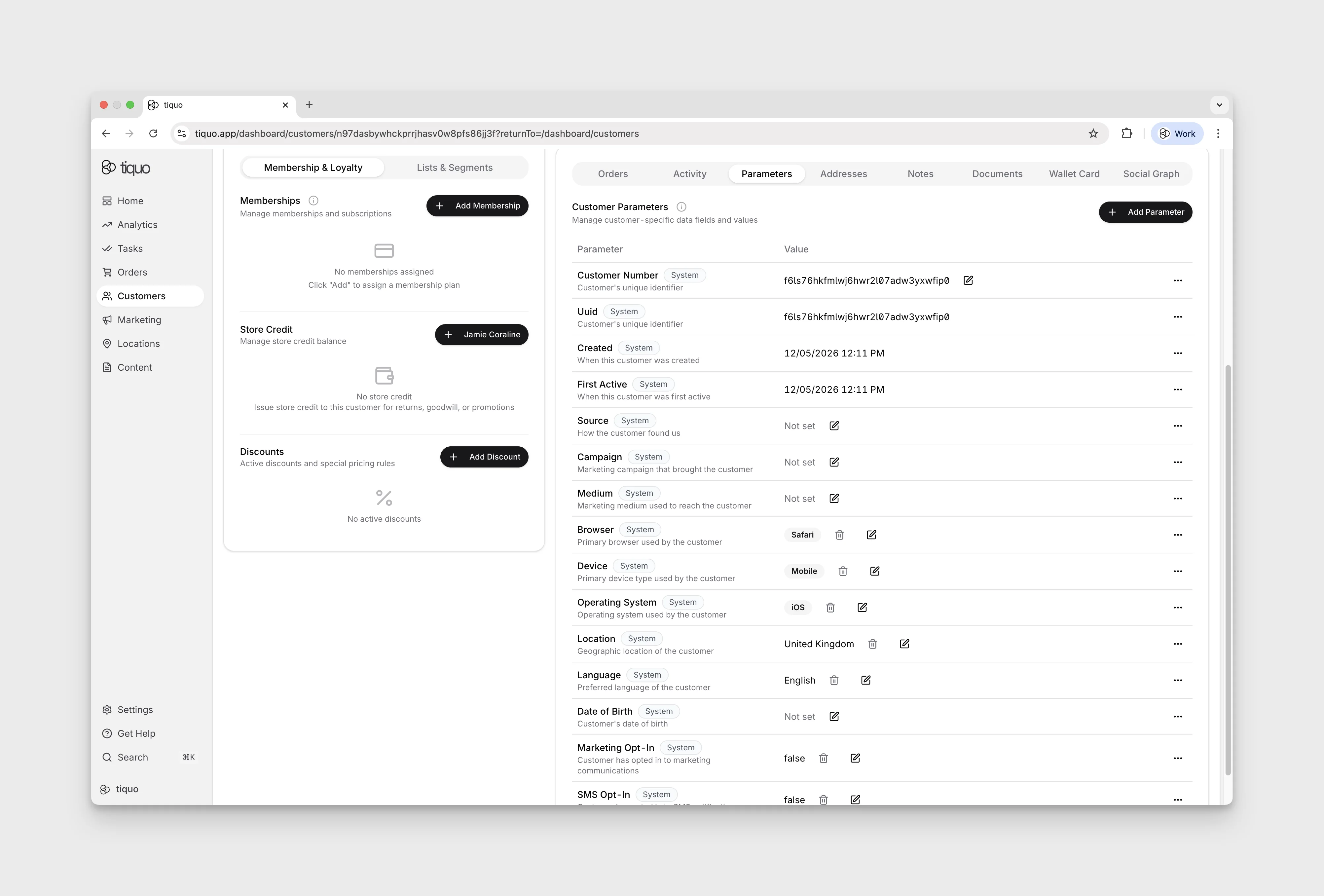
System parameters
System parameters are automatically created and managed by the platform.
These parameters track core customer information and behavioral data generated through platform activity.
Examples include:
| Parameter | Description |
|---|---|
| Customer Number | The unique identifier assigned to the customer |
| UUID | The globally unique identifier used internally by the platform |
| Created | The date and time when the customer profile was created; customer activity never changes this value |
| First Active | The date and time of the customer's first qualifying activity; this may be later than Created for imported or staff-created profiles |
| Source | How the customer was acquired |
| Campaign | The marketing campaign associated with the customer acquisition |
| Medium | The marketing medium used to reach the customer |
| Browser | The primary browser used by the customer |
| Device | The primary device type used by the customer |
| Location | The geographic location associated with the customer |
| Language | The customer's preferred language |
| Date of Birth | The customer's recorded birth date |
| Marketing Opt-In | Indicates whether the customer has opted into email marketing |
| SMS Opt-In | Indicates whether the customer has opted into messaging communications delivered through SMS or WhatsApp |
System parameters are automatically populated based on platform activity and integrations.
Created and First Active are separate system values. They are equal when a customer creates their own account and is immediately active. Activities performed by staff, systems, integrations, or imports do not make an existing profile First Active; the value remains empty until qualifying customer activity occurs.
Marketing and messaging consent
Tiquo uses two independent customer consent parameters:
- Marketing Opt-In controls eligibility for email marketing.
- SMS Opt-In controls eligibility for messaging communications. It is shared by SMS and WhatsApp because Tiquo sends the message through the customer's preferred messaging channel. The selected preference determines which of these channels Tiquo uses.
Adding a customer to a list or segment does not override these settings. Tiquo checks the consent required for the delivery channel when a marketing message is sent.
Opt-in date and time
When either consent changes from No to Yes, Tiquo automatically records the date and time of the opt-in. This happens regardless of where the change originated, including the dashboard, an API integration, an import, or a customer self-service flow.
The timestamp is read-only. Staff can see it beside the consent parameter on the customer detail page while the value is Yes, but it is not shown as an editable field. Changing the consent to No removes the stored opt-in timestamp.
Editing preferences through APIs and website forms
| Route | Who can edit | Payload |
|---|---|---|
| Admin API create/update customer | Write-scoped secret key; staff-editable parameter | parameters |
| DOM/Hosted profile form or Customer API profile update | Authenticated customer; their own customer-editable parameter | profileParameters |
| DOM/Hosted/Customer API enquiry creation | Customer editable; fill missing values only | customer.customerParameterValues or legacy customer.details; never overwrites existing rows or consent defaults. Enquiry answers use enquiry.enquiryParameterValues separately. |
Marketing and SMS Opt-In can be changed independently through either supported
customer write route. Hosted profile checkboxes load the saved choice and save
both checked and unchecked states. Omitted values are not an opt-out; submit
explicit false when the customer opts out. An enquiry answer never updates
customer preferences, even if its label matches a customer parameter.
See Admin parameter writes, profile preferences, and enquiry parameters.
Favorites parameter
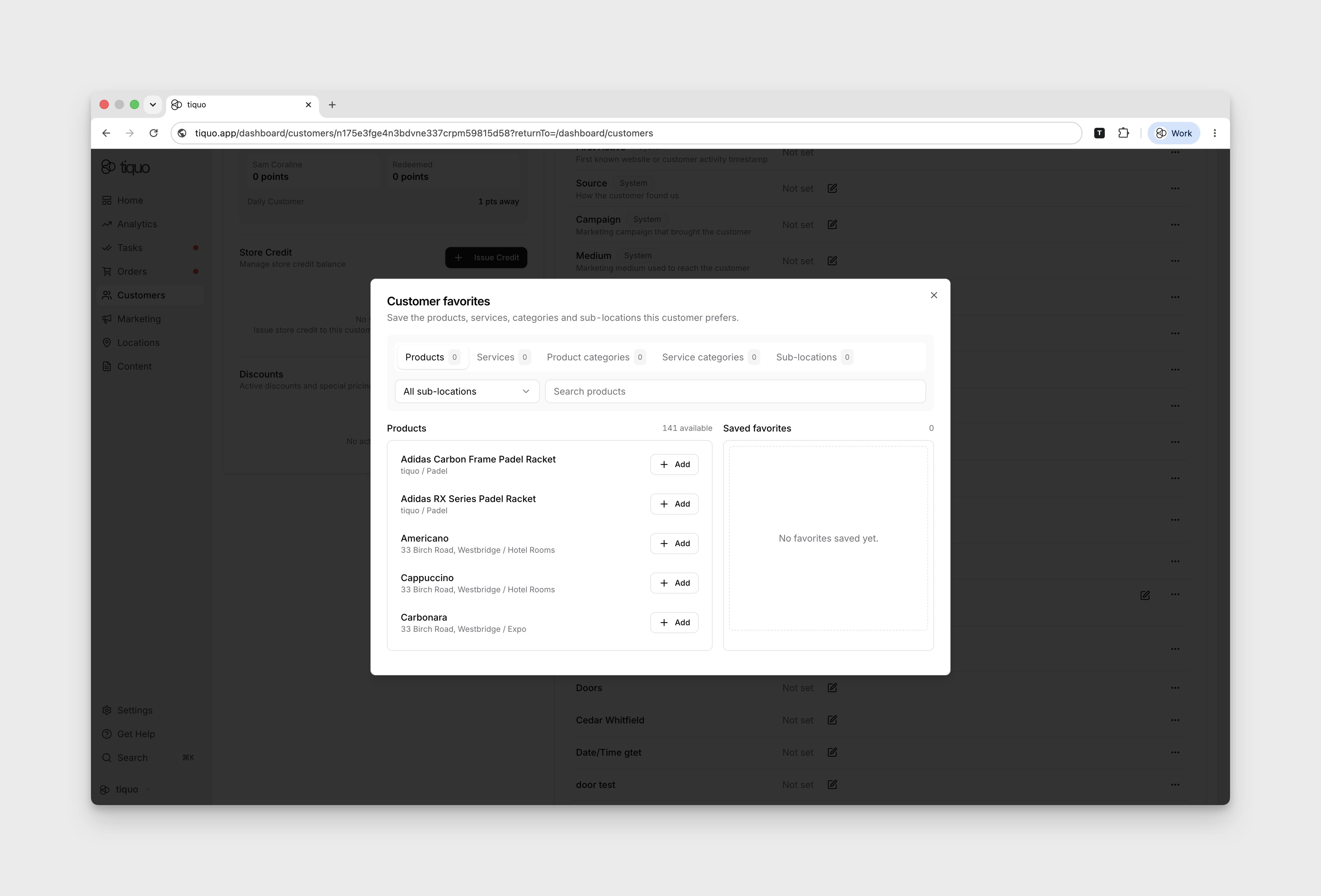
A customer's preferred products, services, product categories, service categories, or sublocations can be saved to their profile as Favorites. Staff can add favourites manually for reference and quick access, such as a regular's usual product, preferred service, or frequently used sublocation.
Tiquo suggests favourite products and services based on order and booking activity, so staff can see what a customer returns to most often.
Administrators can also turn on Automatic Customer Favorites under Settings > Tiquo AI. When enabled, Tiquo can add product or product-with-variant favourites based on repeat orders. Staff can still add or remove favourites manually.
Marketing interests
Marketing Interests describe what a customer wants to hear about in future marketing.
They are used for marketing targeting at the sublocation level, such as venues, spaces, branches, studios, treatment areas, or other parts of the business the customer has shown interest in.
This is different from Favorites. Favourites represent the specific things a customer likes, such as a particular product or variant, a specific table at a restaurant, a preferred massage type, or another exact item, service, category, or sublocation that staff want to remember on the customer profile.
Staff can edit Marketing Interests directly from the customer profile's Parameters section. When editing, Tiquo suggests sublocations based on the customer's previous order history, helping staff quickly add areas of interest that are relevant for future outreach.
Marketing Interests are useful for:
- Targeting marketing by the parts of the business a customer wants to hear about
- Recording interest in specific venues, spaces, branches, or departments
- Keeping marketing preferences separate from specific customer favourites
- Giving staff context about what future communications may be relevant to the customer
Dietary requirements and allergies
Every organisation has two built-in Multi-Select parameters for food needs:
| Parameter | Options |
|---|---|
| Dietary Requirements | Halal, Kosher, Vegetarian, Vegan, Pescatarian |
| Allergies | Celery, Gluten, Crustaceans, Eggs, Fish, Lupin, Milk, Molluscs, Mustard, Peanuts, Sesame, Soya, Sulphites, Tree nuts |
The Allergies options are the 14 allergens that UK and EU food labelling rules require businesses to declare. Staff can set both on the customer profile's Parameters tab or in the Add New Customer and Edit Customer dialogs, and a booking flow's custom field can be linked to them like any other parameter.
Both parameters show a System badge in Settings > Customer Parameters. They can't be renamed, archived or deleted, but staff with the Create new customer parameters permission can choose Edit Options to add, archive or reorder options for their organisation. To build a different version, choose Duplicate and customise, which creates a separate custom parameter.
Parameter display order
In Settings > Customer Parameters, drag a row by its handle to change where it appears. The new order saves straight away. You can move custom parameters, built-in parameters, and built-in customer fields such as Customer Number, Created, Tax ID, Marketing Interests and Favorites.
The order applies to the customer profile's Parameters tab, the parameters section of the Add New Customer and Edit Customer dialogs, and parameter columns in customer exports. Reordering needs the Create new customer parameters permission.
Custom parameters
Organizations can create custom parameters to store additional information about customers.
Custom parameters allow businesses to adapt the CRM to their specific operational needs.
Examples include:
- Membership tier preferences
- Customer interests
- Loyalty identifiers
- Dietary preferences
- Internal segmentation fields
Custom parameters are shared across all customer profiles within the organization. Once created, they can be applied to any customer.
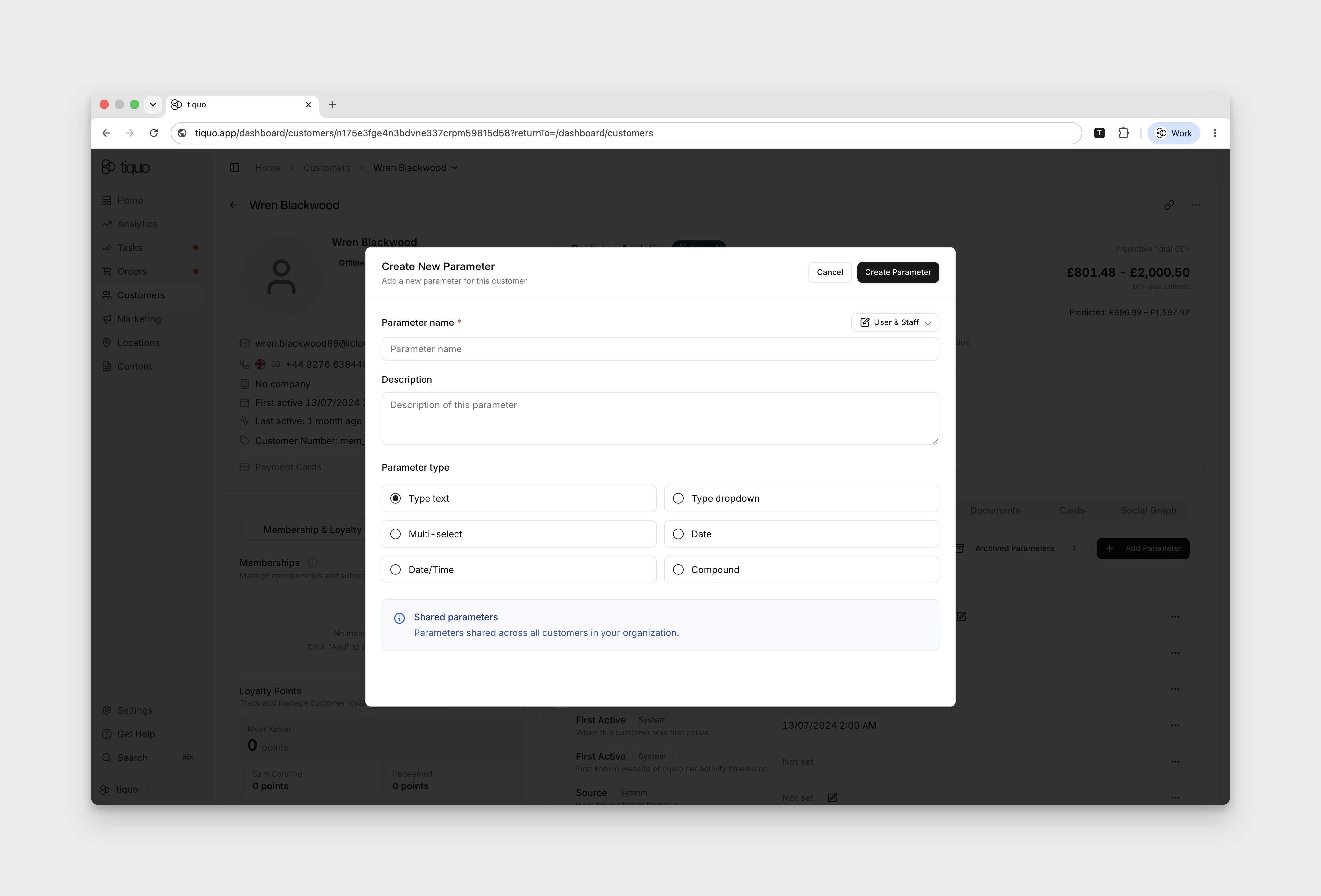
Using parameters as tags
Mark a custom parameter for tag display to show its value next to the customer's name at the top of their profile. Staff can read it without opening the Parameters section.
This is useful for the parameters staff most need to see immediately, such as VIP status, dietary requirements, or a sensitive operational note.
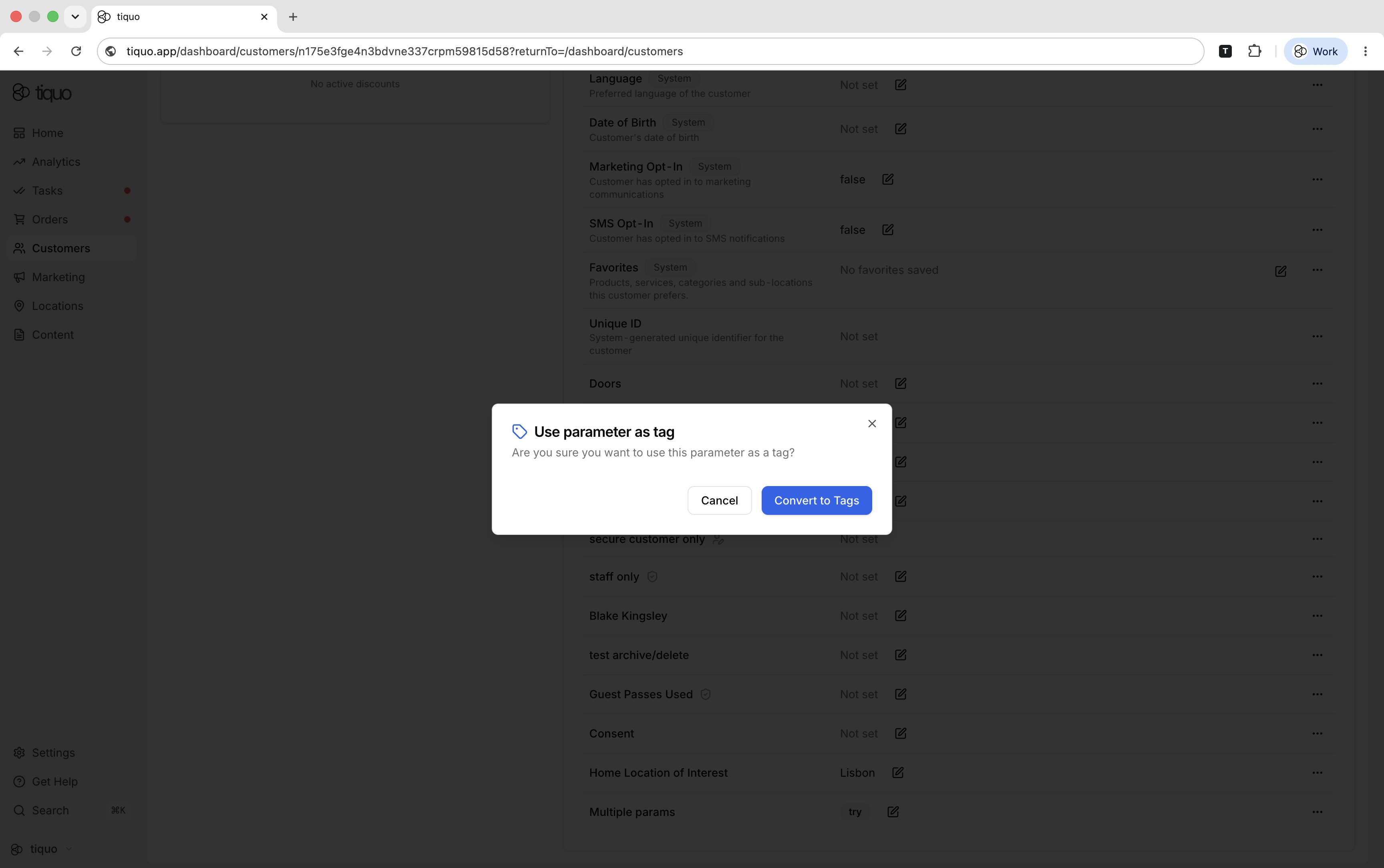
Parameter types
When creating a custom parameter, the parameter type must be selected.
Supported types include:
| Type | Description |
|---|---|
| Text | Stores free-form text values |
| Dropdown | Allows selection from predefined options |
| Multi-Select | Allows multiple options to be selected |
| Date | Stores date values |
| Date/Time | Stores a date together with a time value |
| Checkbox (Yes/No) | Stores a true/false value |
| Compound | Allows grouped structured values |
These parameter types allow organizations to structure customer information in different formats.
Importing dropdown and multi-select options from CSV
Instead of entering a long option list one value at a time, upload a CSV when configuring a customer Dropdown or Multi-Select parameter. CSV import is also available for Dropdown and Multi-Select fields inside a Compound parameter.
- Create or edit the customer parameter and choose the relevant dropdown or multi-select field.
- Select Upload CSV and choose a
.csvfile up to 1 MB. - If the file has more than one column, choose the column that contains the option values.
- Confirm whether the first row contains column names, then review the preview.
- Import the valid values.
The import adds options to the existing list. Blank rows and duplicate values are skipped, including duplicates that differ only by capitalisation. A parameter can contain up to 2,000 options, and each option can contain up to 200 characters.
CSV option import applies to customer parameters. Enquiry parameters use their own option editor under Settings > Enquiries.
Using parameters in booking forms
In a Customer Flow, open Booking Flow > Customer details and link a custom field to a Customer Parameter when information submitted during booking should also be saved on the customer profile.
Only active, non-auto-populated parameters with a compatible field type can be linked. A field can link to one parameter; compound parameters also require the nested field to be selected. While linked, the form field's type is locked to keep submitted values compatible.
For dropdown and multi-select fields, map each customer-facing option label to the stored parameter value. Checkbox fields map to boolean values. Tiquo validates access and type compatibility before writing a submitted value to the customer's profile. These platform form bindings are separate from Website SDK enquiry creation, which can only fill missing customer-editable parameters and cannot overwrite existing values.
An identified customer can update the linked value through their booking submission. When a public submission only matches an existing but unverified profile, Tiquo can fill missing profile data but does not overwrite an already populated linked value.
Editing parameter values
Parameter values can be edited directly within the customer profile.
Staff can update parameter values at any time.
Edit the parameter value and select Save, then confirm the updated value appears on the profile. Select Cancel to discard an unsaved edit.
Parameters and platform features
Customer parameters are used across several platform features.
These include:
- Marketing segmentation
- Customer analytics
- Marketing automation
- Customer filtering and search
Because parameters are structured fields, they allow organizations to organize and analyze customer data efficiently.