

Products
Manage items that can be sold through orders including pricing, inventory, and preparation routing
Products represent items that can be sold through orders in Tiquo.
Products are non-time-based items that customers purchase either independently or alongside services and bookings.
Examples include:
- Drinks
- Food
- Merchandise
- Retail goods
Products appear inside orders as order items and contribute to the total value of a transaction.
Navigating to products
Products are configured per sublocation. To open a product catalog:
- From the main sidebar, select Locations.
- Choose a sublocation card whose products you want to manage.
- Click on Configure Products within that sublocation.
The products page
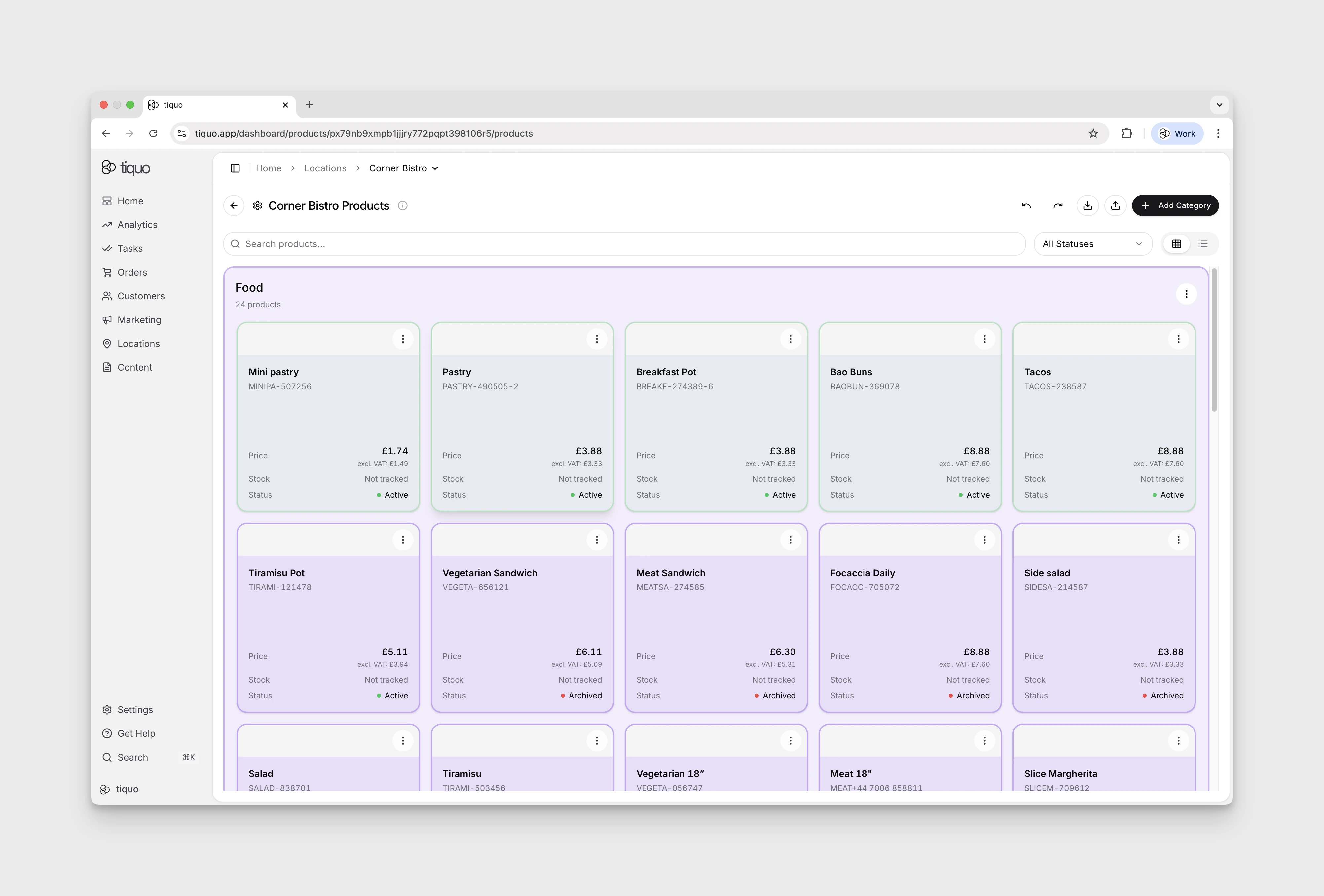
The Products page for a sublocation is organised by product category. Each category appears as its own section (for example, Skincare Products, Wellness Products) with:
- A category title and short description
- A product count
- Product cards laid out in a grid, each showing name, SKU, price, stock status, and product status (Active, Inactive, Draft, Archived)
- A + Add Product tile at the end of each category for adding new products directly into that category
- A three-dot menu for category-level actions
Page-level controls
- Search products: free-text search across the catalog
- All Statuses: filter by product status
- View toggle: grid or list view
- Add Category: create a new product category, in the top-right
Product scope
Products are configured at the sublocation level.
Each sublocation maintains its own product catalog, allowing different operational areas of a business to manage their products independently.
Example:
Location: Wellness Centre
Sublocations:
- Reception
- Spa
- Café
- Shop
Each sublocation can maintain its own product catalog.
Creating a new product
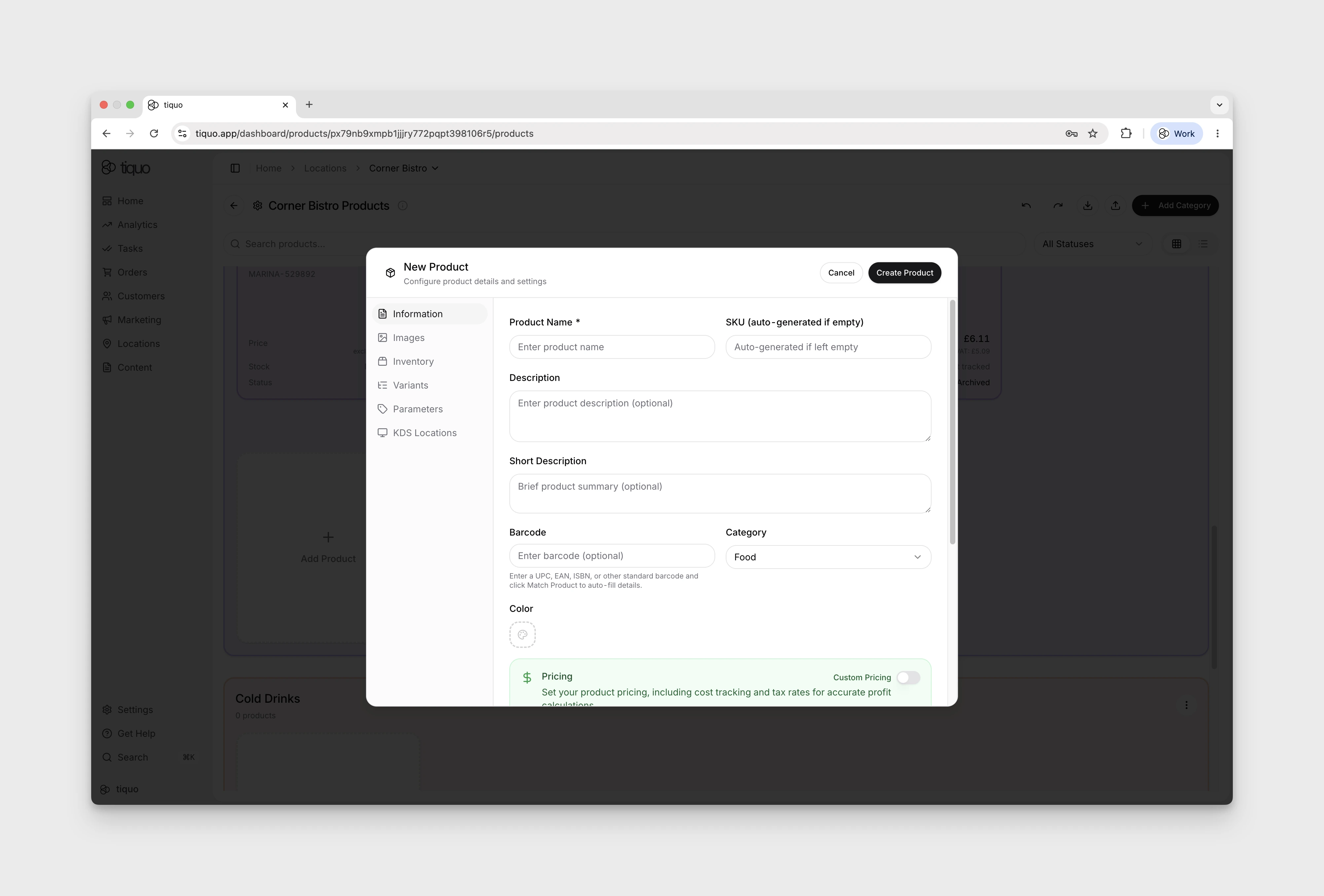
Open a sublocation from Locations, then select Configure Products. Clicking Add Product inside a category opens the New Product modal, which lands on the Information tab. The core fields to fill in here are:
- Product Name
- Description and Short Description: optional product descriptions.
- Category: the category the product belongs to.
- Pricing: Price, Compare At Price, Cost, and Tax Rate (%). Monetary fields display the configured currency, such as Price (€).
- Barcode: optional; for scanning at POS or stock management.
Review Status, which defaults to Draft, before selecting Create Product. The button is disabled while required fields are incomplete.
A product left in Draft is not listed in the Add Products picker when creating an order.
AI-assisted product copy
The product modal includes AI helpers for descriptions. Once the long description is long enough, an AI button appears inside the field so staff can rephrase it in a selected tone of voice. If the long description has enough detail, the short description field can also generate a concise summary from it.
Use the tabs on the left for more product settings:
- Information: core fields above, plus an Advanced Details accordion further down the tab for food and compliance metadata (see below).
- Images: product imagery.
- Inventory: stock tracking and related controls (see below).
- Variants: size, colour, or other variant options for the same base product.
- Parameters: organisation-wide parameter definitions, with values stored separately on each product.
- KDS Locations: Kitchen Display System routing (bar, kitchen, prep station, etc.).
In Variants, Require a variant controls whether a variant must be selected. The Time/day variants and Member / permission variants descriptions explain that variants outside their conditions remain selectable but appear greyed out in orders.
The images tab
Open Images → Add Images. The form allows up to 10 images and identifies the first as the featured image in listings.
The advanced accordion
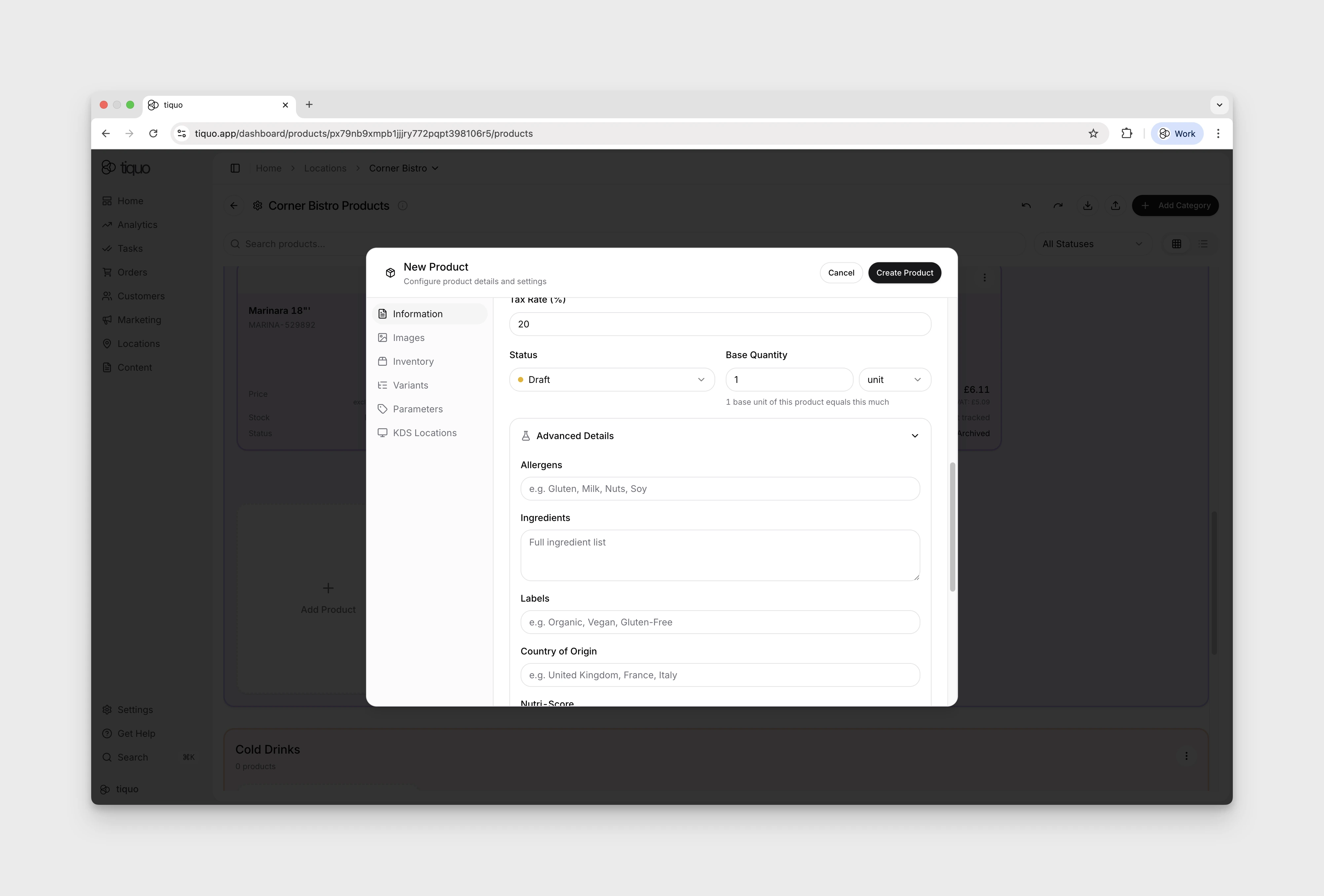
Scroll to the bottom of the Information tab and expand the Advanced Details accordion to reveal extra information needed for food, beverage, and regulated products. It is optional and most useful for venues that need to display compliance or nutritional information on menus and receipts.
Typical fields include:
- Allergens: enter the applicable allergens in the Allergens text field under Advanced Details.
- Ingredients: list ingredients for menu transparency and allergen checks.
- Nutritional information: calories, fat, carbohydrates, protein, and similar figures for customer-facing displays.
- Contains Alcohol: enable this checkbox to reveal the alcohol-percentage field.
- Nutri-Score: the product’s nutrition score.
- Labels and Country of Origin: additional product metadata.
Fill in what applies per product so customer menus, receipts, and compliance reports display the correct information.
The inventory tab
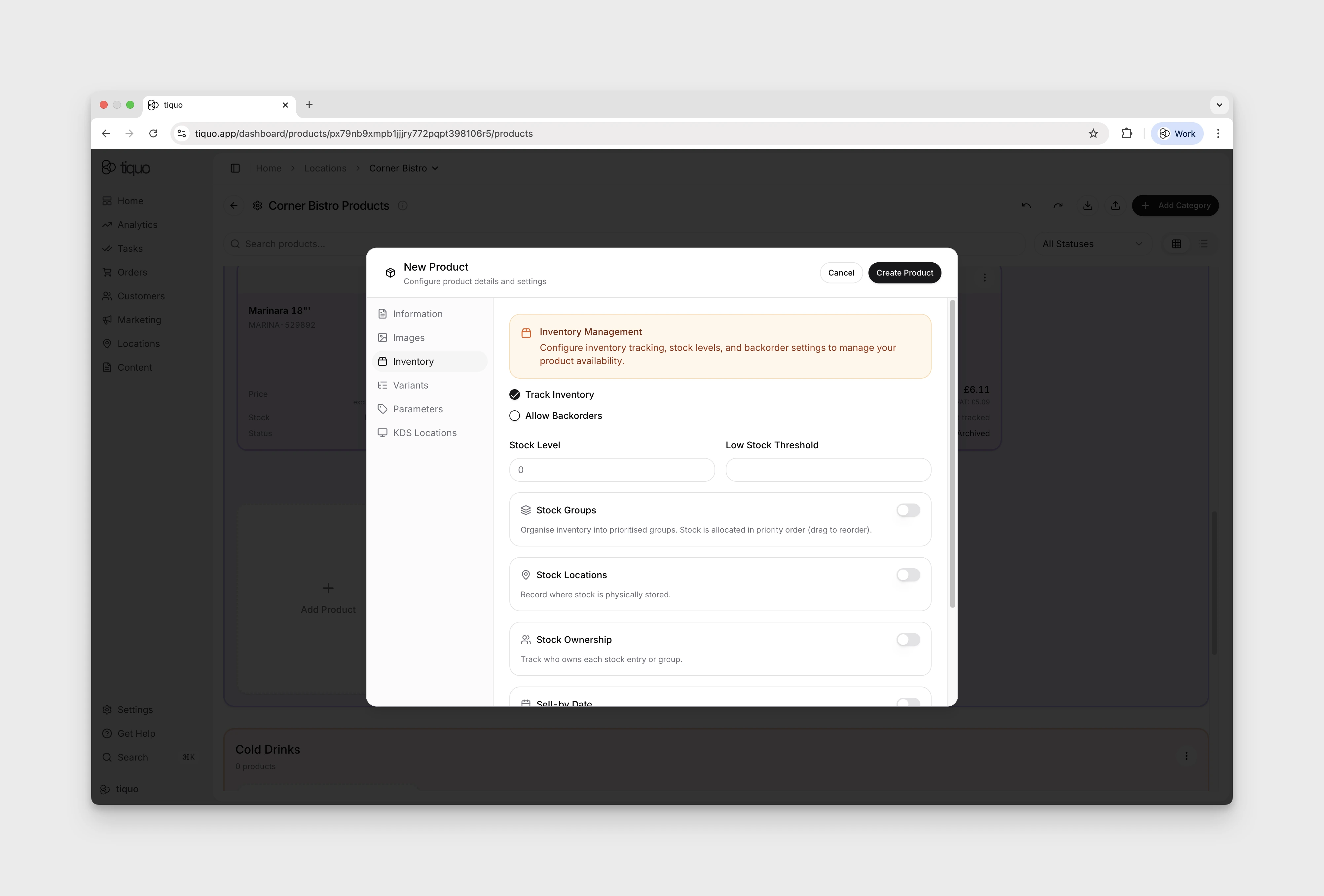
The Inventory tab controls how stock is tracked for the product. Each toggle expands to reveal its own controls:
- Track Inventory: turn stock tracking on or off. When off, orders can be placed regardless of stock level.
- Allow Backorders: when on, sales can continue after sellable stock reaches zero. Stored product and stock-group quantities remain clamped at zero rather than becoming negative. Useful when waiting for a re-stock but you don't want to block sales.
- Stock Level: current on-hand quantity.
- Low Stock Threshold: for a tracked product without stock groups, the product grid shows Low stock when stock is above zero and at or below this threshold. At zero it shows Sold out.
- Stock Groups: organise inventory into prioritised groups. When on, stock is allocated from the highest-priority group first; drag to reorder. Useful when the same product is stocked in multiple batches (different delivery dates, vintages, or lots). Stock groups do not receive a low stock threshold by default; set thresholds manually on the groups that should trigger alerts.
- Stock Locations: record where stock is physically stored (warehouse, shelf, back-of-house, etc.).
- Stock Ownership: track who owns each stock entry or group. Ownership can be assigned to the sublocation itself, a customer, or a company set up in the organisation. Helpful when multiple tenants, consignees, members, clients, or suppliers share the same catalog.
- Sell-by Date: set expiry or sell-by dates for stock or individual stock groups. Important for perishable items.
- Availability: appears when Stock Groups is enabled. It adds an Available / Not for sale selector for each group.
- Recipes: define which other products' inventory gets deducted when this product is sold. Each ingredient specifies a quantity to deduct per sale. Handy for composite items: a cocktail deducting its spirits, a dish deducting its ingredients, a bundle deducting its components.
When stock groups are enabled, each group can have its own low stock threshold. If one group is at or below its threshold, the product card shows a stock-group low-stock badge. If there is no remaining sellable stock across the product's groups, the badge changes to Sold out.
Stock ownership and consignment
Use Stock Ownership when the stock belongs to someone other than the operating sublocation. This is useful for consignment, member-owned stock, client stock, shared company stock, or supplier-owned inventory that is sold through the same catalog.
Ownership can be set at product level when stock groups are off, or per stock group when stock groups are on. Available ownership types are:
- Owned by Sublocation: stock belongs to the current sublocation.
- Owned by Customer: select an existing customer as the owner.
- Owned by Company: select an existing company in the organisation as the owner.
Customer-owned and company-owned stock appears on the relevant customer or company profile as Owned/Consigned Products, so staff can quickly see what inventory is being held, sold, or consigned for that profile.
Product categories
Products must be assigned to a product category.
Categories help organize the product catalog and make products easier to locate when creating orders.
Examples include:
- Drinks
- Snacks
- Merchandise
- Retail
Categories are managed within the product catalog for the sublocation.
A category can require every product to be associated with an inventory instance before an order containing it can be sent or paid. Use this when a sale must always draw from a known stock source.
For Restaurant and Bar workflows, a top-level category can also set a default order stage. Its subcategories inherit that stage unless they set their own. Staff can override the stage at the POS when stage selection is enabled.
Creating a category
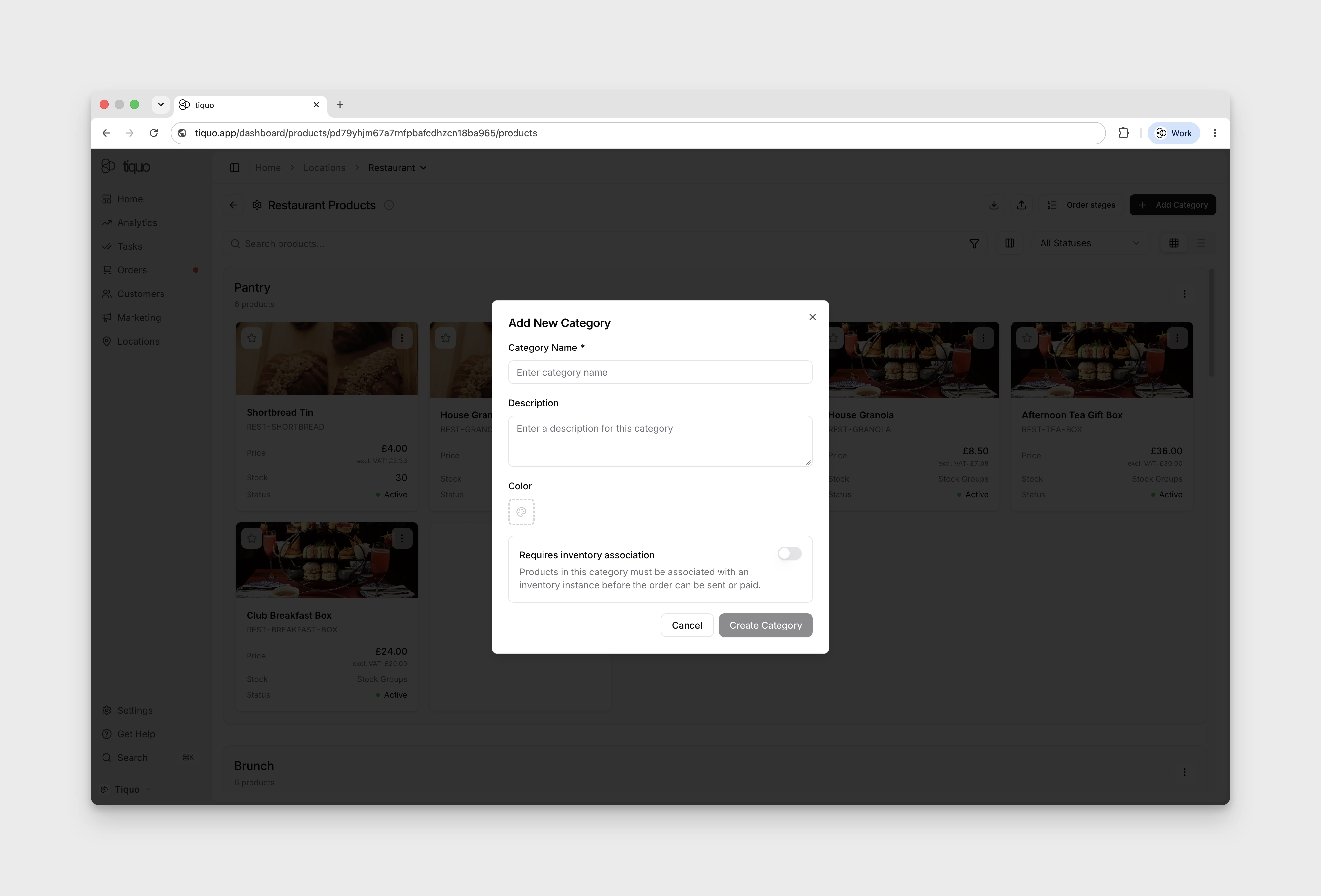
Select Add Category on the Products page to open Add New Category. The form includes Category Name, Description, Color, and Requires inventory association. Its helper explains that products in the category must be associated with an inventory instance before the order can be sent or paid. The action is Create Category.
To edit an existing category, use its More → Edit Category menu; the action changes to Update Category. Select Cancel to close either form without changes. The category menu also includes Reorder Categories, Add Sub-Category, and Default order stage.
Product status
Check Information → Status in the product editor. The available choices are Draft, Active, Inactive, and Archived. In the catalogue, use All Statuses to filter products by their current status.
| Status | Description |
|---|---|
| Draft | The product is being configured and is not yet available for sale |
| Active | The product is available for sale and can be added to orders |
| Inactive | The product exists but cannot currently be sold. This allows businesses to temporarily disable products without deleting them |
| Archived | The product is no longer actively used but remains stored in the system. Archived products can be restored if needed |
Deleting products
Products can be permanently deleted. Deleting a product removes it completely from the system and cannot be undone.
Because of this, archiving is often used instead of deleting when a product may be needed again later.
Pricing
Each product has a defined price.
The price represents the base amount charged when the product is added to an order. Product pricing contributes directly to the total value of an order.
VAT
Products can have a VAT rate applied.
The configured VAT rate determines how tax is calculated for the product.
New products start with an editable default based on the parent location's country. US locations use the configured state's general state rate. The value is a starting point, not a tax engine; review local, reduced, product-specific, exempt, and threshold-based treatment before selling.
Example: Product price: £10, VAT rate: 20%
The system automatically calculates the VAT portion when the product is added to an order.
Inventory tracking
Inventory tracking can be enabled for products. When enabled, the system tracks available stock levels.
Stock updates
Tracked stock is deducted when the order or newly added order item is saved. Editing quantities adjusts stock from the previous saved quantity to the new one. Removing the item, cancelling or refunding the order, or transitioning an eligible customer cart to Lost Cart restores the applicable quantity.
Marking a product delivered does not perform a second stock deduction, and leaving an item undelivered does not by itself restore stock.
Backorders
Backorders can be enabled for products.
When backorders are enabled:
- Products can still be sold when stock reaches zero
- Stored product and stock-group quantities remain clamped at zero rather than becoming negative
You can continue selling while waiting for new stock.
Recording wastage
Product-capable sublocations can record stock that cannot be sold from Orders > Wastage. Enable the feature from the sublocation's Wastage settings first.
Staff add the affected products and quantities, select a configured wastage reason or Other, and either close the wastage immediately or save it as an open wastage tab. Saving deducts tracked inventory; editing an open tab adjusts stock to the newly saved quantities, and closing it finalises the operational record. The reason and staff attribution remain with the order record.
Default wastage reasons are managed under Settings > Reporting with the other reporting reasons.
Barcode support
Products can be linked to barcodes.
Supported barcode standards include:
- UPC
- EAN
- ISBN
- Other standard barcode formats
Barcode scanning allows products to be quickly identified and added to orders. Barcodes can also be used to automatically populate product information where available.
Product duplication
Products can be duplicated to speed up product creation. Duplicating a product copies its configuration so it can be reused for similar items.
Duplicated products maintain independent inventory records.
Product import and export
Product catalogs can be imported and exported using CSV files.
This allows businesses to:
- Upload large product catalogs
- Migrate products from other systems
- Update multiple products at once
In Configure Products, staff with the import_export.products permission see Export products to CSV and Import products from CSV buttons for the current sublocation. Importing also needs import_export.import. The same imports and exports are available from Settings > Import & Export.
Allergens and Ingredients are included in both directions, so a catalogue can be exported, edited in a spreadsheet, and imported again without losing them. Allergens can be separated by commas, semicolons, or line breaks, and are saved as the comma-separated list used in order and kitchen allergen warnings. A blank cell keeps the product's current value. Product prices, compare-at prices, and costs cannot be negative.
The product export from Settings > Import & Export can also include the short description, sub-category, images, product parameters, availability, time-based and quantity pricing rules, and variant settings. See Import & Export Data.
Kitchen Display System (KDS)
Products can be connected to a Kitchen Display System (KDS).
KDS routing determines where orders for a product are sent for preparation.
Examples include:
- Kitchen displays
- Bar preparation screens
- Service stations
KDS routing is configured per product. If no KDS location is configured, the product is considered immediately delivered when added to an order.
Products in orders
When a product is added to an order, it becomes an order item.
Order items track:
- Product name
- Quantity
- Price
- VAT
- Fulfillment status
Products can be sold independently or alongside bookings.
Example:
Order:
- Massage Appointment (booking)
- Herbal Tea (product)
- Face Cream (product)
Products and bookings
Products can be sold alongside bookings.
For example, a customer books a massage and purchases additional items before or after their treatment.
The order may contain:
- Massage Appointment (booking)
- Herbal Tea (product)
- Face Cream (product)
You can include services and retail sales in one transaction.
Filter by product parameters
Use the parameter filter beside product search to narrow the catalogue. Dashboard filters support text, numbers, dates, date-times, dropdowns, multi-selects, booleans, and compound field values.
Text and compound filters search for a matching value; number inputs use an exact value. Choose dates with the date controls and options with the checkboxes. Matching category results follow the product filters, including products linked from another catalogue.
Native Add Products pickers support their available parameter controls while online. The offline catalogue does not contain the parameter values needed for server filtering, so do not rely on parameter filters during offline ordering.
Preparation time
Set Prep time (minutes) on a product when kitchen screens should time it with the rest of its round. This affects preparation scheduling, not the service booking duration. See Kitchen display workflow.