

T100 Desktop QR Code / Barcode Scanner
Compact scanner for membership cards, tickets, vouchers, and product codes
Device overview
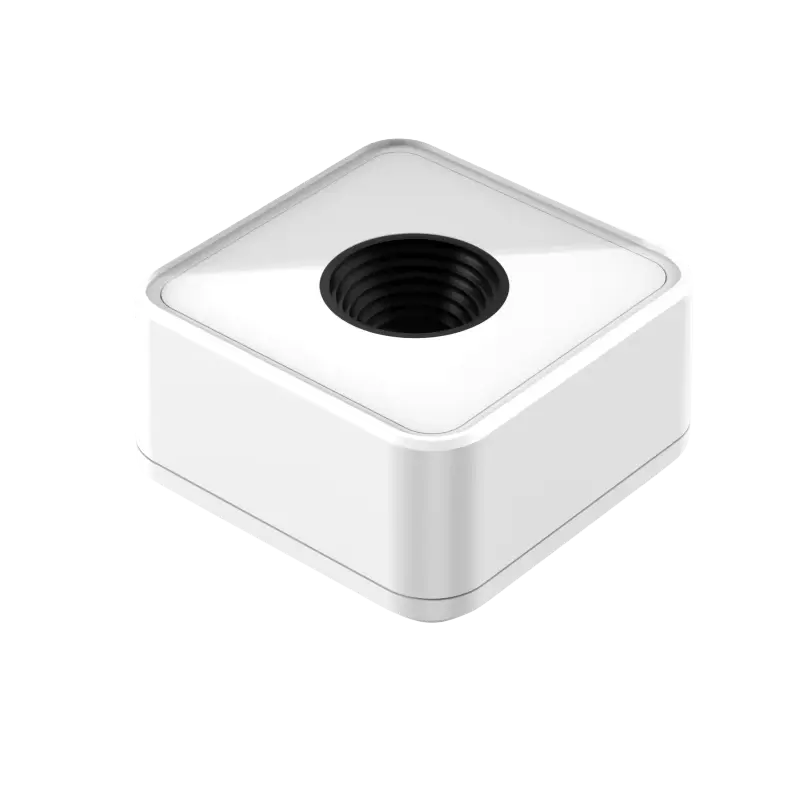
The T100 Desktop Scanner is a compact USB-powered scanning device designed for fast and reliable validation of memberships, tickets, vouchers, and barcodes. It is optimised for check-in stations, reception desks, entrances, and point-of-entry workflows where quick scanning is critical.
Pricing
Open Settings → Hardware and choose GBP, EUR or USD to see current prices and availability. Taxes are shown separately.
Best for: Membership check-in, ticket validation, voucher redemption
What the T100 scans
The T100 reads QR codes and standard 1D / 2D barcodes for these tasks in Tiquo:
- Membership card scans
- Customer check-ins
- Ticket and voucher validation
- Product code scanning
The T100 scans codes into the Tiquo mobile or web app. It is not a payment device and does not process financial transactions.
Key specifications
| Specification | Details |
|---|---|
| Code Types Supported | QR codes, 1D barcodes, 2D barcodes |
| Connectivity | USB-C plug-and-play |
| Power | USB powered (no external power supply required) |
| Compatibility | Works with supported desktops or tablets connected to Tiquo |
Use cases
The T100 dramatically speeds up common scanning workflows by eliminating manual entry or slow camera scanning. It is best used where:
- Large numbers of customers need to be processed quickly (events, entrances, check-ins)
- Staff require reliable scanning without using a mobile camera
- Multiple code formats need to be read continuously throughout service
- Barcode scanning is part of product handling or validation workflows
Setup & installation
What you receive
When purchasing a T100 scanner from Tiquo, you receive:
- T100 desktop scanner
- USB-C cable (included)
No additional drivers are required. The T100 is designed for plug-and-play use.
Connecting the device
Connect the USB-C cable
Connect the USB-C cable to the scanner
Plug into host device
Plug the scanner into a USB port on a compatible device (e.g., PC, Mac, iPad with USB-C hub, or other supported host)
Verify connection
Ensure the device shows up as a connected input device
Open Tiquo
Open Tiquo on the web app or Staff iOS app
Start scanning
Use the scanner directly in scanning fields. The device acts like a keyboard input
Once connected, scanning a code auto-inputs the code into the active field in Tiquo.
Using the T100
The T100 is used wherever code scanning is needed:
| Use Case | Description |
|---|---|
| Membership check-in | Scan a member's QR code to bring up their profile and check them in |
| Ticket scanning | Scan tickets and event passes quickly at the door |
| Voucher validation | Scan vouchers or promotional codes |
| Barcode scanning | Scan product barcodes to locate items or reference codes in internal workflows |
Scan a QR code or barcode without switching modes. Tiquo interprets the code automatically.
Troubleshooting
Maintenance
- Keep the scanner free of dust and debris
- Clean the scanning window with a soft, lint-free cloth
- Avoid exposure to liquids or direct moisture
No calibration is required. The T100 is factory configured for optimal performance across supported code types.
Best practices
- Position the scanner at a comfortable angle for staff to scan quickly
- Use near entrances or fixed scanning points
- Ensure scanning fields in Tiquo are active before scanning