Tiquo
Integrations OverviewAirtableAsanaSlackGoogle AnalyticsMetabaseMixpanelPendoSegmentTableau (PAT)ActiveCampaignBrevoEmarsys Core API (WSSE)EventbriteFacebookGoogle AdsHighLevelInstagramKlaviyoMailchimpMailgunMicrosoft AdsSendGridTwitter (v2)HubSpotNotionAcuity SchedulingAirtable (Personal Access Token)BasecampCal.com (v2)CalendlyClickUpCodaConfluence Data CenterExpensifyGoogle CalendarGoogle SheetHarvestLinearMicrosoft Power BIMicrosoft TeamsMindbodyMondayOpenAIPerplexityPingboardPivotal TrackerProductboardQuickbaseServiceM8ServiceNowTeamworkTickTickTimelyTodoistTrafftTrelloWrikefal.aixAIZendeskIntercomAircall (OAuth)DixaFreshDeskFreshserviceFrontPlainRingCentralZoho DeskBrazeDialpadGoogleMicrosoftOutlookPodiumSednaSharePoint OnlineTwilioWhatsApp BusinessZoho MailBambooHRADPDeelEmployment HeroGustoHibob Service UserNamelyOracle Fusion Cloud (HCM)PaychexPayfitPaylocityPersonioRipplingSAP SuccessFactorsSage HRTSheetsUKG ProUKG ReadyWorkdayZoho PeopleQuickBooksBuildiumExact OnlineFreshBooksIntuitNetSuitePennylaneSageSage IntacctTwinfieldUnanetWave AccountingXeroZoho BooksSalesforceAffinityAttioCopperFreshsalesGainsight CCInsightlyKustomerMedalliaPipedriveTwenty CRMZoomInfoApaleoMewsMicrosoft Business CentralOdooSAP ConcurZuoraAcceloCoupa CompassZoho InvoiceAnrokAvalaraDocuSignDropbox SignPandadocSignNowLinkedInSplitwiseTikTok AdsJotformQualtricsRefinerTypeformShopifyCin7 CoreGoogle MapsRingoverListrakRydooTalentLMSApple Business ManagerCrunchbaseRocketReachOcean.ioFreepikEnergy Performance Certificates (Gov.UK)JustworksGristSAP S/4HANA Cloud3CX8x8Adobe CommerceBirdCloudbedsConstant ContactBufferCustomer.ioCrispFreeAgentGreenhouseMeta Marketing APIMollienocrm.ioOomnitzaDigitsPylonSage 200ShopwareAnvilShippoEasyPostAltrataMicrosoft PeopleMicrosoft IntuneCloudTalkGoogle FormsMaximizerMicrosoft PlannerSalesmsgSellercloudTallyTimifyUpsalesCleverReachHeymarketMailjetPleoProvenExpertTelegramToggl TrackASSA ABLOY Vingcard VisionlineASSA ABLOY Vingcard VostioASSA ABLOY TESA HotelASSA ABLOY SMARTairSalto KSSalto Space OnlineDormakabaOmnitecHotekTT LockWebLockISEOKleverKeyAperioISONASHIDSouthcoThird MillenniumSTidAxis CommunicationsBooking.comExpediaHotels.comAirbnbGoogle HotelsTripadvisorAgodaHotelbedsTravelgateXHyperguestRoibosReconlineTraviaOpenGDS.comMG BedbankDidatravelHotelREZHRSHotelnetworkGetaroomWinkBookeasyVRBOInntopiaHookusbookusHipcampSpot2niteCamping VisionMinistry of VillasTrip.comTravelokaTiketMakeMyTripHoteripKlookeDreamsSzallasEmerging Travel GroupCheck24Bed-and-Breakfast.itWorld2Meet (W2M)Ctoutvert / SecureholidayDespegarPriceTravelRoombeastMitchell CorpHRS AustraliaResonlineHostelworldHostelhopTablet MichelinMr & Mrs SmithHopperHotel TonightPitchupMoveriiLocalOTAAlaricBooknpayCultbookingGuestTractionLevartWeSpeakMake.comZapierPricelabsPricepointRategenieElastic HotelRoom Price GenieTurbosuiteUber EatsDeliverooDoorDashBolt Food
DevicesAccessoriesT100 Desktop QR Code / Barcode Scanner

T100 Configuration Guide

Configure the T100 scanner by scanning setup QR codes

Use the QR codes on this page to configure your T100 scanner. Present a code to the scanner as you would any other QR code; the scanner applies the setting immediately.

Before you begin

Make sure Setting Codes On is enabled if the scanner does not respond to a configuration code. Settings marked Default are the factory defaults.

Factory reset

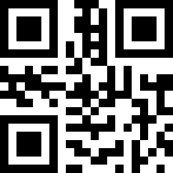
If your T100 is not working as expected, restore it to its original factory settings by scanning the code below. This resets all configuration options to their defaults.
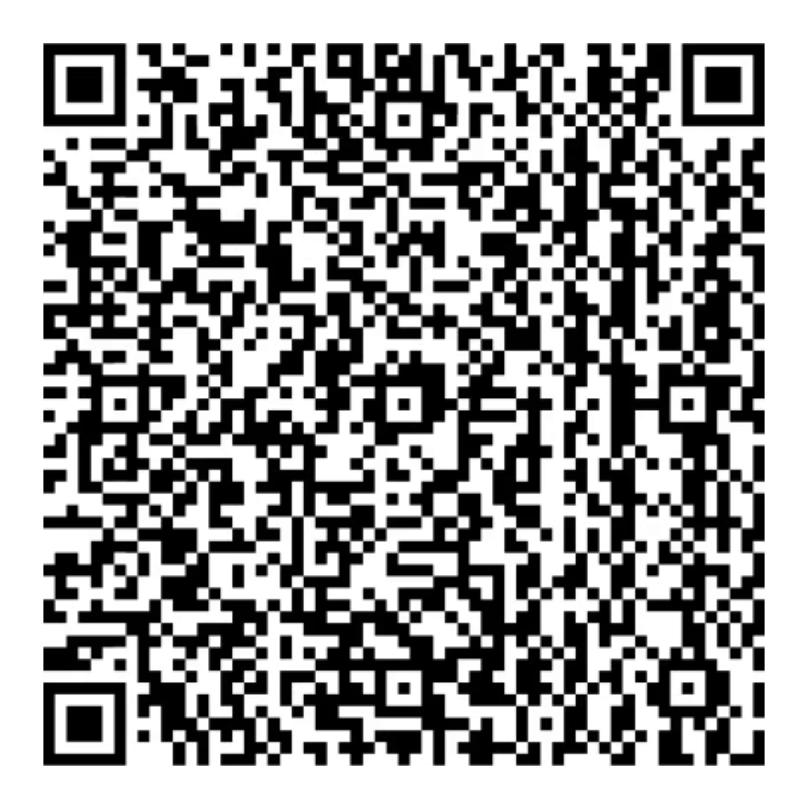
Restore to factory defaults configuration QR code
Restore to factory defaults

Setting code switch

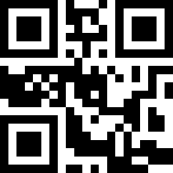
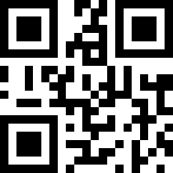
The T100 can be configured by scanning the setup codes in this guide. This setting controls whether the scanner accepts configuration codes. If the T100 stops responding to setup codes, scan Setting Codes On to re-enable configuration mode.
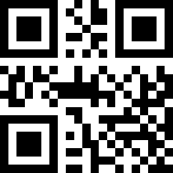
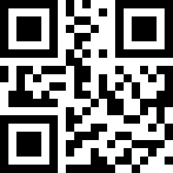
Setting Codes Off configuration QR code
Setting Codes Off
Setting Codes On configuration QR code
Setting Codes OnDefault

Connection mode

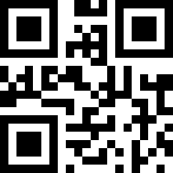
The T100 connects to your device via USB-C and works as a keyboard input: scanned codes are typed directly into the active field in Tiquo. The scanner uses USB Keyboard (HID-KBW) mode by default. If you need to restore this mode, scan the code below.
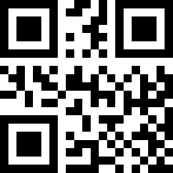
USB HID-KBW configuration QR code
USB HID-KBWDefault

Keyboard layout

The T100 uses the United Kingdom keyboard layout by default. If your device uses a different regional layout, scan the code for your country. The scanner must use the same keyboard layout as your operating system to output characters correctly.

Available layouts are United States, Belgium, Brazil, Canada, Czech, Denmark, Finland, France, Austria/Germany, Greece, Hungary, Israel, Italy, Latin America, Netherlands, Norway, Poland, Portugal, Romania, Russia, Slovakia, Spain, Sweden, Switzerland, Turkey F, Turkish Q, United Kingdom, and Japan.
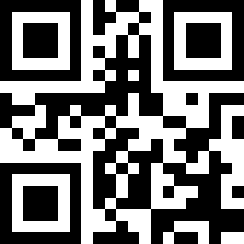
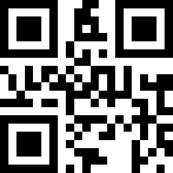
United States configuration QR code
United States
Belgium configuration QR code
Belgium
Brazil configuration QR code
Brazil
Canada configuration QR code
Canada
Czech configuration QR code
Czech
Denmark configuration QR code
Denmark
Finland configuration QR code
Finland
France configuration QR code
France
Austria, Germany configuration QR code
Austria, Germany
Greece configuration QR code
Greece
Hungary configuration QR code
Hungary
Israel configuration QR code
Israel
Italy configuration QR code
Italy
Latin America configuration QR code
Latin America
Netherlands configuration QR code
Netherlands
Norway configuration QR code
Norway
Poland configuration QR code
Poland
Portugal configuration QR code
Portugal
Romania configuration QR code
Romania
Russia configuration QR code
Russia
Slovakia configuration QR code
Slovakia
Spain configuration QR code
Spain
Sweden configuration QR code
Sweden
Switzerland configuration QR code
Switzerland
Turkey F configuration QR code
Turkey F
Turkish Q configuration QR code
Turkish Q
United Kingdom configuration QR code
United KingdomDefault
Japan configuration QR code
Japan

Keyboard type

Enabling the virtual keyboard allows the scanner to output the correct data in any keyboard language mode. When using the virtual keyboard, make sure the keypad numeric keys are enabled.
Standard keyboard configuration QR code
Standard keyboardDefault
Virtual keyboard configuration QR code
Virtual keyboard

Scanning mode

The T100 uses auto-sensing mode by default. The scanner continuously monitors its field of view and activates automatically when a code is presented. No button press is required: hold or place a code over the scanner window to trigger a read. Scan the code below if you need to restore this mode.
Auto-sensing mode configuration QR code
Auto-sensing modeDefault

Sensing sensitivity

This setting controls how easily the T100 triggers a scan. High sensitivity is the default and responds to smaller changes in the scanner's field of view, making it faster to activate. If the scanner triggers too frequently in a busy environment, use Medium or Low sensitivity.
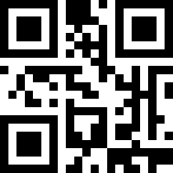
High sensitivity configuration QR code
High sensitivityDefault
Medium sensitivity configuration QR code
Medium sensitivity
Low sensitivity configuration QR code
Low sensitivity

Lighting

The T100 has built-in LED illumination to help read codes in different lighting conditions. Choose the behaviour that suits your environment:

  • Normal: The light turns on only while scanning, then turns off. Best for most environments.
  • Always on: The light stays on continuously while the scanner is powered. Useful in consistently dim environments such as event entrances or nightclub check-ins.
  • Off (default): The light never turns on. Use this if illumination is not needed or causes glare.
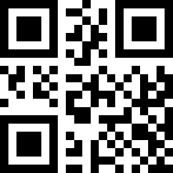
Lighting normal configuration QR code
Lighting normal
Lighting always on configuration QR code
Lighting always on
Lighting off configuration QR code
Lighting offDefault

Aiming

The T100 projects a visible aiming beam to help position codes for scanning. For a desktop scanner, the default setting works well in most cases:

  • Normal (default): The aiming beam appears only while the scanner is actively reading.
  • Always on: The beam stays on continuously, providing a visual indicator that the scanner is powered and ready.
  • Off: The aiming beam is disabled.
Aiming normal configuration QR code
Aiming normalDefault
Aiming always on configuration QR code
Aiming always on
Aiming off configuration QR code
Aiming off

On this page