

Import & Export Data
Move data into and out of Tiquo via guided wizards
Use the Import wizard to bring data from another system into Tiquo. Use the Export wizard to download data for reports, backups, or other tools.
Navigating to import & export
Open Settings, then Import & Export to find both wizards.
Import and export actions are disabled in the demo platform. The page shows the available data categories, but running a new import or export requires a live account.
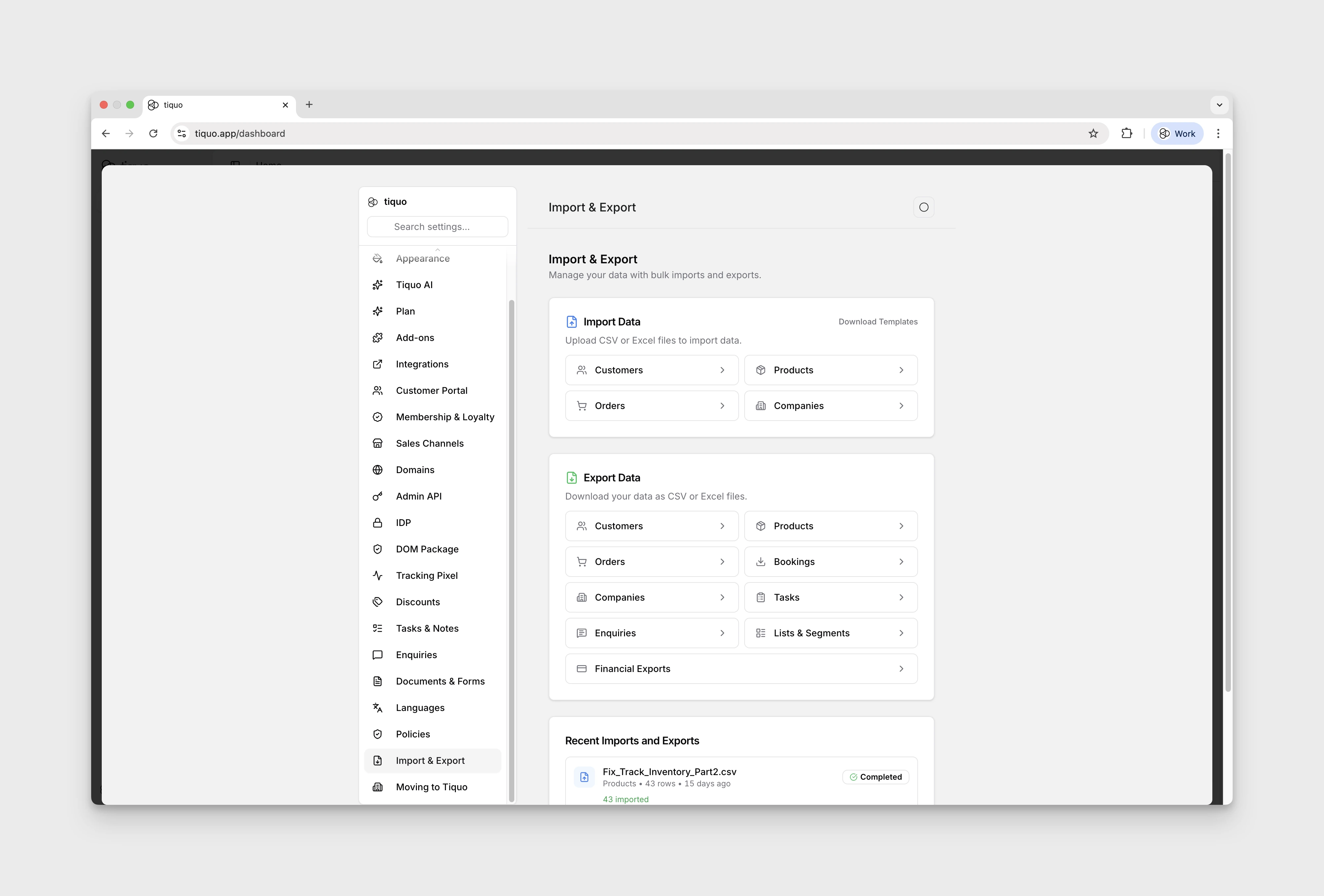
Import and export use separate permissions: import_export.import controls imports and import_export.export controls exports. If neither action is available, ask an organisation administrator to update your role.
Import
What data can be imported
From Settings → Import & Export, Tiquo supports importing these data types:
| Import type | What it is used for |
|---|---|
| Customers | Customer records, contact details, marketing consent, addresses, and related customer information. |
| Companies | Company records, contact information, corporate domains, industry, status, and company profile details. |
| Enquiries | Enquiries from another system, with their contact, subject, message, stage, category, priority, source, dates, and the enquiry type's parameters. See Importing enquiries. |
| Products | Product catalogue data such as names, SKUs, categories, pricing, tax, stock levels, allergens, ingredients, and product details. |
| Orders | Historical orders and transactions. Imported orders are treated as legacy data for reporting and audit context. |
You can bring customer records, enquiries, offerings, pricing, and historical orders with you while setting up the rest of Tiquo.
Select Download Templates on the Import card for a sample CSV of each type, including an Enquiries template.
Preparing your data
Check your data before importing it. Errors in the source file can affect reporting and daily operations.
Before importing:
- Check that required fields are present
- Remove duplicates where possible
- Use consistent names and categories
Customer birthdays
Tiquo can store a birthday as a full YYYY-MM-DD date or as --MM-DD when
the year is unknown or unnecessary. In the customer editor, choose No year
to retain only month and day.
When preparing a customer import, do not insert a placeholder year merely to make a birthday look complete. Use the yearless form where possible.
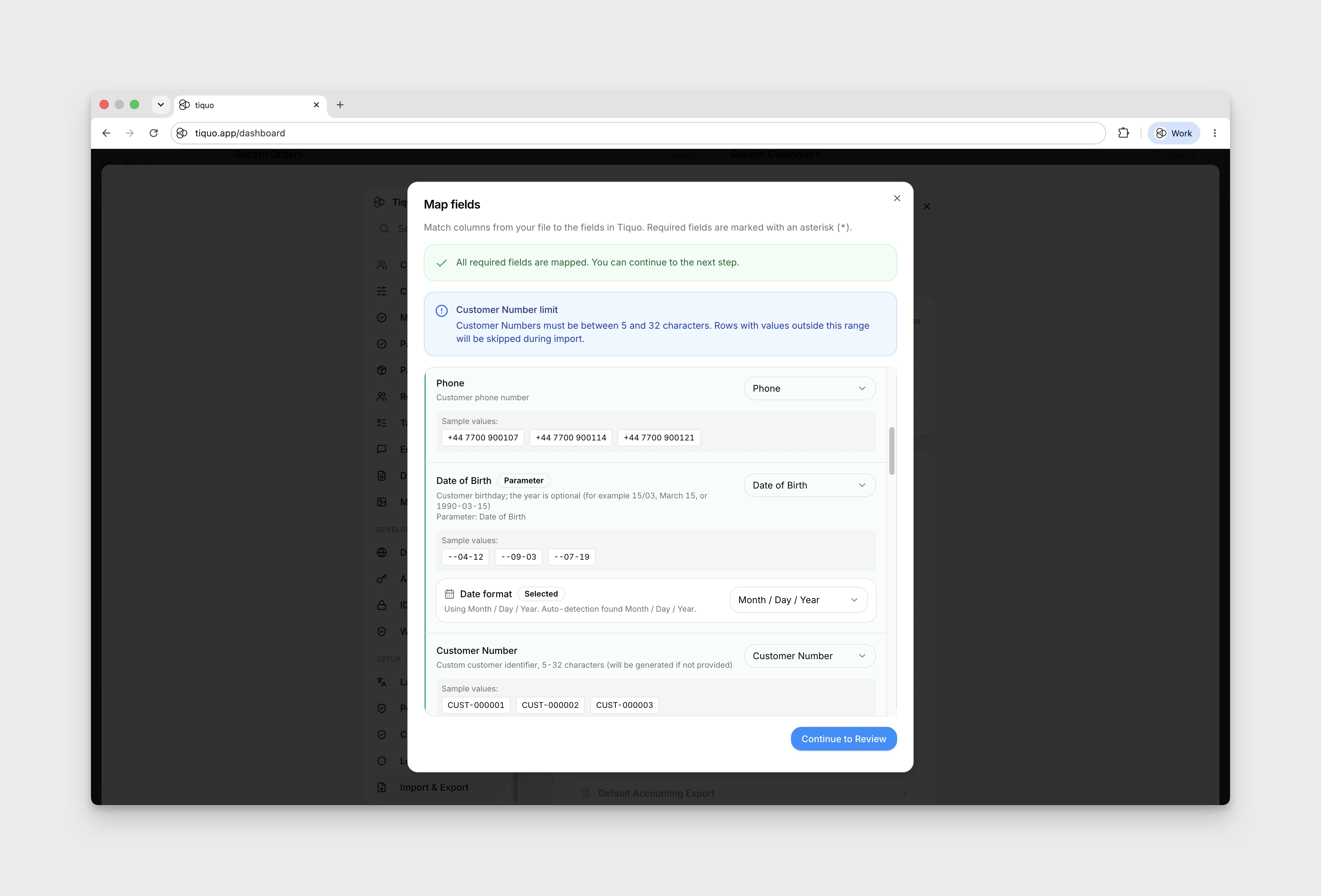
Import wizard steps
Follow these steps in the Import wizard:
- Choose category: pick Customers, Companies, Enquiries, Products, or Orders.
- Choose sublocation or enquiry type: for Products and Orders, select the sublocation the data belongs to. For Enquiries, select the enquiry type to import into.
- Upload file: upload a CSV or Excel (.xlsx) file, up to 100MB. The file is parsed and prepared for mapping.
- Map fields: match each column in the file to the corresponding field in Tiquo.
- Review options: decide how to handle conflicts with Overwrite existing data (when on, existing records are updated from the file; when off, they are kept unchanged and only new records are added) and, for customers, auto-enrich (let Tiquo fill in missing fields where possible from existing data or external sources).
- Confirm and run: the wizard executes the import and reports successes, skips, and errors.
Only one import runs at a time. While it runs, the other import buttons are unavailable, and exports of the data type being imported are unavailable until it finishes. If every row fails, the import is shown as Failed, with the row errors available to download.
Importing enquiries
Importing enquiries needs the enquiries.manage permission and access to the enquiry type. Each import goes into one enquiry type, so split a file that covers several pipelines into one file per type.
- Select Enquiries, choose the Enquiry type, and upload the file. Start from the Enquiries template if you are building the file yourself.
- Map the columns. Subject is required, plus a name column: Contact Name, or First Name and Last Name. Columns can also be mapped to the enquiry type's existing parameters, listed under Existing Parameters.
- Under Enquiry workflow, choose a Default category and Default stage for rows where those cells are empty. Tiquo then reads every stage and category in the file and lists them under Stage mapping and Category mapping. Map each value to a stage or category of the selected type.
- Review the options and run the import.
How enquiry rows are handled:
- Every imported enquiry is linked to a customer. A row whose email belongs to an existing customer is linked to that customer. Otherwise Tiquo creates a customer from the row's name, email, and phone.
- Enquiry Number matches existing enquiries. With Overwrite existing data on, a matching enquiry is updated; with it off, the existing enquiry is left as it is. Rows without a number get a new enquiry number.
- A blank cell in a parameter column leaves that parameter empty for the row; it isn't reported as an error.
- Priority accepts low, medium, high, or urgent (medium when blank). Source accepts online, website, phone, email, walk_in, social, referral, pos, or admin (admin when blank).
- Created At, Resolved At, and First Response At keep the original dates from your previous system, and Lost Reason carries over why an enquiry was lost.
- Imported enquiries do not send new-enquiry emails or run new-enquiry automations.
- If an enquiry import is interrupted and picks up again, rows already imported are not created a second time.
How Tiquo reads your file
- Titles and nicknames: customer imports map a Title column (also recognised as salutation, honorific, name prefix, civility, civilité, anrede, or tratamiento) and a Nickname column (also recognised as preferred name, known as, or goes by). Titles such as Mr, Mrs, or Dr are recognised, and other text is kept as a custom title. See Titles and nicknames.
- Placeholder dates: dates that other systems write for an unknown value, such as
01.01.0001,0001-01-01, or9999-12-31, are treated as empty cells. - Email cells: customer imports pull clean addresses out of cells such as
Name <name@example.com>. A cell with several addresses separated by;,,,/, or|stores each address separately. A cell that contains no valid address is reported as an error for that row. - Repeated emails: when a customer row's email is already on a profile or on an earlier row, Tiquo decides whether it is the same person. Rows treated as duplicates are counted as skipped, with the row they repeat. See Shared emails from imports.
- Amounts: product prices, compare-at prices, costs, tax rates, and order totals, tax, and discounts cannot be negative. A row with a minus sign or an amount in accounting brackets fails with an error naming the field.
- Allergens and ingredients: product imports accept Allergens (separated by commas, semicolons, or line breaks, and stored as a comma-separated list) and Ingredients (line breaks are kept). Leave a cell blank to keep the product's current value.
- Large customer imports: if part of an import times out, Tiquo keeps the rows already imported and retries the rest in smaller batches.
Verify imported data
After the import, use Tiquo's review tools to:
- Confirm records were imported correctly
- Spot and correct any errors or omissions
- Ensure data is ready for live operations
Check imported records before going live to catch problems that could affect customers or staff.
Export
The Export wizard creates a downloadable file from the data you select.
From Settings → Import & Export, Tiquo supports these export types:
| Export type | What it includes |
|---|---|
| Customers | Customer profile, contact, consent, membership, loyalty, statistics, and date fields selected in the wizard. Title and Nickname columns are available but off by default, and titles are exported in English so the file can be imported again. Membership columns include plans the customer holds through their company, shown as "Plan (via Company)". |
| Products | Product catalogue fields such as name, SKU, category and sub-category, short description, pricing, time-based and quantity pricing rules, status, visibility, stock quantity, images, allergens, ingredients, product parameters, availability, and variants with their settings. |
| Inventory | Product stock data, including product-level quantities or one row per stock group when stock groups are enabled, and each product's recipe ingredients. |
| Orders | Order numbers, customers, dates, statuses, totals, currency, payment fields, order details and notes, locations, and timestamps. |
| Bookings | Booking numbers, customers, services, dates, times, statuses, linked order details, staff, the room, table, or resource assigned, locations, and notes. |
| Companies | Company profile, contact, address, business, status, tag, statistics, notes, and date fields. |
| Memberships | Membership plan name, whether the plan is free or paid, whether the plan is active, whether the plan applies to customers, companies, or both, default membership price, billing currency, billing period, customer-visible active memberships from direct and company assignments, and other associated membership metadata. |
| Tasks | Task content, type, status, due dates, completion details, categories, assigned staff, repeat settings, tagged records, location, attribution, and timestamps. |
| Enquiries | Enquiry number, contact details, linked customer and companies, subject, message, type, status, priority, lost reason, time in each status, enquiry parameters, notes, documents, linked orders and membership application, assignment, source, response tracking, and financial summary fields. |
| Lists & Segments | List or segment names, descriptions, type, segment filter criteria, customer count, archived status, delivery-provider fields, attribution, and dates. |
| Social Graph | One row per active relationship between two customers, with the relationship type, custom label, notes, and both customers' details. The columns match the connections import, so a file grouped by main customer can be imported back from that customer's Social tab. |
| Accounting & Payments | Separate export actions for Default Accounting Export, End-of-day sales report, Invoices & receipts, Payments, Payouts, Disputes, and Reconciled Payouts. See Accounting exports. |
Export wizard steps:
- Choose the export type: on the Import & Export page, select Customers, Memberships, Companies, Tasks, Enquiries, Lists & Segments, Social Graph, Products, Inventory, Orders, or Bookings.
- Name and format: enter a descriptive export name and choose Excel (.xlsx) or CSV (.csv).
- Choose type-specific options: when prompted, select the required sublocation, task statuses, list or segment, membership export mode, or order layout. Tasks can include any mix of statuses, and all are ticked by default. Products, Inventory, Orders, and Bookings require a sublocation. Orders can be one row per order or itemised as one row per sold line item.
- Choose a date range: Orders, Bookings, and Enquiries provide a date-range step. Leave it empty to export all applicable records. Bookings and Enquiries can include future dates.
- Select fields: review the preselected fields and add or remove the columns required for the file.
- Review: check the name, format, filters, field count, and estimated row count.
- Start export: Tiquo creates the export job and makes the finished CSV or XLSX file available for download.
When an export finishes, Tiquo also emails you a link to it. The link opens Settings > Import & Export in the dashboard, where you sign in and Tiquo checks that you can still access the export before the download starts. The emailed file stays available for 7 days, and the finished export also appears in the recent jobs list on the Import & Export page.
Inventory exports
Use Export Inventory when you need a stock-level view of products rather than a standard product catalogue export.
Inventory exports include product context, such as the product name, SKU, category, sublocation, and status, together with the relevant quantity information.
How inventory rows are created:
- Products with stock groups enabled: each stock group is exported as its own row, linked back to the product it belongs to.
- Products without stock groups enabled: the product is exported as a single row with the product-level quantity.
- Products where inventory is not tracked: the product is still exported, and stock-related columns show that the quantity is not tracked.
When stock groups are enabled, the export can include stock group fields such as group name, quantity, availability, stock location, ownership, sell-by date, KDS location, and low stock threshold. Fields only contain values when that setting is enabled for the product or stock group.
Accounting exports
The Accounting & Payments exports need the import_export.export and analytics.payments permissions. Default Accounting Export, Invoices & receipts, and Reconciled Payouts also need locations.access_all (access to all locations).
Default Accounting Export
Default Accounting Export opens Export for accounting, a reconciliation-ready CSV of Stripe payout activity for one connected account.
- Choose the Account. The default account is marked (Default).
- Choose the Period: Today, Current month, Last 7 days, Last month, All time, or Custom range.
- Choose the Columns.
- Download the CSV, or select Email to receive it when it is ready. Periods longer than 45 days are always processed in the background and emailed.
The export only includes paid orders. Use the Orders export when you need free orders too. The Invoice Number column shows Tiquo's invoice number for each charge and the matching credit-note number for each refund. For a receipted sale in Spain it shows the simplified-invoice number. A refund that could match more than one credit note is left blank.
Invoices & receipts
Invoices & receipts downloads a ZIP of the official PDF documents issued under one legal entity, exactly as your customers received them.
- Choose the Connected account. Each account shows its country, currency, VAT number, Stripe account ID, and the venues that use it. Accounts that can no longer take payments are still listed, marked Payments disabled, so you can export the documents issued under them.
- Under Issued, choose Current month, Last month, Last 3 months, Year to date, or Custom range.
- Under Documents, tick the kinds to include: Invoices, Credit notes, Receipts, Refund receipts, and Receipts of payment.
- Select Export ZIP.
The ZIP has a folder for each kind of document, with each PDF named by its issue date and document number. It also contains index.csv, which lists every document with its type, number, issue date, order, related document, buyer, buyer tax ID, total, currency, status, and a note, so your accountant can check nothing is missing.
- Documents are picked by the date they were issued, which can be later than the sale.
- Paid sales that have no issued document yet appear in
index.csvbut have no PDF. - The ZIP is put together in your browser tab. Keep the tab open until the download starts, or select Stop to download what has been prepared so far. For periods with more than 1,500 documents, Tiquo suggests exporting a shorter period.
- Exporting never marks a document as a duplicate.