

Themes
Configure themes and branding across your Tiquo platform
Overview
Themes define your brand colours, logos, and visual identity across Tiquo. Create a theme once, then reuse it wherever themes are supported.
You can apply the same theme in several parts of Tiquo without recreating or reconfiguring it each time.
Applying themes across the platform
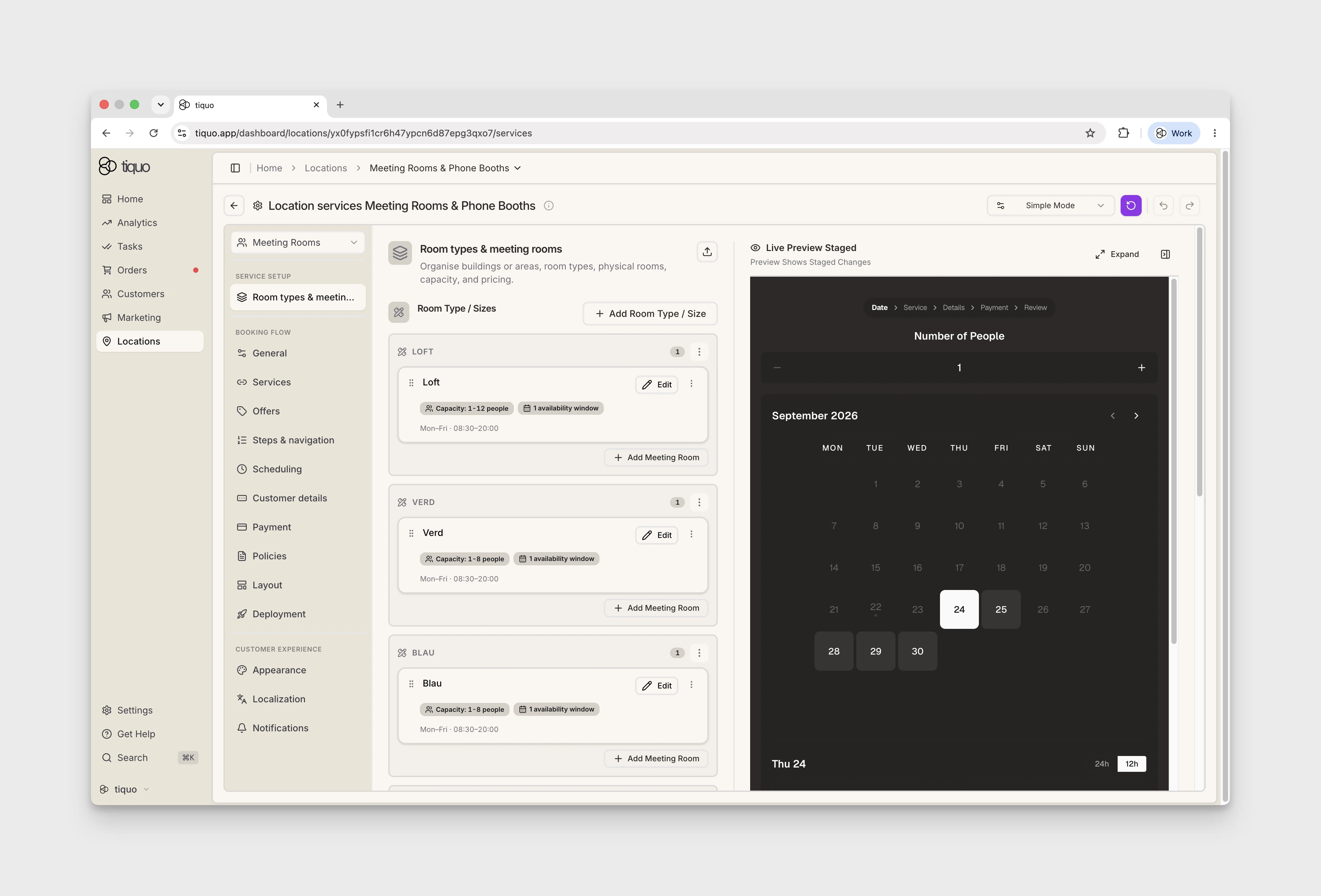
Themes can be applied to all customer-facing and staff-facing areas of Tiquo, including:
- Dashboard
- Customer Flows
- Identity Provider (IDP)
- Customer Portal
- DOM Packages
Staff tools and customer self-service pages can use the same branding.
Themes in emails and notifications
Themes also apply to automatic emails generated by Tiquo. This includes emails sent from customer flows, the organisation, the IDP, and DOM packages.
Examples include one-time passcode (OTP) emails, booking confirmations, payment notifications, and system messages. Applying a theme gives these emails your branding without custom templates or manual styling.
Where the theme editor lives
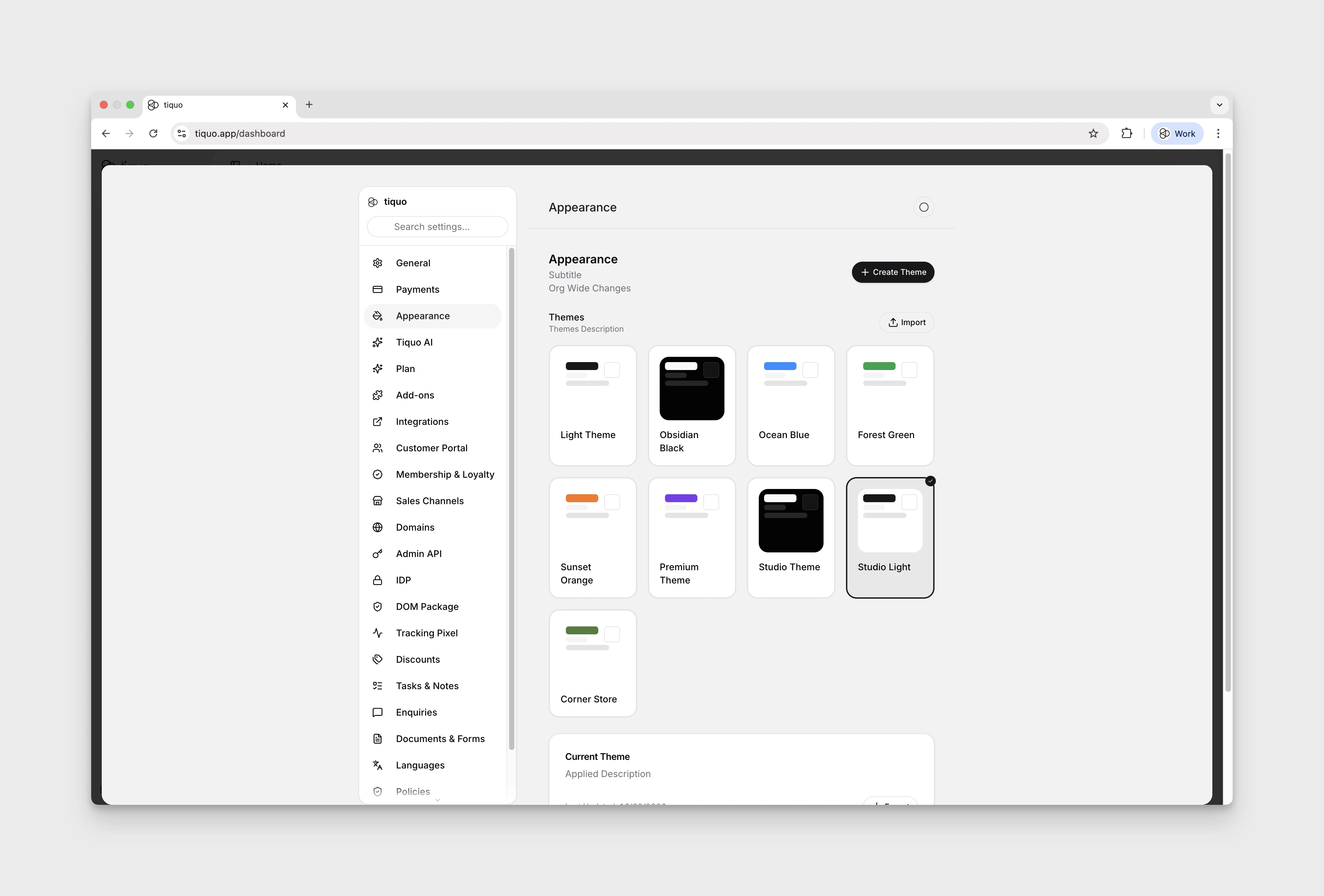
Open Settings > Appearance to manage organisation-wide themes. The Themes section contains your themes, with Create Theme, Import, and Export controls. The same Theme picker appears inside the Customer Flow editor under Appearance, where any theme created here can be selected for that specific flow. Create Theme on the Customer Flow Appearance tab opens the same editor.
Dashboard appearance changes apply to everyone in your organisation. Check the Current theme shown in Appearance after saving or applying a theme.
Creating themes
To open the theme editor, go to Settings > Appearance and click Create Theme. The editor is organised into sections covering different visual aspects of the brand:
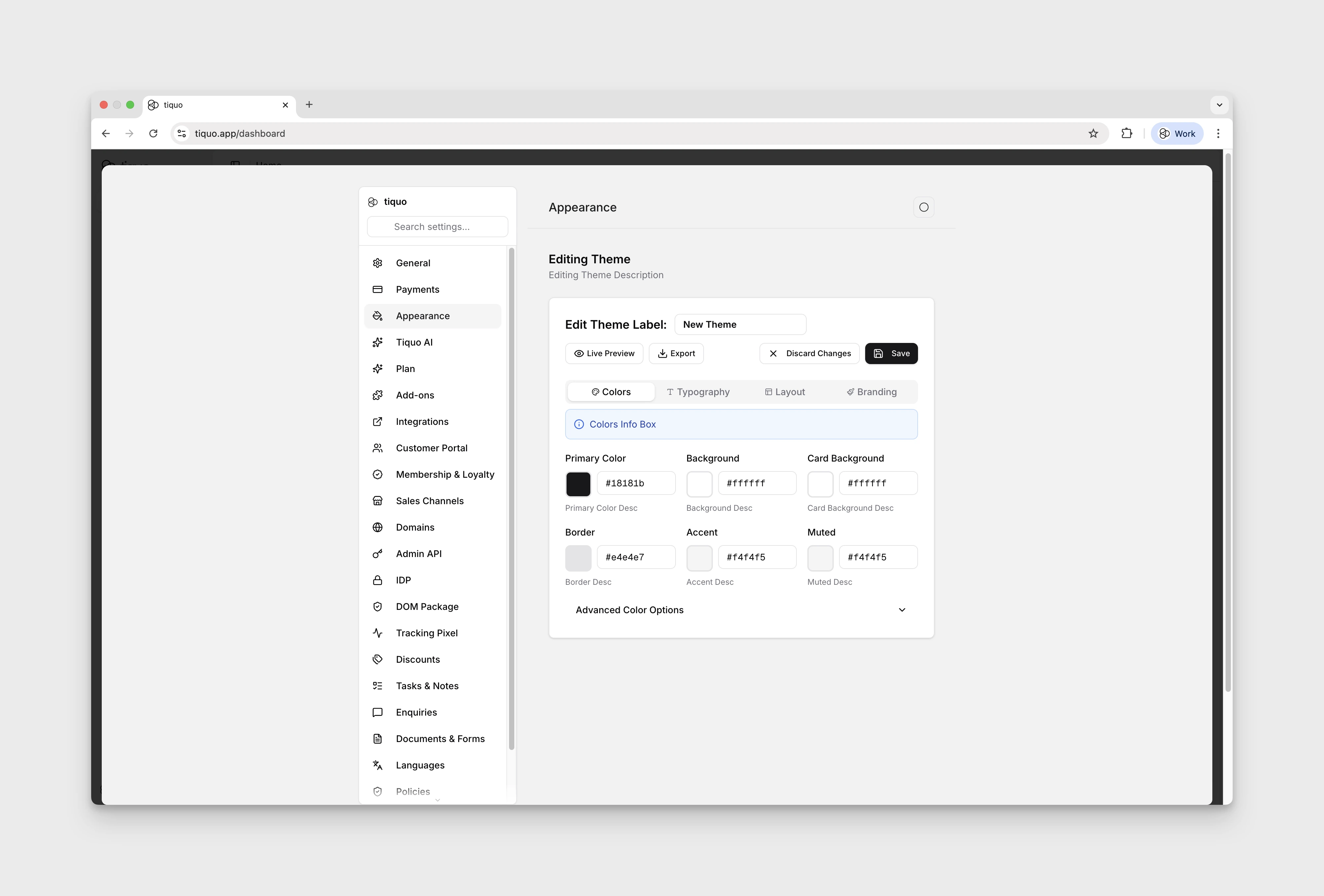
- Colours and gradients: primary, secondary, accent, background, surface, and other brand colours.
- Typography: font family, weight, sizes, and line height for headings, body text, and UI elements.
- Layout: Border Radius and Border Width.
- Branding: logo, favicon, and other brand assets.
- Export JSON: themes can be exported to a JSON file for sharing, version control, or backup, and brought back to recreate a theme on another organisation or roll back to a previous version.
Contrast check when saving
When you save a theme, Tiquo checks whether any of its colours are too similar to read or see, such as text on the page background, text on buttons and cards, borders against surfaces, or sidebar controls against the sidebar. If it finds any, a This theme has very low contrast dialog lists each problem pair with its contrast ratio, for example "Text on primary buttons 1.40:1". Up to six pairs are listed, with a count of any others.
- Select Keep editing to go back to the editor and adjust the colours.
- Select Save anyway to save the theme as it is.
The same check runs when you save a theme from a customer flow's Appearance tab.
Theme ID for embeds
Some embeds take a theme ID in their theme option to use a theme other than your active one, for example the saved cards embeds. To copy a theme's ID, open the theme in the editor in Settings > Appearance, open the ... menu next to the theme name, and choose Copy theme ID. The menu shows the ID under the option.
Save a new theme before copying its ID. Until then, the option is unavailable and says "Save the theme to get its ID".
Organisation web fonts
If your brand uses a custom web font, contact your Tiquo team to upload it in Appearance. The upload controls are currently restricted to Tiquo staff. Supported files are WOFF or WOFF2, with a maximum size of 1 MB per file.
Provide the font's weight and normal or italic style. Use a variable weight range only for a genuine variable font. After upload, choose the font in the theme's typography settings and check the customer web pages using that theme.
Custom web fonts do not have the same support on every surface. Check email, native-device, and printed output separately before relying on the same typeface everywhere.