

Automations
Trigger marketing actions from bookings, orders, enquiries, memberships, and customer behaviour
Automations let operators respond to operational and customer events without staff having to repeat each step manually.
They connect events across customers, companies, bookings, orders, enquiries, memberships, payments, forms, products, lists, tasks, notes, and email engagement to controlled platform actions.
Navigating to Automations
Automations are configured under Marketing > Automations.
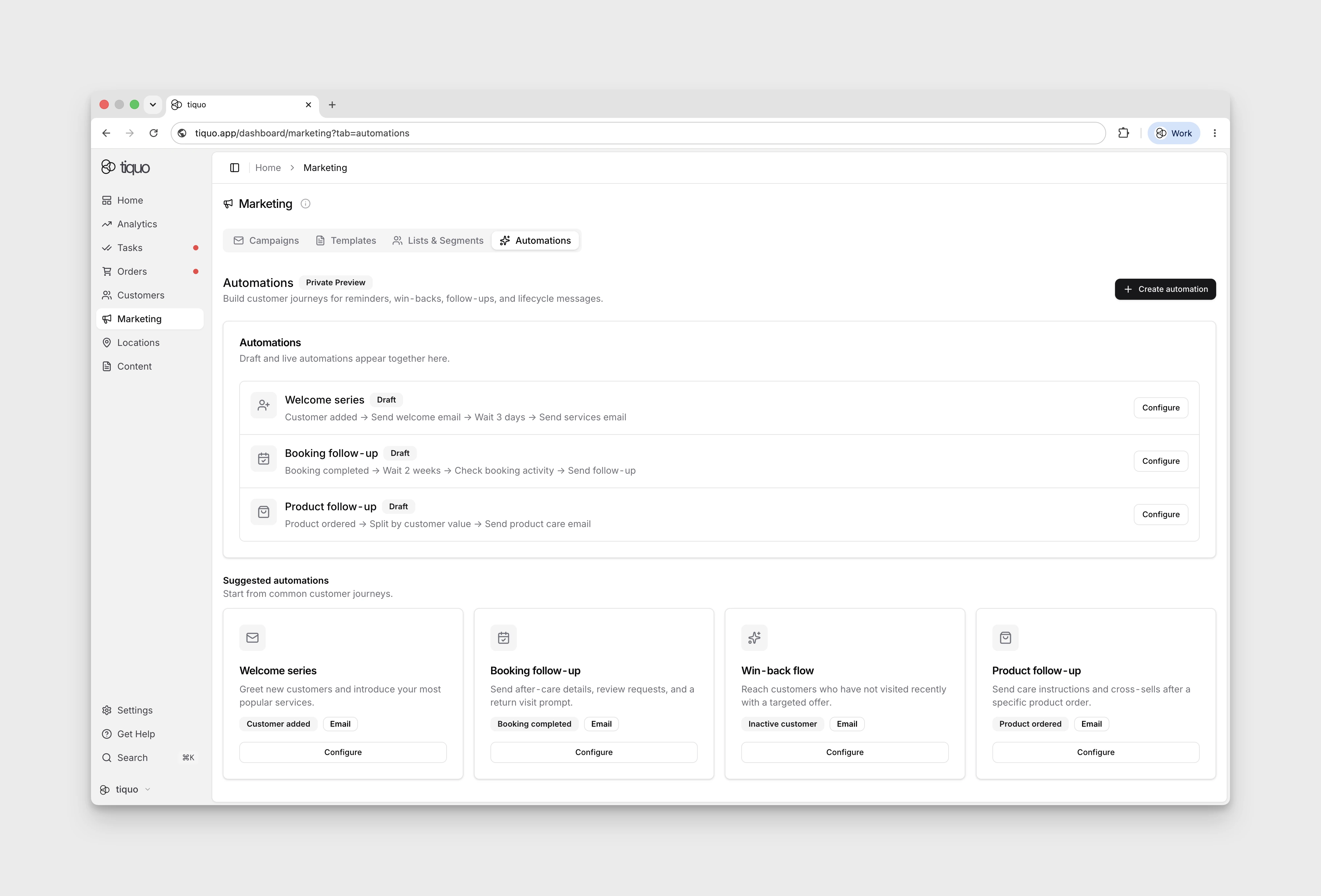
Build and Publish
An automation is a visual graph with up to 20 nodes:
- Trigger: starts a run when a selected event occurs or a schedule is reached.
- Condition: tests event or record data and sends the run down matching branches.
- Wait: pauses a run for a defined period before continuing.
- Action: reads or changes data, creates follow-up work, or sends a configured email template.
Save while building to keep a draft without making it live. Activation requires the subscription and review checks described below. An active automation can be paused, and earlier immutable versions remain available for inspection or restoration.
Activation checks
Automations require an active marketing subscription. An automation containing an SMS action requires the Email + SMS/WhatsApp marketing plan and a ready messaging account.
Before an automation runs live, Tiquo AI reviews:
- trigger, branch, wait, condition, and action setup;
- contradictory, unreachable, repeated, or dangerous workflow logic;
- email and SMS sender-reputation risks;
- whether marketing and transactional messages are classified correctly.
An Important finding blocks activation until it is corrected. An Attention finding is non-critical and can be reviewed and consciously accepted. A marketing message classified as transactional is blocking because it could bypass marketing delivery protections; a transactional message classified as marketing is a safer, non-blocking recommendation.
The review is tied to the current automation revision. Editing the workflow invalidates the approval and requires a new review. If Tiquo AI cannot complete the review, the automation is not activated; retry when the service is available.
Triggers and Scope
Choose one primary event and, when the same workflow should respond to related events, add further event types. Available trigger families include:
- Customer and company creation or updates
- Order, booking, enquiry, membership, payment, task, and note lifecycle events
- Form submissions
- Product creation, updates, and low-stock or out-of-stock events
- Customers joining or leaving a list
- Customers joining or leaving a dynamic segment
- Lost carts, with optional sublocation and order-item-type matching
- Email sent, delivered, opened, clicked, bounced, or failed events
- Scheduled and manually started runs
Scope a trigger where appropriate. For example, select lists for list events, sublocations for booking or order events, plans for membership events, enquiry types, note categories, a specific form, or a specific tracked email link. Schedules can run once or recur at interval, daily, or weekly frequencies in the selected timezone.
Conditions and Data Mapping
Conditions can compare trigger data, values returned by earlier nodes, and fields on related records. Branches allow one run to follow different paths, such as treating an urgent enquiry differently from a routine request.
Actions expose output that later nodes can map into their inputs. Use find-record and find-or-create actions when the workflow needs to resolve a related record before updating it.
Actions
Available action families include:
- Update customer parameters, status, interests, favourites, lists, and notes
- Add an active discount, issue store credit, or issue a pass to a customer
- Add a discount or issue store credit to a company
- Create or update tasks and notes
- Update booking status, time, assigned staff, or notes
- Update order status or payment status
- Update product status, price, or stock
- Update membership status, plan, dates, cancellation, or notes
- Update enquiry status, priority, assignees, customer, or company data
- Find records, find or create records, and transform values for later steps
- Send a selected email template
Actions that could make a sensitive lifecycle change can pause for staff approval instead of applying the change immediately.
Customer and company discount actions require an active discount. A company discount can either stay on the company or inherit to its customers. Store credit actions require a positive amount and a three-letter currency code.
Trigger filters can compare fields carried by the event before the graph starts. Use these for cases such as a lost cart that contains a booking, a particular product type, or a value above a threshold. Conditions remain useful when the workflow needs data returned by an earlier lookup or action.
Test and Monitor
Use a dry run to test the graph without applying live changes. After publishing, use run history and step details to inspect the trigger payload, branch decisions, outputs, and failures. Failed work can be retried from the relevant step when the underlying issue has been corrected.
Example Automations
A few common flows:
- Post-booking follow-up: when a booking is completed, wait 24 hours, then send a thank-you email with a feedback link.
- Membership welcome: when a membership is created, send the configured welcome email.
- Win-back: if a customer has not visited in 90 days, send a reactivation email with a one-time discount code.
- Enquiry chase: if an enquiry sits in Waiting on Customer for more than 7 days, send a polite nudge.
To reuse a workflow safely, open its actions menu and choose Duplicate. Tiquo creates a draft copy with the same graph and settings, allowing the copy to be reviewed and changed before it is activated.
Because automations work from live operational data, they keep customer communications timely without adding staff overhead.
Website Enquiry Parameters and Consent
For enquiry creation through the DOM/Hosted packages or Customer API, trigger
conditions can read submitted enquiry answers from
enquiryParameters.<enquiryParameterId> in the enquiry.created event. Values
are normalized strings: compare a Yes/No answer with "true" or "false";
multiselects are JSON strings. Only submitted non-empty values are included.
Other enquiry creation sources may omit this event field.
This event does not carry customer.details or customerParameters. Enquiry
submission can fill missing customer-editable parameters through customer.customerParameterValues or legacy customer.details, but never overwrites stored preferences or consent defaults. A Customer parameter condition
reads the customer's saved profile value; Set customer parameter remains a
separate automation action. An enquiry answer with a consent-like label is not
the customer's Marketing/SMS Opt-In preference.
Enquiry triggers are not gated by marketing consent. Each outbound message has its own marketing/transactional classification: marketing email checks Marketing Opt-In and marketing messaging checks SMS Opt-In. A transactional classification applies to that message, not to the whole automation.