

Cloak Room
Physical cloak room tags for linking stored items to customers, sublocations, and operational workflows
Cloak Room tags are physical numbered tags that help teams associate stored items with the right customer and location in Tiquo. They are designed for coat checks, luggage rooms, members clubs, venues, hospitality spaces, and any workflow where an item is temporarily held for a customer.
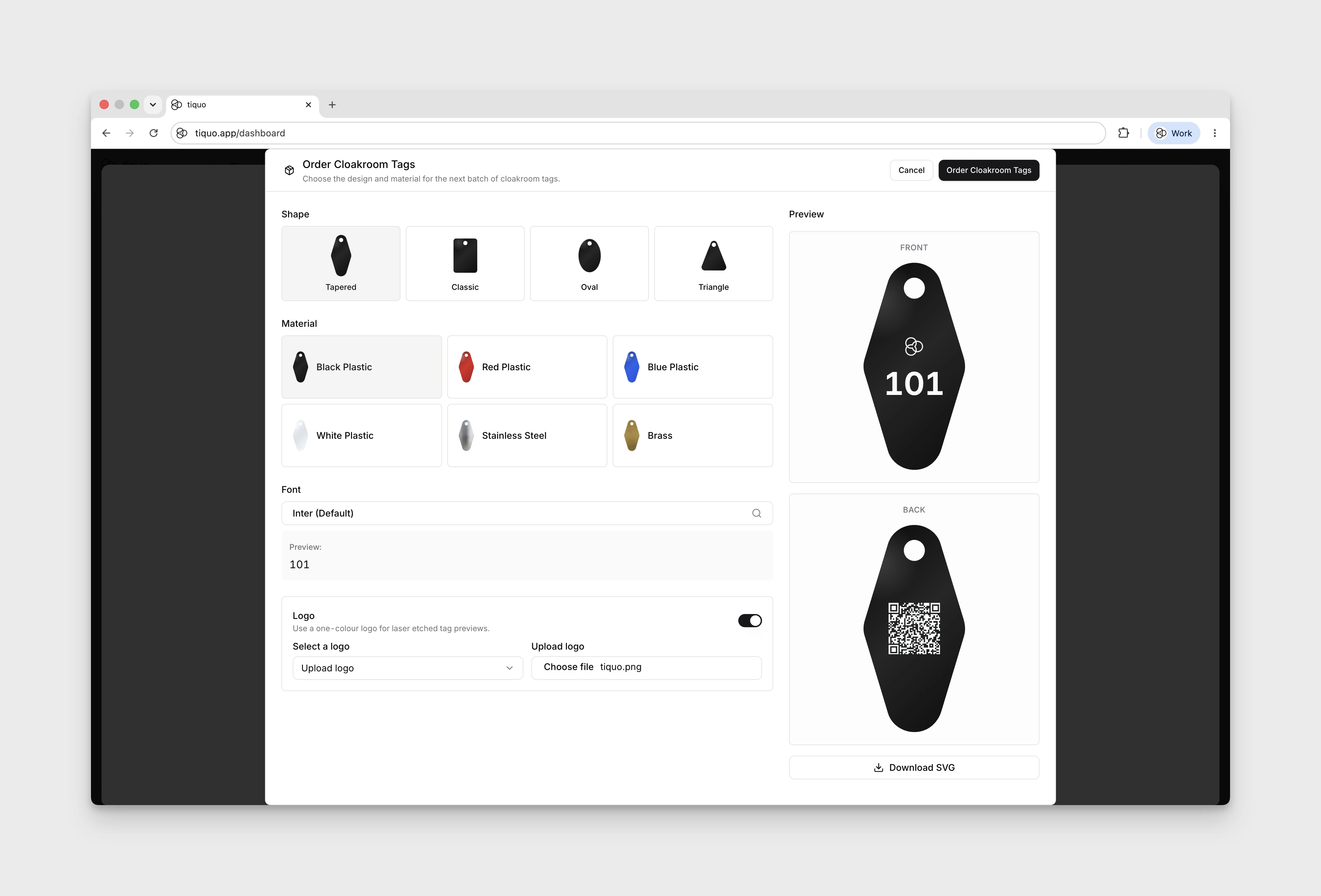
Each tag has a visible number on the front and a QR code on the back. The number gives staff a fast human-readable reference, while the QR code provides a scannable link that can identify the tag in Tiquo.
How Cloak Room tags work
A Cloak Room tag represents a physical item handover. When a tag is issued, the tag number can be associated with:
- A customer or guest
- A sublocation
- The item being held
- The current status of the tag
This lets staff see which tags are currently in use, who they are assigned to, and where the item is stored.
Tag layout
Tags are designed with two sides:
- Front: Shows the tag number, such as
101, with optional branding. - Back: Shows a plain QR code used for scanning and lookup.
The QR code contains the tag number and organisation identifier as query parameters. Scanning it identifies the tag and its organisation.
Ordering tags
Cloak Room tag ordering is configured from Settings → Cloakroom.
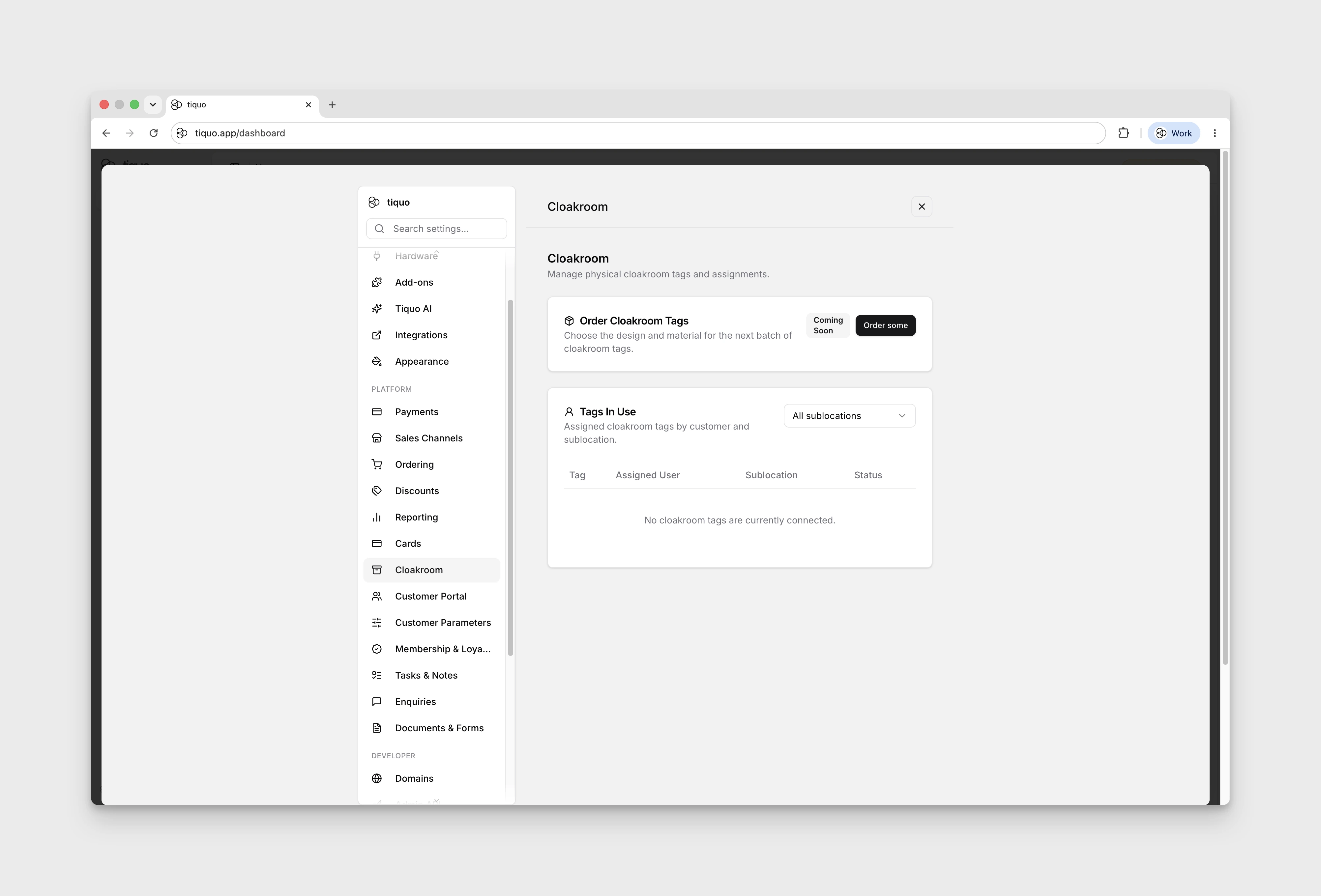
Select Order some to open the Order Cloakroom Tags preview. You can choose:
- Shape
- Material
- Font
- Optional logo
Available material previews include black plastic, red plastic, blue plastic, white plastic, stainless steel, and brass. Metal previews show the number, logo, and QR code as etched markings rather than printed ink.
The settings label tag ordering Coming Soon, and the preview’s Order Cloakroom Tags button is disabled. Use Cancel to close the preview without ordering.
Logos
If logo engraving is enabled, you can select a logo from the organisation's custom dashboard themes or upload a one-off logo for the tag preview.
Logos are rendered as a single-colour mark so the preview behaves like a laser-etched tag. This is especially useful for brass and stainless steel, where the result should look engraved rather than printed.
Tags in use
Open Settings → Cloakroom → Tags In Use. The table has these columns:
- Tag
- Assigned User
- Sublocation
- Status
This list helps staff understand which tags are already connected to customers and where their stored items are located.
Use All sublocations to inspect the available location filter. If there are no connected tags, the table shows No cloakroom tags are currently connected; the demo currently shows this empty state.
Customer and operational views
Cloak Room tags can appear in customer and operational workflows where the tag is relevant.
For example, staff may see active tag information when reviewing:
- A customer profile
- A company or customer relationship
- An enquiry connected to a customer
- An order or booking context
This keeps cloak room status visible at the point where staff are helping the customer, rather than forcing them to open Settings just to check whether an item is currently held.
Sublocations
Cloak Room tags can be filtered by sublocation. This is useful for organisations with multiple storage areas, floors, buildings, venues, or cloak rooms.
For example, a venue could separate tags by:
- Main cloak room
- VIP cloak room
- Luggage storage
- Event floor
- Reception desk
Keeping tags tied to sublocations makes it easier for staff to retrieve items quickly and prevents tag numbers from becoming ambiguous across a larger organisation.
Recommended workflow
- Open Settings → Cloakroom.
- Preview the tag shape, material, font, and logo.
- Use the Tags In Use table to monitor assigned tags.
- Filter by sublocation when working in a specific storage area.
- Scan the QR code on the back of a tag when you need to identify it quickly.