
Configure Products
Create and manage products, categories, pricing, and inventory within sublocations
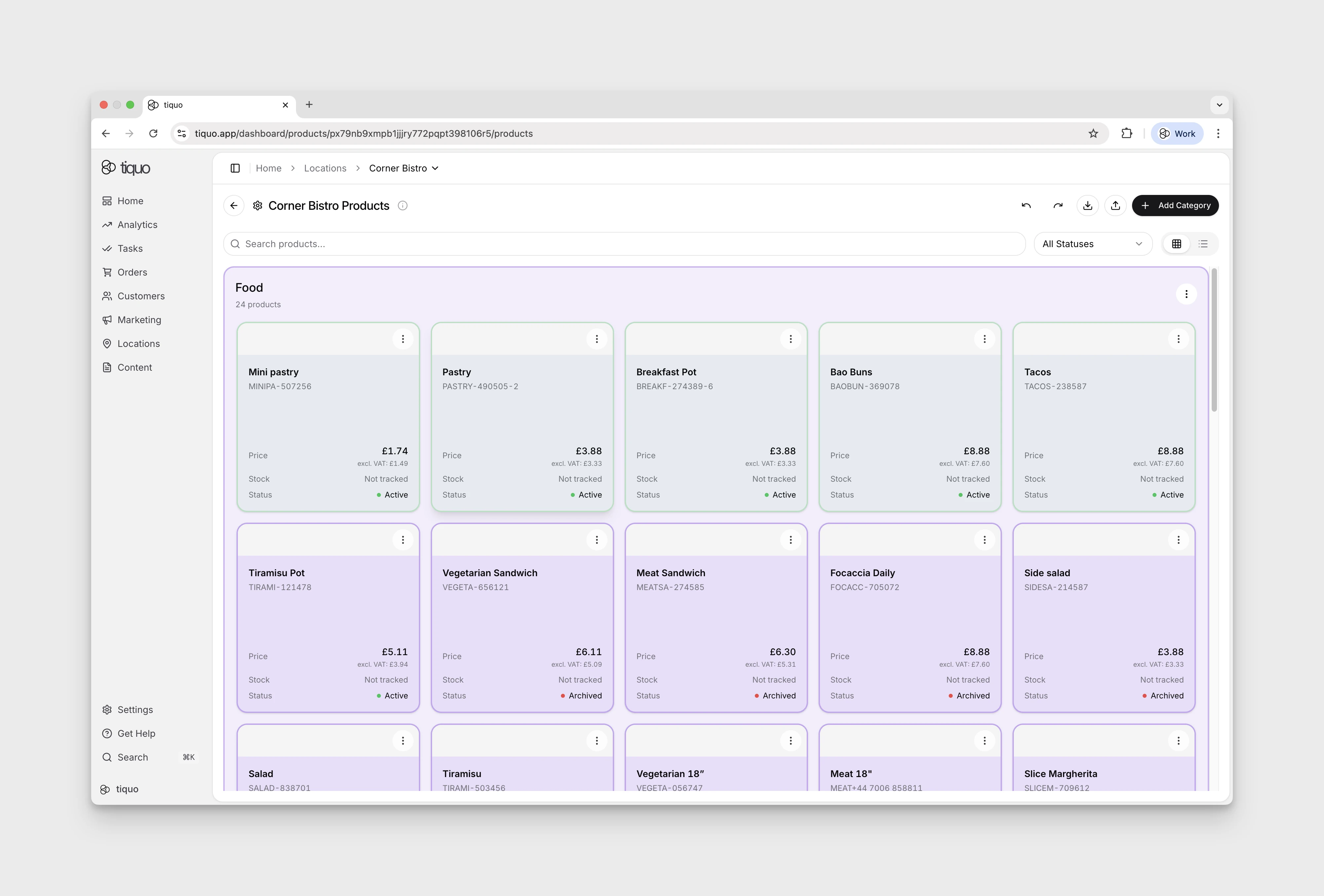
The Configure Products area is where you create, organise, and manage everything that can be sold as a product within a sublocation. Products can be standalone items such as food, drinks, retail goods, or add-ons that are added to orders alongside bookings.
Products are always created and managed at the sublocation level, allowing different menus, pricing, VAT, and inventory rules per space.
Product categories
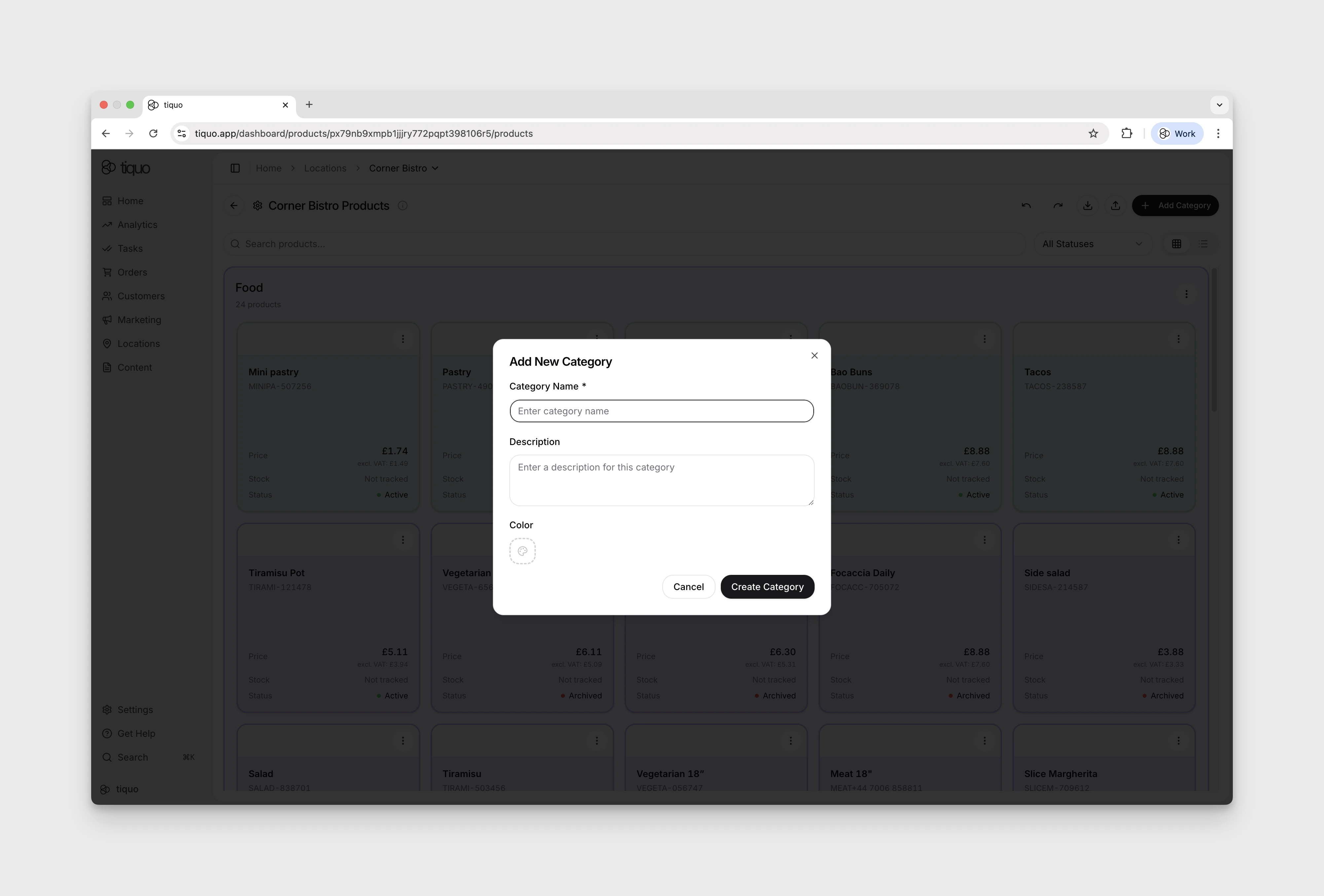
Group products into categories such as Food, Drinks, Merchandise, or Add-Ons to help staff and customers find them.
You can:
- Create multiple categories per sublocation
- Rename or reorder categories at any time
- Assign each product to a single category
- Require products in a category to have an inventory association before the order can be sent or paid
- Set the default preparation stage used by the category's products
Creating a product
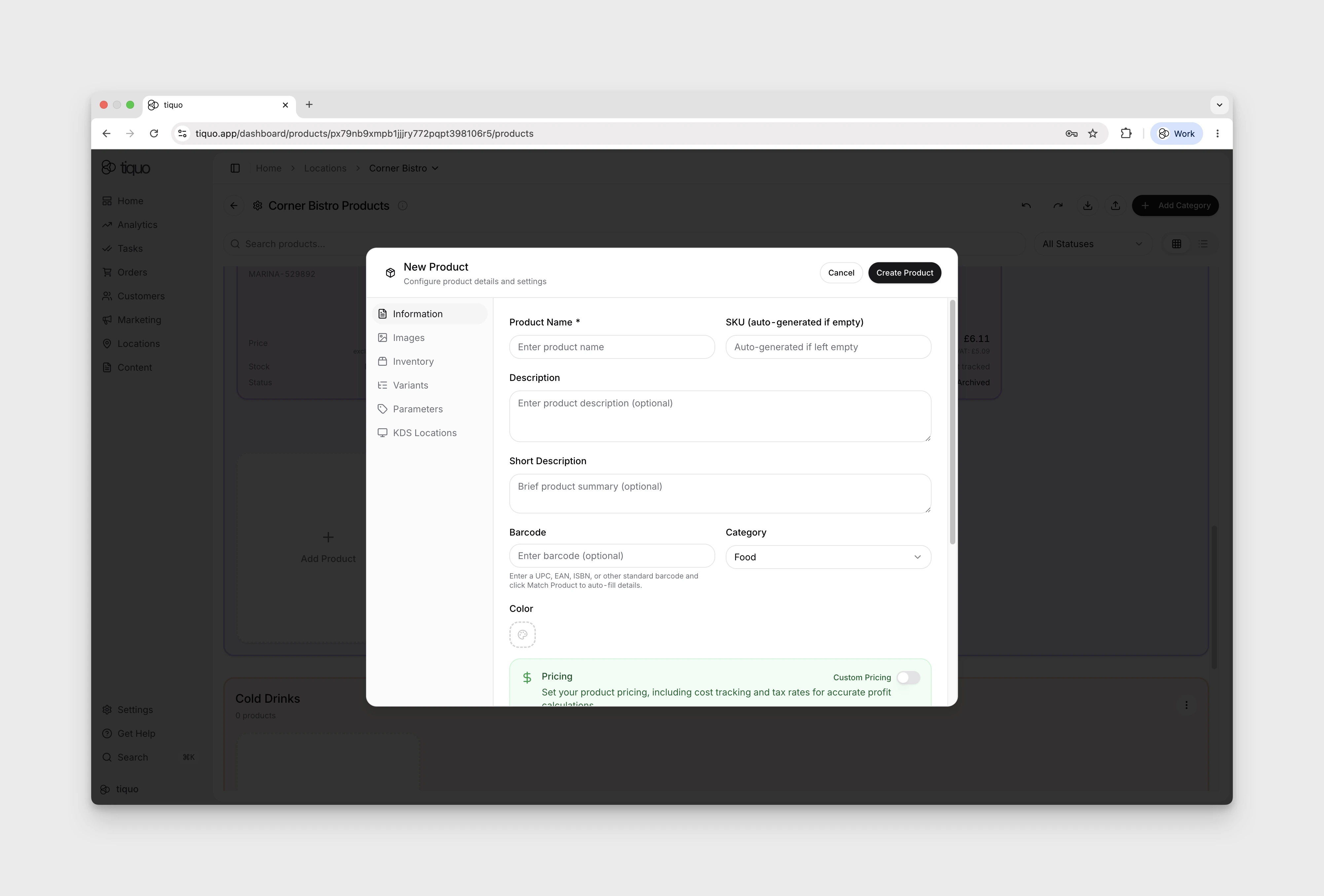
To create a new product, select Add Product within a category. The New Product dialog has tabs for Information, Images, Inventory, Variants, Parameters, and KDS Locations. Configure the relevant tabs, then select Create Product.
Basic information
This defines how the product appears internally and to customers.
- Product name
- Optional Description and Short Description
- Category assignment
- Optional barcode for POS or scanner use
AI-assisted descriptions
When the long description contains more than 50 characters, a subtle AI button appears in the corner of the description field. Selecting it opens a popover where you can choose a tone of voice, then click Rephrase to rewrite the description while preserving the product details.
Available tones include:
- Professional
- Friendly
- Premium
- Playful
- Concise
- Warm
When the long description contains more than 100 characters, the short description field also shows an AI button. Use it to generate a compact short description from the long description above. This is useful for POS tiles, compact menus, and customer-facing lists where a shorter summary is easier to scan.
Pricing and VAT
Pricing is fully configurable per product.
- Price
- Compare At Price
- Cost
- Tax Rate (%)
VAT can be set individually, allowing mixed VAT products within the same sublocation. A new product starts with an editable rate based on the parent location's country; US locations use the configured state's general state rate. This is only a setup default and does not account for local, reduced, product-specific, exempt, or threshold-based treatment.
Product images
Open Images → Add Images to add up to 10 images. The form identifies the first image as the featured image in listings.
- The first image is used as the featured image
- Images appear in staff views and customer-facing flows where enabled
- Images can be added, reordered, or removed at any time
This is particularly useful for hospitality, retail, and self-service environments.
Product parameters
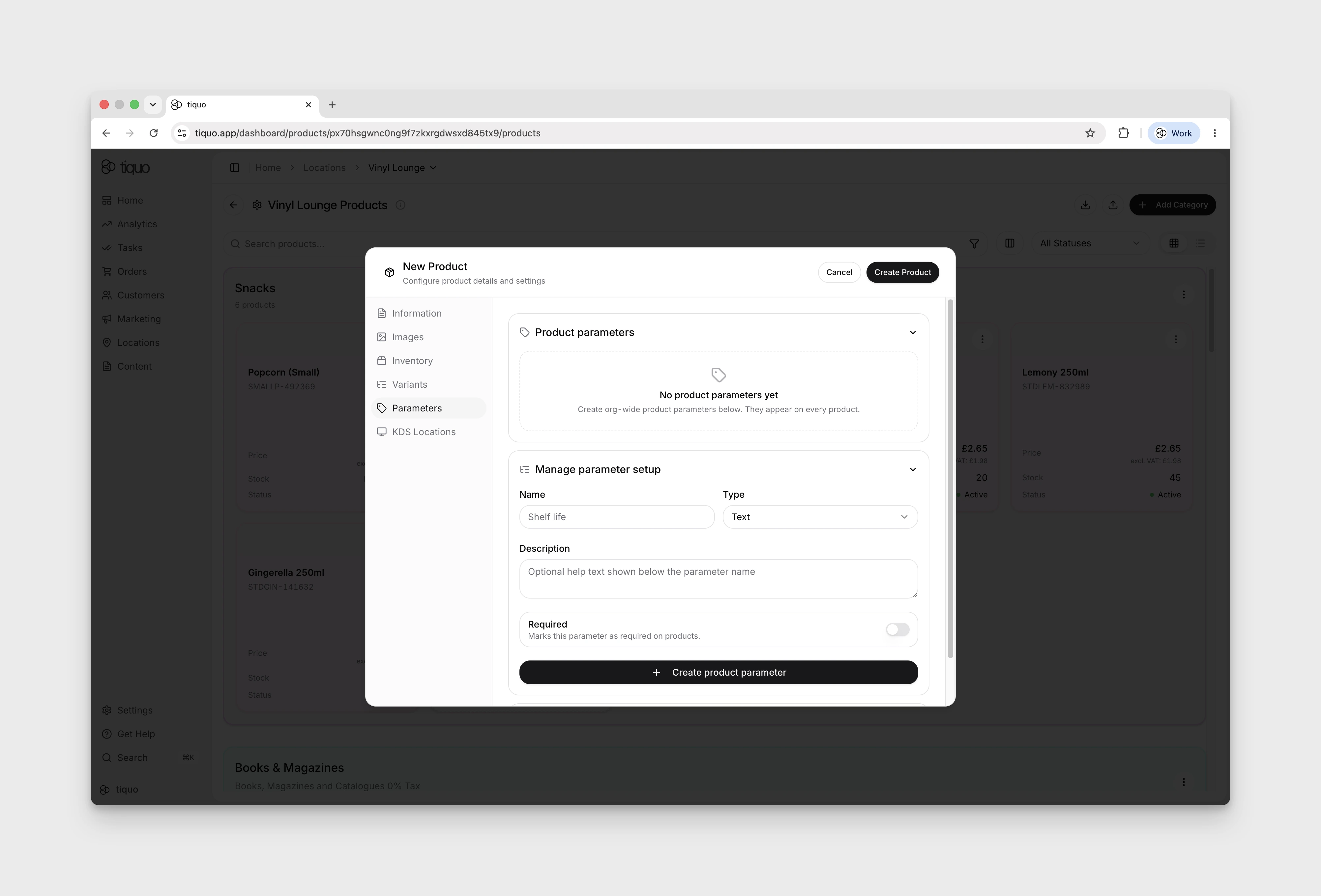
Each product can carry custom parameters that capture structured metadata beyond the core product fields. Parameters are useful for storing details such as supplier, region, country of origin, grape varietal, or any other attribute you want to filter and report on.
Manage organisation-wide product parameter definitions from the Parameters tab. These definitions appear on every product; each product holds its own values.
On supported staff ordering screens, open the product filters to narrow the catalogue by Dropdown, Multi-Select, and Boolean product parameters. This is useful for menus with attributes such as region, dietary classification, format, or supplier. Parameter filters require an online connection and are not available while the app is working offline.
Variants
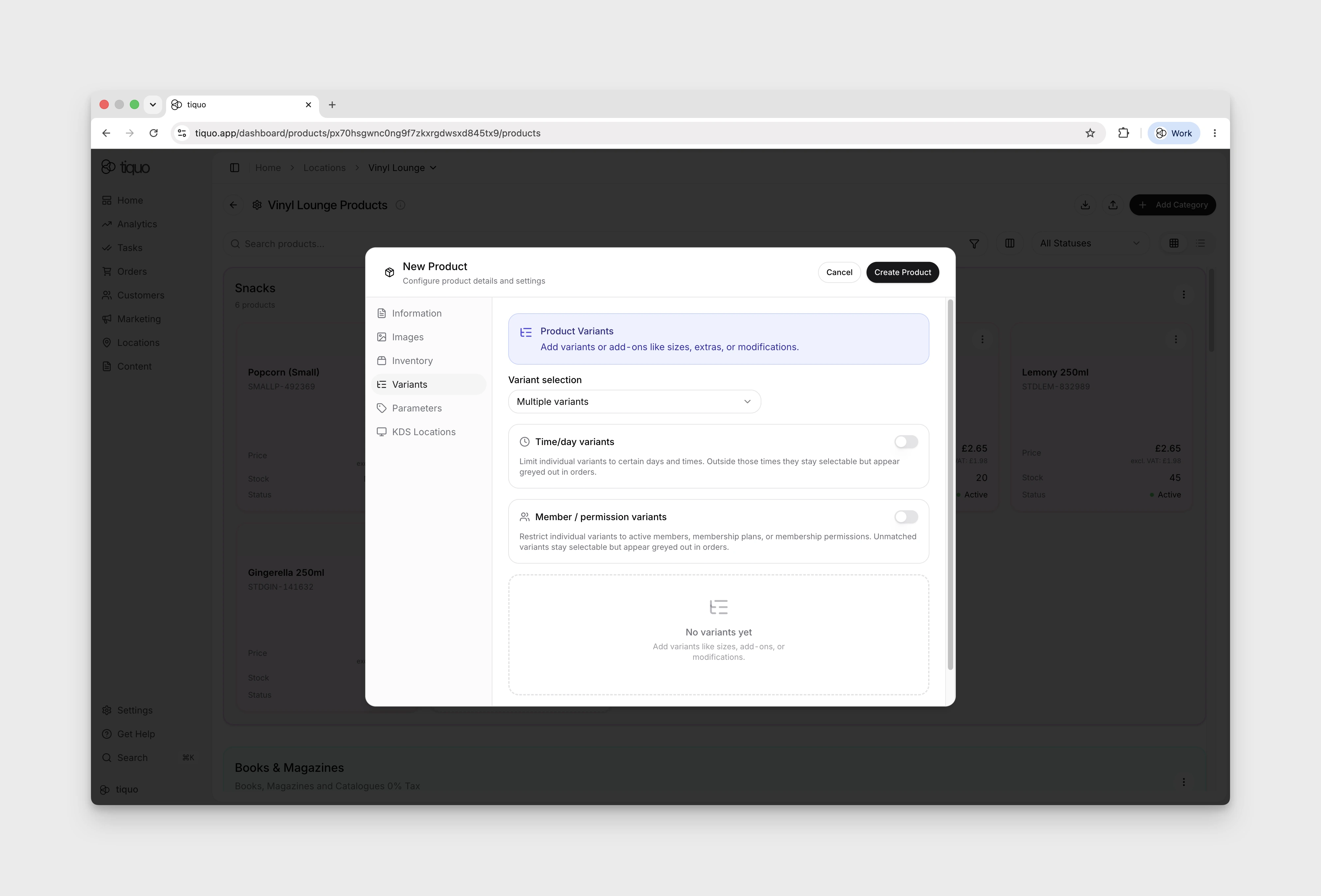
Variants let a single product carry multiple configuration options. Each variant can have its own quantity, additional price, and availability rules.
Turn on Require a variant when staff must select at least one variant before the product can be added to an order. Leave it off when variants are optional add-ons.
For each variant, open the price-display menu. The inspected demo configuration offers:
- Additional Price: the amount added to or subtracted from the base product.
- Total price: the resulting product price after the variant adjustment.
For example, a €10 product with a €2 variant shows 2 under Additional Price and 12 under Total price. Use the options available in your menu; an Adjusted option was not available in the inspected configuration. The product grid's bulk actions can also change the variant price display for selected products.
Use variants for:
- Modifiers or options: for example a flat white with oat or soy milk, each priced differently.
- Member / permission variants: visually flag variants according to membership or permission conditions. The configuration explains that unmatched variants remain selectable but appear greyed out in orders.
- Time/day variants: visually flag variants for selected days or times, such as peak periods or happy hour. Variants outside those times remain selectable but appear greyed out in orders.
One product line can cover several customer segments and availability windows without duplicating the product.
Inventory management
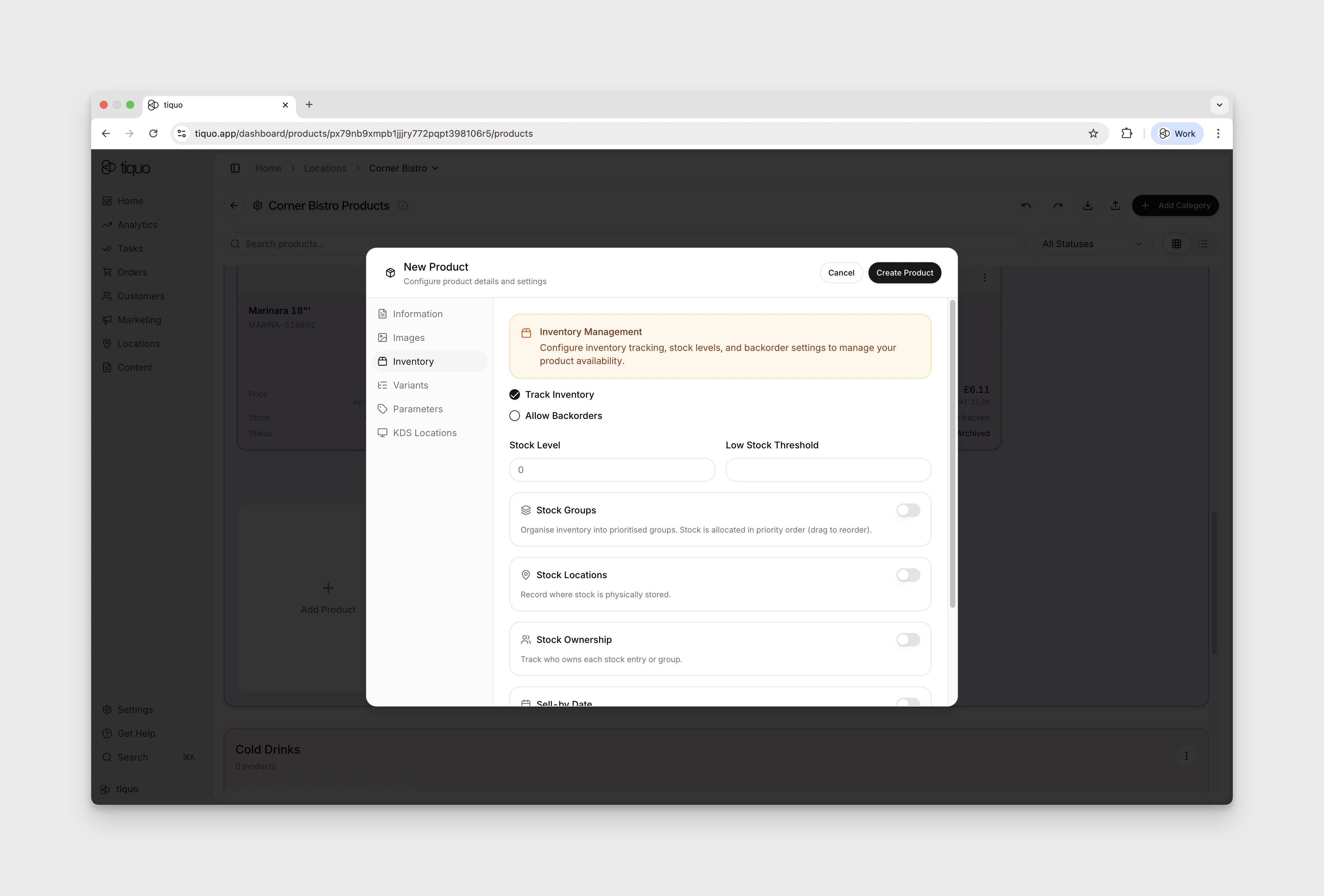
Inventory settings are optional and configurable per product.
You can:
- Enable or disable inventory tracking
- Set current stock levels
- Define low stock thresholds
- Allow or block backorders when stock reaches zero
If inventory tracking is disabled, the product can be sold without limits.
Inventory updates automatically as products are sold through orders.
Product-capable sublocations can also enable Wastage in Sublocation Settings. Staff then record wasted products from Orders > Wastage with a quantity and reason. Saving deducts the applicable tracked stock; the record can remain as an editable open wastage tab or be closed to finalise the audit trail.
Low stock and sold out alerts
When Track Inventory is enabled and a Low Stock Threshold is set, the Configure Products grid shows a small alert badge on the product card when stock reaches or falls below that threshold.
- If stock is above zero but at or below the threshold, the badge shows Low stock.
- If stock reaches zero and there is no remaining sellable stock, the badge shows Sold out.
For products that use Stock Groups, thresholds are managed on each stock group rather than automatically applied to every group. New stock groups do not have a low stock threshold by default; set one manually for each group that should trigger alerts.
If any stock group falls to or below its own threshold, the product card shows a stock-group alert. If all sellable stock across the product's stock groups is gone, the badge changes to Sold out.
Stock ownership and consignment
Turn on Stock Ownership when stock should be attributed to a specific owner instead of only to the sublocation. This supports consigned stock, customer-owned stock, company-owned stock, and shared stock arrangements.
When stock groups are disabled, ownership is set once for the product stock entry. When stock groups are enabled, each stock group can have its own owner. Ownership can be set to:
- Owned by Sublocation for stock owned by the current sublocation
- Owned by Customer to select a customer from the organisation
- Owned by Company to select a company set up in the organisation
Stock assigned to a customer or company also appears at the bottom of that customer or company profile's summary card under Owned/Consigned Products.
Product status and settings
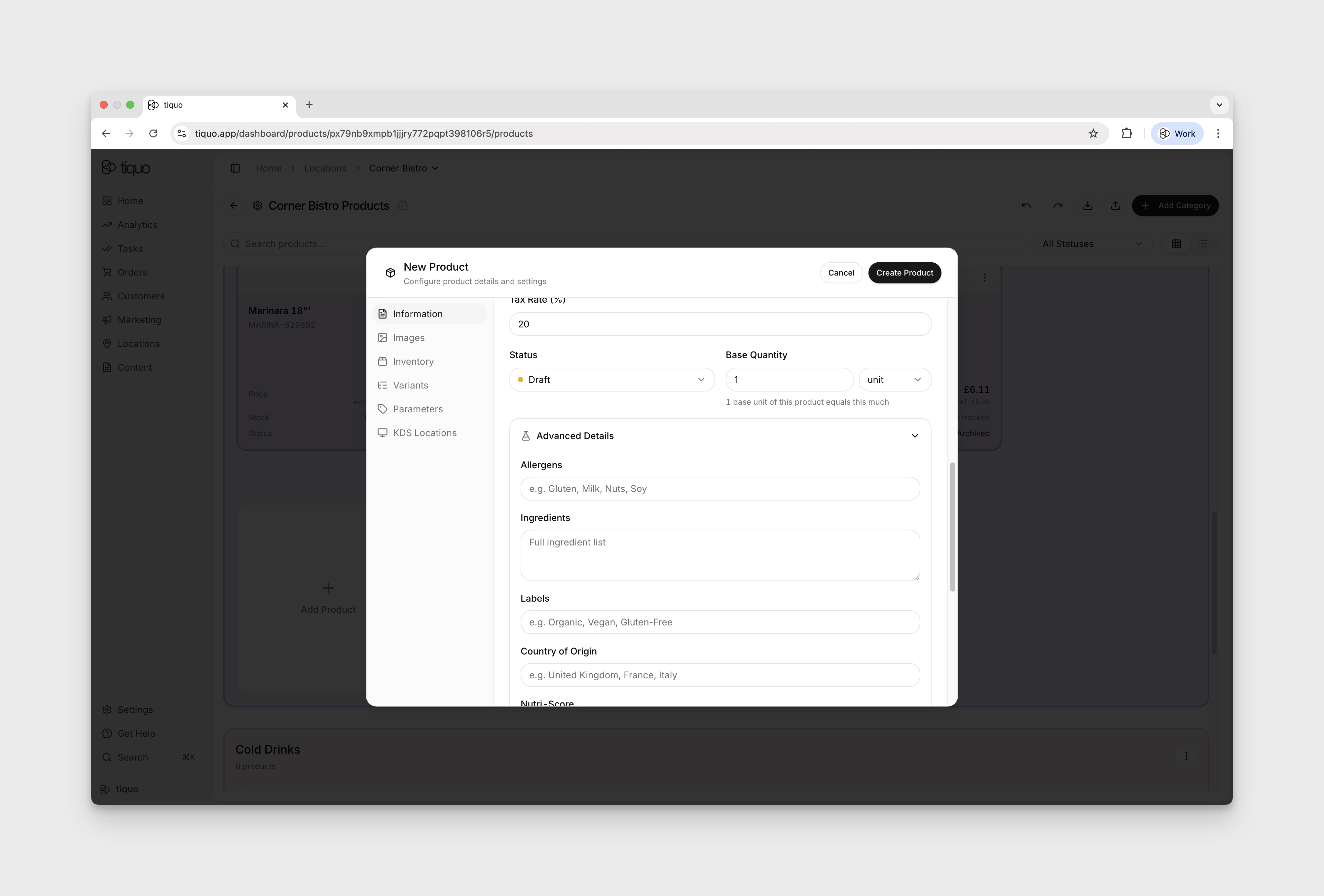
Each product has a lifecycle status:
- Draft: not visible or sellable
- Active: available for sale
- Inactive: temporarily hidden but retained
- Archived: removed from active use but kept for records
Additional settings include:
- Physical properties such as weight
For restaurant workflows, mark a product as a Restaurant favourite for the current sublocation. Favourites appear prominently when staff start an order in Restaurant Mode, making frequently ordered items faster to add. The setting is per sublocation, so different venues can maintain different quick-access menus.
Changing a product's status does not delete historical order data.
Adding products to orders
Products can be added to orders in multiple ways:
- Directly by staff when creating or editing an order
- As part of a combined order that also contains bookings
- Through customer-facing flows where products are enabled
- Through Order & Pick Up or Order to Table channels when the product is available for that channel
Orders can contain:
- Only products
- Only bookings
- A combination of both
All pricing, VAT, and inventory rules are applied automatically when products are added.
Channel availability
To check customer ordering for a sublocation, open Locations, select the sublocation, and choose Sublocation Settings.
- Order & Pick Up includes Enable Order & Pick Up. Its description explains that customers can browse enabled products, build a basket, and place a pick-up order.
- Order to Table includes Enable Order to Table. Its description explains that seated customers can browse enabled products, enter their table, and place an order.
Check the relevant channel's enablement before investigating which products customers can order. These are sublocation-level channel settings; a product's Active status is a separate setting.
When tracked inventory is enabled, stock is deducted when an order or added order item is saved. Eligible customer-ordering carts restore that quantity if they transition to Lost Cart, and cancelled or refunded orders restore the applicable stock.
Adjusting inventory, VAT, and pricing
All product settings can be adjusted at any time.
- Price and VAT changes apply to future orders only
- Inventory levels update in real time
- Archived or inactive products remain visible in historical data
You can change menus, pricing, or stock while preserving reporting and past orders.