

Devices Overview
Tiquo supported devices and platforms
Devices overview
Tiquo's apps and hardware work together for daily operations, payments, and customer service. Choose a device setup for each location and the tasks staff need to carry out.
Supported platforms
Web Application
Full-featured dashboard and control centre accessible from any browser
macOS App
Dedicated desktop app for Apple Silicon Macs
Staff iOS app
Native iPhone and iPad application for day-to-day operations
Android App
Native Android application (coming soon)
PDQ Terminals
Professional payment terminals with Stripe integration
Each platform is optimised for specific use cases, from full configuration and administration to in-venue operations and payments.
Web application
The Web Application is the primary control centre for Tiquo and provides full access to platform configuration and administration.
The Web App supports:
- Full organisation and location setup
- Products, services, bookings, orders, and enquiries
- CRM, analytics, marketing, and reporting
- Payments configuration and Stripe connection
- User management, roles, permissions, and security settings
Most configuration and advanced settings are only available via the Web Application.
macOS app
The macOS app gives staff a dedicated desktop version of the Tiquo dashboard for Apple Silicon Macs.
It is best for teams who work in Tiquo throughout the day and want the dashboard available outside the browser.
See macOS App for installation and system requirements.
Staff iOS app
The Staff iOS app is designed for staff operations and day-to-day use on iPhone and iPad.
The Staff iOS app supports:
- POS and order management
- Check-in, attendance, and scanning
- Open tabs and payments (with supported hardware)
- Floor plans and calendar views
- Customer lookup and basic CRM actions
The app can operate in different modes depending on the device and setup, including staff mode, schedule display, and kitchen display system (iPad only).
Android app
The Android App is marked Coming Soon. Supported features, device requirements, and download availability will be confirmed at release.
PDQ payment terminals
Tiquo integrates directly with supported PDQ terminals for in-person card payments. These terminals connect to Tiquo via Stripe and are registered directly within the platform.
Hardware devices
Open Settings → Hardware to see current prices and availability. Prices are shown in your location's currency. If your organisation has locations in more than one country, choose GBP, EUR or USD. Taxes are shown separately.
Payment terminals
| Device | Type | Best For |
|---|---|---|
| S700 Terminal | All-in-one terminal | Full POS with touchscreen |
| S710 Terminal | Handheld terminal with mobile data | Handheld and mobile use |
| T600 Terminal (Coming Soon) | Dock-mounted customer display | Paired customer-facing checkout |
S700 terminal
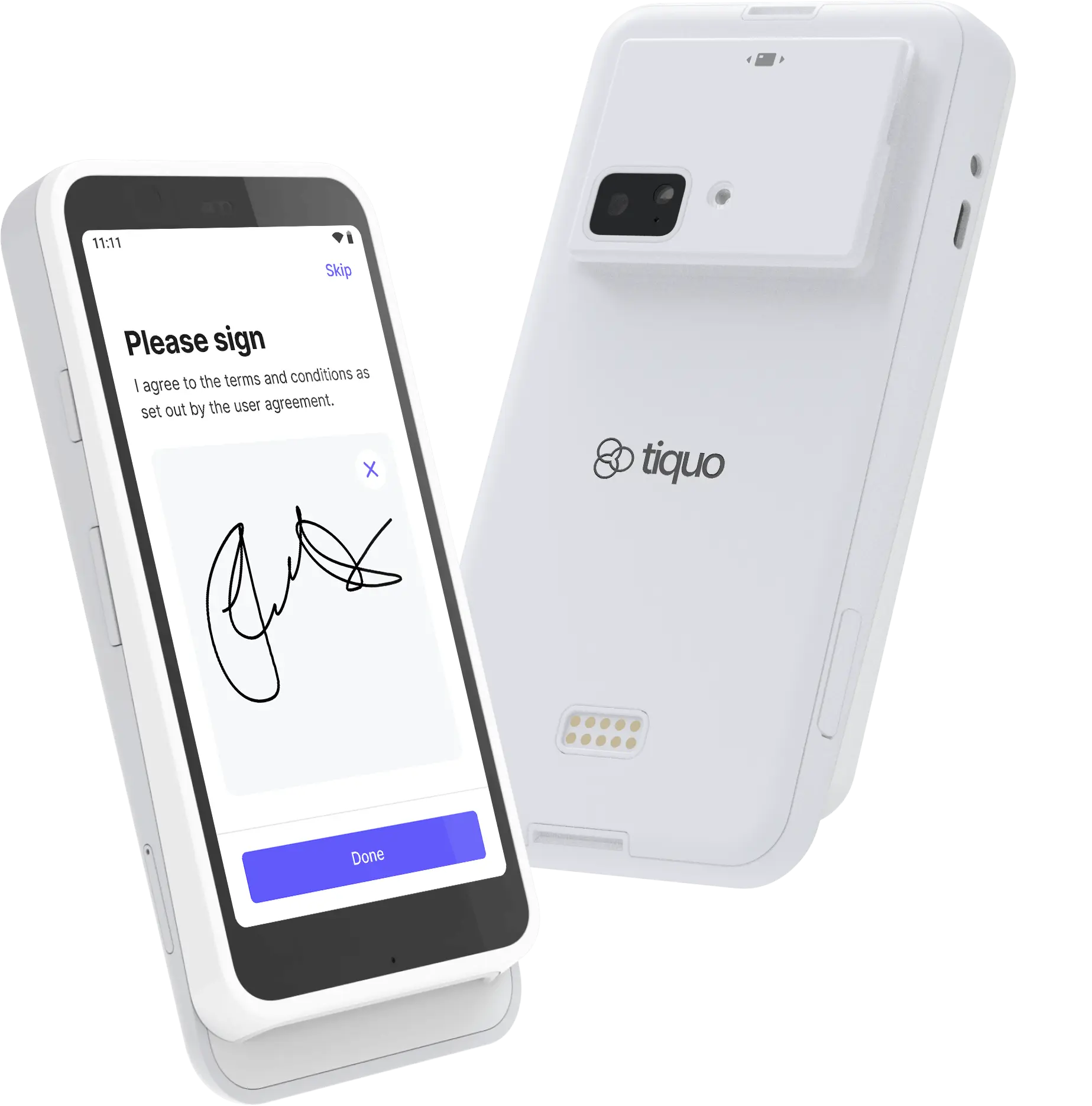
The S700 is an all-in-one payment terminal designed for full POS and payment workflows.
Key features include:
- 5.5-inch IPS LCD touchscreen with Gorilla Glass (1920 x 1080, 580 nits)
- EMV chip, contactless, digital-wallet, and magstripe payments
- Wi-Fi and Bluetooth connectivity
- Ethernet through a compatible dock or hub
- Offline mode
- Up to 15 hours of active use and 140 hours on standby
- 318g body (161.9 x 81.6 x 21.4 mm)
- Android 10, Qualcomm SM6125 processor, 4GB RAM, and 64GB storage
- End-to-end encryption, P2PE-ready security, and PIN support
The S700 does not include a built-in receipt printer. Pair it with a supported receipt printer when printed receipts are required.
S700 Documentation
Complete S700 setup and usage guide
S710 terminal
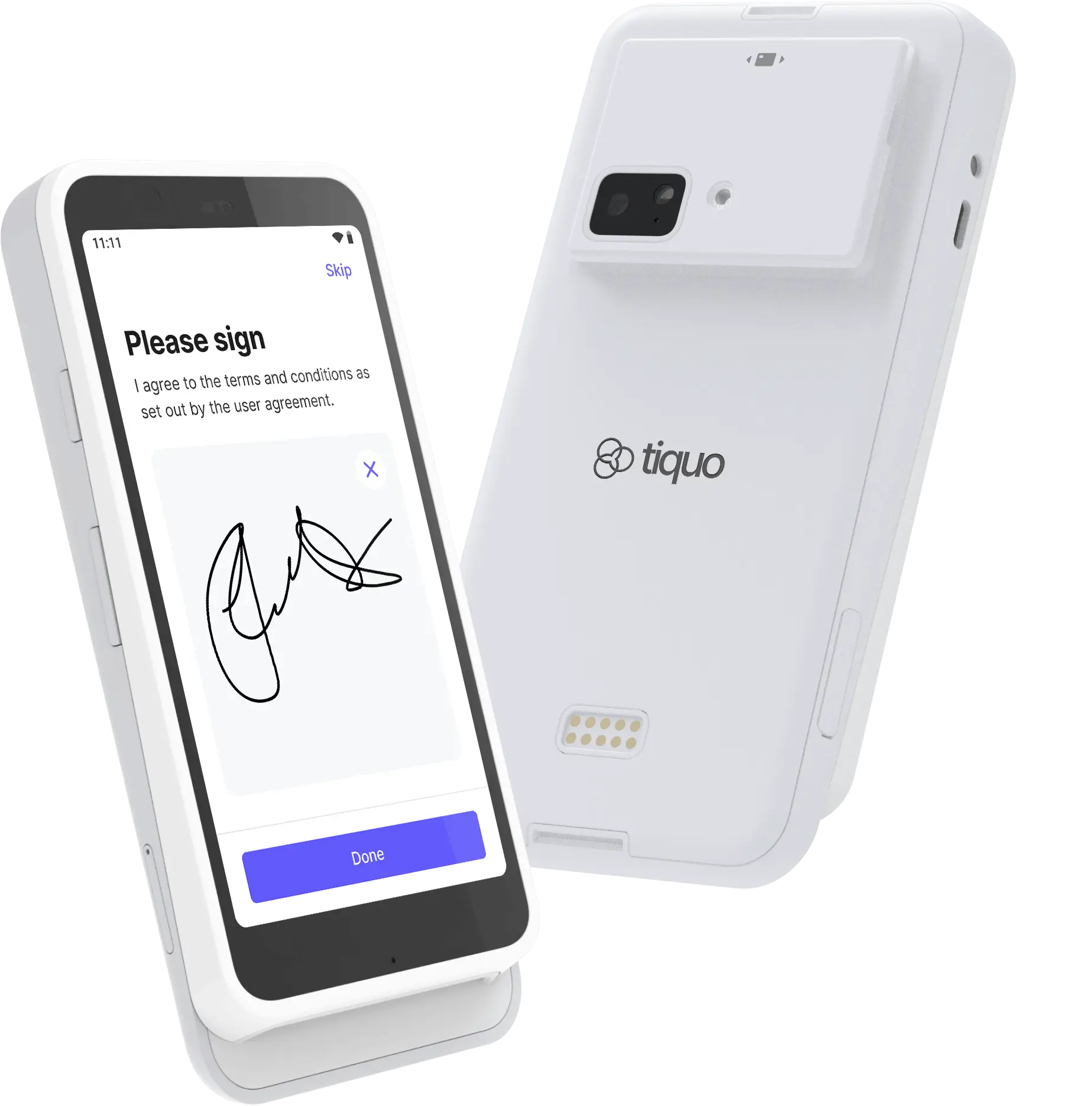
The S710 is a handheld payment terminal built for staff who take payments away from a fixed counter, with mobile data fallback when Wi-Fi is unavailable.
Key features include:
- 5.5-inch IPS LCD touchscreen with Gorilla Glass (1920 x 1080, 580 nits)
- Chip, contactless, and magstripe payments
- Apple Pay, Google Pay, and other digital wallets
- Wi-Fi, Bluetooth, and 4G/LTE mobile connectivity
- Ethernet via dock or hub accessory
- Offline mode for taking payments without an active connection
- Up to 15 hours of active use, 140 hours standby
- Front and rear cameras and microphones (future support)
- Customisable on-reader checkout
- Compact 318g body (161.9 x 81.6 x 21.4 mm)
- Android 10, Qualcomm SM6125, 4GB RAM, 64GB storage
- End-to-end encryption and P2PE-ready security
The S710 suits venues that need a portable terminal for table service, queue busting, pop-ups, or events where Wi-Fi coverage is unreliable.
T600 terminal
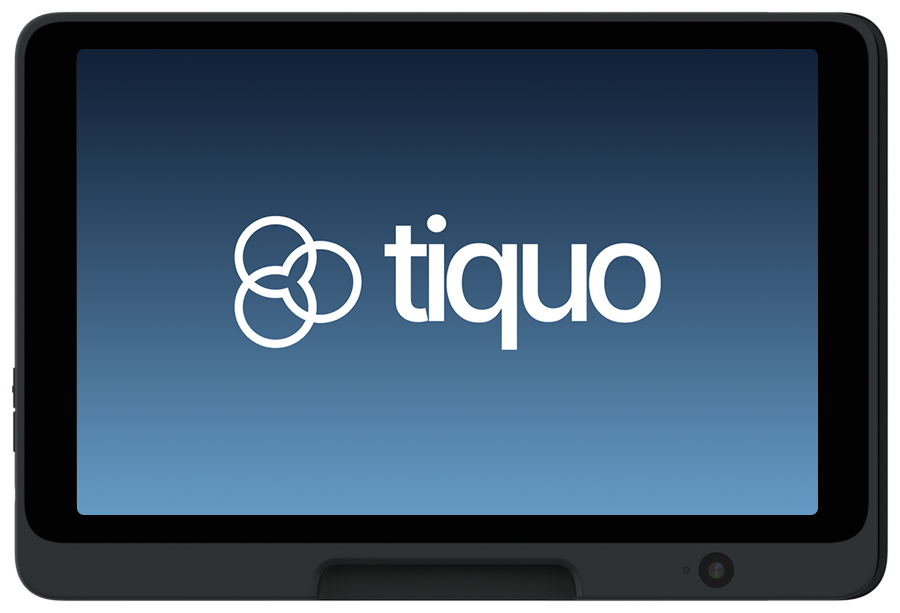
Price: UK: £249.00 · Europe: €289.00 · US: US$329.00. Taxes are shown separately.
The T600 is a dock-mounted customer display paired with a staff checkout. It shows the live basket, totals, tipping, payment progress, and receipt experience in landscape, dark, and immersive modes.
Key features include:
- 8.0-inch IPS LCD display with Dragontrail glass (1280 x 800, 500 nits)
- Chip, contactless, and magstripe payments
- Apple Pay, Google Pay, and other digital wallets
- Wi-Fi, Bluetooth, and Ethernet (via hub) connectivity
- USB-C powered for permanent countertop installation
- On-reader tipping flows
- Branded idle, basket, tipping, payment, and receipt states
- 5MP front-facing camera (future support) and audio jack
- 500g unit, 205 x 139 mm tablet face, 25mm height (57mm with base)
- Android 15, Qualcomm SM6125, 4GB RAM, 64GB storage
- PCI 6.X certified, P2PE-ready, with end-to-end encryption and PIN support
The T600 remains in dock-only customer-display mode and does not expose the standard POS or other application tabs.
Hardware recommendations
Open Settings > Hardware > Hardware Recommendations to let Tiquo AI review the organisation's active locations, sublocations, business types, configured capacity, services, products, and tables.
The result is an organisation-wide starting plan with proposed quantities and a reason for each device or accessory. Review the plan before purchasing. Supported Tiquo hardware recommendations can be added to the hardware cart together.
Hardware Recommendations is a sizing aid. Confirm networking, power, mounting, payment, printing, accessibility, and resilience requirements for each venue before ordering.
Accessories
Tiquo offers a small set of recommended accessories to support in-venue setups.
| Accessory | Description |
|---|---|
| T100 Desktop Scanner | QR code and barcode scanner |
| Tiquo iPad Dock | iPad dock with adjustable viewing angles |
| iPad/Tablet Dock Extended Base | Wider base for enhanced stability |
| S700/S710 Dock | Charging dock for S700 and S710 readers |
| USB-C Hub | Ethernet, power, and peripheral connectivity |
| USB-C 180° Cable | Low-profile USB-C cable routing |
| Double USB-C 40W Power Adapter | Dual-port USB-C power adapter |
| Epson TM-m30III | Compact thermal receipt printer |
| T240 Beacon (Coming Soon) | Bluetooth Low Energy indoor-positioning beacon |
| T800 Receipt Printer (Coming Soon) | Compact thermal receipt printer |
| T580 Label Printer (Coming Soon) | Compact thermal label printer |
| Cash Drawer Small | Compact cash drawer |
| Cash Drawer Regular | Standard-size cash drawer |
T100 desktop QR code / barcode scanner
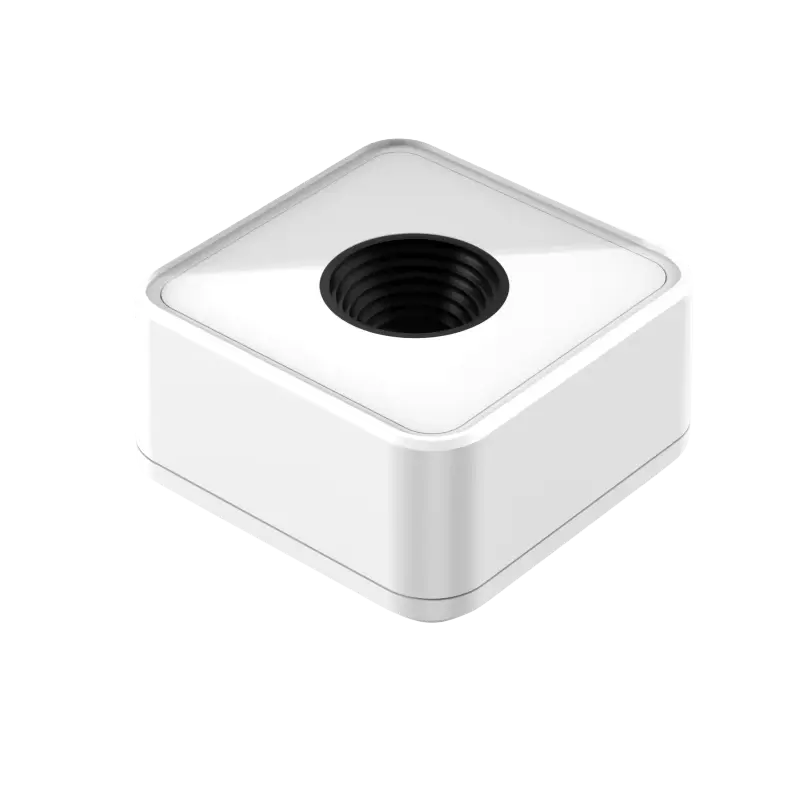
The T100 is a compact desktop scanner designed for fast check-in and validation workflows.
It supports scanning:
- Physical membership cards
- Apple Wallet and Google Wallet passes
- Tickets and vouchers
- 1D and 2D product barcodes
The T100 is USB-C powered and designed for plug-and-play use at reception desks, entrances, and check-in points.
T100 Documentation
Complete T100 setup guide
Tiquo iPad Dock
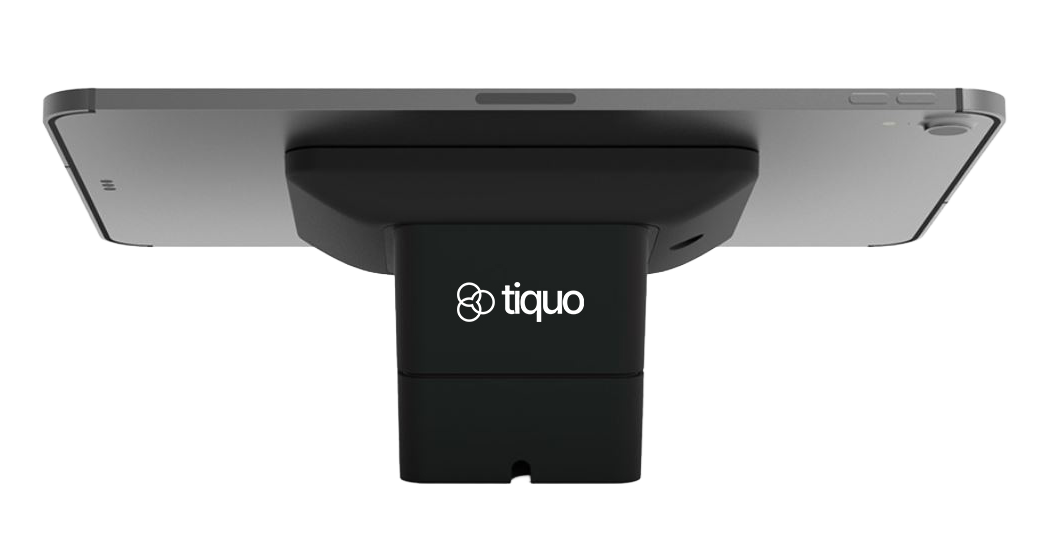
The Tiquo iPad Dock is designed for secure, professional POS counter setups.
Key features include:
- Adjustable viewing angles for customer-facing interactions
- Secure iPad mounting
- Clean cable management
- Suitable for fixed POS environments
iPad Dock Documentation
Complete iPad Dock setup guide
Connectivity and power accessories
Tiquo supports individual USB-C accessories for fixed tablet and counter setups.
USB-C Hub
Ethernet, power, and peripheral connectivity
USB-C 180° Cable
Low-profile cable routing
Double USB-C 40W Power Adapter
Dual-port USB-C power adapter
Additional counter accessories
S700/S710 Dock
Charging dock for S700 and S710 terminals
iPad/Tablet Dock Extended Base
Wider base for enhanced tablet dock stability
Epson TM-m30III
Recommended receipt printer
T240 Beacon
Bluetooth Low Energy indoor positioning and navigation (coming soon)
T800 Receipt Printer
Compact receipt printing for countertop and tablet POS setups (coming soon)
T580 Label Printer
Thermal printing for barcodes, prices, labels, and stickers (coming soon)
Cash Drawer Small
Compact cash drawer
Cash Drawer Regular
Standard-size cash drawer
Getting started
Decide which platforms are required
Determine which devices your team needs for each location
Set up web app access
Ensure staff have access to the Web App for configuration
Install mobile apps
Install the Staff iOS app on required devices
Register PDQ terminals
Register PDQ terminals in Tiquo settings
Test before going live
Test connectivity and permissions before going live
Ordering hardware
Order Tiquo hardware from the dashboard.
- Open Settings → Hardware and add devices and accessories to the cart.
- Select Continue to payment.
- Under Delivery & billing, enter the delivery address and the billing address. Add your business tax number under Business tax details, plus an EORI number if you have one.
- Review the total, including tax, and pay.
Once payment goes through, the order appears in your hardware order history with its total. An order that has not been paid yet shows Complete payment, and it can be cancelled until payment is underway.
Pricing and availability vary by region. Contact the Tiquo Sales team if you need help choosing devices or have a question about an order.
Contact Sales
Get help with a hardware order