

PlatformMarketing
Push Notifications
Preview notification campaigns for wallet cards and custom apps
Notifications is in Private Preview. The senders available to your organisation appear in the notification composer.
Open Marketing → Campaigns, find Notifications, and select New notification campaign. The composer supports notifications for wallet cards or an app; it is not limited to custom-app senders.
Preparing a notification
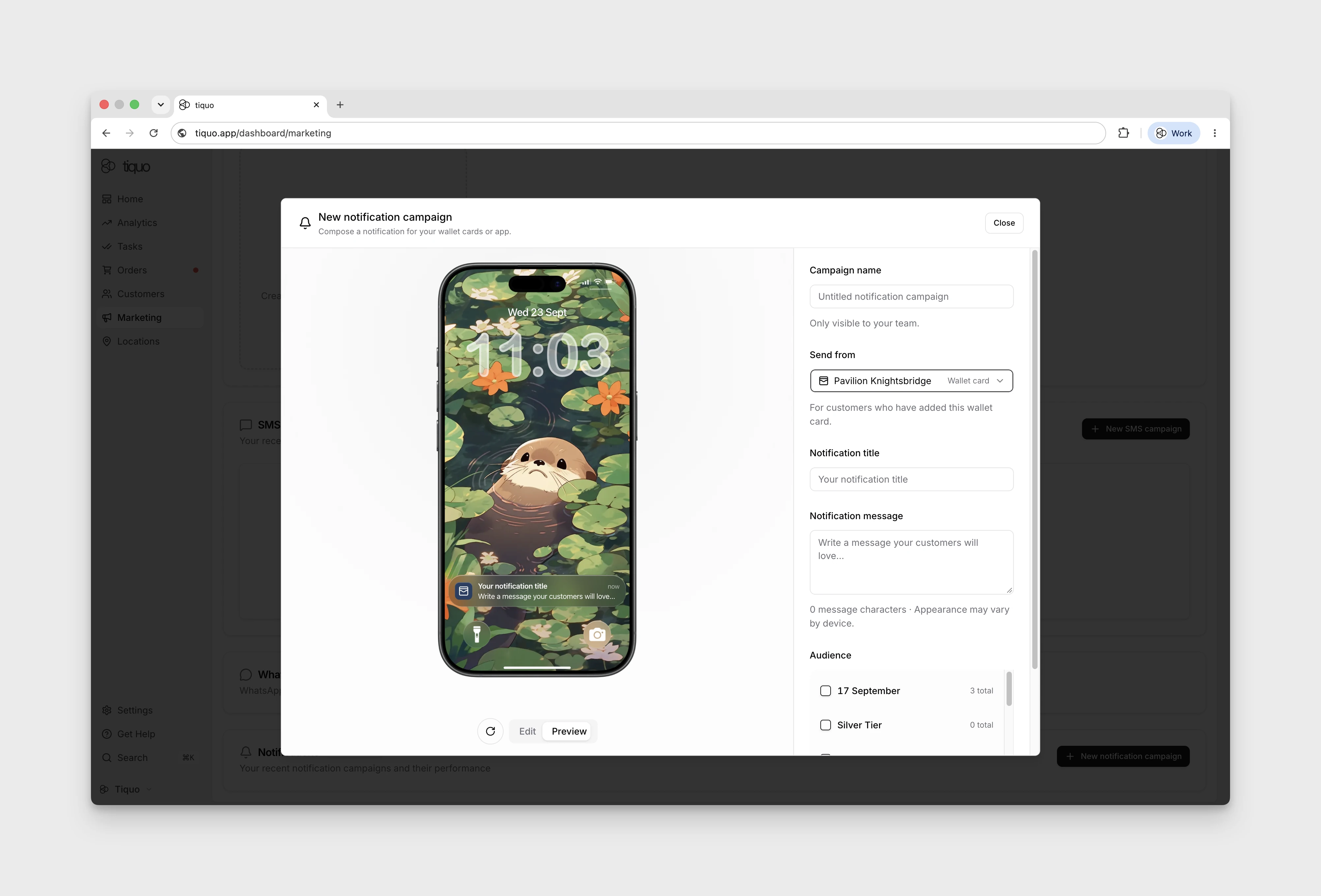
- Enter a Campaign name. This name is only visible to your team.
- Choose an available sender under Send from. A Wallet card sender is for customers who have added that wallet card.
- Enter the Notification title and Notification message.
- Review the iPhone preview. It updates as you type; appearance may vary by device.
- Review the available lists and segments under Audience. Audience totals include all contacts, including those without the selected wallet card, so they are not a count of eligible devices.
Use Close to leave the composer. Viewing or editing the preview does not demonstrate delivery to a device.
For information on custom apps, see Mobile Apps.