PlatformTeam
Notification Settings
Configure organisation-wide defaults for automated customer emails
Customer email defaults
Open Settings > Notifications to configure organisation-wide defaults for automated emails sent to your customers. Individual customer flows can override these defaults.
Set the Sender name and choose which customer emails to enable. The available booking notifications include:
- Booking Confirmation
- Appointment Reminder
- Cancellation Email
- Follow-up Email
The page also includes membership email settings.
Editing an email template
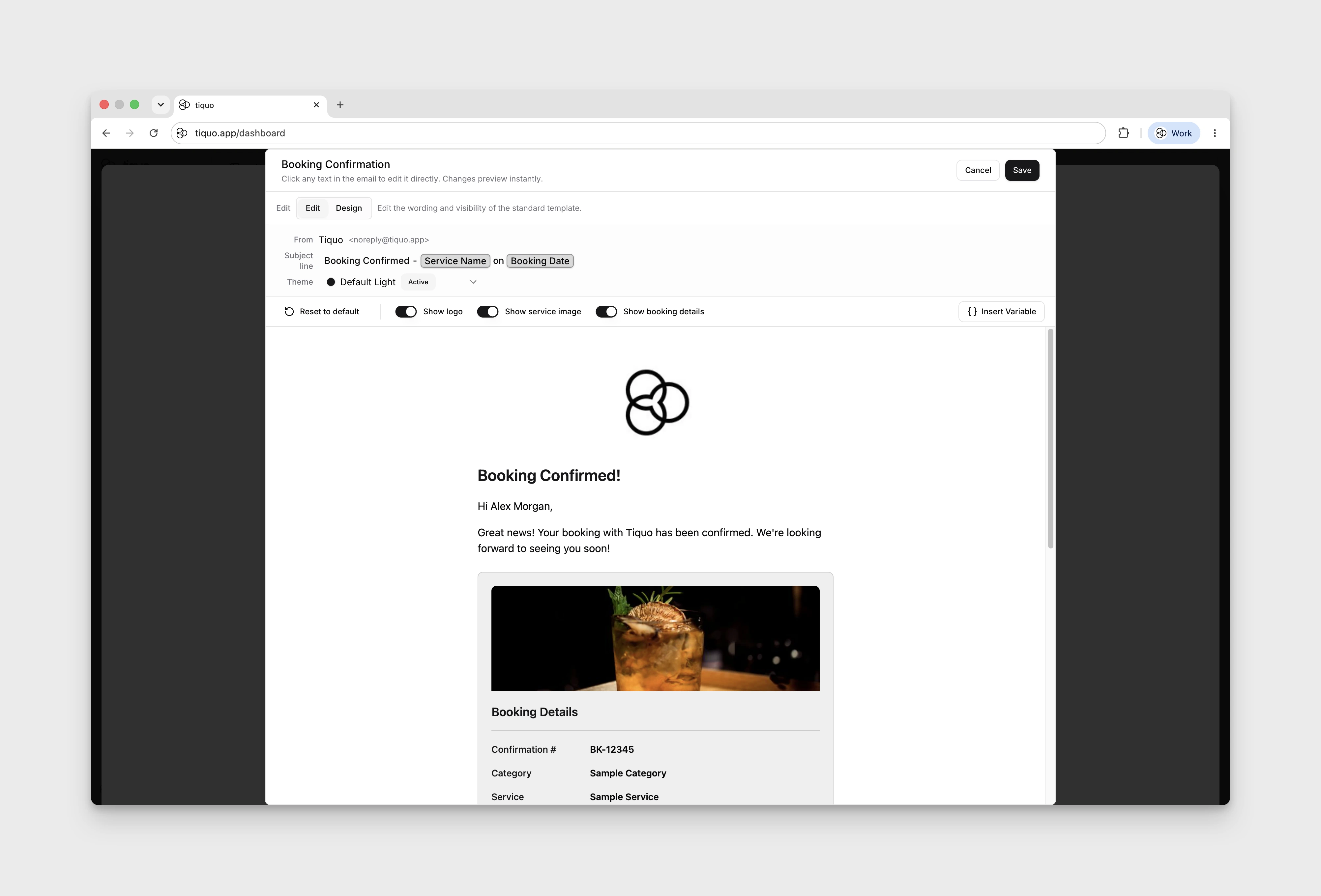
- Find the email you want to customise and select Edit & preview.
- Use Edit to change the Subject line and message content. Use Insert Variable to add an available personalisation field.
- In Edit, choose the Theme and review Show logo, Show service image, and Show booking details. Use Design to open the block editor, with Blocks, Email Settings, and desktop/mobile previews.
- Select Save to keep your template changes, or Cancel to close without saving.