
Configure Products
Create and manage products, categories, pricing, and inventory within sublocations
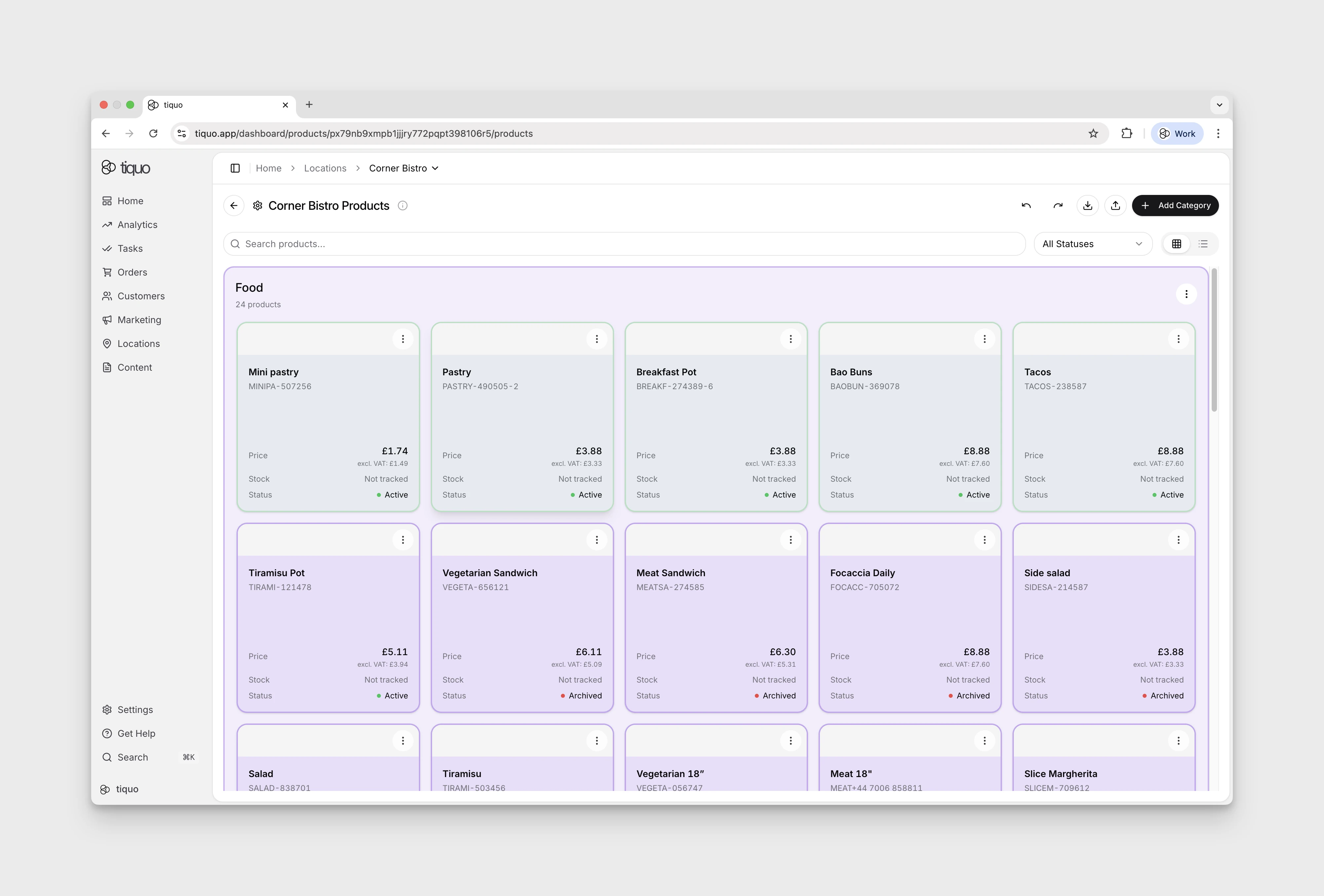
The Configure Products area is where you create, organise, and manage everything that can be sold as a product within a sublocation. Products can be standalone items such as food, drinks, retail goods, or add-ons that are added to orders alongside bookings.
Products are always created and managed at the sublocation level, allowing different menus, pricing, VAT, and inventory rules per space.
Product Categories
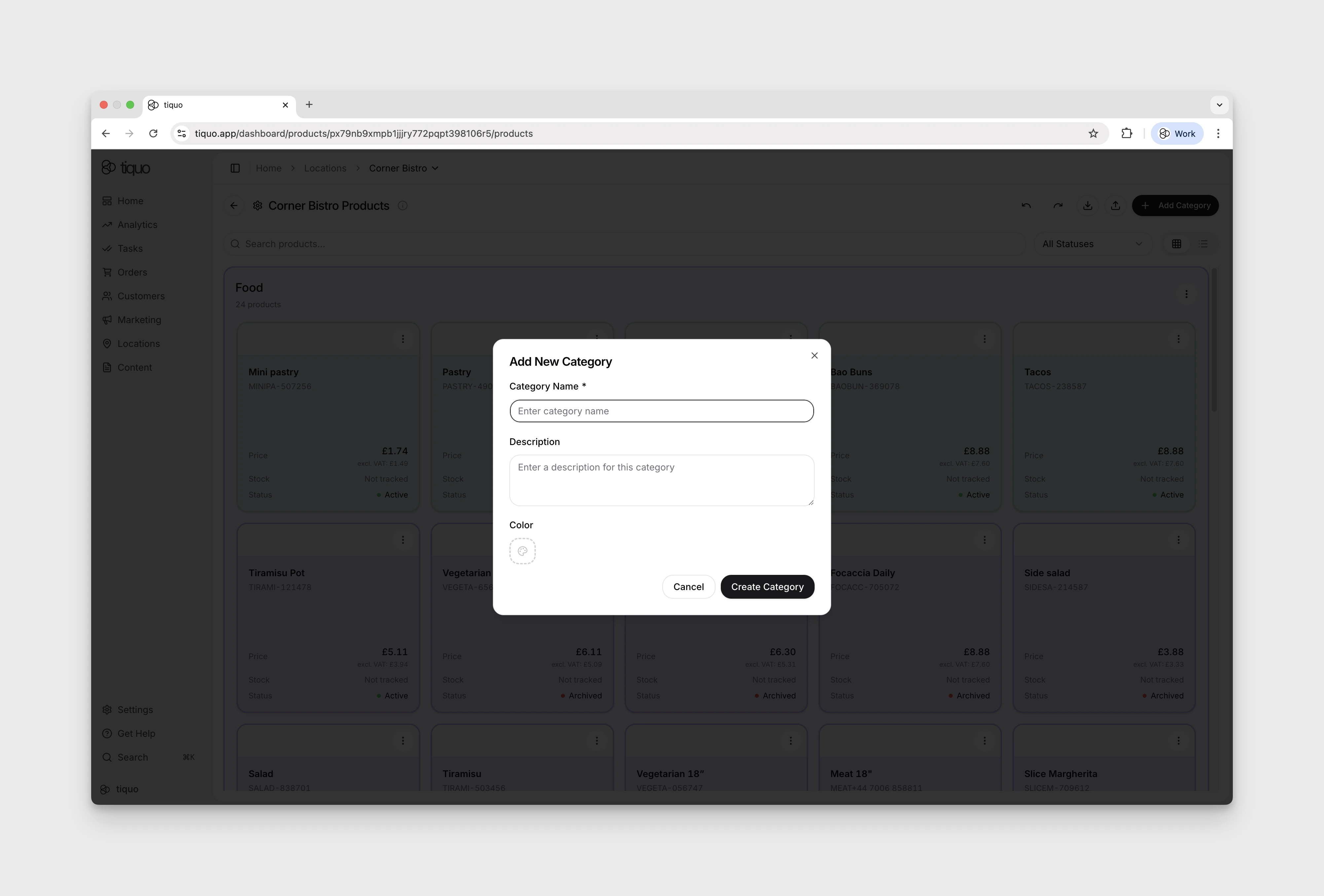
Categories are used to organise products into logical groups, for example Food, Drinks, Merchandise, or Add-Ons. Categories help staff find items quickly and improve the customer experience where products are visible to customers.
You can:
- Create multiple categories per sublocation
- Rename or reorder categories at any time
- Assign each product to a single category
Categories are purely organisational and do not affect pricing or inventory rules.
Creating a Product
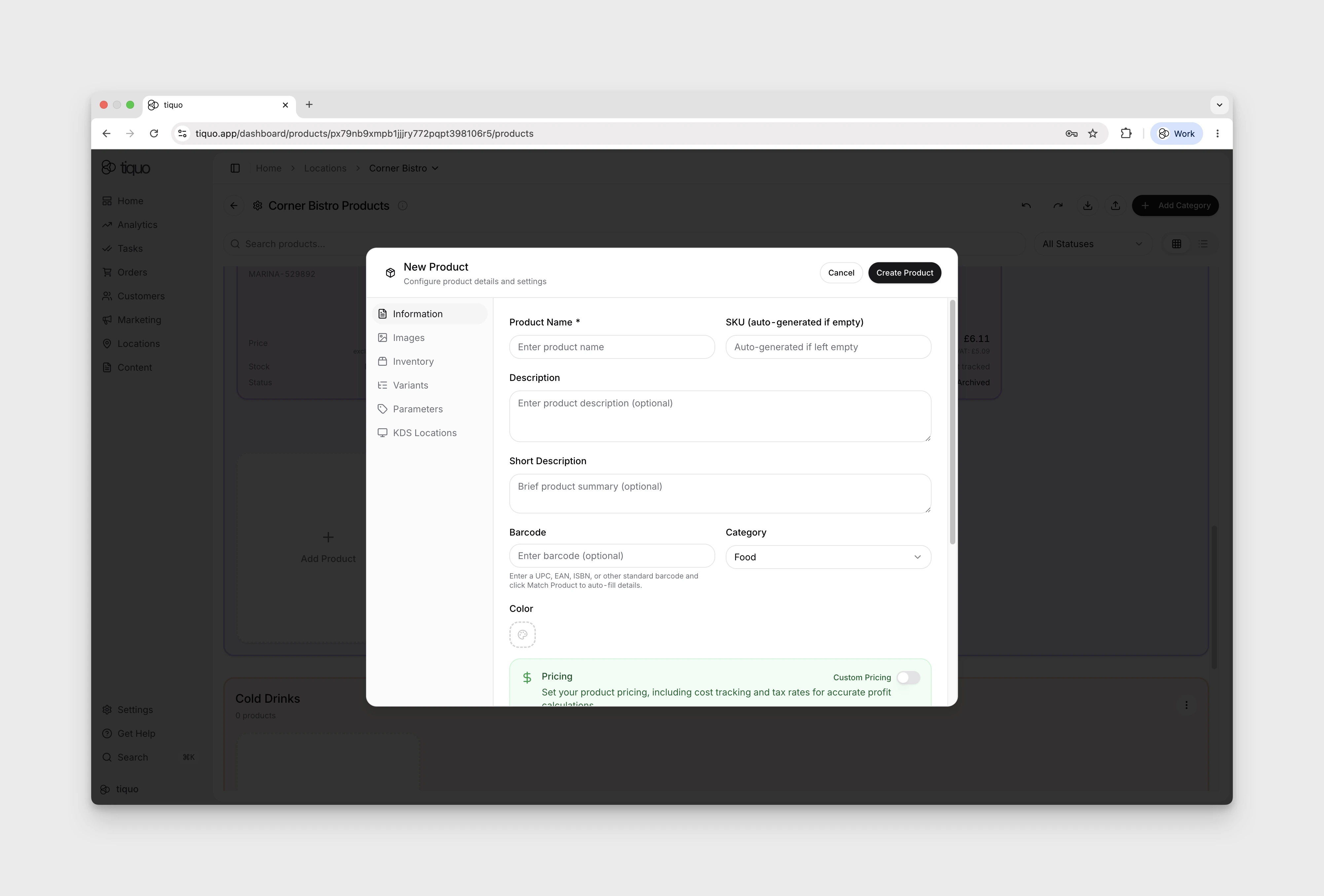
To create a new product, select Add Product within a category. Products are created using a structured, step-by-step configuration flow.
Basic Information
This defines how the product appears internally and to customers.
- Product name
- Optional short and long descriptions
- Category assignment
- Optional barcode for POS or scanner use
AI-assisted descriptions
When the long description contains more than 50 characters, a subtle AI button appears in the corner of the description field. Selecting it opens a popover where you can choose a tone of voice, then click Rephrase to rewrite the description while preserving the product details.
Available tones include:
- Professional
- Friendly
- Premium
- Playful
- Concise
- Warm
When the long description contains more than 100 characters, the short description field also shows an AI button. Use it to generate a compact short description from the long description above. This is useful for POS tiles, compact menus, and customer-facing lists where a shorter summary is easier to scan.
Pricing and VAT
Pricing is fully configurable per product.
- Base price
- Optional compare-at price
- Cost price for margin tracking
- VAT rate per product
VAT can be set individually, allowing mixed VAT products within the same sublocation.
Product Images
Products can have multiple images uploaded.
- The first image is used as the featured image
- Images appear in staff views and customer-facing flows where enabled
- Images can be added, reordered, or removed at any time
This is particularly useful for hospitality, retail, and self-service environments.
Product Parameters
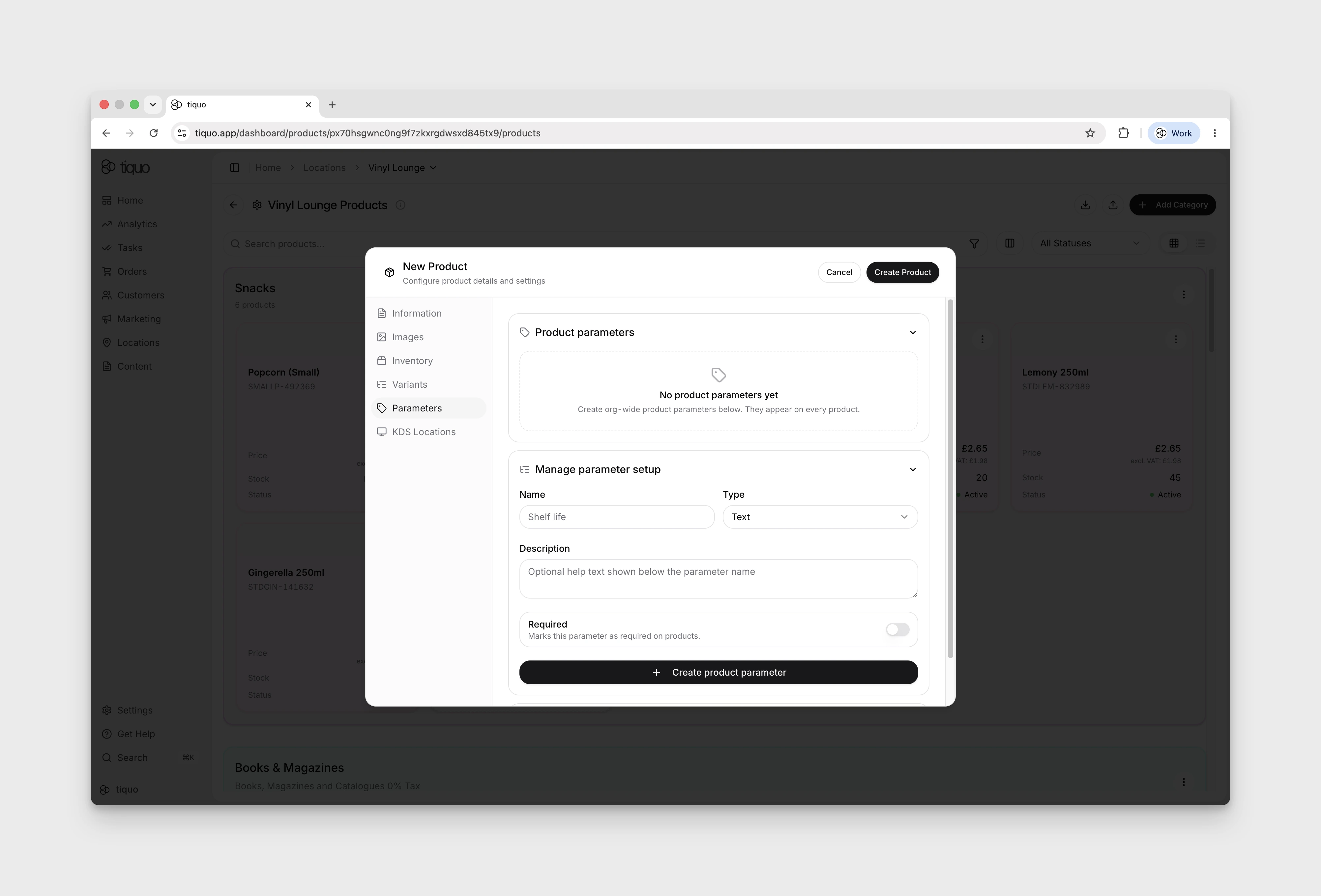
Each product can carry custom parameters that capture structured metadata beyond the core product fields. Parameters are useful for storing details such as supplier, region, country of origin, grape varietal, or any other attribute you want to filter and report on.
Parameters are configured on the product itself under the Parameters tab.
Variants
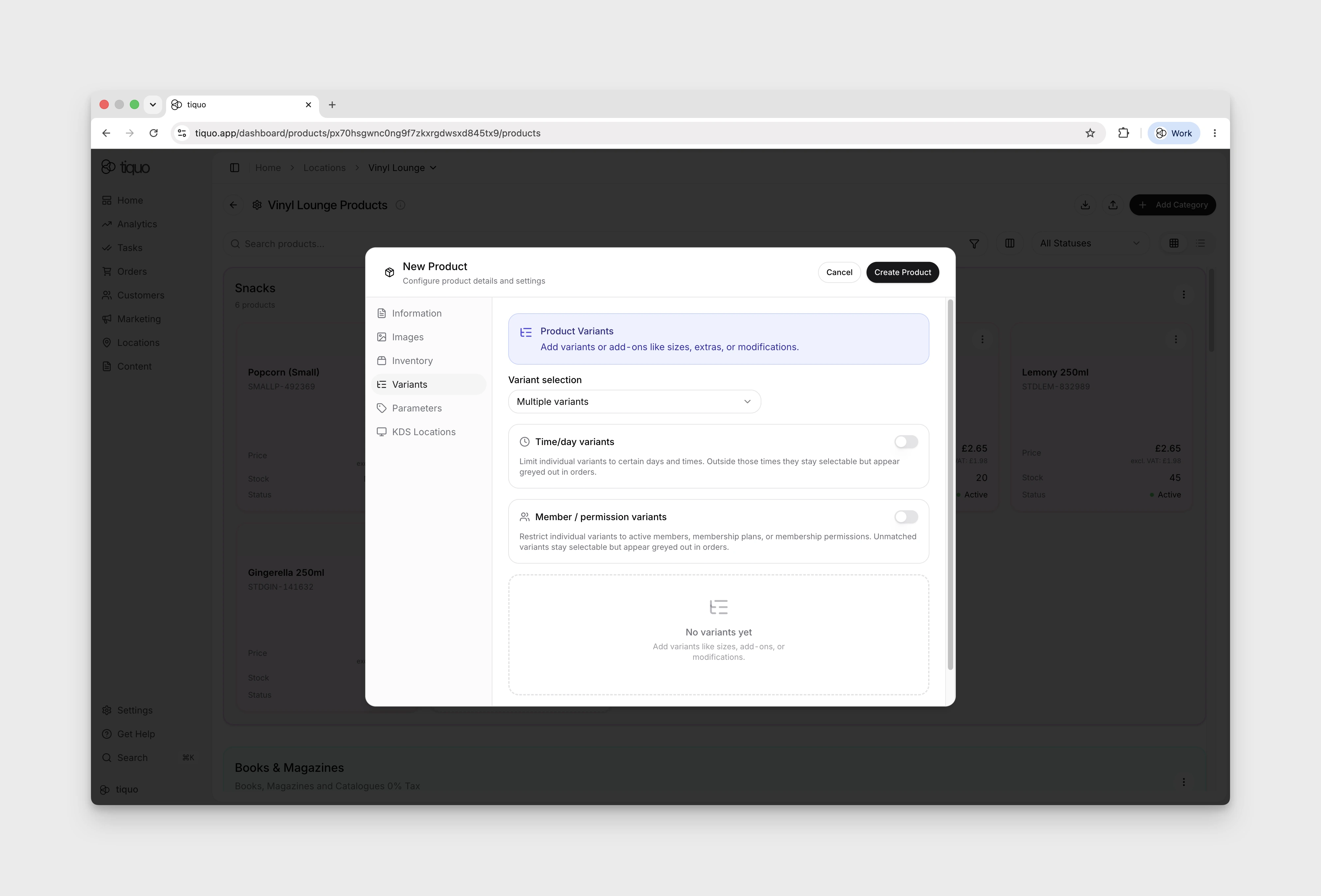
Variants let a single product carry multiple configuration options. Each variant can have its own quantity, additional price, and availability rules.
Use variants for:
- Modifiers or options: for example a flat white with oat or soy milk, each priced differently.
- Member-only options: variants limited to customers with an active membership, selected membership plans, or specific membership permissions.
- Time and day availability: variants available only on selected days or between selected times, such as peak periods or happy hour.
This lets operators set up flexible menus where one product line covers several customer segments and availability windows without duplicating the underlying product.
Inventory Management
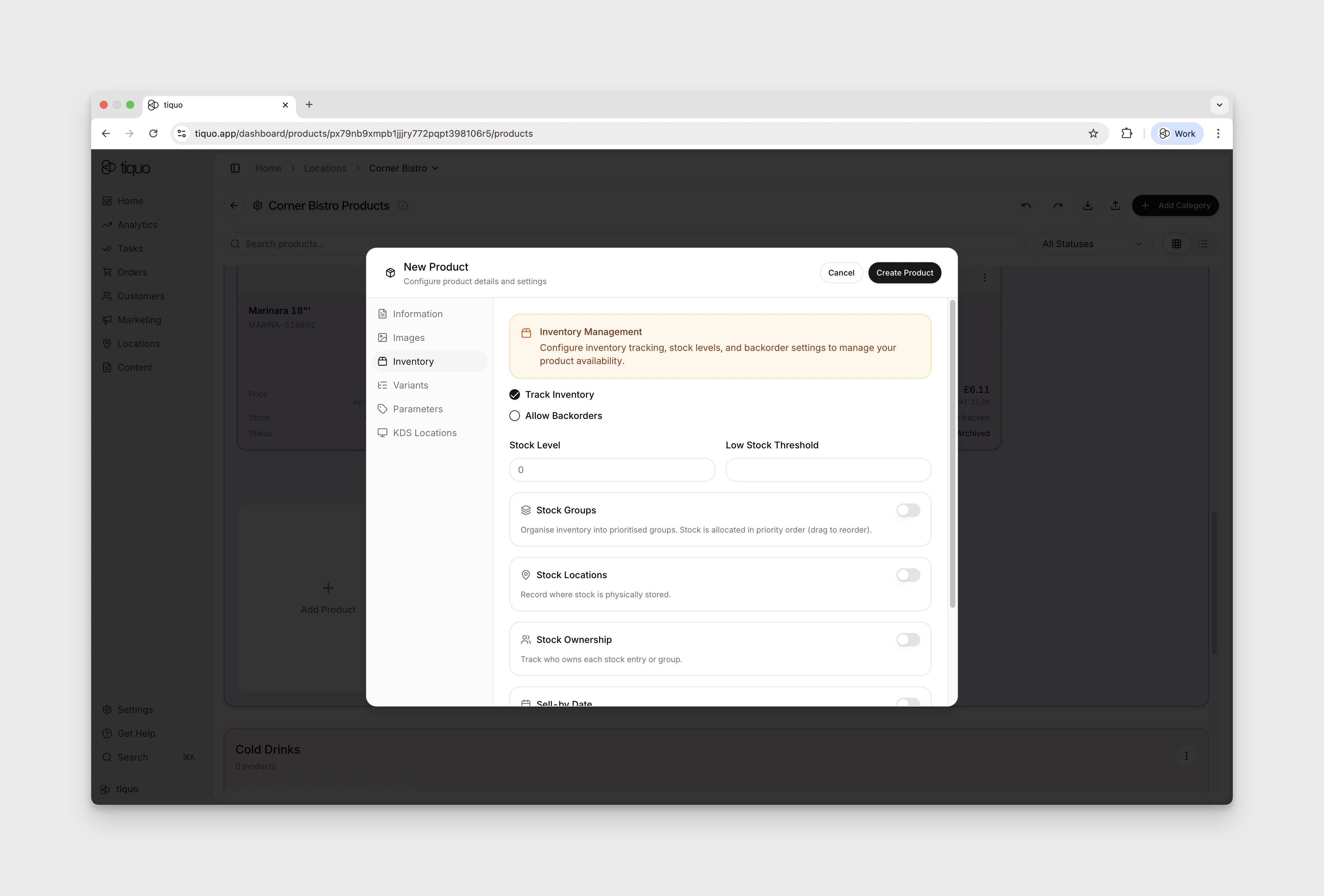
Inventory settings are optional and configurable per product.
You can:
- Enable or disable inventory tracking
- Set current stock levels
- Define low stock thresholds
- Allow or block backorders when stock reaches zero
If inventory tracking is disabled, the product can be sold without limits.
Inventory updates automatically as products are sold through orders.
Low stock and sold out alerts
When Track Inventory is enabled and a Low Stock Threshold is set, the Configure Products grid shows a small alert badge on the product card when stock reaches or falls below that threshold.
- If stock is above zero but at or below the threshold, the badge shows Low stock.
- If stock reaches zero and there is no remaining sellable stock, the badge shows Sold out.
For products that use Stock Groups, thresholds are managed on each stock group rather than automatically applied to every group. New stock groups do not have a low stock threshold by default; set one manually for each group that should trigger alerts.
If any stock group falls to or below its own threshold, the product card shows a stock-group alert. If all sellable stock across the product's stock groups is gone, the badge changes to Sold out.
Stock ownership and consignment
Turn on Stock Ownership when stock should be attributed to a specific owner instead of only to the sublocation. This supports consigned stock, customer-owned stock, company-owned stock, and shared stock arrangements.
When stock groups are disabled, ownership is set once for the product stock entry. When stock groups are enabled, each stock group can have its own owner. Ownership can be set to:
- Owned by Sublocation for stock owned by the current sublocation
- Owned by Customer to select a customer from the organisation
- Owned by Company to select a company set up in the organisation
Stock assigned to a customer or company also appears at the bottom of that customer or company profile's summary card under Owned/Consigned Products.
Product Status and Settings
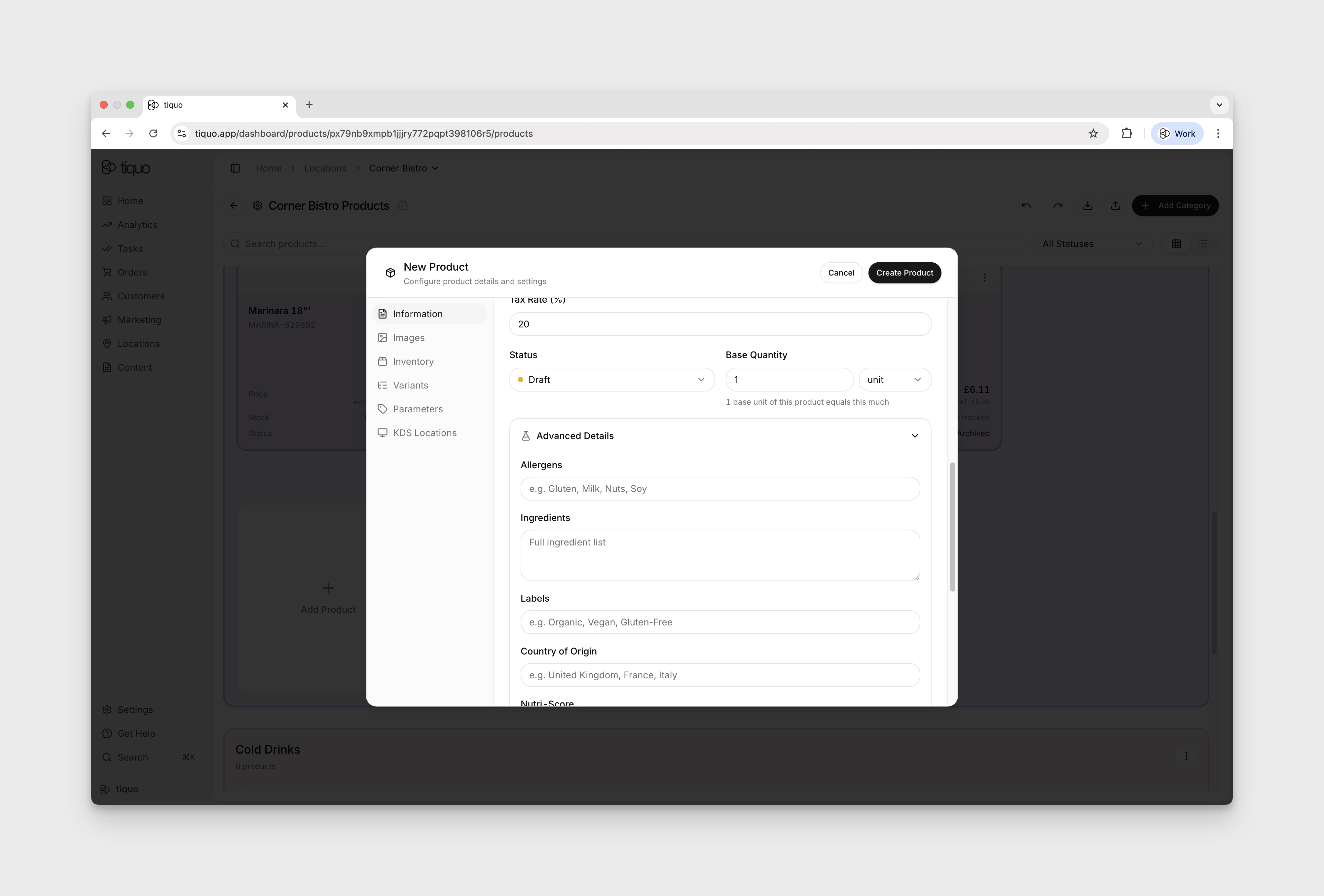
Each product has a lifecycle status:
- Draft: not visible or sellable
- Active: available for sale
- Inactive: temporarily hidden but retained
- Archived: removed from active use but kept for records
Additional settings include:
- Physical properties such as weight
- Internal configuration options used for reporting or integrations
Changing a product's status does not delete historical order data.
Adding Products to Orders
Products can be added to orders in multiple ways:
- Directly by staff when creating or editing an order
- As part of a combined order that also contains bookings
- Through customer-facing flows where products are enabled
- Through Order & Pick Up or Order to Table channels when the product is available for that channel
Orders can contain:
- Only products
- Only bookings
- A combination of both
All pricing, VAT, and inventory rules are applied automatically when products are added.
Channel Availability
Each product can control where it is available.
For example, a product can be:
- Available to staff at POS
- Available for Order & Pick Up
- Available for Order to Table
- Hidden from customer-facing channels while still available internally
Use channel availability when a product should only be sold through certain workflows. A restaurant might make bottled drinks available for Order to Table, while keeping a limited catering item staff-only.
When tracked inventory is enabled, stock is reserved during checkout and restored if a customer abandons the cart before completing the order.
Adjusting Inventory, VAT, and Pricing
All product settings can be adjusted at any time.
- Price and VAT changes apply to future orders only
- Inventory levels update in real time
- Archived or inactive products remain visible in historical data
This allows businesses to change menus, pricing, or stock without disrupting reporting or past orders.