

Sublocation Settings
Configure everything about how a sublocation operates: hours, payments, ordering, notifications, hardware, and more
Each sublocation has its own settings, configured from within that sublocation's workspace. Settings control how the sublocation behaves at the operational level: opening hours, how orders are organised, what payments are accepted, what the customer sees, how staff are notified, and which hardware (terminals, KDS, Wallet Tickets, mobile apps) is connected.
Navigating to Sublocation Settings
To open Sublocation Settings:
- From the main sidebar, select Locations.
- Open a location, then click the sublocation card you want to configure.
- Open the Sublocation Settings entry point on the sublocation workspace.
Settings open as a modal.
The settings categories
The left sidebar is dynamic: product-only, service-only, hybrid, limited-mode, and preview-enabled sublocations can show different tabs. In the normal full view, tabs appear in this order when applicable:
- General: name, parent location, description, inherited timezone and currency, plus Floor Plans and Waiting Room for service-capable sublocations.
- Order Profiles: a Private Preview tab shown only to eligible organisations.
- Hours: operating hours per weekday.
- Location: sublocation address. By default the sublocation inherits the parent location's address. Toggle Use Custom Address to override.
- Appearance: override the organisation's theme for this sublocation. The override only applies to iPad, iPhone, Android, and card reader interfaces, not the desktop dashboard.
- Payments: Stripe account, tax setting, payment-collection toggles, and service charges. Required to take payments. See Payments below.
- Discounts: create discount rules specific to this sublocation, via + Add Discount.
- Notifications: customer and staff notification channels. Email Notifications send booking confirmations and updates. SMS Notifications (Coming Soon) will deliver urgent booking updates by text.
- Security: require a numeric passcode for staff to switch into this sublocation on the mobile app. Useful where multiple sublocations share devices.
- Mobile App: controls which tabs and home sections appear in the mobile app for this sublocation. Useful where staff share devices across sublocations. See Mobile App below.
- Wallet Tickets: shown for service-capable sublocations; generates Apple Wallet and Google Wallet booking tickets when enabled.
- iCal Links: shown for service-capable sublocations; creates revocable calendar subscription links for selected resources.
- Order & Pick Up: shown for product-capable sublocations.
- Order to Table: shown for product-capable sublocations.
- Wastage: shown for product-capable sublocations; enables staff wastage recording for tracked products.
- Order Stages: shown for product-capable sublocations; groups order items into courses or phases.
- KDS Locations: shown for product-capable sublocations; configures kitchen display and printed-ticket routing.
- Reviews: a Private Preview tab for configuring a hosted customer review page.
General settings
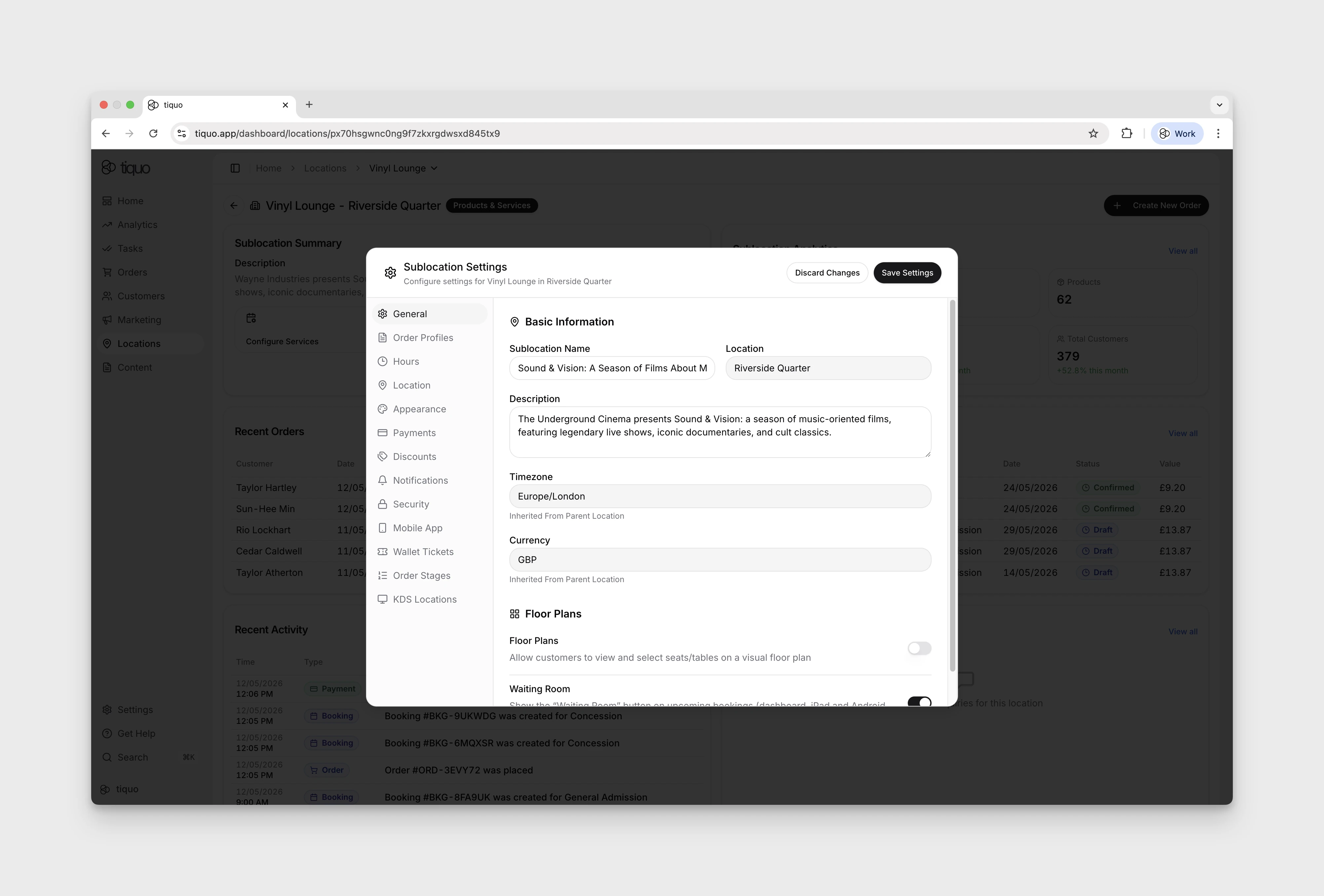
The General tab covers the sublocation's identity and region:
- Sublocation Name: the label shown across the platform (e.g., "Spa & Treatments")
- Location: the parent location the sublocation belongs to
- Description: a short description shown in the sublocation card
- Timezone: inherited from the parent location and displayed read-only
- Currency: inherited from the parent location and displayed read-only
To change timezone or currency, edit the parent location. Sublocations do not currently override either value.
The Floor Plans section toggles two options:
- Floor Plans: when on, customers can view and select seats or tables on a visual floor plan
- Waiting Room: when on, a Waiting Room button is shown on upcoming bookings in the dashboard, iPad, and Android apps
For product-capable sublocations, Order Creation controls the default staff ordering experience:
- POS Mode: choose Standard, Restaurant, or Bar. Standard uses the regular order flow. Restaurant uses product-first ordering with tables and kitchen stages. Bar provides the same restaurant, table, and kitchen controls but opens on a fresh order instead of the POS home.
- Open Floor Plan First: in Restaurant or Bar mode, open the floor plan before the product catalogue when a floor plan is available.
- Allow Customer & Company Tabs: let staff create a floating tab associated with a customer or company instead of a table or booking. An order can be associated with either a table/booking or a customer/company tab, not both.
- Allow Unassociated Orders: when off, staff must associate the order with a table, booking, customer, company, or walk-in before sending it.
- Ask about allergens: prompt staff at the start of an order, before payment or saving an open tab, at both points, whenever a product with configured allergens is first added, or not at all. The setting applies to the dashboard, Tiquo App, and Tiquo PDQ.
Staff selection and approval controls
Enable Staff Selection when each till action should be attributed to an operator. Staff can select their name, and a personal four-digit PIN can be required before they become the active operator.
Choose when the PIN is required again: Never, after 15 or 30 seconds, or after 1, 2, 3, 4, 5, 10, or 30 minutes of inactivity. Require PIN after every order clears the active staff member whenever an order workflow finishes.
Permissions determine who can apply discounts or record wastage. Wastage can also require administrator approval. Configure standard void reasons for the sublocation so the reason and responsible staff member are retained in order history.
Payments
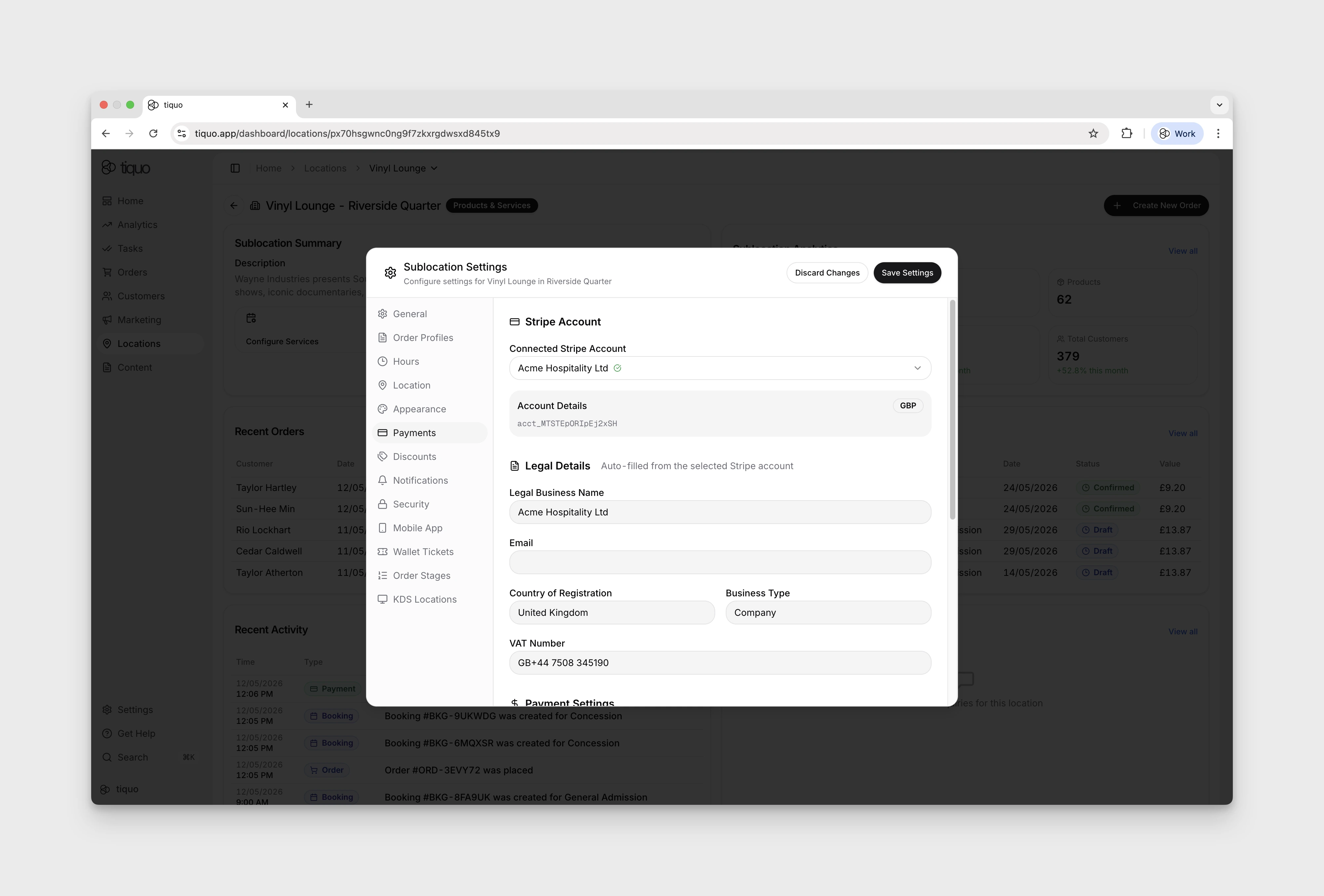
- Stripe Account: connect a Stripe account to enable payments. Legal Details auto-fill from the selected Stripe account.
- Payment Settings:
- Tax Setting: Tax Inclusive or Tax Exclusive. Disabled until Stripe is connected.
- Split VAT by order type: different tax rates for takeaway versus eat-in orders.
- Split price by order type: different prices for takeaway versus eat-in orders.
- Require deposit: customers pay a deposit when booking.
- Request tip for in-person payments: prompt customers to add a tip on the card reader.
- Service Charges: configure product-order and service-order charges separately. Each supports a base percentage plus optional threshold tiers that apply from a specified order subtotal. Thresholds are inclusive and are evaluated before discounts. A product service charge can be limited to open tabs, so immediate-pay orders do not receive it. For an order containing both product and service items, Tiquo applies the higher eligible percentage to the full pre-discount subtotal.
Ordering Channels
Ordering channels control how customers place product orders for a sublocation.
Common channels include:
- Order & Pick Up: customers order ahead and collect from the sublocation
- Order to Table: customers order from a table or service point inside the venue
Channels can be configured per sublocation, so one venue can support table ordering in a restaurant, pickup in a café, and staff-only ordering in another operational area.
Each channel can use the sublocation's operating hours or its own ordering hours. Use channel-specific hours when pickup or table ordering should open later, close earlier, or be unavailable on different days from the venue itself.
When setting up a channel, staff can preview the customer-facing experience before saving. This helps confirm that the channel name, behaviour, and connected products make sense before the channel goes live.
Product availability for these channels is controlled on each product. For example, a product can be available for in-person staff orders but hidden from Order & Pick Up, or available for Order to Table but not for pickup.
If a customer abandons an order before checkout, Tiquo restores stock from the lost cart where the product uses tracked inventory.
Customer ordering and live tracking
The customer-facing channel presents the active products and categories enabled for that channel. Customers can browse or search, choose variants and modifiers, review the basket, and complete checkout for the selected pickup point or table.
After checkout, the confirmation opens a live tracking page. The page shows the order reference, fulfilment location or table, items, totals, receipt, and progress through customer-facing stages such as Order received, Preparing, Ready to collect or Ready to serve, and Collected or Served.
Customers can share the secure tracking link and reopen recent tracked orders in the same browser. Anyone with the link can view the tracking page, so it should be shared only with the intended recipient.
Mobile App
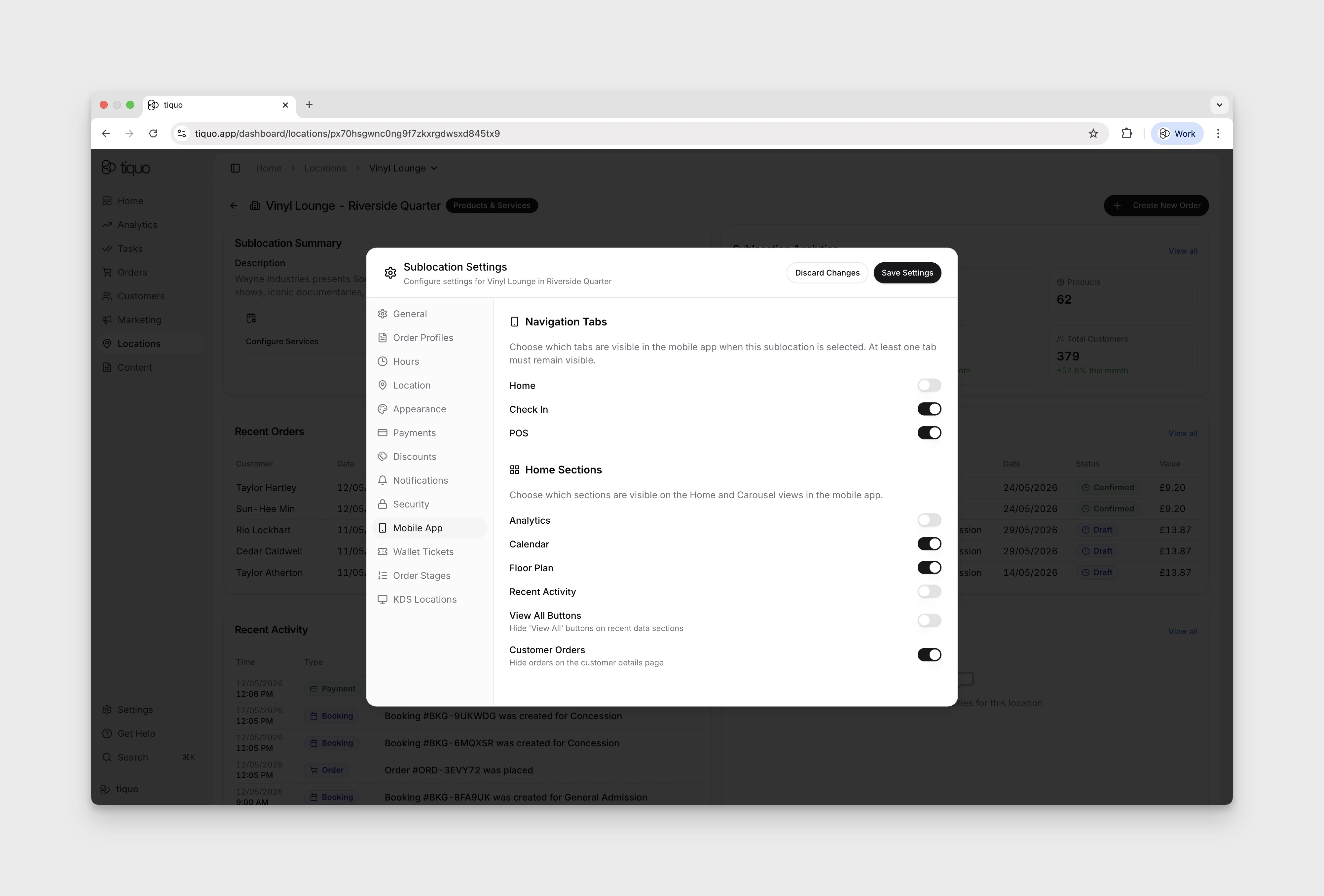
Controls what staff see in the mobile app when this sublocation is active. The use case is shared devices: when staff switch into this sublocation, hide the tabs and home sections that aren't part of its workflow.
- Navigation Tabs: Home, Check In, POS. At least one tab must remain visible.
- Home Sections: Analytics, Calendar, Floor Plan, Recent Activity, View All Buttons, Customer Orders. Any combination can be toggled off.
- Product Display: turn on Show product images to display product photos in the Add Products modal on the Tiquo App and Tiquo PDQ. Products without an image continue to use the standard product card.
- Product View: choose List, Grid, or Both. Selecting one view hides the staff view switcher; Both lets staff change view while ordering.
- Restaurant Mode: the default is configured under General > Order Creation. Product favourites selected for this sublocation appear prominently in Restaurant Mode for faster ordering.
KDS Locations and Printed Tickets
Create KDS locations to route relevant products to the correct preparation area. A location can use a digital kitchen display or a supported physical ticket printer.
For a physical ticket location, set Tickets per order from 1 to 10 when the preparation team needs multiple identical copies of every routed order ticket.
Under Ticket layout, choose Small, Medium, or Large text independently for the header, order stages, and products. Top spacing adds blank paper before the header for ticket clips: None, Small (about 6 mm), Medium (about 24 mm), or Large (about 60 mm).
Add up to 20 kitchen message presets, with a maximum of 80 characters each. In Restaurant and Bar modes, staff can select a preset from the order's Info screen or enter a free-text message. Selected messages are included on the kitchen ticket.
Order Stages
Order stages organise products into preparation courses or phases. Create, rename, and reorder the stages used by the sublocation.
Product categories can supply the default stage. A subcategory inherits its parent category's stage unless it sets its own. Turn on Let staff choose the order stage when staff should be able to override that default while ordering. Even when it is off, staff can move a saved line to another stage using the supported drag or swipe action.
Enable HOLD and FIRE when courses need controlled kitchen release. Tiquo creates a protected Direct Fire stage at the start of the list. Direct Fire always fires and cannot be removed, although it can be hidden from the POS. Other stages can default to HOLD or FIRE and can be overridden on an order.
For physical KDS tickets, choose one of two release flows:
- Print all items, then an Away ticket: the first ticket contains both FIRE and HOLD products. Releasing a held stage prints a line-free
STAGE AWAYticket. - Print FIRE items only: held products are omitted initially. Releasing a stage prints those products as
STAGE · FIRE.
SMS Receipts
Enable SMS receipts only after messaging is ready and a sender name has been configured under Settings > Messaging. The sender is inherited by the sublocation.
Staff send an SMS receipt manually from Tiquo App or Tiquo PDQ. Enabling the setting never sends receipts automatically. The customer receives a branded, secure link to a receipt PDF hosted on the customer-order domain.
Customer Reviews
Customer review pages are in Private Preview and are shown only to eligible organisations.
Under Reviews, enable the hosted review page and choose a five-star or thumbs-up/thumbs-down experience. Written feedback is optional. Copy the hosted URL when it is ready to share.
Optional routing can send every completed review, or only selected ratings, to an external review destination. Secure review links can associate a response with its customer and relevant order or booking; anonymous reviews remain supported.
iCal Links
Service-capable sublocations can publish selected booking calendars as read-only iCal subscriptions:
- Open iCal Links and create a link with a recognisable name.
- Select one or more active calendar or slot inventory items.
- Copy the subscription URL, or open it using the
webcalaction. - Add it to Apple Calendar, Google Calendar, Outlook, or another calendar application that supports iCal subscriptions.
Feeds include booking times, services, and booking references. They do not expose customer contact details or notes. Create separate links for different people or teams when they need access to different resources.
Revoking a link stops future access and updates immediately. Revocation cannot be undone; create and distribute a new link if access is needed again.
Wastage
Turn on Enable wastage for a product-capable sublocation to make Orders > Wastage available to staff. Saving a wastage record deducts tracked inventory; staff can leave it as an editable open wastage tab or close it to finalise the record. The selected reason and staff attribution are preserved. Turn on administrator approval when a permitted administrator must approve wastage before it is finalised.
Summary
Sublocation Settings is a modal-based configuration area opened from a sublocation's workspace.
The available tab count depends on the sublocation type, permissions, limited mode, and preview access. Timezone and currency are inherited from the parent location and cannot be overridden in this modal. Toggles for Floor Plans and Waiting Room sit on the General tab for service-capable sublocations.