

User Management
Manage team members, roles, permissions, and authentication
Members
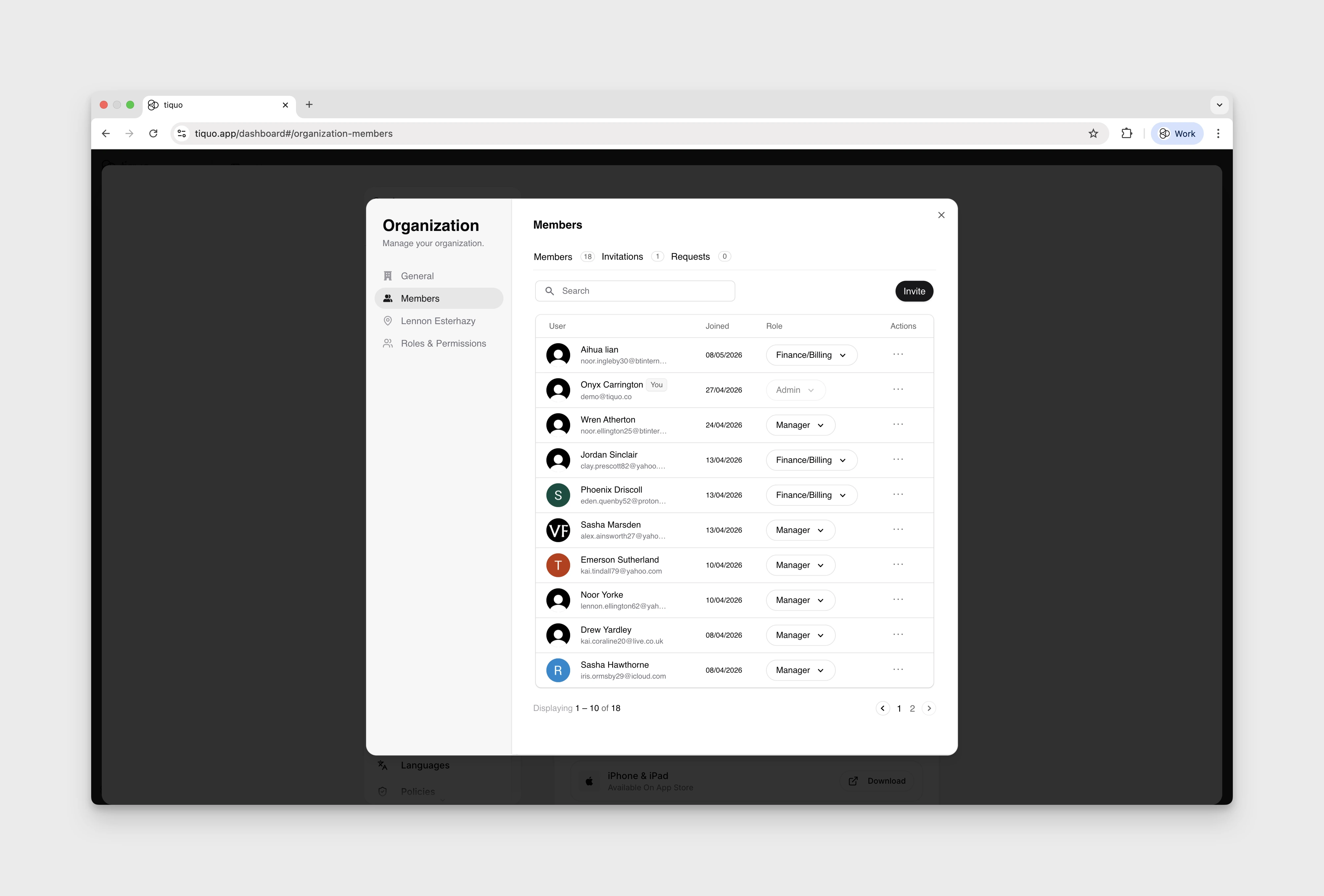
Open Settings > General > Manage Organization. The Members section shows users who currently have access to the organisation.
For each member, you can view:
| Field | Description |
|---|---|
| User | Member identity |
| Joined | When the member joined |
| Role | Assigned permissions role |
| Actions | Available member-management actions |
Invitations and access requests appear in separate Invitations and Requests tabs. Parent-location access is managed separately in Location Access.
Invite collaborators
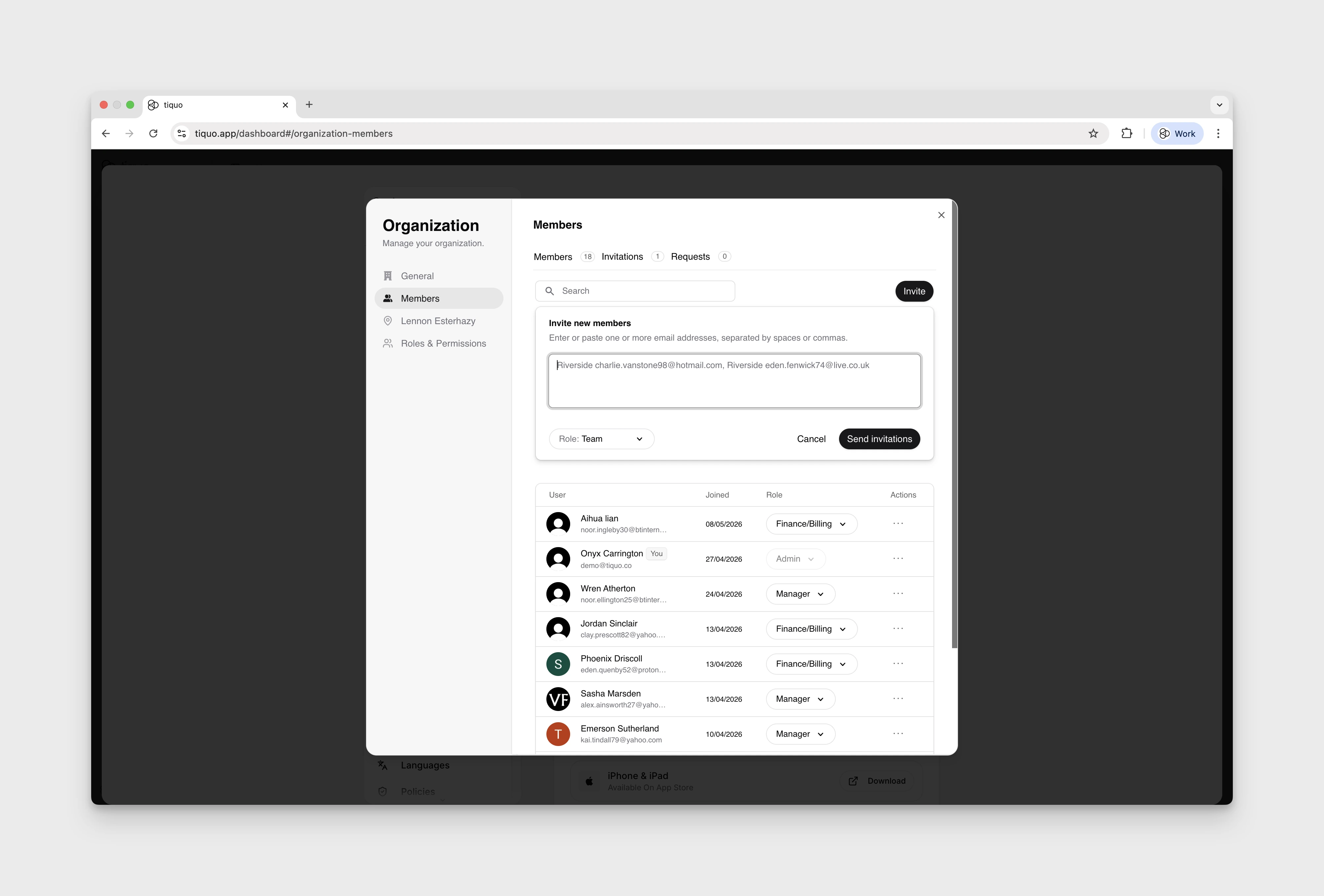
You can invite new users to the organisation by email.
Define role
Select the role for the new team member
Set sublocation access
Choose which sublocations they can access
Send invitation
The user receives an email with instructions to create an account or sign in
Once accepted, invited users immediately gain access based on the assigned permissions.
Request access
If Verified Domains are configured, users with an email address on a verified domain can request access to the organisation automatically.
When a user requests access:
- Administrators are notified
- The request can be approved or rejected
- Approved users are added with the assigned default role or a role chosen by an admin
This simplifies onboarding for larger teams and reduces manual access management.
Roles & permissions
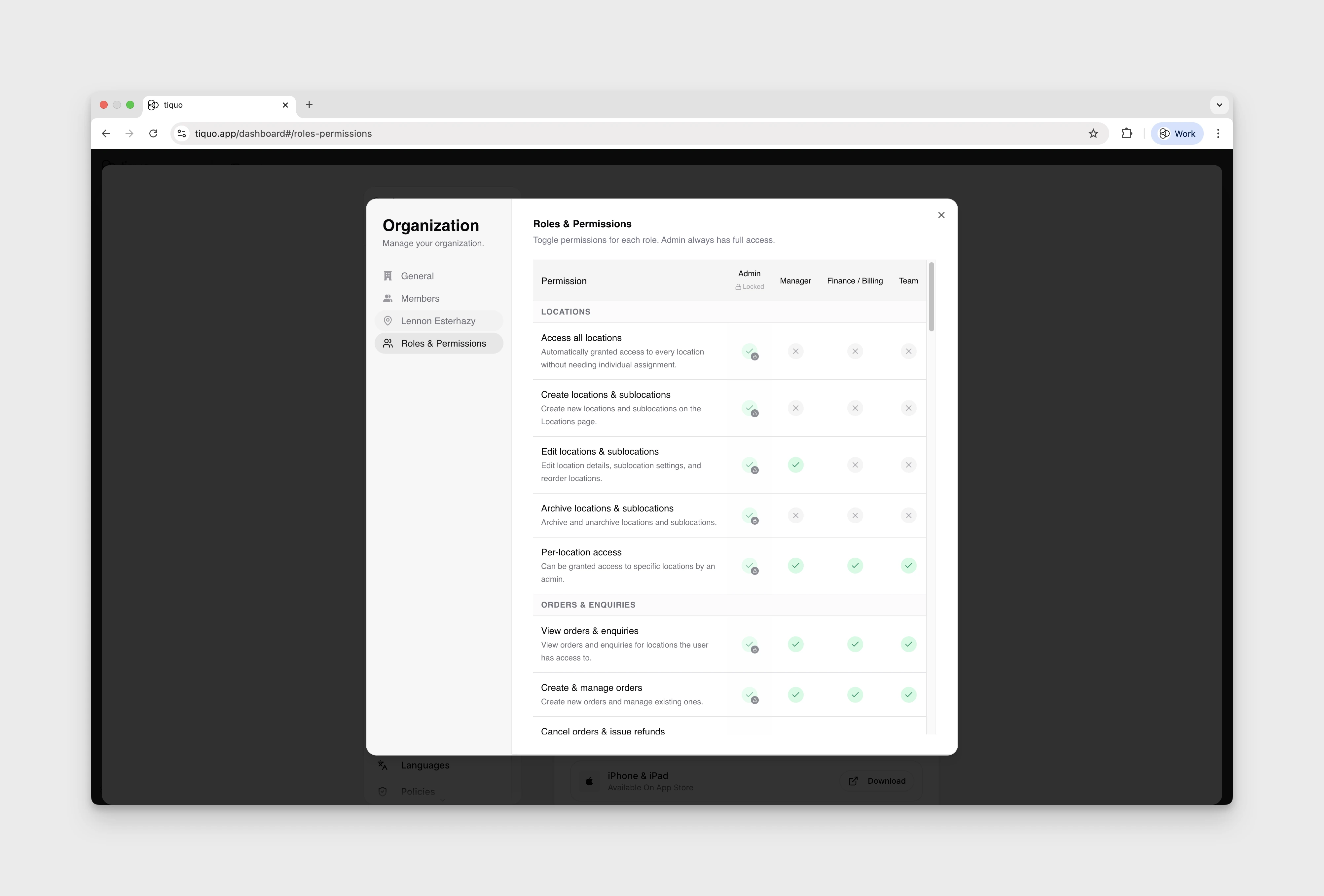
Roles define what users can see and do within Tiquo.
Each role controls permissions such as:
- Viewing or managing orders, bookings, and enquiries
- Accessing CRM data
- Managing payments and refunds
- Editing configuration and settings
Roles are assigned at the user level. Parent-location access is managed separately in Location Access. Admins automatically have access to every location.
Default roles
Every organisation comes with four built-in roles:
| Role | Typical use |
|---|---|
| Admin | Full access to every area of the platform. Admin permissions are locked on and cannot be removed. |
| Manager | Day-to-day operations: orders, bookings, customers, products, marketing. |
| Finance / Billing | Payments, refunds, invoices, and reporting. |
| Team | Front-of-house staff access for handling orders, customers, and enquiries. |
Custom roles
If the four defaults don't match how your team works, you can add up to six additional custom roles for a total of ten roles per organisation.
Open roles & permissions
From Manage Organisation → Roles & Permissions, click Add role.
Name the role
Enter a name that reflects how the role will be used (e.g. Sales Lead, Event Coordinator, Auditor). You can rename it later by clicking the pencil icon next to the role's column header.
Configure permissions
Toggle each permission on or off for the new role. Custom roles start with no permissions granted, so turn on only what the role needs.
Custom roles can be removed at any time from the same screen. Members assigned to a removed role will lose its permissions; reassign them to another role first if needed.
Customising permissions
Admins can fine-tune what each role can do directly from the Roles & Permissions table.
- Each row is a permission (e.g. Cancel orders & issue refunds, Manage discounts, View payment data).
- Each column is a role.
- Click the cell at the intersection to grant or revoke that permission for that role.
- Admin permissions are always on and cannot be changed.
- Use Reset to defaults to revert every role's permissions back to their factory settings.
Permission changes apply immediately to anyone currently signed in with that role.
Permissions for specific actions
Some actions have a permission of their own, so a role can keep broad access to an area while one sensitive action stays off. Custom roles start with all of these off.
| Permission | What it allows | On by default for |
|---|---|---|
| Ban customers | Ban and unban customers. Banned customers can't place orders or sign in. | Admin, Manager |
| Clear overdue bookings | Use Clear Overdue on the Bookings list to mark overdue bookings as no-show. The role also needs Create & manage orders. | Admin, Manager |
| Manage task & note categories | Open the Tasks & Notes settings tab to create, edit, reorder, and delete categories and their assigned staff. Working with tasks and notes themselves needs Manage tasks & notes. | Admin, Manager |
| Create or edit automations | Create, configure, activate, and archive marketing automations. | Admin, Manager |
| Use phone support | Open Phone support in Get Help and let Tiquo's support agent read the organisation's data for 10 minutes, limited to what that member can see. See How do I get help from Tiquo support by phone?. | Admin, Manager, Finance / Billing |
Marketing and analytics access
Marketing appears in the sidebar when a role has at least one marketing permission. Each Marketing tab checks its own permission, and tabs the role can't use are greyed out:
| Tab | Permission |
|---|---|
| Campaigns | Send email campaigns |
| Templates | Manage marketing templates |
| Lists & Segments | Manage marketing lists |
| Automations | Create or edit automations |
Analytics needs View analytics & reports. Without it, the Analytics page shows Analytics access unavailable. Payment analytics and the Payments page also need View payment data, and saving changes to an analytics layout needs Edit analytics dashboard. Staff without Access all locations see analytics only for the locations they have been given.
What staff see without a permission
Buttons and menu items for actions a role can't perform are hidden, so staff don't reach an action that would fail when saved:
| Control | Shown only with |
|---|---|
| Ban Customer and Unban Customer on a customer profile and in the Customers list row menu | Ban customers |
| Clear Overdue on the Bookings list | Clear overdue bookings and Create & manage orders |
| Tasks & Notes in Settings | Manage task & note categories |
| Edit on a floor plan | Configure services (Advanced Mode) |
| The menu beside a location's name on the Locations page | Edit locations & sublocations or Archive locations & sublocations. Each item in the menu needs its own permission. |
| New Enquiry on the Enquiries page and in the command menu | Manage enquiries |
| Enquiry row and card actions other than View Details and Copy ID, the multi-select toggle, and Assign Staff and Archive on an enquiry page | Manage enquiries |
| Edit on the Home, sublocation, and company analytics layouts | Edit analytics dashboard |
| Import customers on the Customers list and Import Connections on a profile | Import data |
| Add to List on a profile and in the Customers list bulk actions | Manage marketing lists |
| Delete in the Customers list row and bulk actions | Delete customers |
Enquiries is also hidden from the sidebar and the command menu for a member whose access to every enquiry type is switched off in Manage Organization > Enquiry Access. If someone opens a link to a page their role can't use, Tiquo shows Access restricted instead of the page.
Location access
Open Settings > General > Manage Organization > Location Access to review access by parent location.
Admins automatically have access to all locations. Their location checkboxes are selected and cannot be changed.
Staff see only the locations, orders, bookings, and customers covered by their role.
Authentication methods
Tiquo supports multiple authentication methods to balance ease of access and security.
Supported authentication methods include:
- Email and password
- Social sign-in using Google, Microsoft, or Apple
For organisations with more advanced requirements, Enterprise SSO is also supported, including:
- SAML
- OIDC
- Enterprise identity providers (EASIE-compatible)
If you require Enterprise SSO, please contact the Tiquo team to enable and configure this for your organisation.
Personal POS PINs
Every signed-in staff member can set or remove their own four-digit POS PIN from Settings > General > POS PIN. A PIN must be unique inside the organization so that it identifies exactly one person on a device.
Administrators can open the POS PIN section to view, set, or remove PINs for all organization members. They can also generate unique PINs for every member who does not have one. Bulk generation leaves existing PINs unchanged. Only administrators can see another member's PIN.
The PIN is used only when a sublocation has staff selection and Require PIN enabled. It is separate from a device passcode and from the member's normal Tiquo sign-in.
People without a Tiquo account
Staff who only use the POS don't need a Tiquo account. Administrators can add them in the POS PIN section so they can sign in on POS devices with a PIN:
Add the person
Open Settings > General > POS PIN and select Add person.
Enter their name
Enter a First name and Last name. Both are required.
Choose a PIN
Enter a four-digit POS PIN that no one else in the organisation uses, or leave it blank to generate a unique one. Select Add person.
These people appear in the PIN list with a No account badge. You can change their PIN in the list like any other member's. Open the row's menu to choose Edit name or Remove person. Renaming doesn't change the name on orders they have already taken. Removing a person stops their PIN working on POS devices straight away and frees it for someone else; their past orders keep their name.
Because they have no Tiquo account, these people can't sign in to the dashboard and can never approve a step that asks for an administrator's PIN.
Registration and enquiry permissions
Manage registration separately controls changes to registration settings. Access to enquiry types is separate from enquiries.manage, which is required for enquiry write actions. Check both when a staff member can see an enquiry but cannot change it.
In Get Help > Your submissions, ordinary staff see their own reports and feature requests. Organisation administrators can see the organisation's submissions.