
Documents and Forms
Create, send, and manage structured paperwork and data collection
Documents and forms overview
Documents and Forms allow you to create, send, and manage structured paperwork directly within Tiquo. The implemented document associations are customers, companies, and enquiries.
Documents are typically used for agreements, contracts, and confirmations, while Forms are used to collect structured information from customers or internal teams.
Creating documents & forms
Documents can be created for:
- Customer pages
- Company pages
- Enquiries
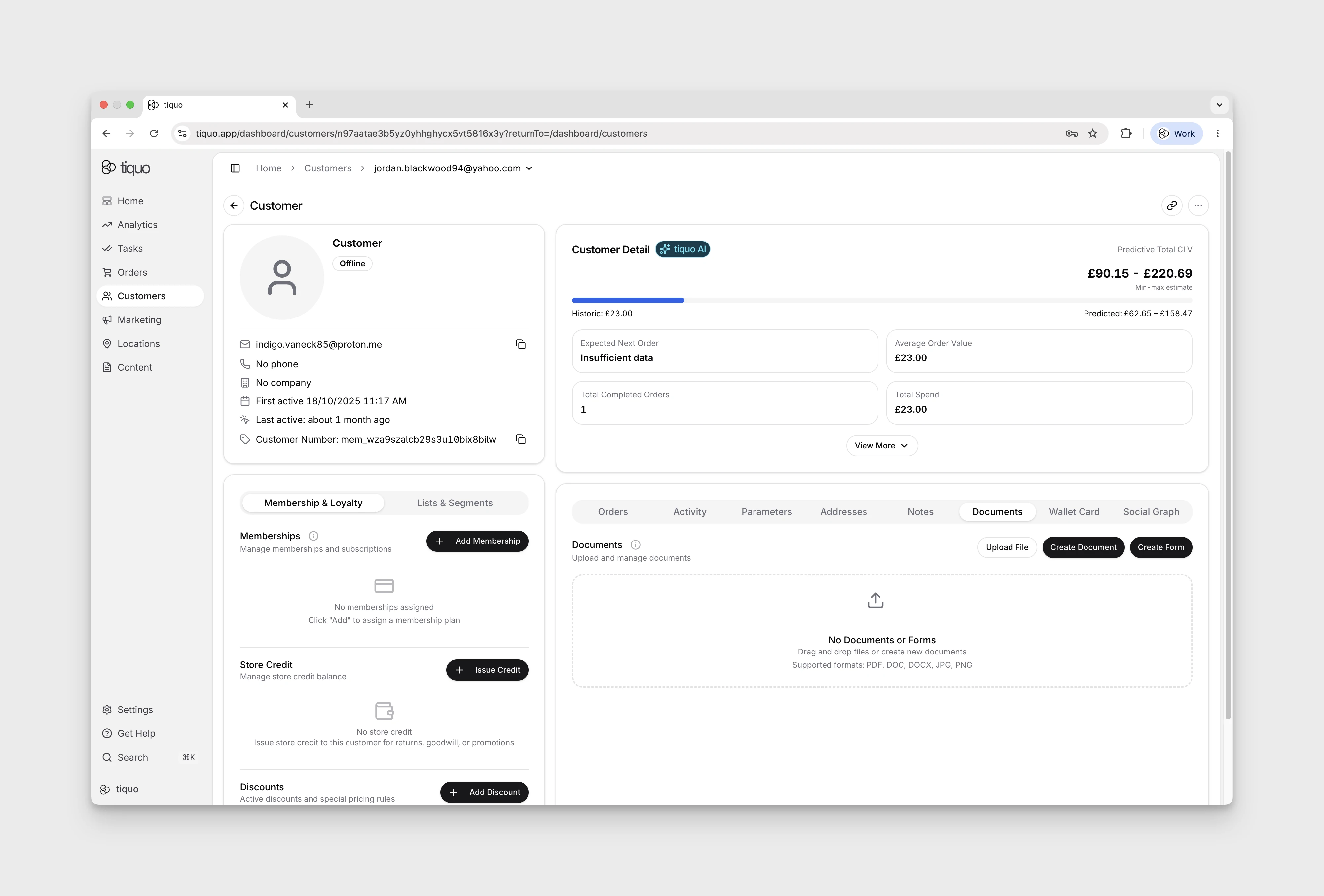
Select Create Document or Create Form from the record’s Documents section. Choose a starter template or Create from Scratch before entering the editor. When creating a document, you can define its content, recipients, and whether signatures are required. Documents automatically retain a full audit trail and version history.
Forms are used to capture structured data such as preferences, onboarding information, waivers, or questionnaires.
Forms can be:
- Sent to customers or staff
- Embedded into customer flows
- Linked to bookings, memberships, or enquiries
To create a reusable document template, open Settings → Documents & Forms → Create document template. Enter a Name and optional Description, select Next, edit the sample content, then select Save. Reopen the saved template to check its content before using it for customer documents.
For reusable public forms:
- Open Settings → Documents & Forms → Create public form.
- Choose a starter template or Create from Scratch.
- Enter a Name, optionally add a Description, and choose Attach to customer or Attach to customer and create enquiry under On submission.
- Select Next to open the editor. Review the content before saving.
After saving, check the form's Draft and Live state. A draft with Live off is not published. Bind at least one input to email, phone, or customer number so submissions can be matched to a customer; the form card warns when this binding is missing. Review the draft before enabling Live.
Company submission destinations are marked coming soon and disabled. This differs from managing documents already attached to a company.
In the demo, Create from Scratch loads a Form Field Showcase with example fields. Review and replace that sample content before using the form.
Open Form settings → After submission to edit Confirmation title and Confirmation message. The editor describes these as the text shown after a successful submission. Clear either field to use its default text.
Using fields and signatures
Documents and Forms support dynamic fields that can be completed manually or automatically populated from existing data, such as:
- Customer details
- Company information
- Enquiry context
A document is sent to one recipient per send operation. The recipient can complete the document's signature field through the secure link. Multiple-recipient signing order is not currently part of the document model.
Form field options
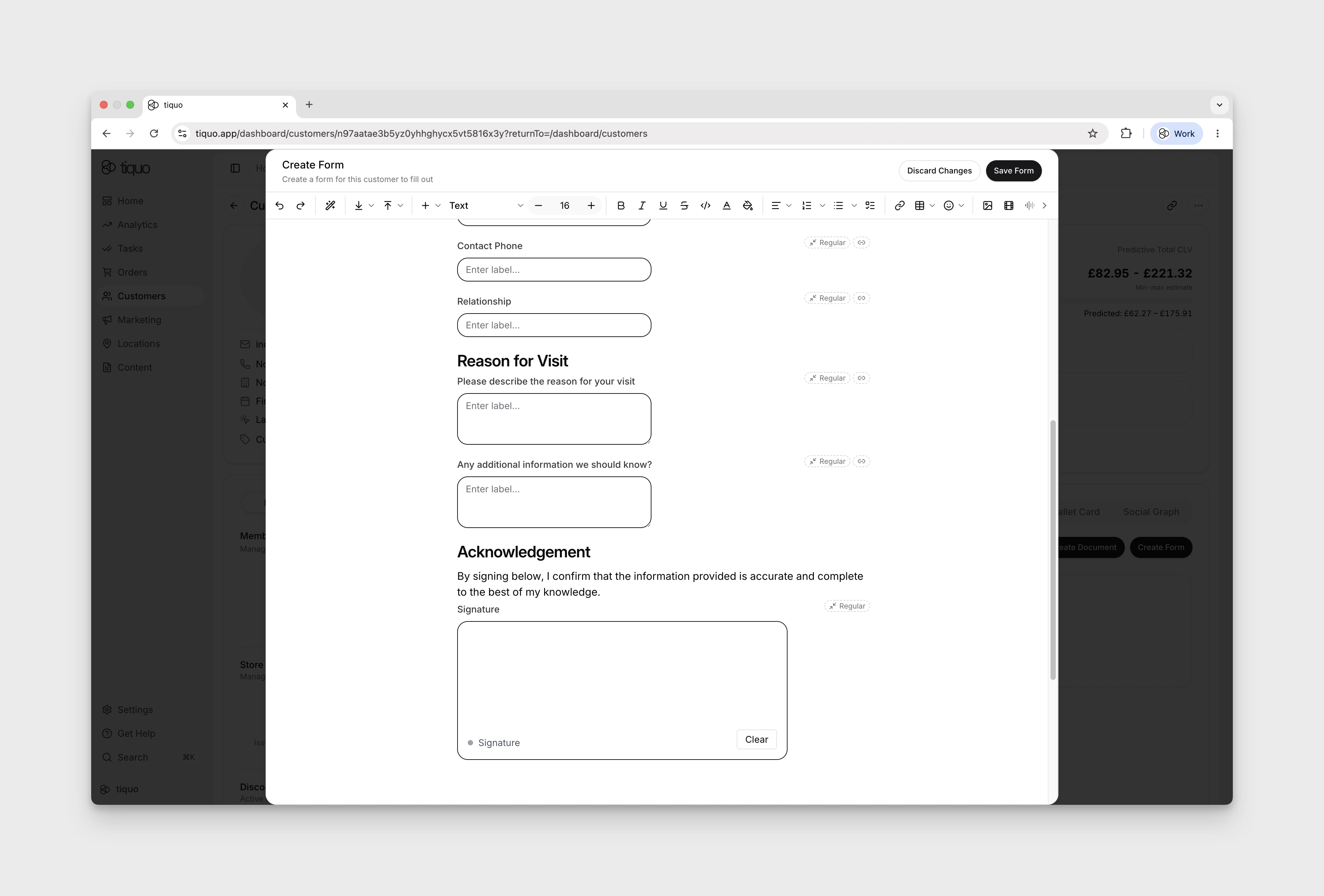
Open a field's Field settings menu to set Required and choose Width → Regular or Full width. For a long option list, use a searchable dropdown so the respondent can find a value without scanning the entire list. Checkbox fields can store a true or false answer and can be linked to a compatible customer field.
Fields can bind to customer data or to fields configured for an enquiry type. When the form is submitted, Tiquo writes the answer to that stable binding rather than relying on the field's position in the form. Compound customer parameters use a nested field path. Dropdown and multi-select bindings need compatible options on both sides.
File uploads
Add a file-upload field when a public form needs evidence or supporting material. A submitted file is stored with the related form submission and its customer, company, or enquiry context.
Accepted formats are PDF, DOCX, XLSX, PPTX, CSV, TXT, JPEG, PNG, GIF, WebP, ODT, ODS, and ODP, up to 25 MB per file. Tiquo validates the filename extension, declared content type, stored content type, and file contents before accepting the upload. Empty files, mismatched types, unsafe archives, and unsupported formats are rejected.
Address fields
Use the structured address mode when the individual parts of an address are needed elsewhere in Tiquo. Choose which parts to collect, including address line 1, address line 2, city, region or state, postal code, and country. A single address search field is also available when only the selected address is needed.
Terms and payment details
Terms fields record when the respondent accepted the statement. Keep the label specific enough that the stored acceptance still makes sense when staff review the submission later.
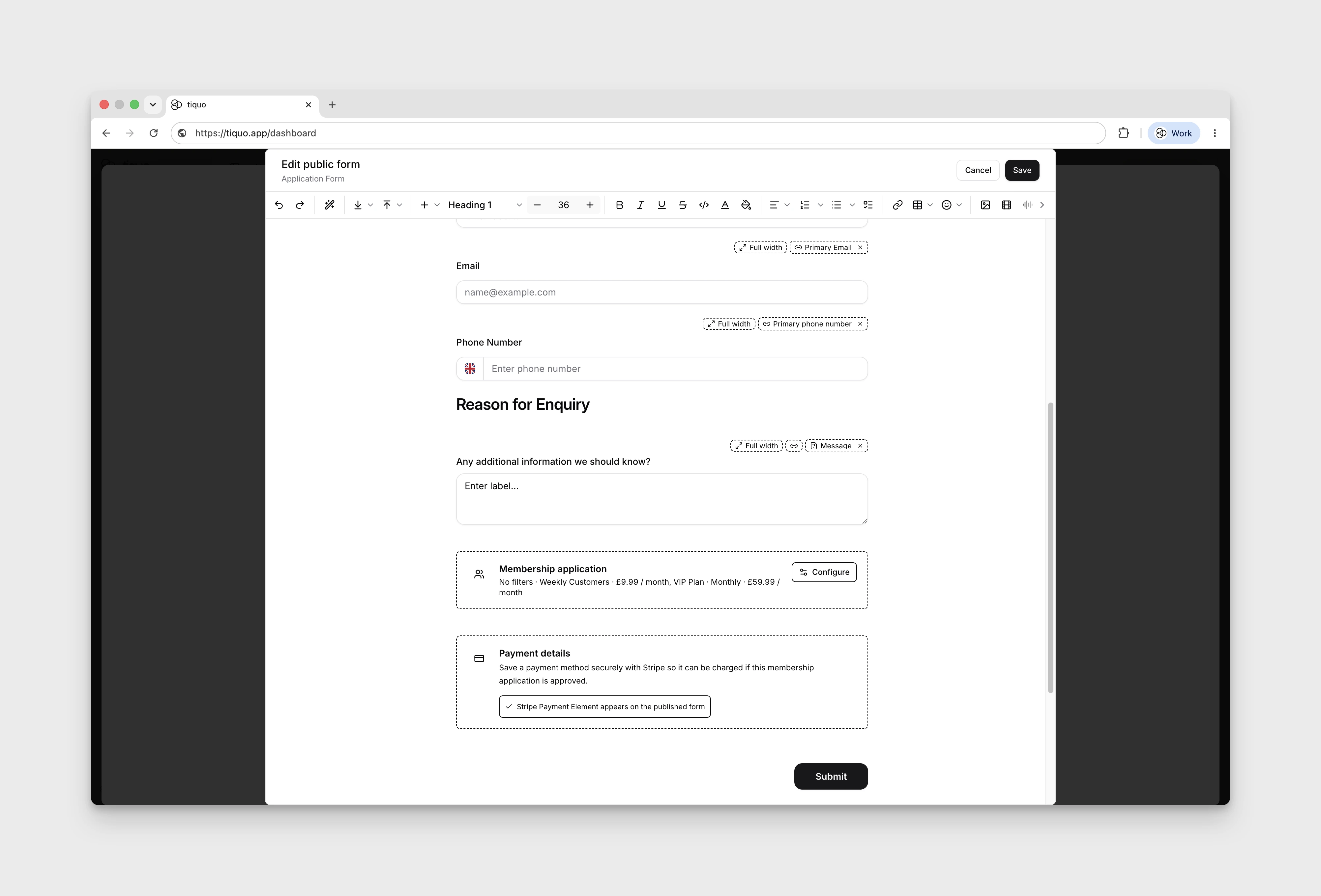
A standalone payment details block securely saves a payment method through Stripe. It does not collect raw card details in Tiquo and does not start a charge by itself. In a membership application, the saved method can be used after staff approve the application. If a charge needs customer authentication, Tiquo sends a secure payment step.
Creating document templates
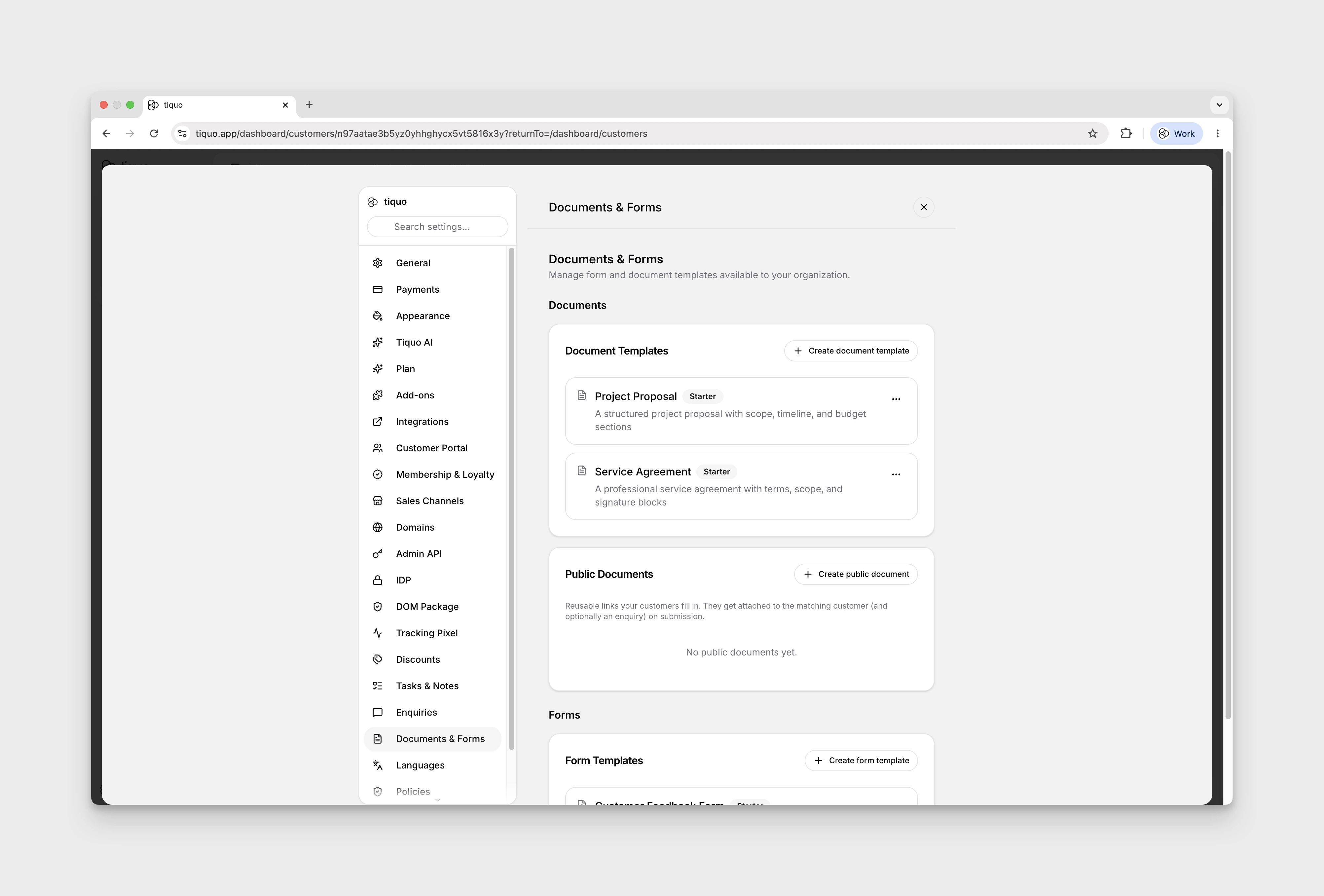
Document templates allow you to standardise commonly used documents such as contracts, waivers, or agreements.
Templates can include:
- Predefined text and structure
- Dynamic fields
- Signature placeholders
Reuse templates across customers, companies, and locations to keep documents consistent and avoid creating them from scratch.
Sending a document for signature
Documents can be sent for signature directly from the platform.
When sending a document, you can:
- Choose one recipient
- Send that recipient a secure link
- Track when the document is sent, viewed, or signed
Recipients receive a secure link and do not need an account to sign.
Forms as enquiry entry points
Forms are also used as customer-facing entry points for enquiries, including membership application flows. A submitted form can create or link a customer profile and land the submission in the matching enquiry pipeline for staff review.
Membership forms can also securely collect a payment method through Stripe so that, on approval, the membership can be assigned and billing can begin. If the saved payment method can be charged off-session, Tiquo charges it; if additional customer action is required, Tiquo sends the customer a secure payment step.
See Enquiries for the full form-to-approval flow.
Direct Debit on membership application forms
In the form's Payment Details block, open Field settings and choose the Payment methods applicants can use: Card, Direct debit, or both. A new block offers Card only.
Direct Debit uses the scheme that matches the currency of the membership plan:
| Plan currency | Direct Debit scheme |
|---|---|
| EUR | SEPA Direct Debit |
| USD | ACH Direct Debit |
| AUD | BECS Direct Debit |
Direct Debit isn't offered for plans in other currencies, including GBP. It is set up on behalf of the venue that receives the membership payments, and only appears when Direct Debit is turned on in Stripe for both Tiquo and the venue.
When Direct Debit can't be offered, applicants are asked for a card instead, as long as Card is also turned on. If Direct debit is the only method selected, applicants can't add payment details in that case. The form builder warns you when Direct debit is selected. For a form with GBP plans, the warning says Direct debit isn't available for GBP memberships and either confirms that applicants will be asked for a card or tells you to turn on Card. Otherwise it reminds you that Direct Debit only shows when it is turned on in Stripe for Tiquo and the venue.
Members-only forms
Turn on Member access in a public form's details to restrict the link to customers with matching active memberships. Visitors sign in with their email before the form opens.
A visitor who hasn't signed in sees Members only and is asked to sign in with their email to continue. A signed-in customer without a qualifying membership also sees Members only, with a message that their account doesn't have a membership that includes the form, the email they are signed in with, and Use a different email to sign in with another account.
Document and form status
Check each document or form's status to track its progress.
Common statuses include:
- Draft
- Sent
- Viewed
- Signed
These are the stored document states. Completed, Cancelled, and Expired are not separate document statuses. Status updates can be shown with the related customer, company, or enquiry context where that association is available.
Columns, phone fields, and drawn signatures
Use a Columns block to place fields side by side with the configured proportions. Public forms preserve those proportions on wider screens and stack columns on phones. Set a phone field's default country in the builder when most respondents use the same country; the public form uses that choice.
Public forms support drawing a signature. Review the signature in the submitted document on the dashboard. A staff signature already placed before sending stays locked when the recipient signs.
A membership payment-details block can be required only for paid memberships. Free-plan applicants then skip that payment block. If payment setup fails, the public form offers a retry instead of leaving the applicant on a loading screen.
Sealed signed copies
After signing completes, Tiquo can prepare a sealed PDF with a signing certificate page and a digital signature. Once signed, the document's content and theme are locked; its name, description, and tags can still be edited.
The signing certificate records the signing evidence available to Tiquo. Where network evidence was not recorded, it is shown as Not recorded. A seal can be pending, fail, or be unavailable if the deployment has no signing certificate configured. Check that the sealed copy is available before distributing it.
The certificate's QR code opens a public verification page. A recipient can choose a PDF there to compare its hash with the recorded sealed copy. The comparison happens in the browser without uploading the file. It verifies the matching file; it does not establish that the platform's signing certificate is trusted by the recipient's PDF software.
Documents signed before sealing was introduced do not automatically gain a seal. Download actions use the sealed copy when one exists.