Enquiries
Capture and convert customer interest into bookings and orders
Enquiries overview
Enquiries in Tiquo represent expressions of interest that have not yet become a booking or an order. They are used when a customer is asking a question, requesting availability, or exploring options before committing.
Enquiries allow teams to capture intent early, manage follow-ups, and convert interest into confirmed bookings or orders in a structured way.
Navigating to enquiries
The Enquiries page is found in the main sidebar under Orders → Enquiries, alongside Bookings.
Customer associated enquiries are also visible on each customer's profile. From a customer profile, open the Orders tab and select the Enquiries sub-tab to see every enquiry linked to that customer.
The enquiries page
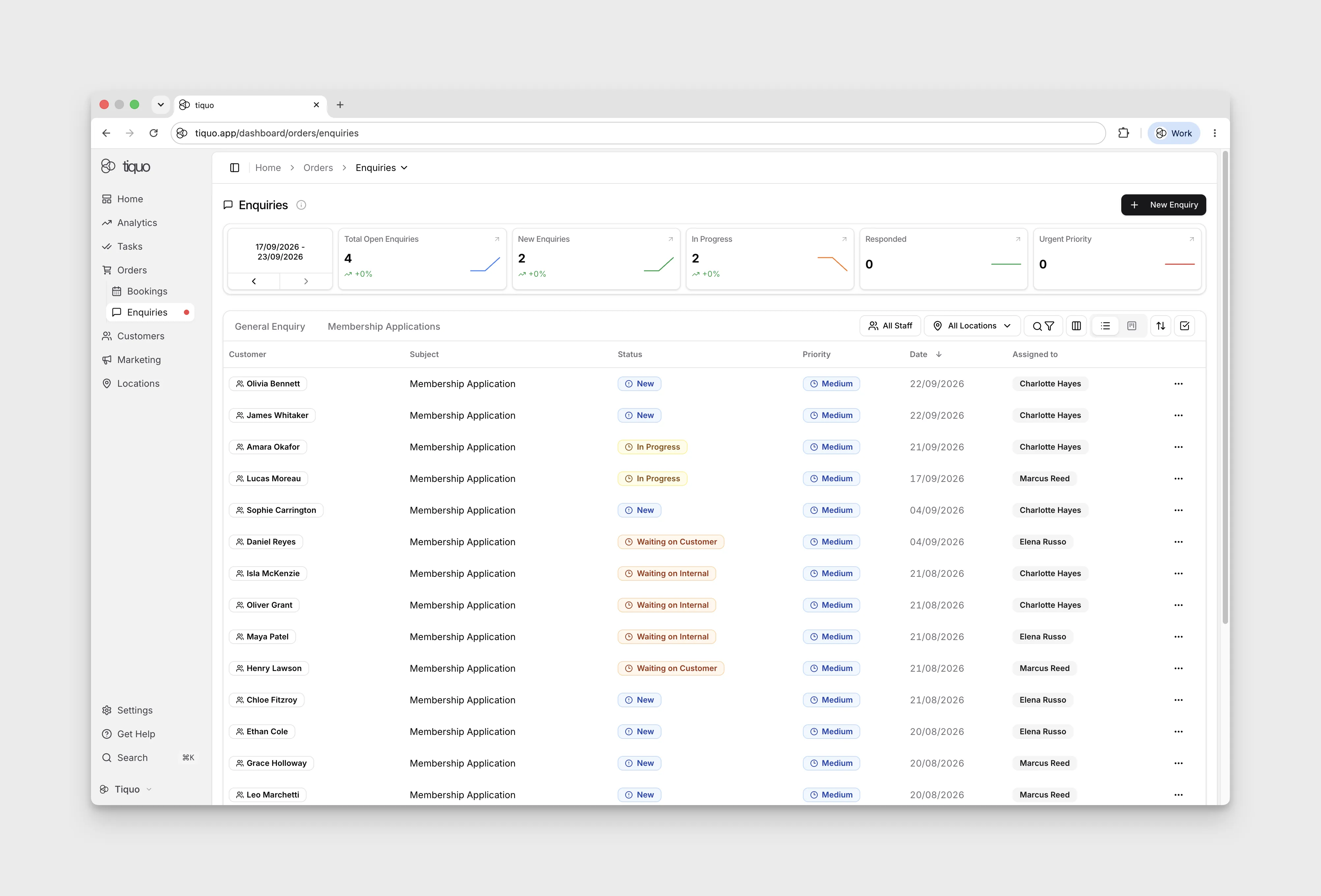
The Enquiries page is organised into three zones:
1. Metric cards
A row of five cards summarises the pipeline for a selected date range:
- Total Open Enquiries
- New Enquiries
- In Progress
- Responded
- Urgent Priority
2. Enquiry type
Below the metric cards, select an enquiry type, such as General Enquiry, to focus its workflow. Use Back beside the selected type to return to the available types. Switch to Kanban view, then select the type whose status columns you want to inspect.
3. Controls row
To the right of the enquiry type:
- Spam (n): shown only when submissions are being held as possible spam. See Spam submissions.
- All Staff: filter by assigned staff
- All Locations: filter by location or sublocation
- Search & Filter: search with advanced filters (priority, assigned to, date range, and more)
- Column customiser: show or hide table columns
- View toggle: switch between List and Kanban views
- Sort: change the sort field and direction
Spam submissions
Tiquo screens enquiries submitted through public forms and website enquiry forms.
- Discarded: submissions with clear signs of automation are dropped and never appear in Tiquo. These include a reserved test phone number, HTML or script in an answer, a hidden bot field that was filled in, or an automated browser.
- Held in Spam: submissions that are usually spam but might come from a real person are kept aside, for example one sent from a throwaway email address or sent without the Tiquo form. A held submission creates no customer and sends no notifications. It does not run assignment, automations, or integrations, and it is left out of the enquiry list and the sidebar count.
When anything is held, a Spam (n) button appears beside the filters. Open it to review the held submissions. Each one shows the name, email, phone, enquiry number, date, and the reason it was flagged, such as Throwaway email address or Sent without the Tiquo form.
Select one or more submissions (up to 50 at a time), then choose:
- Not spam: moves them into Enquiries and processes them as if they had just arrived. Tiquo creates or links the customer and runs the notifications, assignment, automations, and integrations that were skipped.
- Delete: removes them permanently.
Staff only see held submissions for the enquiry types they can access. Paid membership application forms are never held, because a confirmed payment method already shows a real person.
Filtering enquiries
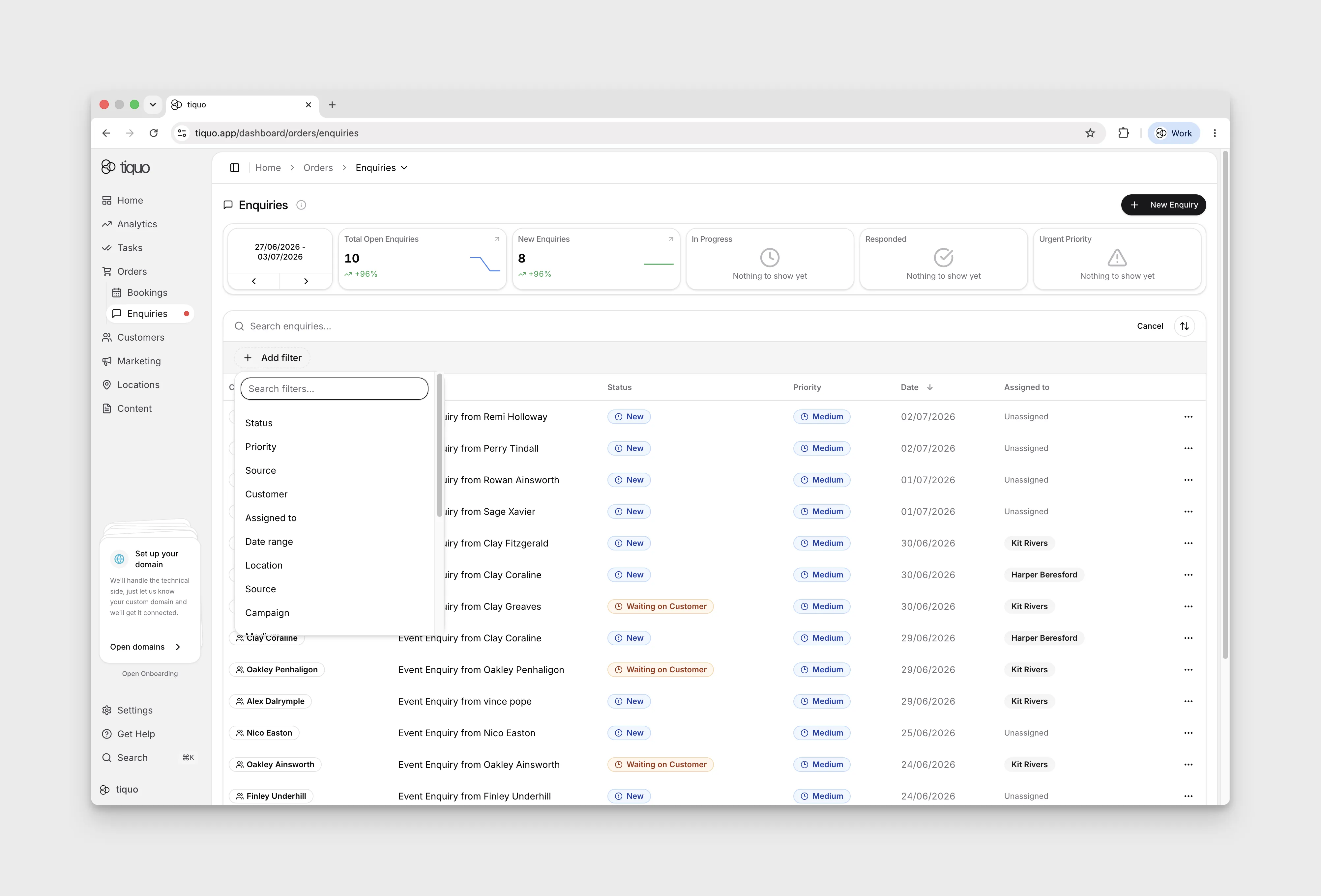
Select the search icon, then Add filter. The core filters are Status, Priority, Source, Customer, Assigned to, Date range, and Location. The current workflow is identified by the enquiry-type control above the list.
For Status or Priority, select the values to include, then choose Apply. Select the active filter chip to change those values. For example, Status → New → Apply shows new enquiries in the selected type; choosing In Progress instead excludes enquiries that are still New.
Clear all also clears the selected enquiry type. Choose Cancel to leave the search controls, then select your enquiry type again if you want to return to its workflow.
Customising columns
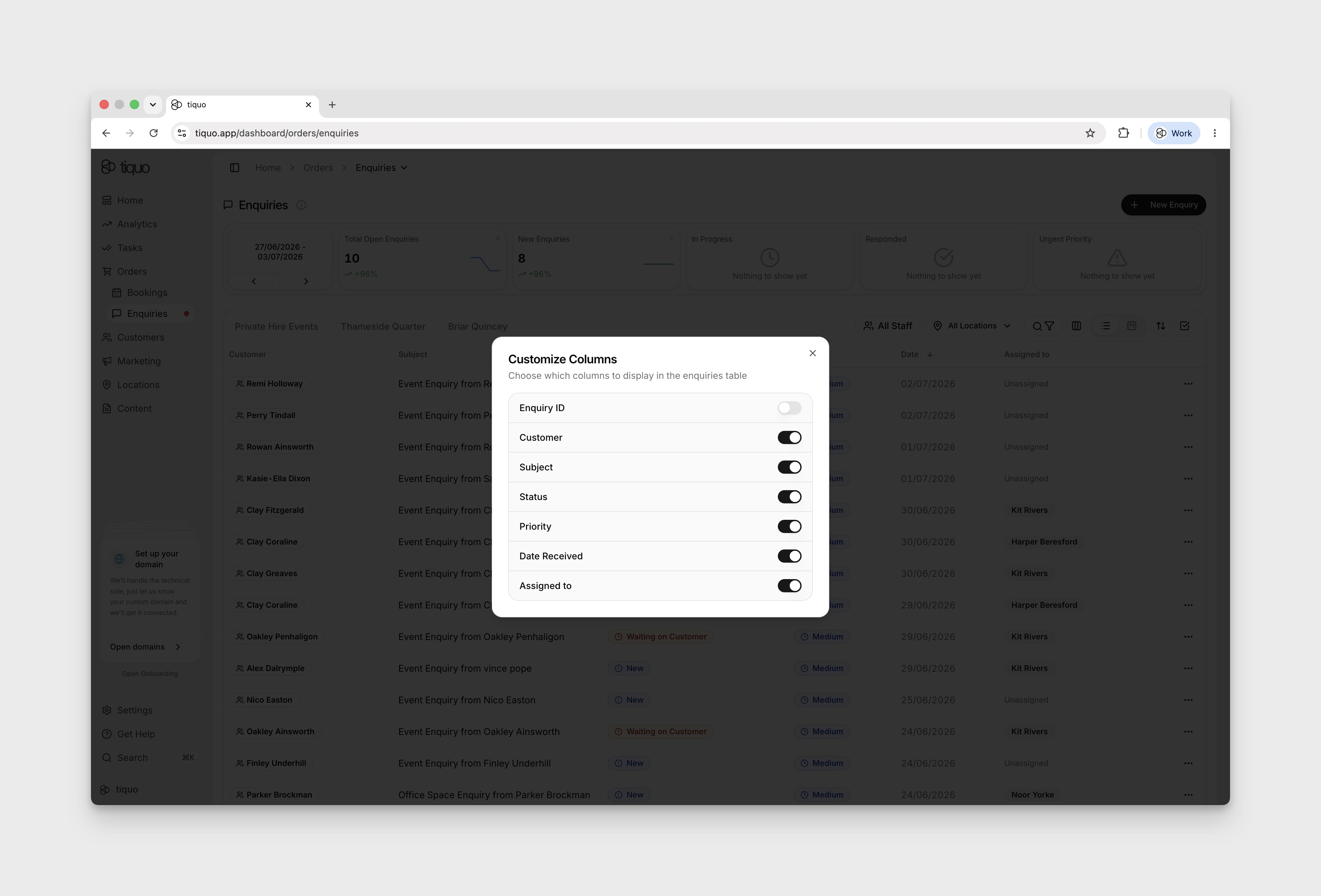
In List view, open Customize columns next to the search/filter control. Switch a column on or off, then close the Customize Columns dialog. Visibility changes save automatically and remain after reload.
The dialog lists Enquiry ID, Customer, Subject, Status, Priority, Date Received, and Assigned to. A column-reordering workflow has not been verified; the current dialog exposes visibility switches.
List and kanban views
The Enquiries page can be viewed in two modes, selectable from the view toggle in the controls row.
Each staff member can choose which layout opens by default. Open Settings > Enquiries, set Open Enquiries page on to List view or Kanban view, and Tiquo saves that preference for the signed-in user.
When you come back to the Enquiries page, it reopens on the view you last used, with the same layout and the enquiry type you had selected. Tiquo remembers this in your browser for 24 hours. After that, or in another browser, the page opens on your Open Enquiries page on choice.
List view
Enquiries are presented in a table with the default columns Customer, Subject, Status, Priority, Date, Assigned to.
The Customer column can show multiple entities (individuals and companies) when an enquiry involves more than one party. The "Assigned to" column supports multiple assignees.
Kanban view
Enquiries are presented as cards arranged in columns, one column per status. Staff can drag cards between columns to change an enquiry's status. The change saves automatically; reload the board to verify the card remains in its new column.
Creating enquiries
Enquiries can be created in two ways:
Through enquiry forms
Customers can submit enquiries via enquiry forms on your website, customer portal, or branded flows. These enquiries are automatically captured in Tiquo and linked to the relevant location or sublocation.
Manually by staff
Staff can create enquiries for phone calls, emails, and in-person requests, keeping them alongside enquiries from other sources.
Enquiries from another system can be imported from Settings > Import & Export. See Importing enquiries.
The create new enquiry page
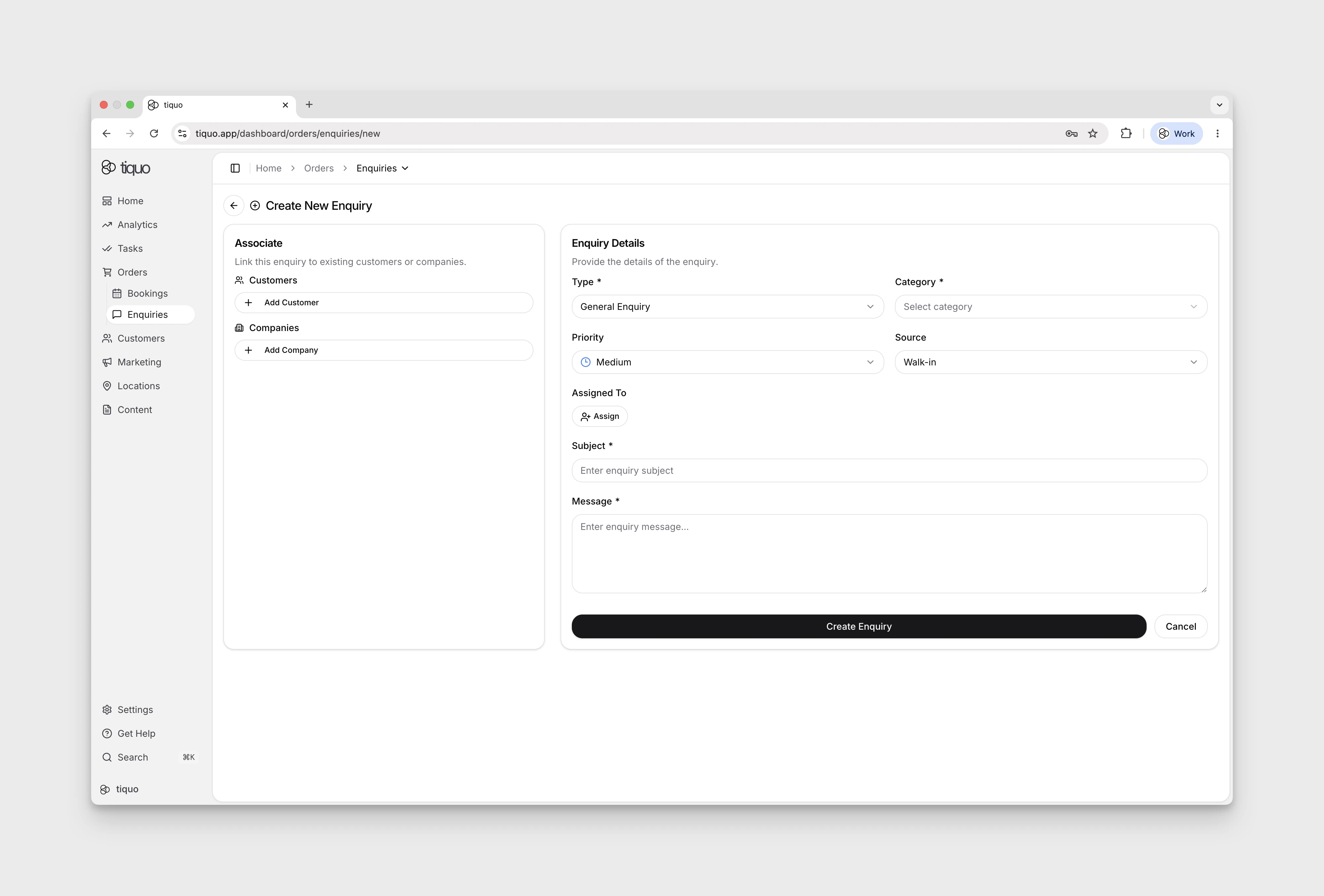
Manual enquiries are created from the + New Enquiry button in the top-right of the Enquiries page, which opens the full-page Create New Enquiry form.
The form is split into two sections:
Associate
Link the enquiry to existing records. This section is optional, an enquiry can be created without a customer or company attached, and associated later.
- Customers: add one or more existing customers (or create a new one inline)
- Companies: add one or more associated companies
Enquiry details
Enter the enquiry details. An asterisk marks required fields.
- Assign: choose staff responsible for the enquiry, or leave it unassigned
- Type: * the kind of request
- Category: * the business area the enquiry relates to
- Priority: defaults to Medium
- Source: how the enquiry reached the business (e.g., Walk-in)
- Subject: * a short label shown in the enquiry list
- Message: * the full description of the request
Select Create Enquiry to save. If the list returns to a different enquiry type, use Back beside the type name and select the type you used. Open the new row’s More → View Details to review the saved record.
Each enquiry type has its own categories. Configure the available choices under Settings > Enquiries; when staff select the type, the enquiry form shows only that type's categories.
An enquiry type can also have its own Enquiry parameters. Available types are Text, Dropdown, Multi-Select, Date, Date & Time, and Yes/No. Dropdown and Multi-Select parameters require at least one option, and parameter names must be unique within the enquiry type. The matching parameters appear when staff create or edit an enquiry of that type and remain stored with the enquiry.
Website integrations can also submit these fields through the DOM Package,
Hosted Package, or Customer API using enquiry.enquiryParameterValues, with
{ enquiryParameterId, value } entries. IDs must belong to the selected enquiry
type and organisation. These values stay on the enquiry and are included in its
enquiry.created event as enquiryParameters; they never update customer
parameters or marketing consent. Customer parameter submission through
createEnquiry() is not supported. See website enquiry submission.
Each enquiry type's ⋯ menu under Settings > Enquiries has Copy enquiry type ID and Example form code. Example form code shows a ready-to-use website form for that type, for the Hosted Package (HTML or JavaScript) or the DOM Package (JavaScript, TypeScript, or React), with switches to add or remove fields and parameters. To copy one parameter's ID, choose Edit Enquiry Type, then Copy enquiry parameter ID in the parameter's ⋯ menu. A new parameter gets its ID once the type is saved. Optional parameters a visitor leaves blank are skipped rather than rejected.
Enquiry statuses
Each enquiry has a status that reflects its current stage.
Customizable statuses and defaults
Open Settings → Enquiries → Enquiry Types to inspect the stages for an enquiry type. The editor marks four states as Required: New, Won, Lost, and Archived. Use Add Status for another stage. Drag a stage by its handle to reorder it; the change saves automatically. Reload and reopen the type to check the saved order. Its Kanban columns follow that order. Required stages do not show the deletion action available on other inspected stages.
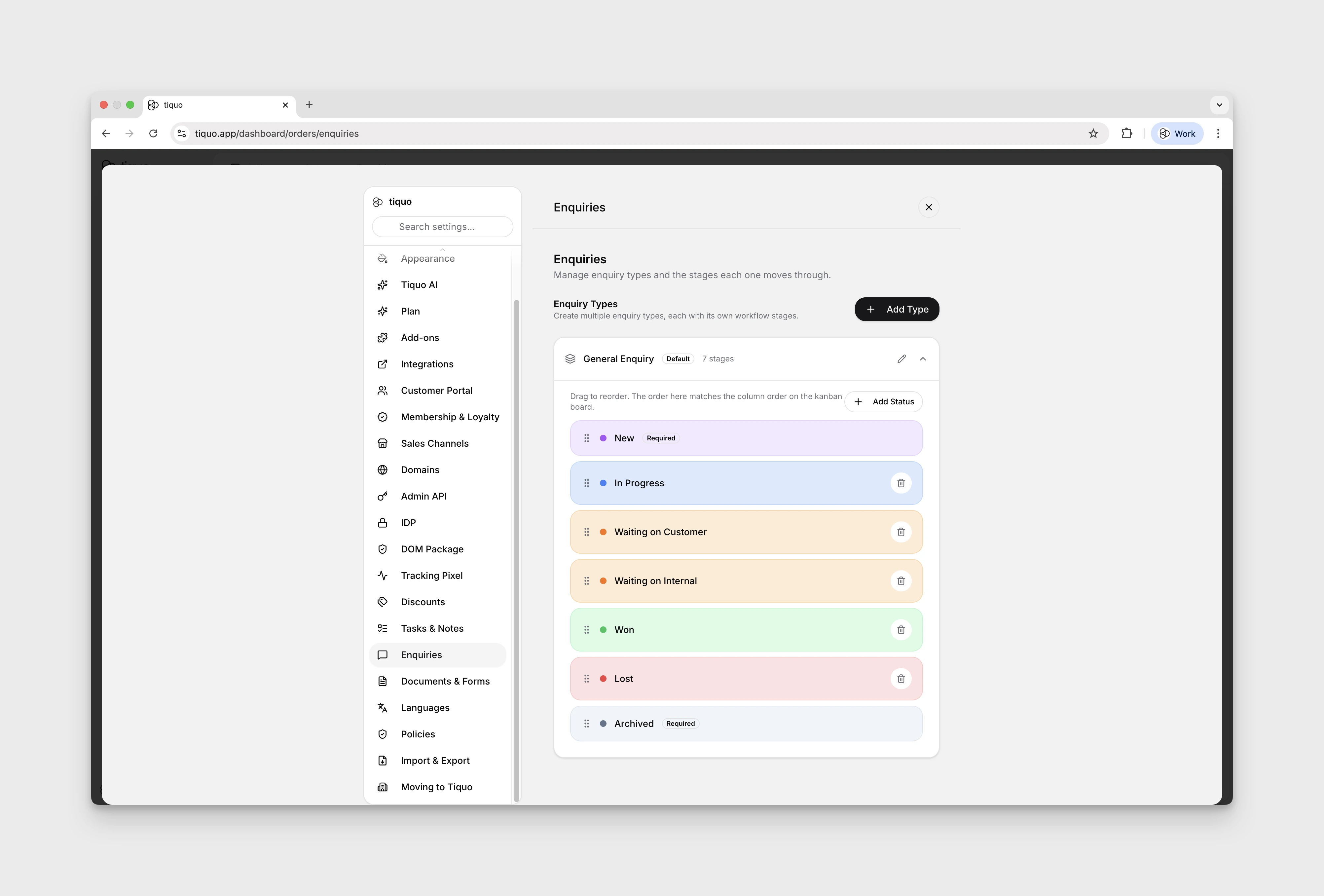
The default statuses are:
- New: the enquiry has just been received and hasn't been actioned
- In Progress: a team member is working the enquiry
- Waiting on Customer: the business is waiting for a reply from the customer
- Waiting on Internal: the enquiry is blocked on another team member or approval
- Won: the enquiry has been successfully converted
- Lost: the enquiry did not convert
- Archived: the enquiry has been closed and moved out of the active pipeline
Statuses help teams prioritise follow-ups and clearly see which enquiries still require action.
Enquiry pipelines
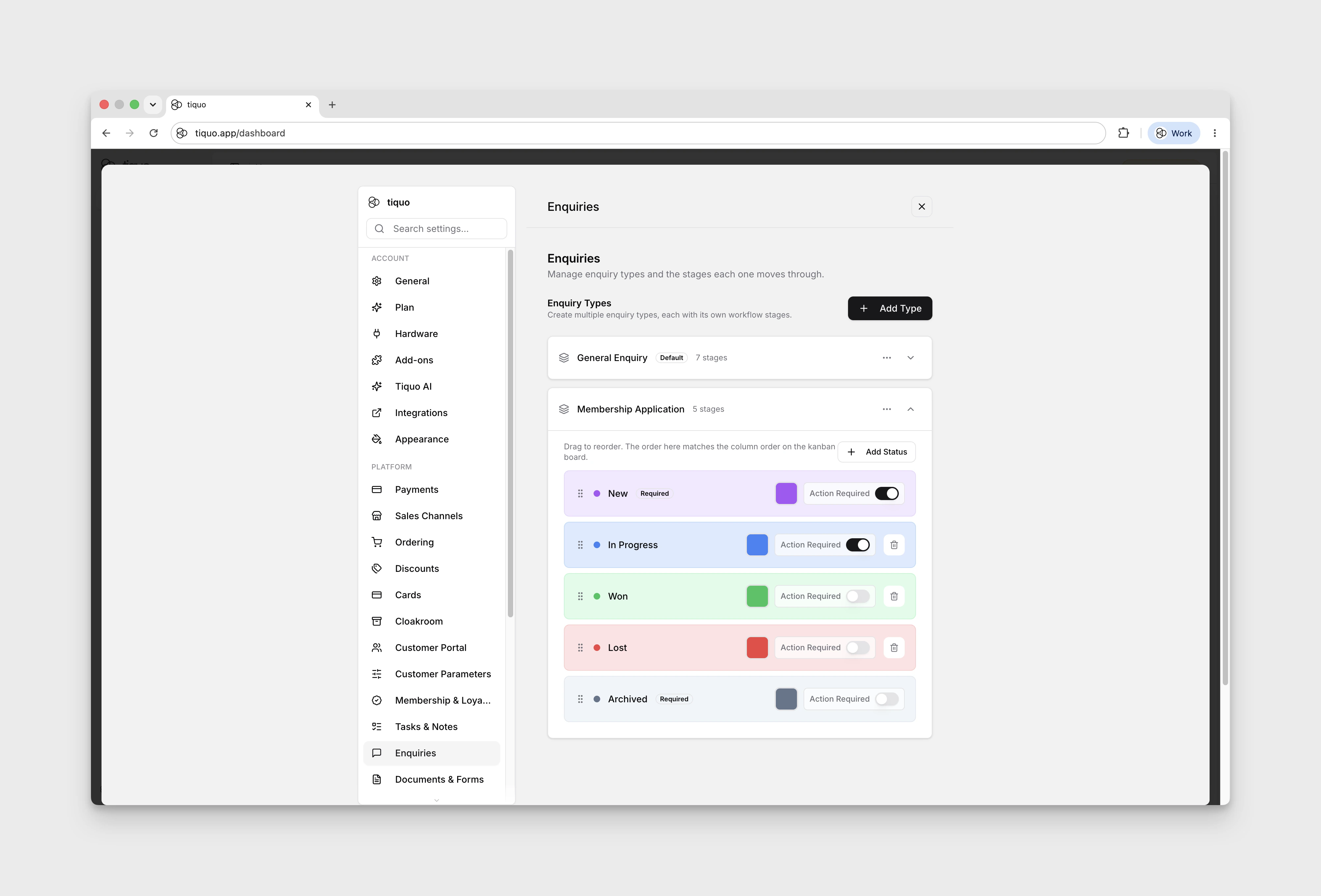
Enquiries can be separated into different pipelines to keep distinct workflows organised. For example, a membership enquiry pipeline can sit alongside a general booking enquiry pipeline, each with its own Kanban columns and stages.
Pipelines are managed in Settings > Enquiries. Use Add Type to create a pipeline and Add Status within a type to add a stage. Stages can be reordered using their drag handles, and Action Required controls are shown for each stage. Renaming an existing stage has not yet been verified for this guide. When enquiries are in action-required stages, a count appears next to Enquiries in the sidebar so staff can see that something needs attention. The count only includes enquiry types the staff member can access. When the Orders menu is collapsed and Enquiries is not shown beneath it, the count is added to Orders instead.
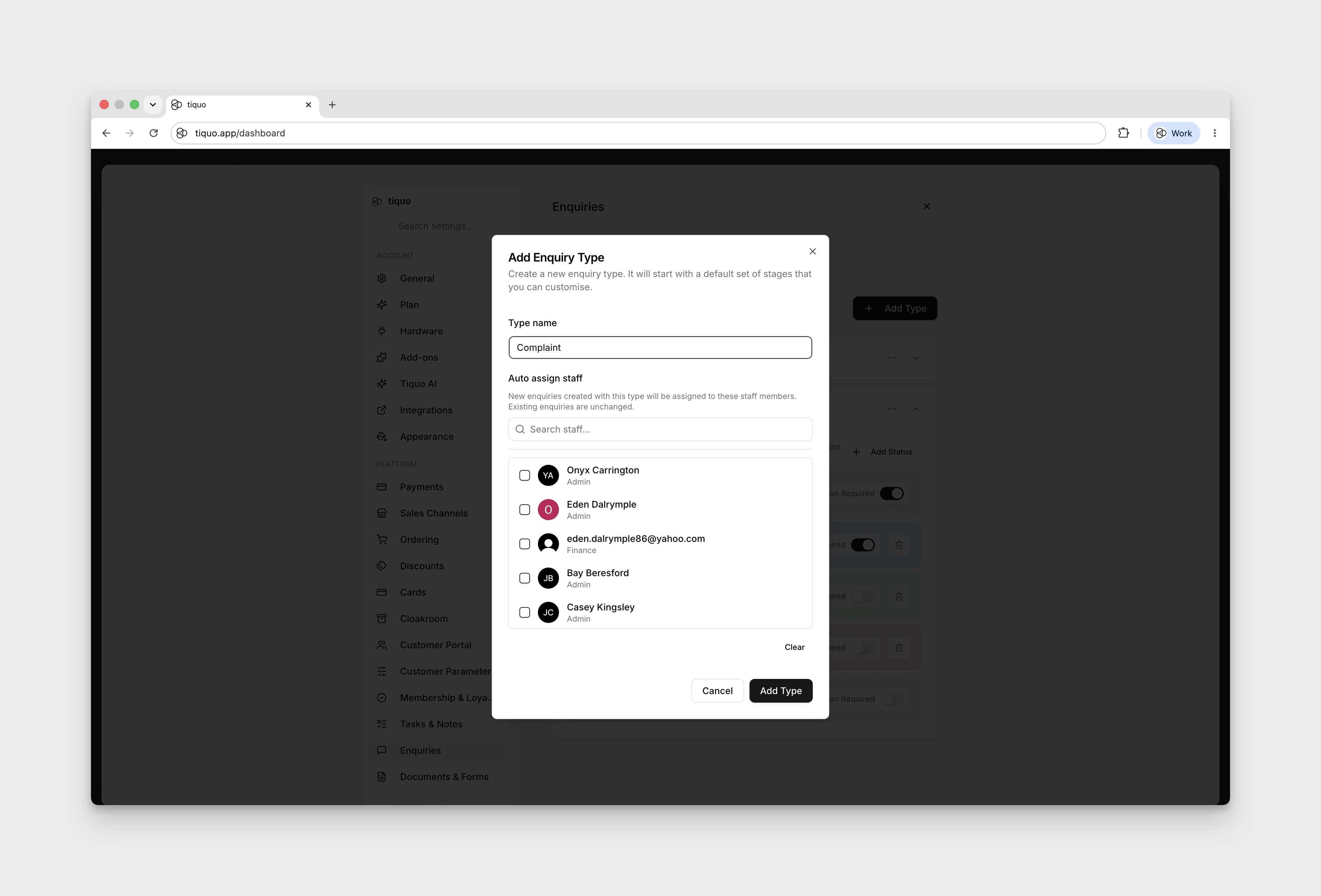
New enquiries in a pipeline can also be auto-assigned to selected staff members, so the right people see the enquiries they are responsible for actioning. For each automatic assignee, turn on Send email when new enquiry is received when that person should also receive an email notification.
Changing an enquiry's status
An enquiry's status can be changed in two places:
- From the status pill on an enquiry row: click the pill and choose a new status.
- From Kanban view: drag the enquiry card into a different status column.
Moving an enquiry to Lost requires a reason, including in bulk actions. Staff choose a standard reason or enter Other; the reason is stored on the enquiry and shown in its detail view. Configure the standard choices under Settings > Reporting.
The stage bar in the full enquiry view shows how many days the enquiry spent in each previous stage and how long it has been in the current stage. Use this to spot slow handoffs without opening the activity log. When you change the status, the new stage starts counting from 0 days. Archived enquiries are excluded from the active list by default and remain available through the Archived status filter.
Staff can also change an enquiry's Type from the type badge in the full detail view. If the current status does not exist in the destination type, Tiquo shows the replacement status before the move. Review the type-specific category and parameters after changing type.
Access by enquiry type
Administrators can control which enquiry types each staff member can access. Open Manage Organization > Enquiry access, expand a staff member, and turn individual types on or off.
Administrators always have access to every enquiry type, and only an administrator can change another member's access. Existing staff members have access to a type unless an administrator turns it off. This setting controls access to the enquiry type, not assignment to an individual enquiry.
If every enquiry type is turned off for a staff member, Enquiries is removed from their sidebar and command palette, and opening an enquiries link shows Access restricted.
Enquiry details
Each enquiry includes a detailed view containing:
- Customer and companies information
- Enquiry information (type, subject, message, dates, assignee)
- Related location or sublocation
- Documents
- Notes
- Activity (status changes, assignments, and history)
This gives staff all the information they need to respond without switching tools or losing context.
Accessing enquiry details
The details are available at two levels. Clicking an enquiry row on the Enquiries page opens a preview modal for quick inspection. Its status pill opens Change Status actions, so the preview is not read-only.
From that modal, click View Enquiry to open the full detail page.
The full enquiry detail view
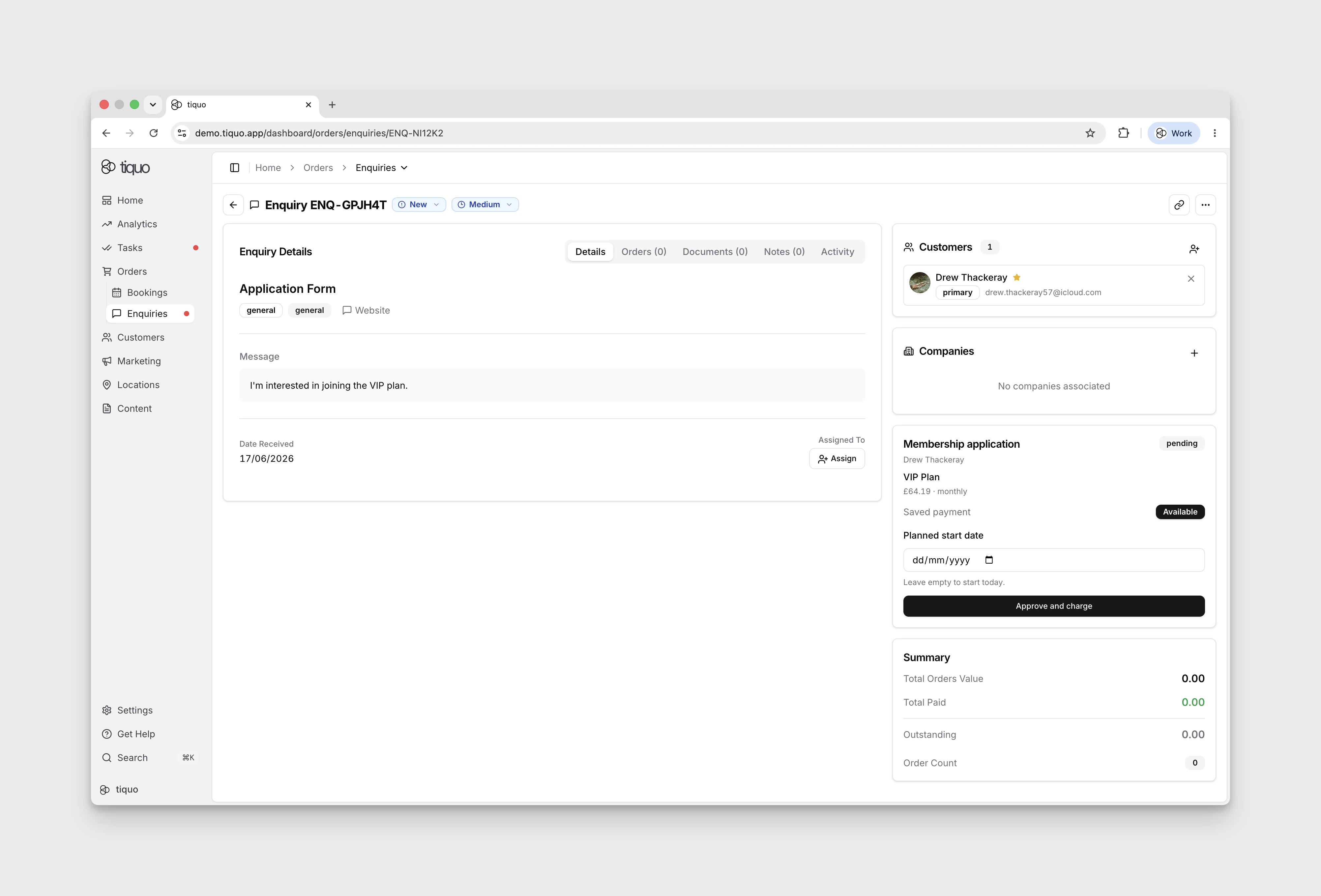
Opening View Enquiry loads the full enquiry page. This is where staff edit fields, convert the enquiry, manage documents, and perform other actions.
Content is split into five tabs:
- Details: Type, Category, Message, Date Received, Won At, and Assigned To.
- Orders: orders linked to the enquiry.
- Documents: files, forms, and documents attached (see below).
- Notes: internal notes and tasks linked to enquiry.
- Activity: recorded enquiry events, including creation and status changes. Check the Notes tab for internal notes; note creation did not appear in the demo Activity feed.
A right-hand sidebar is always visible and shows Customers (primary marked by a star, each card removable), Companies (primary marked), and a Summary with financial roll-up (Total Orders Value, Total Paid, Outstanding, Order Count).
Each customer and company on the enquiry has a role. Customers can be Primary, Attendee, Billing, Booker, Travel Agent, Referrer, or Other. Companies use the same roles, with Sponsor in place of Attendee. Once the enquiry has at least two customers and companies between them, change a role from the role menu on that entry. See Roles on orders and enquiries.
Finding recorded activity
In Activity, select Show activity search and filters to search the recorded entries. For example, searching for status changed finds matching status-change entries. Clear removes the search and restores the activity list.
Adding an internal note
Open Notes, expand the relevant scope, such as General, and find the notes group. Use that group's Add → Create Note action. Enter a title, optionally add a description, then select Create note.
The Notes tab count increases after the note saves. To review it after reopening the enquiry, return to Notes and expand the same scope and group.
Enquiry conversations
The full enquiry view includes the customer conversation so staff can send replies and see incoming and outgoing messages in context with the enquiry. Configure the conversation's From address under Settings > Enquiries.
Documents and forms
The Documents tab on an enquiry is where staff manage everything "paper" related to the request.
Three actions are available at the top of the tab:
- Upload file: drag and drop or select files to attach. Supported formats include PDF; JPEG, PNG, GIF, and WebP images; Word, Excel, and PowerPoint files; CSV; and the equivalent OpenDocument formats.
- Create document: generate a new document, such as a proposal or contract, directly in Tiquo.
- Create form: build and send a form to the customer to collect structured information such as dietary requirements, guest counts, ID verification, or membership application details.
This keeps the full paper trail of an enquiry in one place, from initial upload through signed contract.
Create Document and Create Form first open a template chooser. Choose a starter template or Create from Scratch to continue to the editor. For more information on the document and form editor, see Customer Documents.
Forms can also be used as the customer-facing side of enquiries. When a customer submits a published form, the submission can create or link a customer profile and land in the matching enquiry pipeline for staff review. Forms are configured from Settings > Documents & Forms.
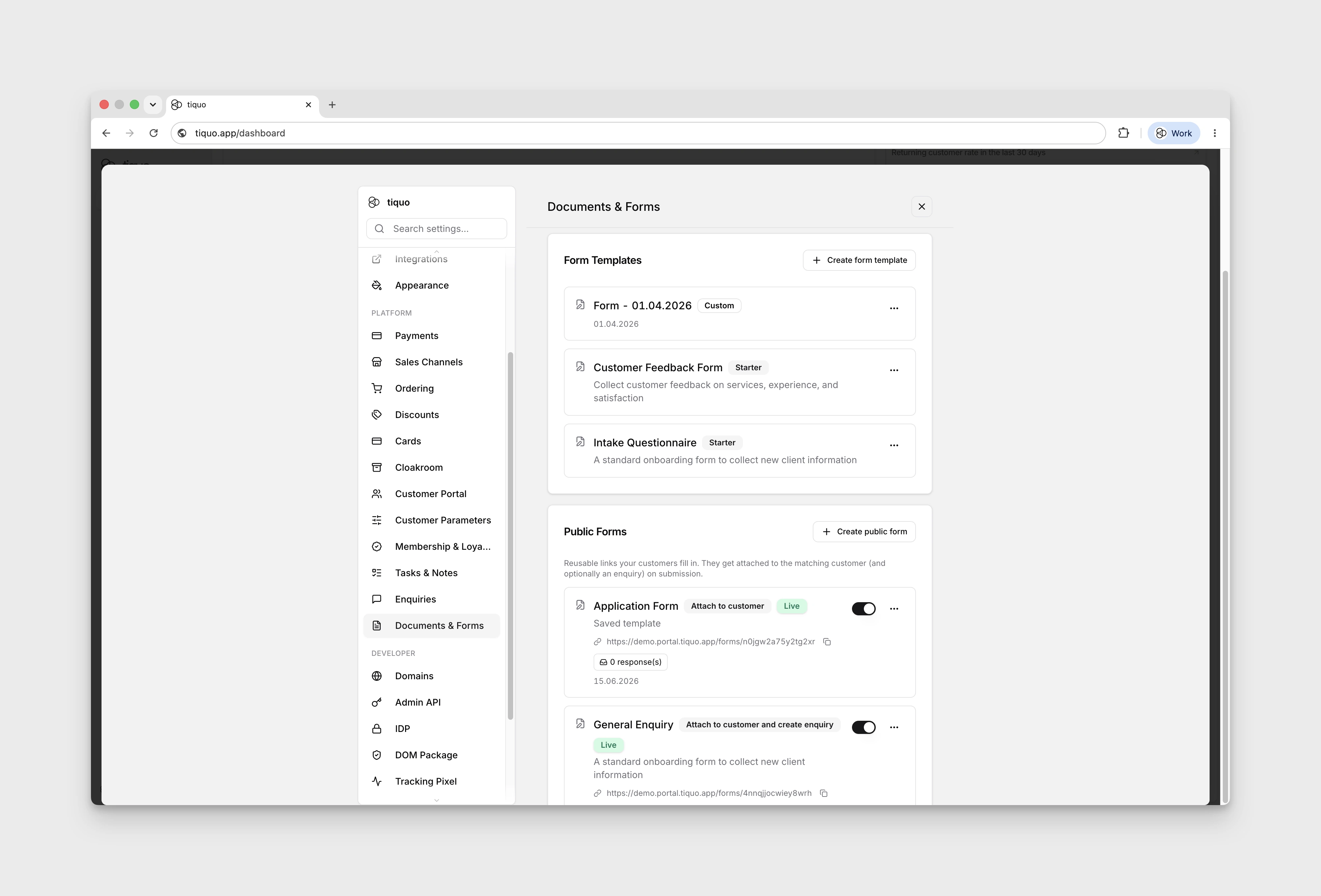
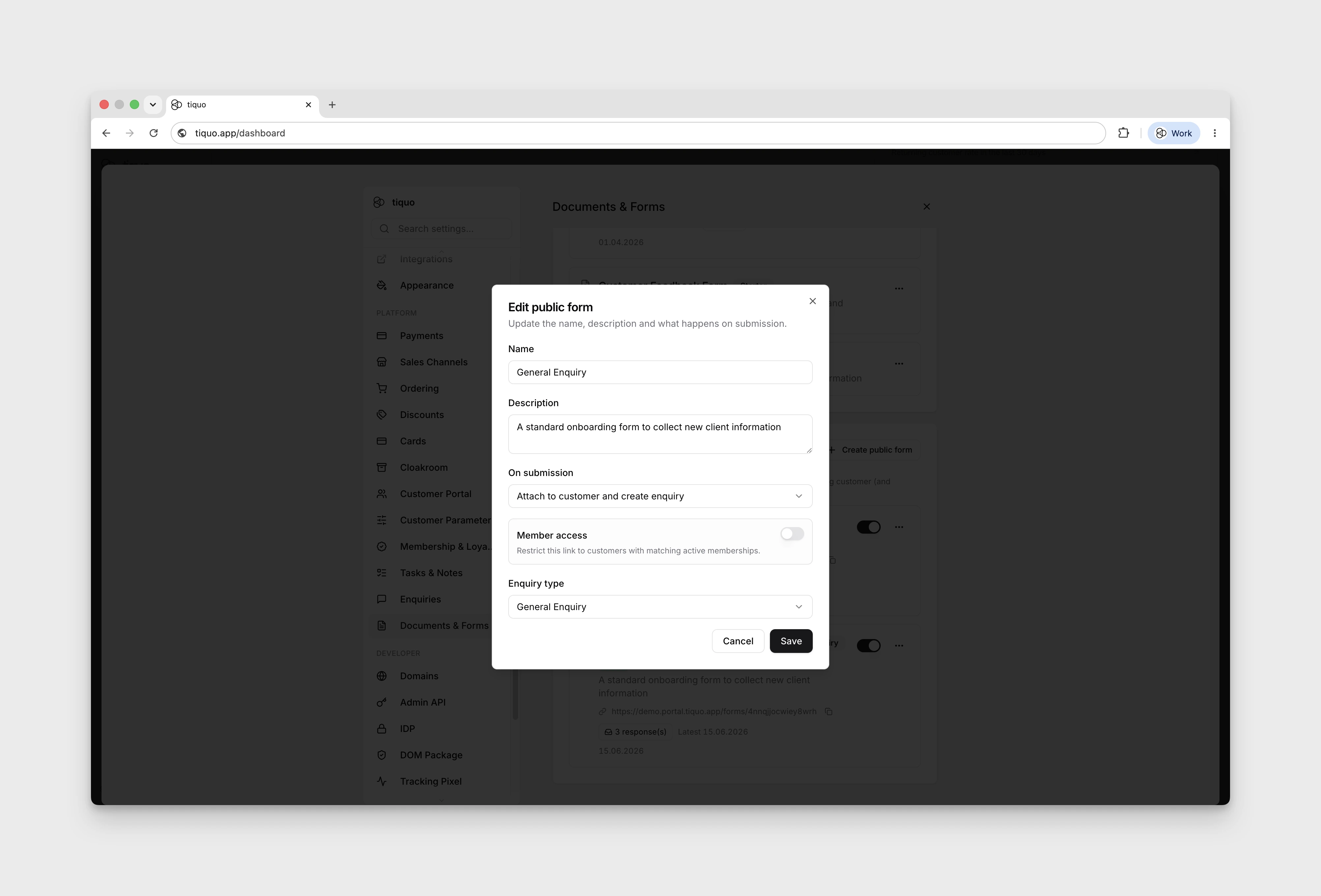
When you build a form, fields can be bound to enquiry fields such as subject or message, or to customer fields and custom customer parameters. That lets answers become usable profile data instead of sitting only on the submitted form. Dropdown options can use dependencies, and single-line fields can be conditionally shown for selected answers from another dropdown. Single-line inputs can also be configured for text or numeric values, and dedicated time fields validate a 24-hour time.
These bindings belong to platform-built document forms. They are separate from
Website SDK createEnquiry() and hosted enquiry forms, which accept only enquiry
type parameters. Separately, customer.customerParameterValues and legacy customer.details fill missing customer-editable profile parameters only; existing values, including consent defaults, are never overwritten.
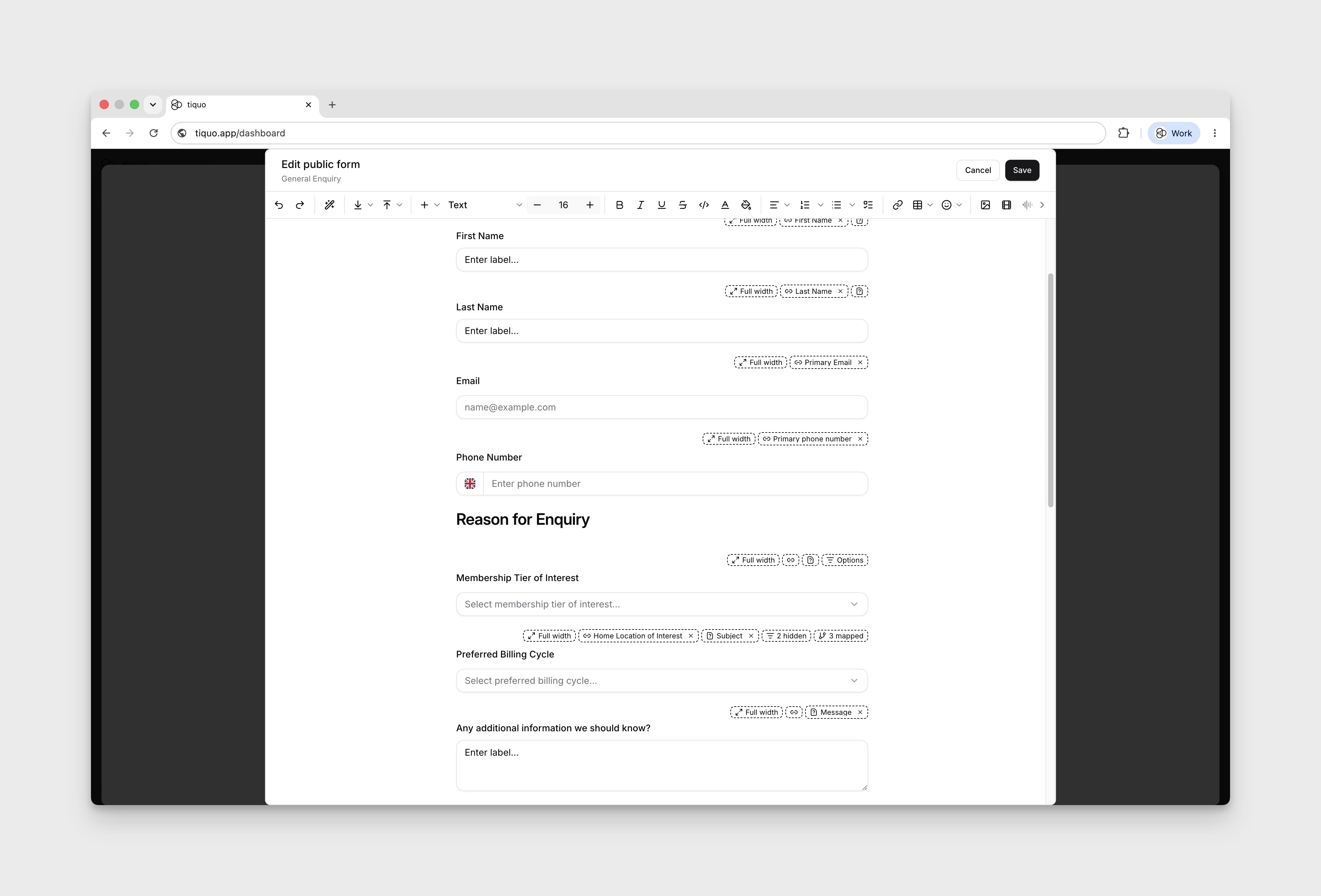
Each form has its own Form Details settings for visibility and submission behaviour. You can restrict access to customers with an active membership, selected membership plans, or specific membership permissions, and choose Attach to customer or Attach to customer and create enquiry as the submission destination. Company destinations are marked coming soon and disabled; an enquiry-only destination is not offered in the inspected setup.
To limit a public form to members, see Members-only forms.
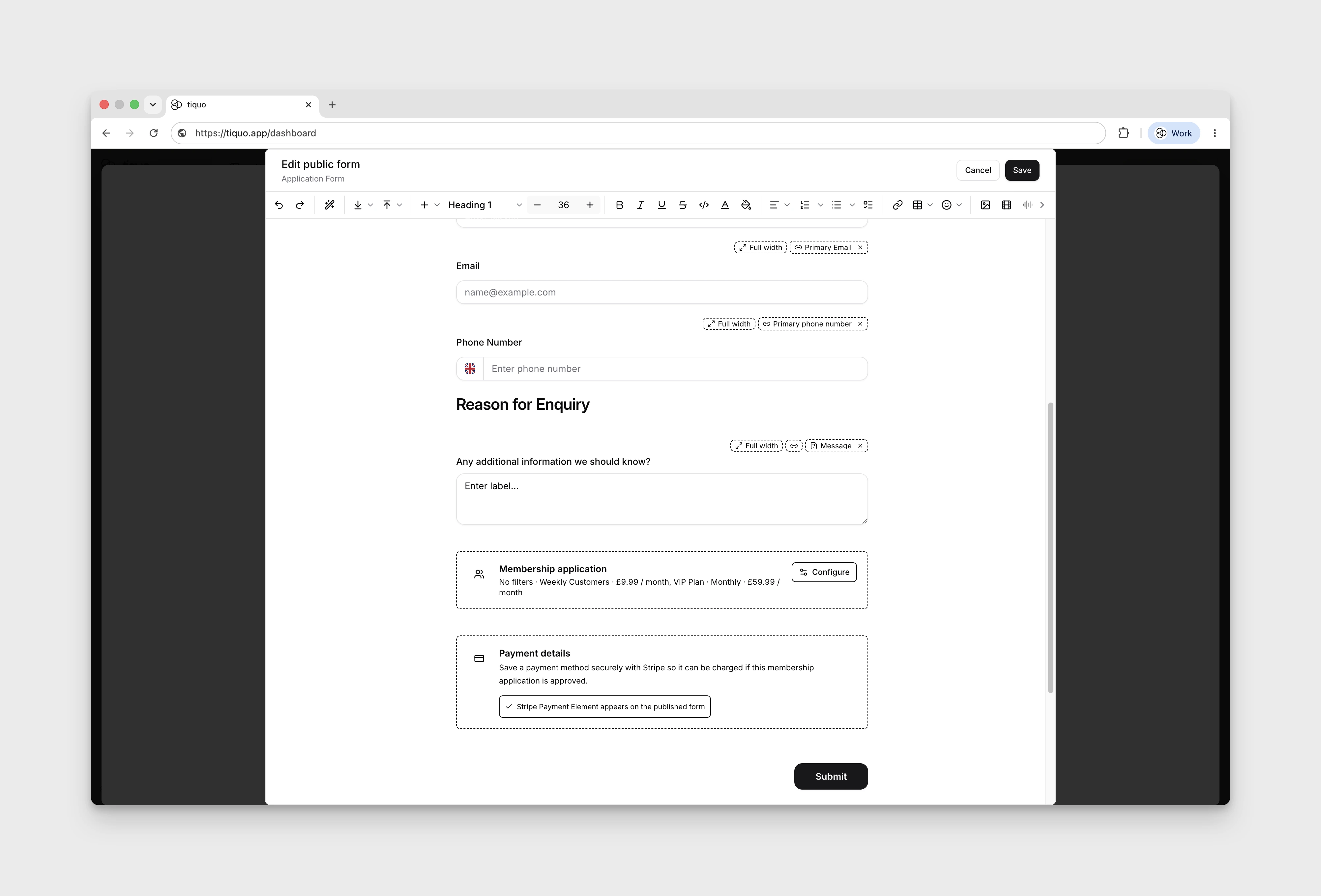
Membership application forms can collect the customer's chosen plan and billing cycle, and can securely collect a payment method through Stripe. Applicants can pay by card or, where available, Direct Debit. See Direct Debit on membership application forms. Staff then review the resulting enquiry before approving the membership.
Approving a membership enquiry
When a membership application form is submitted, Tiquo creates or links the customer profile and places the submission in the relevant enquiry pipeline. Staff review the enquiry from Orders > Enquiries, validate the information, and approve it. If staff changed the plan from the one the customer applied for, the approval card shows a checkbox confirming that the customer has agreed to change to the new plan and price. The approve button (Approve and charge, or Approve membership for a free plan) stays unavailable until it is ticked. Any other memberships the customer already holds are listed as staying active. On approval, the membership is assigned and billing starts. If the saved payment method can be charged off-session, Tiquo charges it; if additional customer action is required, Tiquo sends the customer a secure payment step.
Assigning staff to enquiries
Assign an enquiry to the staff responsible for following it up. This helps avoid duplicate responses. Assigned staff can update its status, add notes, and manage it through to resolution.
How to assign staff
Use Assign in Create New Enquiry to choose staff while preparing the enquiry, or assign staff later from the existing enquiry’s detail view.
Open the enquiry by clicking its row, and then pressing View Enquiry. Press the Assign button at the bottom right of the enquiry details. The picker lists all staff members in your organization with their role shown below each name. Select one or more people and click Apply to confirm. To remove all assignees, click Clear.
Converting enquiries
Enquiries can be converted into bookings or orders once details are confirmed.
When converting an enquiry:
- Relevant customer information is retained
- Context and notes are preserved
- The enquiry lifecycle is recorded for reporting
You can confirm the business without re-entering data or losing the enquiry's history.
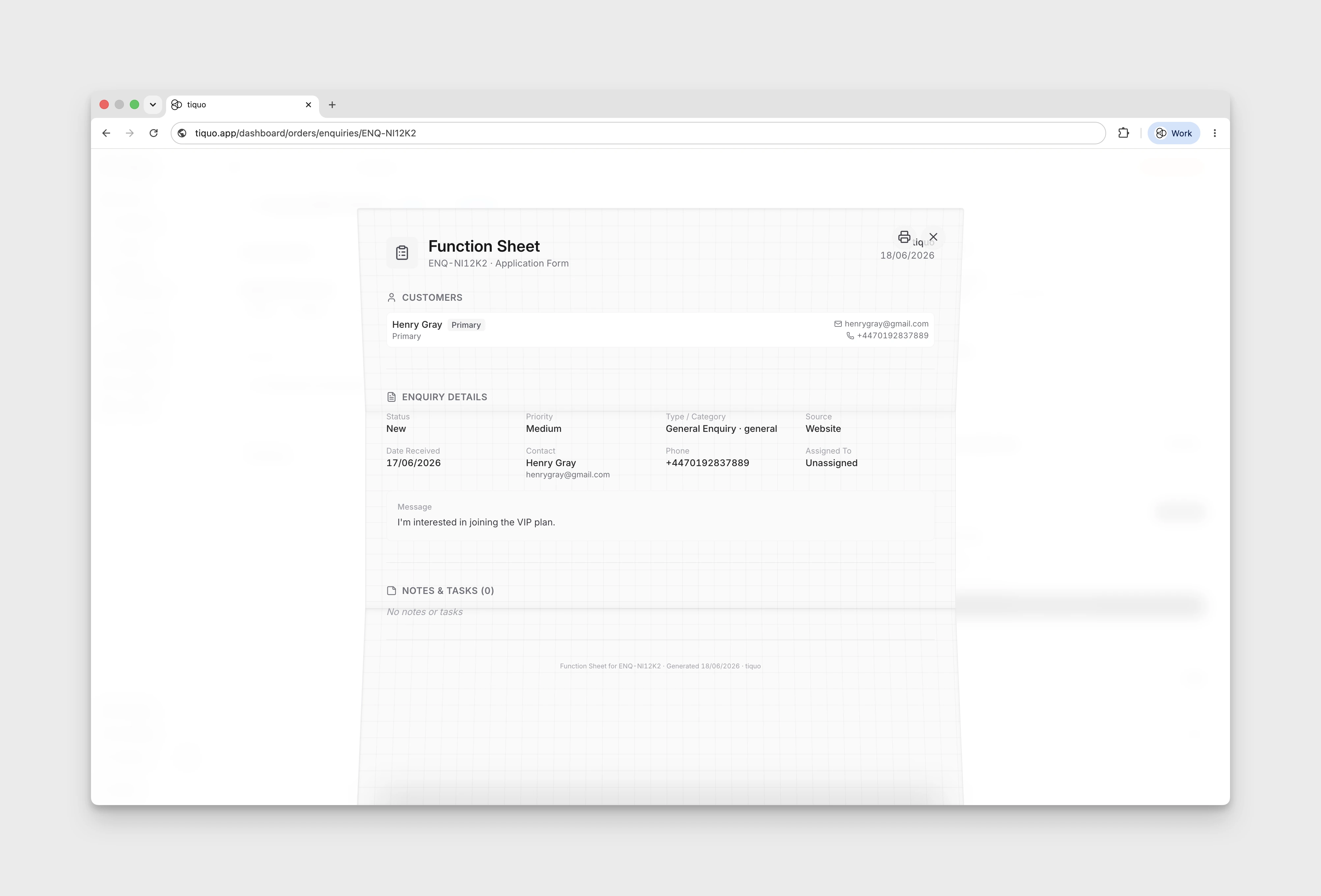
Function sheet
When Function Sheets is enabled for the enquiry type under Settings > Enquiries, the enquiry context menu provides a clean, printable operational summary.
Use this feature to export a snapshot of linked customers and companies, enquiry details, related orders, and outstanding internal notes or tasks. Staff can view the sheet from the three-dot actions menu, copy a direct link, download it, or use the print shortcut in the sheet overlay for physical handoffs and venue distribution.