

Tracking Pixel
Track authenticated customer activity across your websites
Tracking Pixel
The Tiquo Tracking Pixel lets you detect when an authenticated Tiquo customer visits any of your websites. When a customer signs in through the DOM Package on one site, the tracking pixel on your other sites can identify that customer and log their visit in Tiquo.
This is useful for understanding cross-site customer behavior, tracking customer presence, and keeping activity records up to date.
How It Works
The tracking pixel uses a hidden iframe and a cross-subdomain cookie to identify customers. Here is the full flow:
- A customer signs in on one of your sites using the DOM Package
- The DOM Package sets a cookie (
tiquo_customer_user_ids) on the.tiquo.appdomain containing the customer's user ID - When the customer visits another site that has your tracking pixel installed, the pixel loads a hidden iframe from
app.tiquo.app - The iframe (which is on the
tiquo.appdomain) reads the cookie and sends the customer's user ID back to the parent page viapostMessage - The parent page sends this data to the Tiquo tracking API (
/api/tp) - Tiquo matches the user ID to a customer in your organization and logs the activity
The pixel only fires once per browser session (using sessionStorage for deduplication), so it does not generate repeated hits on every page load.
Setup
1. Create a Tracking Pixel
- Open your Tiquo dashboard
- Go to Settings > Tracking Pixels
- Click Create Tracking Pixel
- Give it a name (e.g. "Main Website")
- Copy the generated snippet
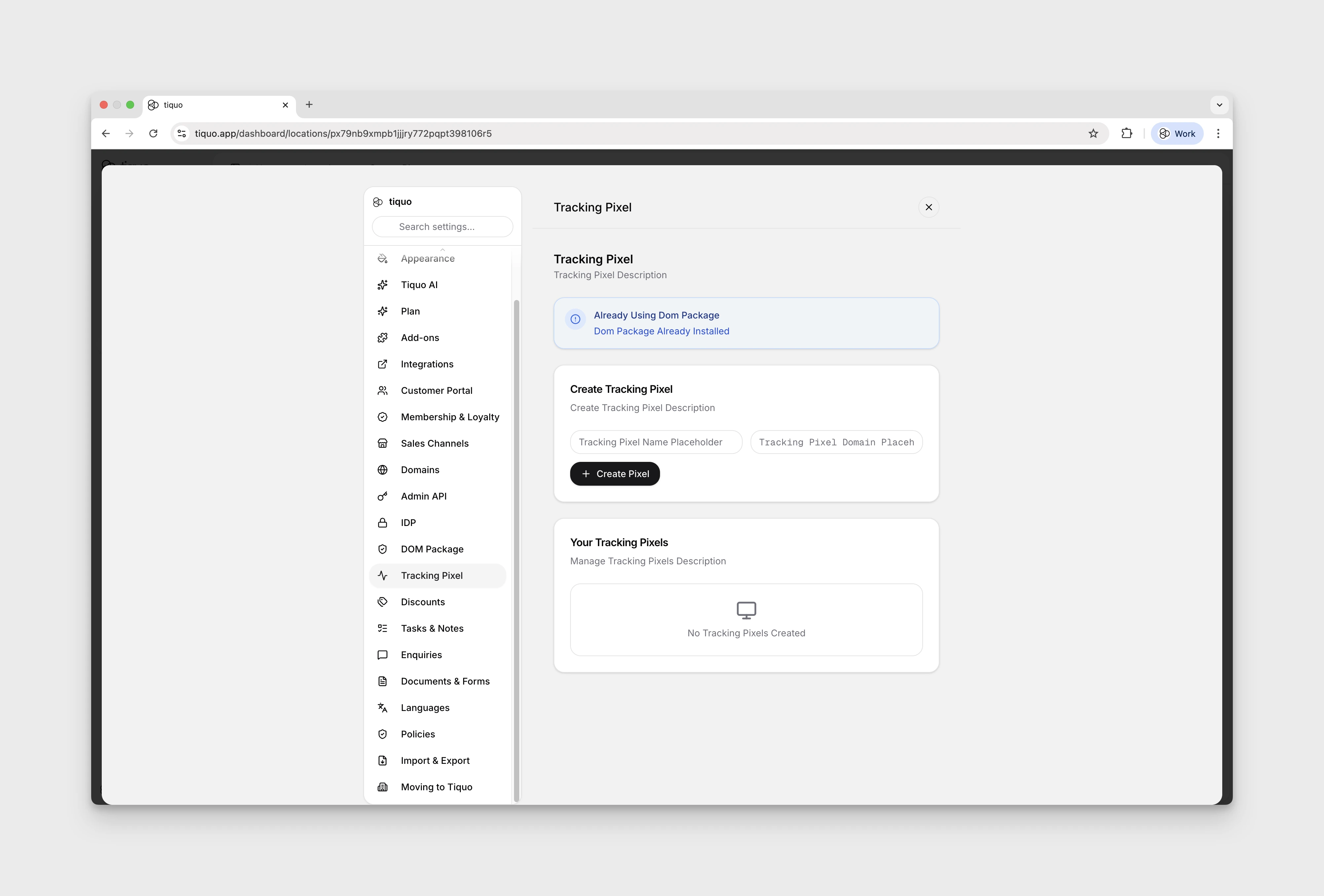
2. Install the Snippet
Paste the tracking pixel snippet into your website, just before the closing </body> tag. The snippet looks like this:
<!-- Tiquo Tracking Pixel -->
<script>
(function(t,q){
  if(sessionStorage.getItem('tq_'+q))return;
  var f=document.createElement('iframe');
  f.style.cssText='display:none;width:0;height:0;border:0';
  f.src='https://app.tiquo.app/tp/'+q;
  document.body.appendChild(f);
  window.addEventListener('message',function(e){
    if(e.origin!=='https://app.tiquo.app')return;
    if(e.data&&e.data.tq===q&&e.data.uids){
      sessionStorage.setItem('tq_'+q,'1');
      var x=new XMLHttpRequest();
      x.open('POST',t+'/api/tp');
      x.setRequestHeader('Content-Type','application/json');
      x.send(JSON.stringify({
        pixelId:q,
        userIds:e.data.uids,
        sessionId:Math.random().toString(36).substr(2,9),
        referrer:document.referrer,
        pageUrl:window.location.href
      }));
    }
  });
})('https://edge.tiquo.app','YOUR_PIXEL_ID');
</script>
<!-- End Tiquo Tracking Pixel -->
Replace YOUR_PIXEL_ID with the pixel ID from your dashboard (it will look like TQ-XXXXXXXX).
3. Verify It Works
After installing the snippet, visit the site while signed in to a Tiquo customer account. Then check your dashboard:
- The tracking pixel status should change from "Pending Setup" to "Active" after the first hit
- Customer activity should appear in the customer's activity log
What Gets Tracked
Each tracking pixel hit sends the following data to Tiquo:
| Field | Description |
|---|---|
pixelId | Your tracking pixel ID |
userIds | The authenticated customer's user ID(s) from the cookie |
sessionId | A random session identifier |
referrer | The referring page URL |
pageUrl | The current page URL |
Tiquo uses the user IDs to match against customer records in your organization. If a match is found, the following happens:
- The customer's online status is updated
- An activity log entry is created
- The pixel's event counter is incremented
- An offline timeout is scheduled (to mark the customer as offline after inactivity)
Session Deduplication
The pixel uses sessionStorage to ensure it only fires once per browser session. When a hit is recorded, the pixel sets tq_{pixelId} in sessionStorage. On subsequent page loads within the same session, the pixel checks for this key and skips execution if it exists.
This means you can safely include the pixel on every page of your site without generating duplicate events.
Managing Tracking Pixels
From the dashboard (Settings > Tracking Pixels), you can:
- Create new tracking pixels (each with a unique ID)
- Activate or pause existing pixels
- Delete pixels you no longer need
- View stats including total events and the last event timestamp
Privacy Considerations
The tracking pixel only identifies customers who have already authenticated through the DOM Package. It does not track anonymous visitors and does not use third-party cookies. The tiquo_customer_user_ids cookie is a first-party cookie on the .tiquo.app domain, set with SameSite=Lax and Secure flags in production.
Customers who have not signed in through the DOM Package will not be tracked, because the cookie will not exist in their browser.