

DOM Package
JavaScript SDK for browser-based customer authentication
DOM Package
The Tiquo DOM Package (@tiquo/dom-package) is a JavaScript SDK that provides customer authentication and first-party website analytics directly in the browser. It uses an email OTP flow: the customer enters their email address, receives a 6-digit verification code, and signs in. No passwords, no redirects, no OAuth configuration.
Once authenticated, the SDK issues JWT access and refresh tokens that work with the Client API. It also handles token storage, automatic token refresh, multi-tab session synchronization, and known-customer attribution for analytics out of the box.
Installation
npm install @tiquo/dom-packageGetting Your Public Key
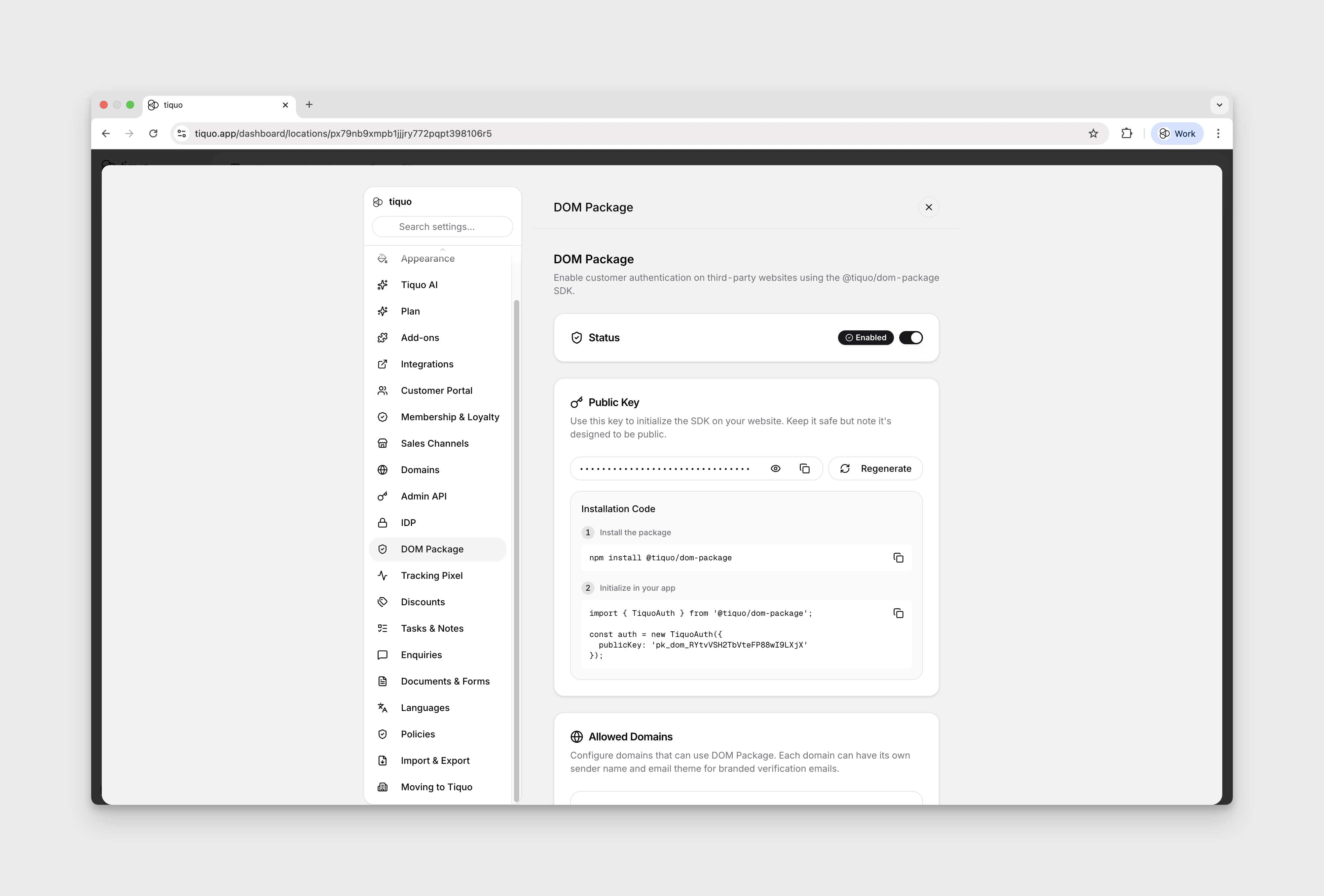
Before using the SDK, you need to get your public key from the Tiquo dashboard:
- Open your Tiquo dashboard
- Go to Settings > Auth DOM
- Enable the Auth DOM feature
- Copy your public key (it starts with
pk_dom_)
You will also need to add the domains where you plan to use the SDK to the Allowed Domains list in the same settings page. Requests from unlisted domains will be rejected.
Quick Start
import { TiquoAuth } from '@tiquo/dom-package';

// Initialize with your public key
const auth = new TiquoAuth({
  publicKey: 'pk_dom_your_key_here',
});

// Step 1: Send an OTP to the customer's email
await auth.sendOTP('customer@example.com');

// Step 2: Verify the OTP code the customer received
const result = await auth.verifyOTP('customer@example.com', '123456');

// The customer is now authenticated
const user = await auth.getUser();
console.log(user.email);
Configuration Options
| Option | Type | Default | Description |
|---|---|---|---|
publicKey | string | (required) | Your public key starting with pk_dom_ |
apiEndpoint | string | https://edge.tiquo.app | API base URL (override for development) |
debug | boolean | false | Enable debug logging to the console |
enableTabSync | boolean | true | Sync authentication state across browser tabs |
analytics | boolean | true | Enable first-party website analytics |
accessToken | string | - | Pre-set an access token (for WebView integration) |
refreshToken | string | - | Pre-set a refresh token (for WebView integration) |
const auth = new TiquoAuth({
  publicKey: 'pk_dom_your_key_here',
  debug: true,
  enableTabSync: true,
});
Website Analytics
Website analytics starts automatically when you initialize TiquoAuth or TiquoCMS, unless you set analytics: false.
import { TiquoAuth } from '@tiquo/dom-package';

const auth = new TiquoAuth({
  publicKey: 'pk_dom_your_key_here',
});
The SDK records cookie-free first-party analytics events to Tiquo, including:
- Pageviews, including the current path, URL, page title, and referrer
- Single-page app navigation through
history.pushState,history.replaceState, and browser back/forward navigation - Engagement events when the visitor leaves a page or the page becomes hidden
- Session attribution through a browser-session ID stored in
sessionStorage - UTM parameters from the current URL:
utm_source,utm_medium,utm_campaign,utm_content, andutm_term - Browser, device type, operating system, language, screen size, and viewport size
- Known-customer identity when the visitor authenticates through the DOM package
Tiquo records the source hostname for each event. www.example.com is normalized to example.com; other subdomains are tracked separately.
Sending Custom Events
Use auth.analytics?.track() to send custom analytics events from your website.
await auth.analytics?.track('booking_started', {
  eventName: 'Booking Started',
  eventProperties: {
    serviceId: 'svc_123',
    locationId: 'loc_456',
  },
});
Custom events accept the same page context fields used by automatic pageviews:
| Option | Type | Description |
|---|---|---|
eventName | string | Human-readable event name |
eventProperties | object | Custom structured event data |
siteSlug | string | Optional CMS website slug |
pageSlug | string | Optional page slug |
path | string | Override the current path |
url | string | Override the current URL |
title | string | Override the current document title |
referrer | string | Override the document referrer |
Identifying Customers
After a customer signs in with verifyOTP(), the SDK automatically sends an identify analytics event. The event includes the current access token so Tiquo can associate website activity with the authenticated customer.
You can also send an identify event manually when you link an analytics session to a customer through another flow:
await auth.analytics?.identify({
  identityLinkType: 'email_capture',
});
Supported identityLinkType values are auth_dom_login, email_capture, booking, enquiry, order, customer_portal, and manual.
Manual Pageviews
Automatic pageview tracking is enabled by default. If you need to control pageview timing yourself, create a standalone analytics instance with autoTrackPageviews: false.
import { TiquoAnalytics } from '@tiquo/dom-package';

const analytics = new TiquoAnalytics({
  publicKey: 'pk_dom_your_key_here',
  autoTrackPageviews: false,
});

await analytics.trackPageview({
  path: '/pricing',
  title: 'Pricing',
});
Disabling Analytics
Set analytics: false when creating TiquoAuth or TiquoCMS.
const auth = new TiquoAuth({
  publicKey: 'pk_dom_your_key_here',
  analytics: false,
});
Standalone Analytics
You can use TiquoAnalytics without authentication if a site only needs first-party website analytics.
import { TiquoAnalytics } from '@tiquo/dom-package';

const analytics = new TiquoAnalytics({
  publicKey: 'pk_dom_your_key_here',
  siteSlug: 'main-site',
});

await analytics.track('newsletter_signup', {
  eventName: 'Newsletter Signup',
  identityLinkType: 'email_capture',
});
Authentication Flow
Sending an OTP
Call sendOTP with the customer's email address. Tiquo will send a 6-digit verification code to that address.
try {
  await auth.sendOTP('customer@example.com');
  // Show the OTP input field in your UI
} catch (error) {
  console.error('Failed to send OTP:', error.message);
}
The email is sent from a branded sender that you can customize per domain in Settings > Auth DOM > Allowed Domains. Each domain can have its own sender name and email theme.
Verifying an OTP
Call verifyOTP with the same email and the code the customer entered. On success, the SDK stores the JWT tokens and the customer is signed in.
try {
  const result = await auth.verifyOTP('customer@example.com', '123456');
  // Customer is now authenticated
  console.log('Signed in as:', result.email);
} catch (error) {
  console.error('Verification failed:', error.message);
}
After successful verification, the SDK:
- Stores the access token and refresh token in
localStorage - Sets a cross-subdomain cookie (
tiquo_customer_user_ids) for tracking pixel integration - Broadcasts the login event to other open tabs
Checking Authentication State
// Check if the customer is currently authenticated
const isLoggedIn = auth.isAuthenticated();

// Get the current user's profile (fetches from Client API if needed)
const user = await auth.getUser();
if (user) {
  console.log(user.email);
  console.log(user.customer?.displayName);
}
isAuthenticated() checks whether a valid (non-expired) access token exists. getUser() returns the cached session data, or fetches it from the Get Profile endpoint if no cache is available.
Updating the Customer Profile
await auth.updateProfile({
  firstName: 'John',
  lastName: 'Smith',
  phone: '+1234567890',
});
This calls the Update Profile endpoint under the hood.
Profile photos can be passed as a hosted URL, a browser File or Blob, or a data:image/... or blob:... URI.
const file = fileInput.files?.[0];

if (file) {
  await auth.updateProfile({
    profilePhoto: file,
  });
}
You can also upload only the profile photo:
await auth.uploadProfilePhoto(file);When a file or blob is provided, the SDK requests a secure upload URL, uploads the image to Tiquo storage, then saves the resulting image URL on the authenticated customer's profile.
Fetching Customer Data
The SDK provides convenience methods for the Client API list endpoints:
// Get order history
const orders = await auth.getOrders();

// Get booking history
const bookings = await auth.getBookings();

// Get upcoming bookings only
const upcoming = await auth.getUpcomingBookings();

// Get enquiry history
const enquiries = await auth.getEnquiries();

// Get companies the customer belongs to
const companies = await auth.getCompanies();
These methods handle authentication headers and token refresh automatically.
Receipts
Use getReceipt() to retrieve a printable receipt payload for an order owned by the authenticated customer.
const receipt = await auth.getReceipt('order_123');Receipts are available for orders that have been paid, refunded, or completed. Draft and pending orders do not have customer receipts yet.
Booking Tickets
Bookings include a ticketing object when ticket settings are available for the booking's sublocation.
const { bookings } = await auth.getUpcomingBookings();
const booking = bookings[0];

if (booking?.ticketing.qrCodeTicketsEnabled) {
  const ticketPdf = await auth.downloadBookingTicket(booking.id);
}
When wallet tickets are enabled, the booking also includes wallet links:
const walletUrl = booking.ticketing.walletTicketUrl;
const appleWalletUrl = booking.ticketing.appleWalletTicketUrl;
const googleWalletUrl = booking.ticketing.googleWalletTicketUrl;
Company Memberships
Use getCompanies() to show the authenticated customer's company memberships.
const { companies } = await auth.getCompanies();

for (const company of companies) {
  console.log(company.name, company.membership.relationship);
}
Each company includes the customer's membership details, including whether the customer is a company admin.
Company admins can call getCompanyColleagues() to retrieve basic contact-card information for colleagues in the same company.
const company = companies.find((item) => item.membership.isCompanyAdmin);

if (company) {
  const { colleagues } = await auth.getCompanyColleagues(company.id);
  console.log(colleagues);
}
If the authenticated customer is not a company admin for that company, the request returns a permissions error.
Listening for Auth State Changes
Register a callback to be notified when the authentication state changes. This fires on login, logout, token refresh, and session updates from other tabs.
const unsubscribe = auth.onAuthStateChange((event) => {
  if (event.type === 'LOGIN') {
    console.log('Customer signed in');
  } else if (event.type === 'LOGOUT') {
    console.log('Customer signed out');
  }
});

// Later, to stop listening:
unsubscribe();
Logging Out
await auth.logout();This revokes the session on the server, clears stored tokens from localStorage, and broadcasts the logout event to other tabs so they can update their UI.
Token Management
The SDK manages tokens automatically:
- Storage: Access and refresh tokens are stored in
localStorage - Automatic refresh: The SDK refreshes the access token 5 minutes before it expires, using the Refresh Token endpoint
- Token rotation: Each refresh rotates both the access and refresh tokens
- Multi-tab sync: Login, logout, and token refresh events are broadcast to all open tabs via the
BroadcastChannelAPI
You generally do not need to manage tokens yourself. If you need direct access to the current access token (for example, to pass it to a custom API call), the SDK provides it through the internal state.
Multi-Tab Synchronization
When enableTabSync is set to true (the default), the SDK uses the BroadcastChannel API to keep all tabs in sync. The following events are broadcast:
| Event | Description |
|---|---|
LOGIN | A customer signed in on another tab |
LOGOUT | A customer signed out on another tab |
SESSION_UPDATE | Session data was updated |
TOKEN_REFRESH | Tokens were refreshed on another tab |
This means if a customer signs in on one tab, all other tabs will automatically pick up the session without the customer needing to refresh the page.
WebView Integration
If you are embedding a web page inside a native mobile app (iOS or Android), you can pass tokens into the SDK to avoid requiring the customer to sign in again. There are three ways to do this:
Option 1: Constructor Parameters
const auth = new TiquoAuth({
  publicKey: 'pk_dom_your_key_here',
  accessToken: 'eyJhbGciOiJSUzI1NiJ9...',
  refreshToken: 'rt_xxx...',
});
Option 2: Global Variable
Set the tokens before the SDK loads:
window.__TIQUO_INIT_TOKEN__ = {
  accessToken: 'eyJhbGciOiJSUzI1NiJ9...',
  refreshToken: 'rt_xxx...',
};
Option 3: URL Fragment
Append tokens to the URL when loading the WebView:
https://yoursite.com/page#tiquo_access_token=eyJ...&tiquo_refresh_token=rt_xxxThe SDK checks for injected tokens on initialization and uses them if found.
Dashboard Configuration
In the Tiquo dashboard under Settings > Auth DOM, you can configure:
| Setting | Description |
|---|---|
| Public Key | Your SDK public key (pk_dom_xxx). Can be regenerated (this invalidates all active SDK integrations). |
| Allowed Domains | List of domains where the SDK is permitted to run. Each domain can have a custom sender name and email theme for OTP emails. |
| Session Duration | How long sessions last (in days). Default is 30 days. |
| Auto-create Customer | When enabled, a new customer record is automatically created the first time someone authenticates, if no matching customer exists. |
How It Works with the Client API
The DOM Package is essentially a thin authentication layer on top of the Client API. Here is the full flow:
- Your website loads the SDK and initializes it with your public key
- The customer enters their email and receives a verification code
- After verifying the code, Tiquo issues a JWT access token and refresh token
- The SDK stores these tokens in the browser and uses them for all Client API requests
- When the access token expires, the SDK automatically calls the refresh endpoint to get a new pair
- All Client API data (profile, orders, bookings, enquiries) is scoped to the authenticated customer
The SDK sends OTP requests to https://edge.tiquo.app/api/auth-dom/otp/send and https://edge.tiquo.app/api/auth-dom/otp/verify. After successful verification, it uses the standard Client API endpoints at https://edge.tiquo.app/api/client/v1/.
Cleanup
When you are done with the SDK instance (for example, on a single-page app route change), call destroy() to clean up event listeners and the BroadcastChannel:
auth.destroy();