

Shortcuts
Move through Tiquo with the command menu and table shortcuts
Use the command menu to navigate the platform and open common creation forms.
Opening the command menu
Open it with:
- Cmd + K (Mac)
- Ctrl + K (Windows / Linux)
You can also select Search in the sidebar to open the Command Palette.
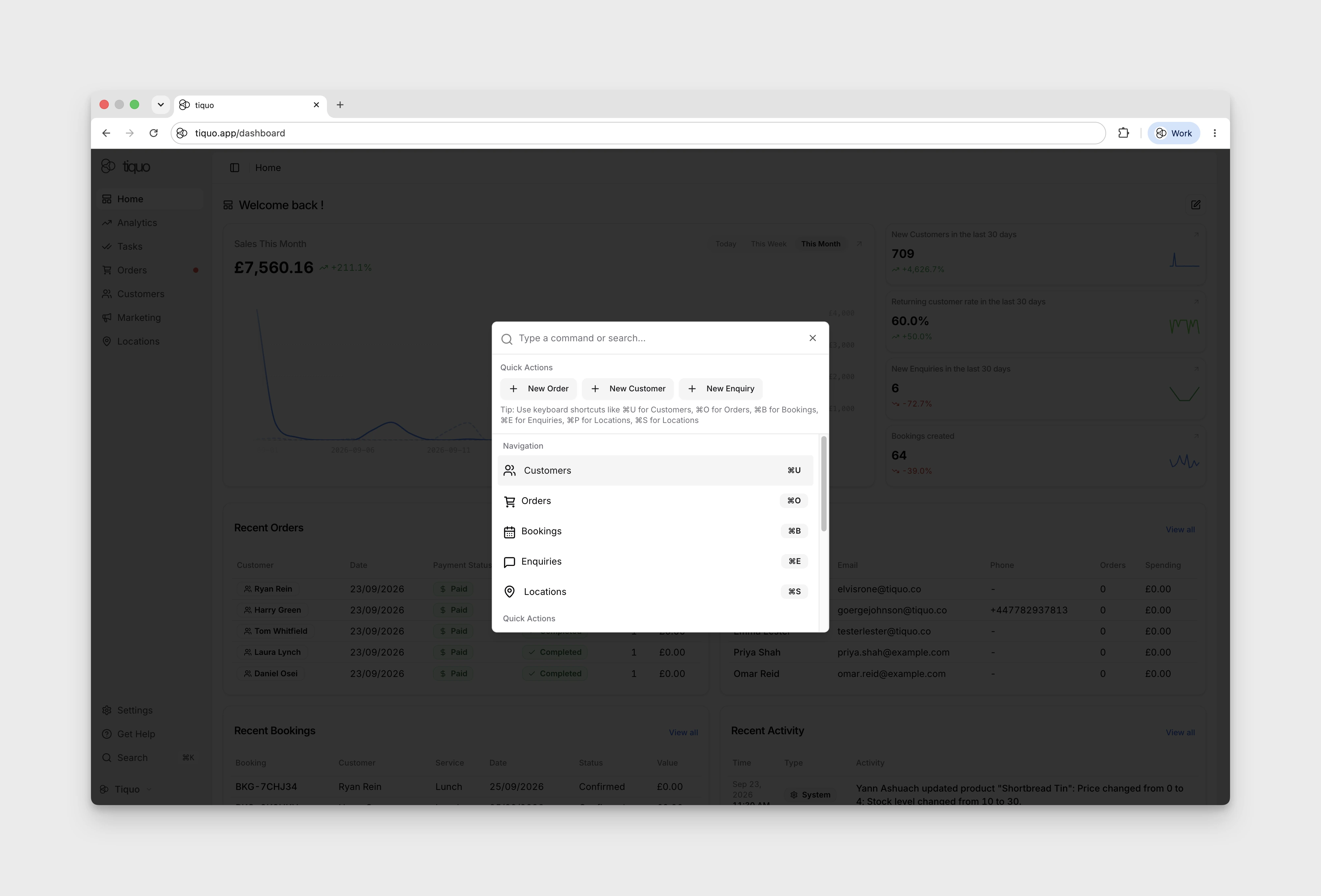
What the command menu does
Use the command menu to navigate and open creation forms:
- Find a page: type a page name such as Customers, then press Enter on the matching navigation result to open that page.
- Navigation shortcuts: with the command menu open, press Cmd + O for Orders or Cmd + U for Customers on Mac.
- Quick actions: select New Order, New Customer, or New Enquiry to open the corresponding creation form. Opening the form does not submit it. Each quick action appears only for roles that can create that record: Create & manage orders, Create customers & companies, or Manage enquiries.
For an individual record, open the relevant page and use its search controls. The command menu did not return existing order or enquiry identifiers in the demo.
Table shortcuts
Open a row's actions with a right-click
Right-click a row in a dashboard table, such as Customers, Orders, or Enquiries, to open that row's actions menu at the pointer. It is the same menu as the row's actions button, so it only lists the actions your role can use.
Sorting while you search
While text is in a table's search box, results are ordered by how well they match, so sorting is paused until you clear the search. Column headers stop responding and hide their sort arrows, and the sort menu is greyed out with the hint Clear the search to sort. On Customers, Orders, and Tasks, the table footer shows Ordered by search relevance. This applies to the Customers tabs, Orders, Bookings, Enquiries, Tasks, and marketing lists.