

Table & Pick Up QR Tags
Physical QR tags for Order to Table and Order & Pick Up channels
Table and Pick Up QR tags are physical tags that let customers open the correct ordering channel from a fixed location or collection point. They are designed for restaurants, bars, cafes, members clubs, hospitality spaces, and any workflow where customers order from a table or collect from a designated point.
Each tag shows customer-facing text, such as a table number or pick up label, and includes a QR code that opens the matching ordering channel for the selected sublocation.
Tag Layout
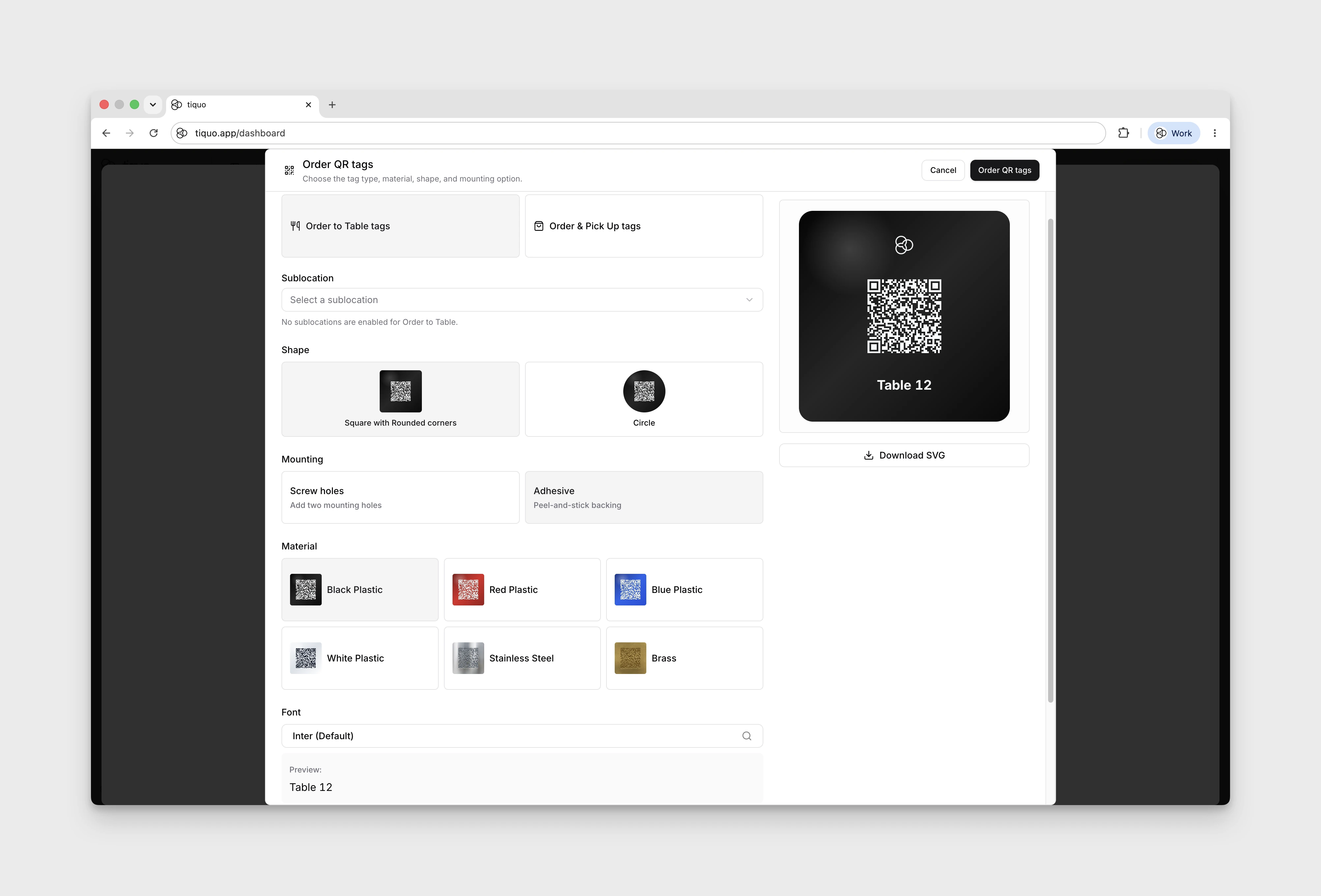
Tags can be previewed with different shapes, materials, mounting options, fonts, and optional branding.
The QR code is generated as an ordering route containing the ordering channel, organization identifier, and sublocation identifier. This allows the scan to resolve to the correct ordering flow for that sublocation.
Ordering Tags
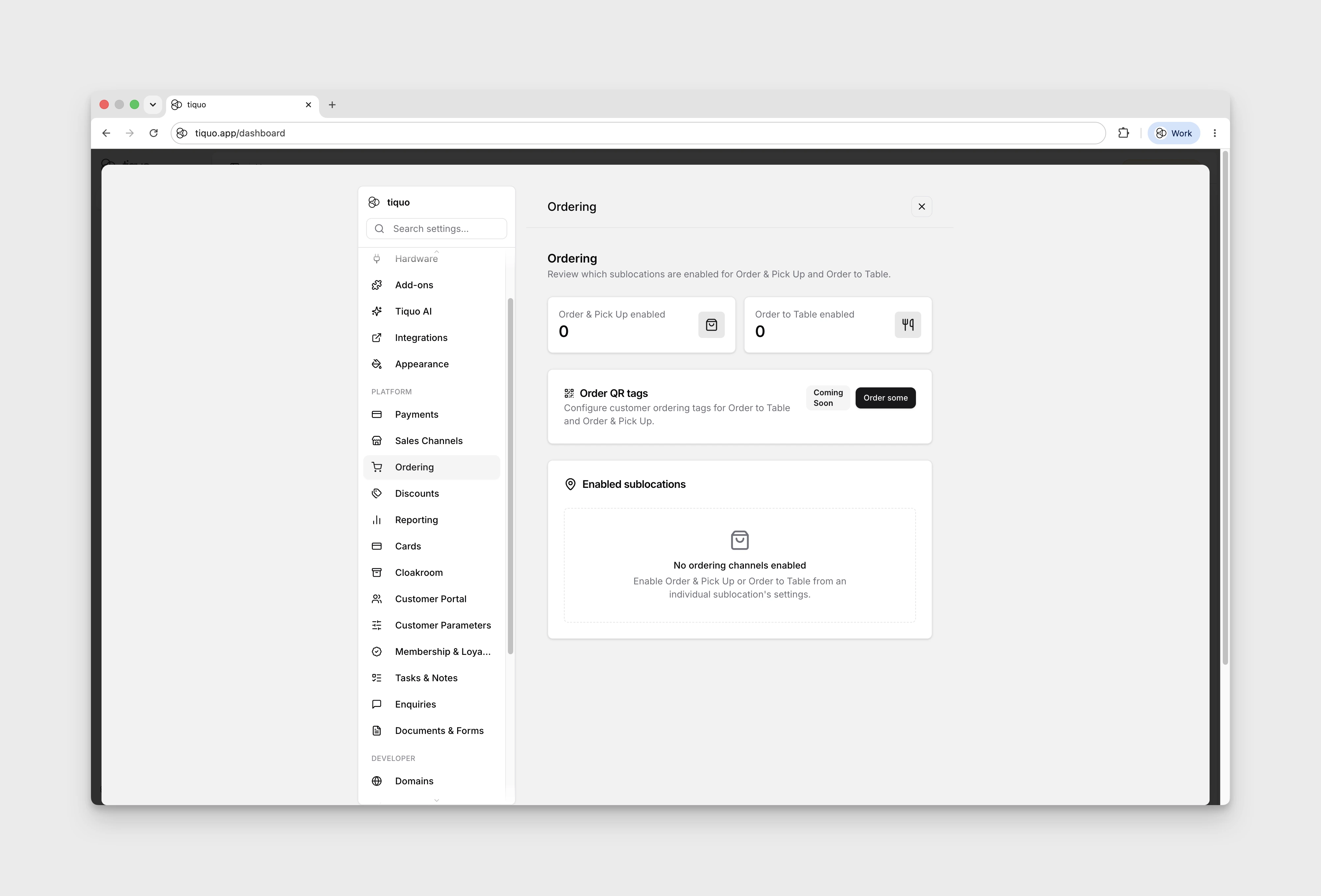
Table and Pick Up tag previews are configured from Settings → Ordering.
The ordering workflow lets you preview tag designs for Order to Table and Order & Pick Up. You can choose:
- Tag type
- Sublocation
- Shape
- Mounting option
- Material
- Font
- Optional logo
Available material previews include black plastic, red plastic, blue plastic, white plastic, stainless steel, and brass. Metal previews show the number, logo, and QR code as etched markings rather than printed ink.
The ordering action is not yet functional. The preview exists to help teams prepare the design, material, mounting, and branding choices for a future tag order.
Logos
If logo engraving is enabled, you can select a logo from the organization's custom dashboard themes or upload a one-off logo for the tag preview.
Logos are rendered as a single-colour mark so the preview behaves like a laser-etched tag. This is especially useful for brass and stainless steel, where the result should look engraved rather than printed.
Enabled Sublocations
The Enabled sublocations table shows which sublocations currently have Order & Pick Up or Order to Table enabled.
Use this table to confirm which ordering channels are available before preparing tags for a venue or service area.
Recommended Workflow
- Enable Order & Pick Up or Order to Table from the relevant sublocation settings.
- Open Settings → Ordering.
- Preview the tag type, shape, mounting option, material, font, and logo for each ordering channel.
- Use the Enabled sublocations table to confirm the ordering channel is active for the correct sublocation.