

Orders
Manage the commercial record of transactions including products, bookings, payments, and fulfilment
Orders represent the commercial record of a transaction in Tiquo.
An order contains everything a customer purchases during a transaction, including products and time based services. Orders manage the commercial side of the transaction, while operational elements such as bookings and fulfilment are managed separately.
Orders are used to manage:
- Purchased items
- Pricing and taxes
- Payments
- Refunds
- Transaction history
You can include products and bookings in a single transaction.
Navigating to orders
The Orders page is found in the main sidebar under Orders, with Bookings and Enquiries sitting as sub-items beneath it. Orders is the default landing page for the group.
The orders page
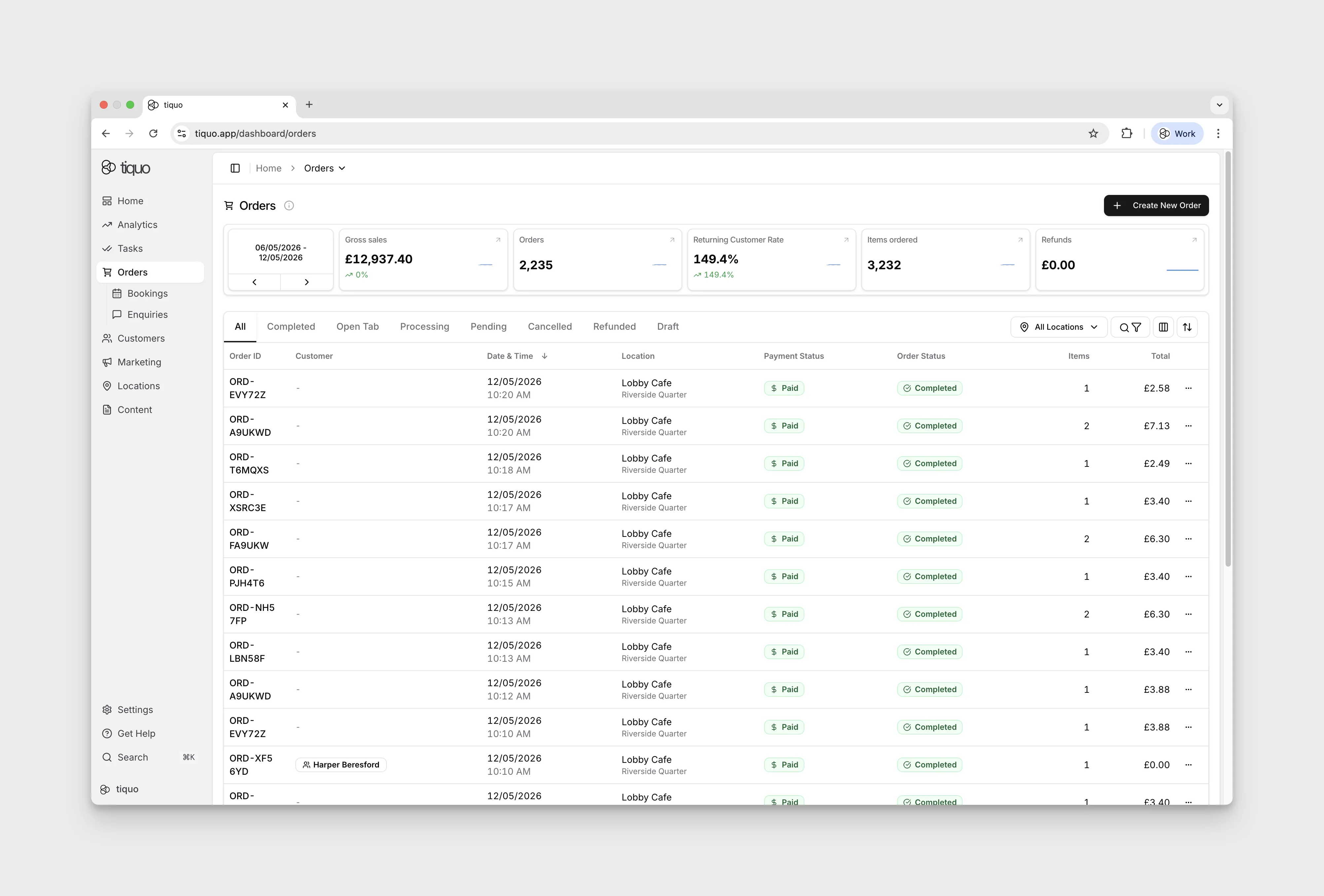
The Orders page is organised into three zones:
1. Metric cards
A row of five cards summarises transactional performance for a selected date range:
- Gross sales
- Orders
- Returning Customer Rate
- Items ordered
- Refunds
The date range picker at the left of the row defaults to the last seven days and can be stepped backward or forward.
2. Status tabs
Below the metric cards, a row of tabs filters the list by status: All, Completed, Open Tab, Processing, Pending, Cancelled, Refunded, Lost Cart, Draft. Disputes is also shown when dispute access is enabled and relevant to the organisation.
3. Controls row
To the right of the status tabs:
- All Locations: filter orders by location or sublocation
- Search & Filter: free-text search and advanced filters (amount, item, date range, and more)
- Column customiser: show, hide, and reorder table columns
- Sort: change the sort field and direction
New orders are created from the + Create New Order button in the top-right of the page.
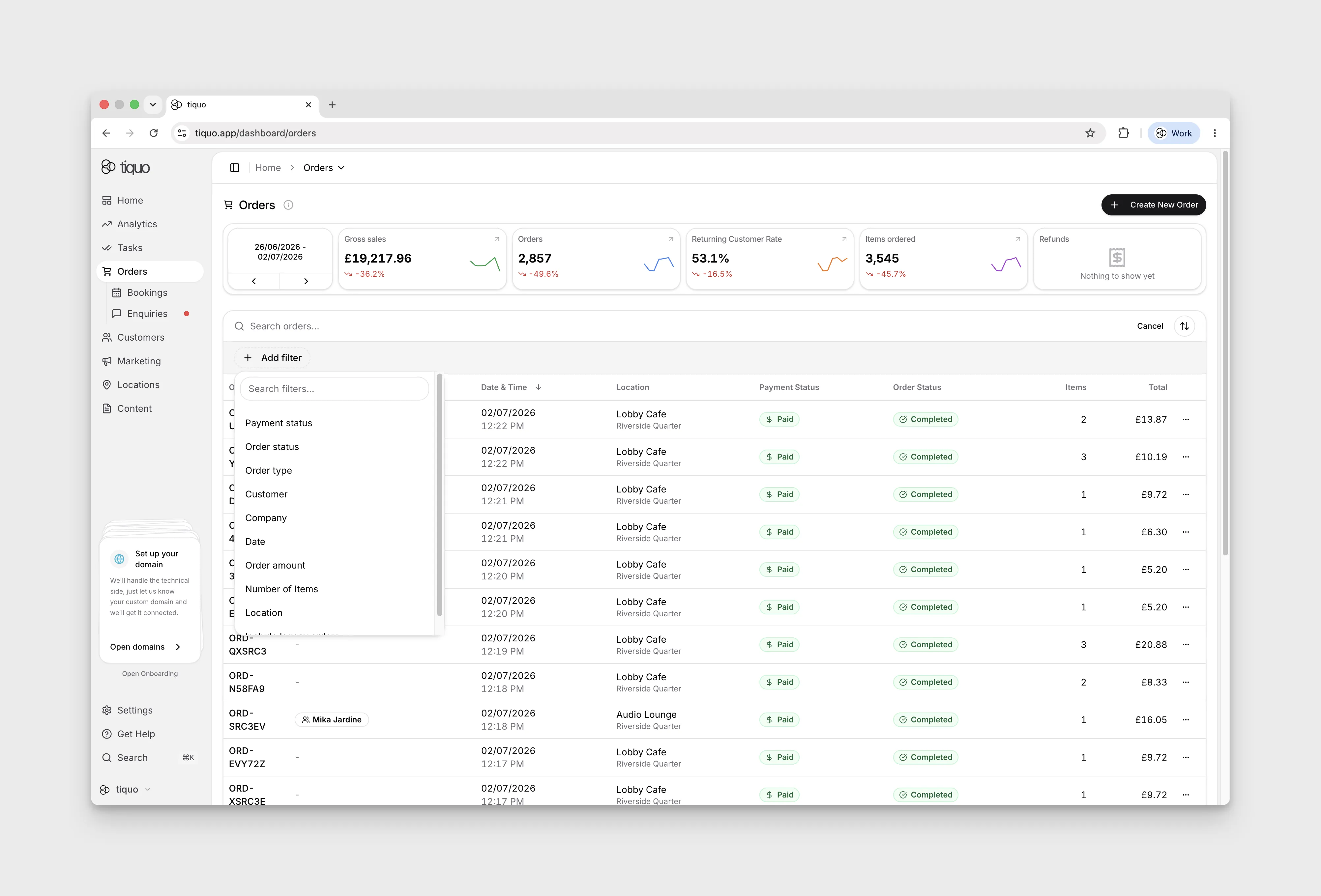
Filtering orders
Filter orders by date, sublocation, customer, amount, status, order type, discount name, or minimum and maximum discount value. Use these filters to find membership, product, or service invoices, or orders with a particular discount.
Order amount compares each order's total in that order's own currency, with no conversion. When your venues trade in more than one currency, a Currency filter is also offered: add it with Order amount so the range applies to one currency. The range shows a currency symbol only when every order in scope shares that currency. The maximum must be at least the minimum, otherwise the filter cannot be applied.
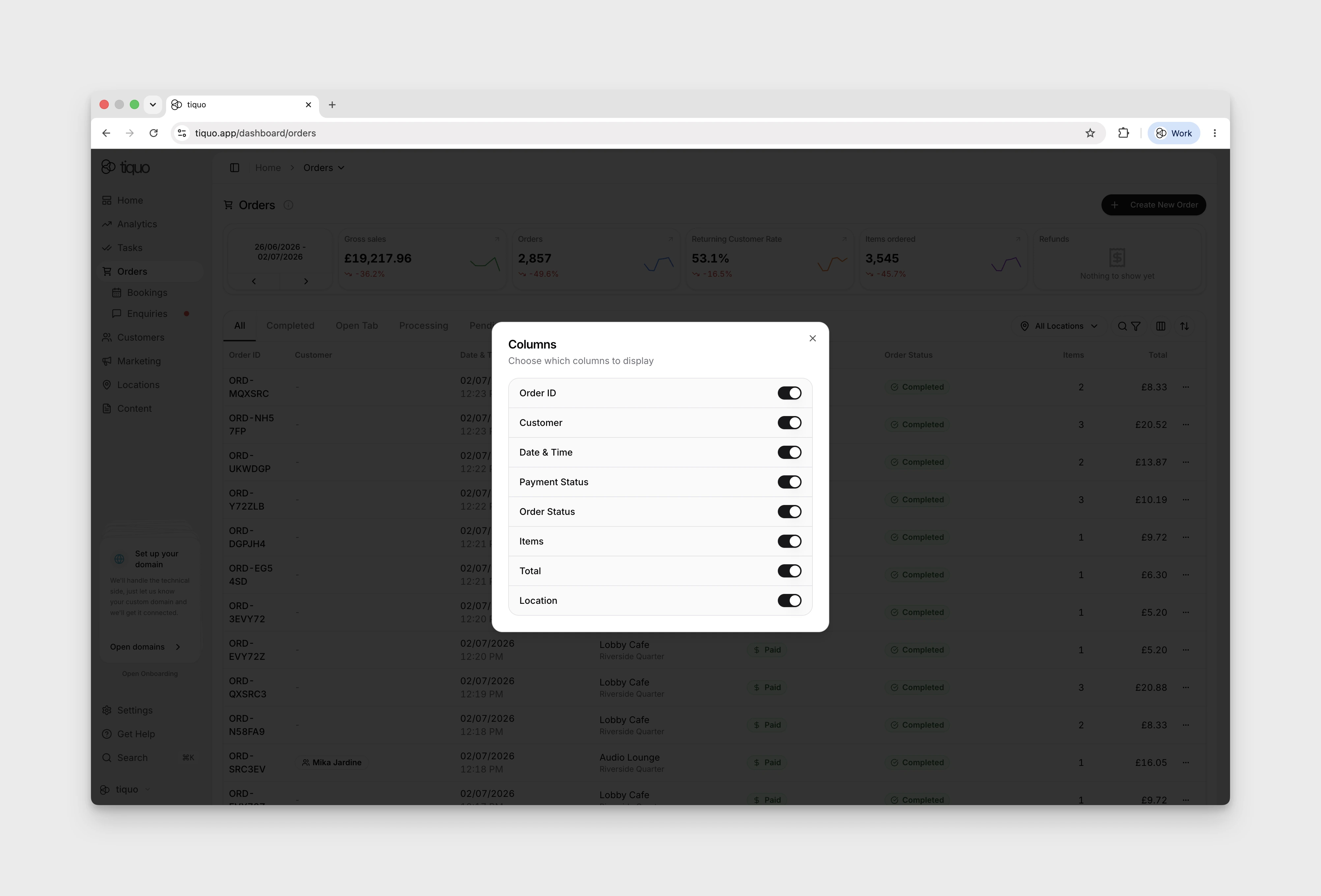
Customising columns
Click Customise Columns next to Filter at the top right of the orders page to add, remove, or reorder columns.
What an order can contain
Orders contain order items. An order item represents something that has been purchased.
Order items can include:
- Products: retail or physical items
- Bookings: time based services scheduled for a specific date and time
A single order can contain multiple items.
Example:
Order:
- Massage Appointment (booking)
- Face Cream (product)
- Herbal Tea (product)
An order can contain both service and retail purchases.
Creating a new order
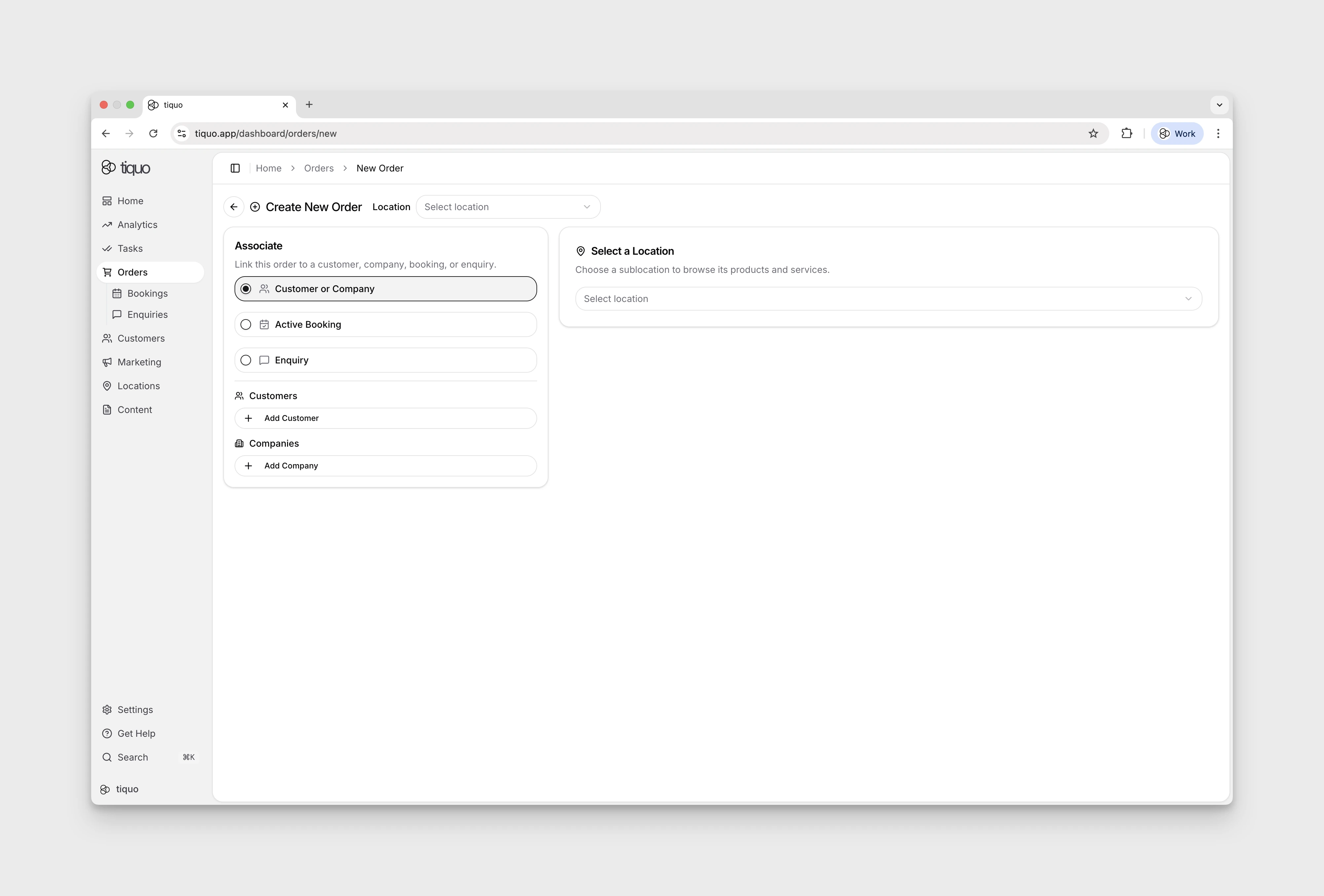
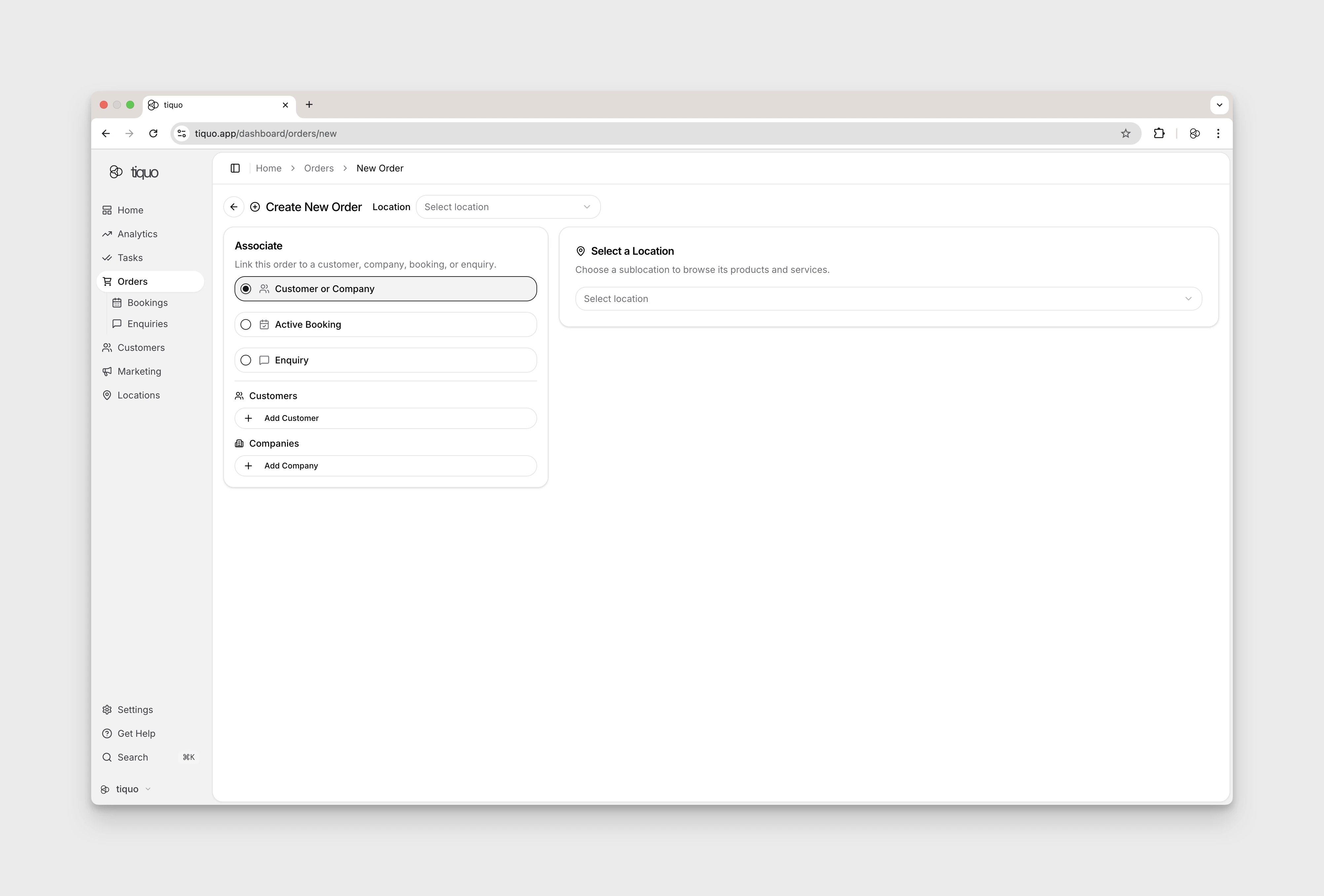
Clicking + Create New Order opens a full-page Create New Order form. The form has two panels:
Associate
Link the order to an existing record so customer history, booked services, and prior context follow through. Three mutually-exclusive options:
- Customer or Company: associate with one or more customers or companies
- Active Booking: opens the Select active booking dialog. Use its search field to find an existing booking. If none are available in the selected sublocation, it shows No active bookings found.
- Enquiry: select an existing enquiry from a dropdown to convert it into an order
Select a location
A location/sublocation picker that filters the products and services available to this order.
Orders can also be created from a customer profile via the + Create New Order button in the Orders tab of the profile.
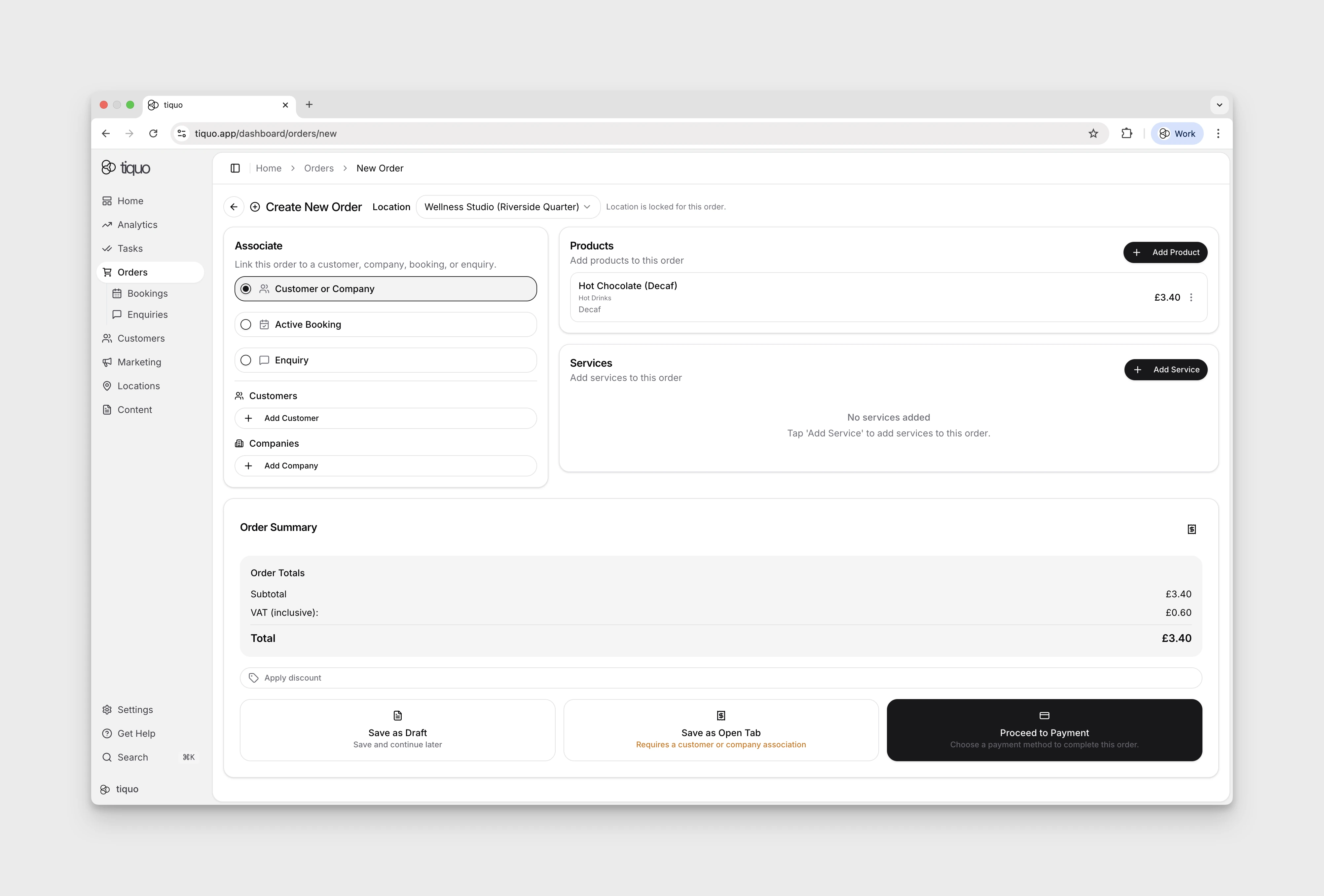
Selecting a location reveals the Products and Services cards underneath. The location selector remains editable while the order is empty. Adding a product locks it and shows Location is locked for this order.
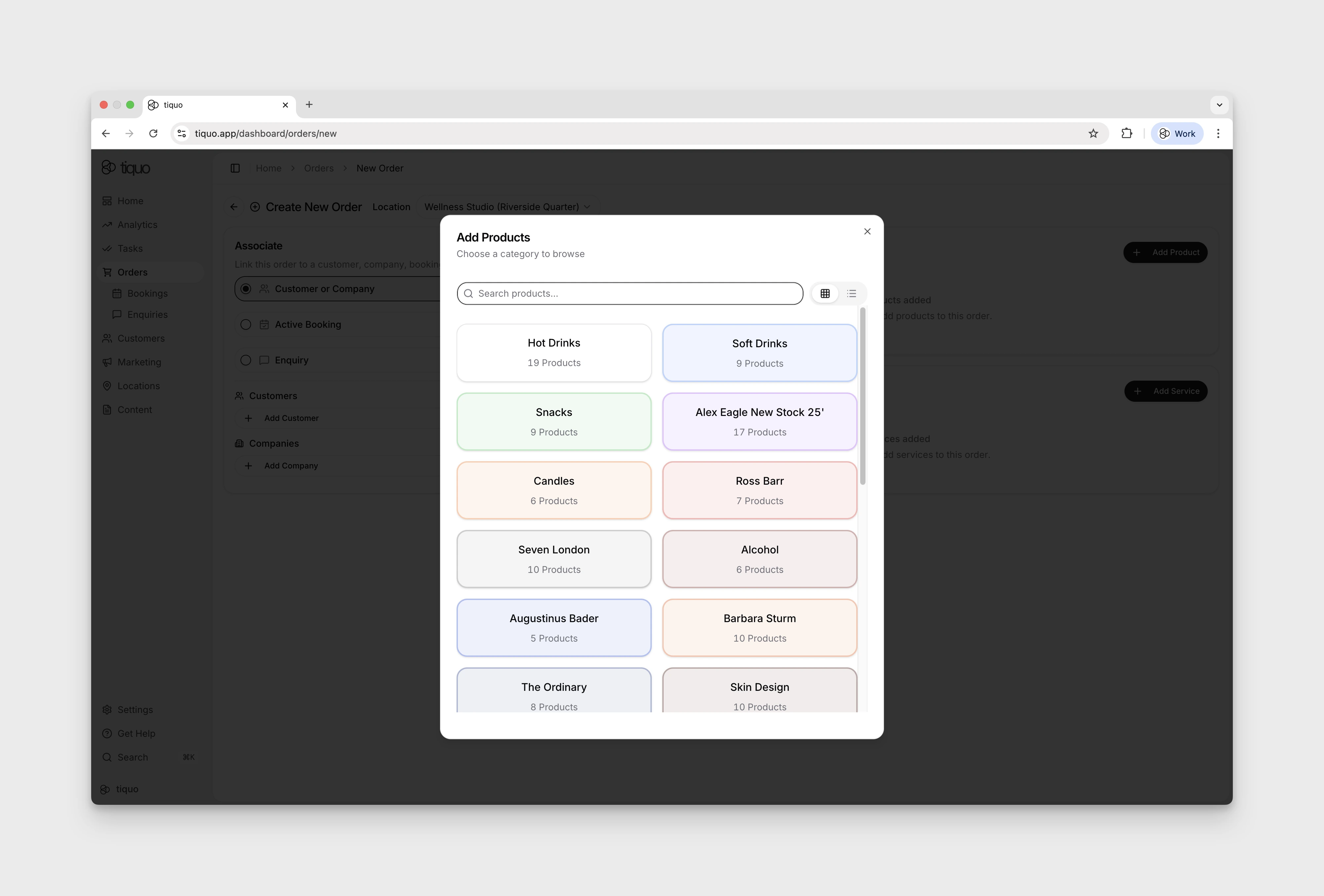
+ Add Product opens a product picker scoped to the chosen sublocation. Selecting a product updates the unsaved form; tracked stock changes when the order is created or saved.
+ Add Service opens the Book Service modal that walks you through selecting the service and date.
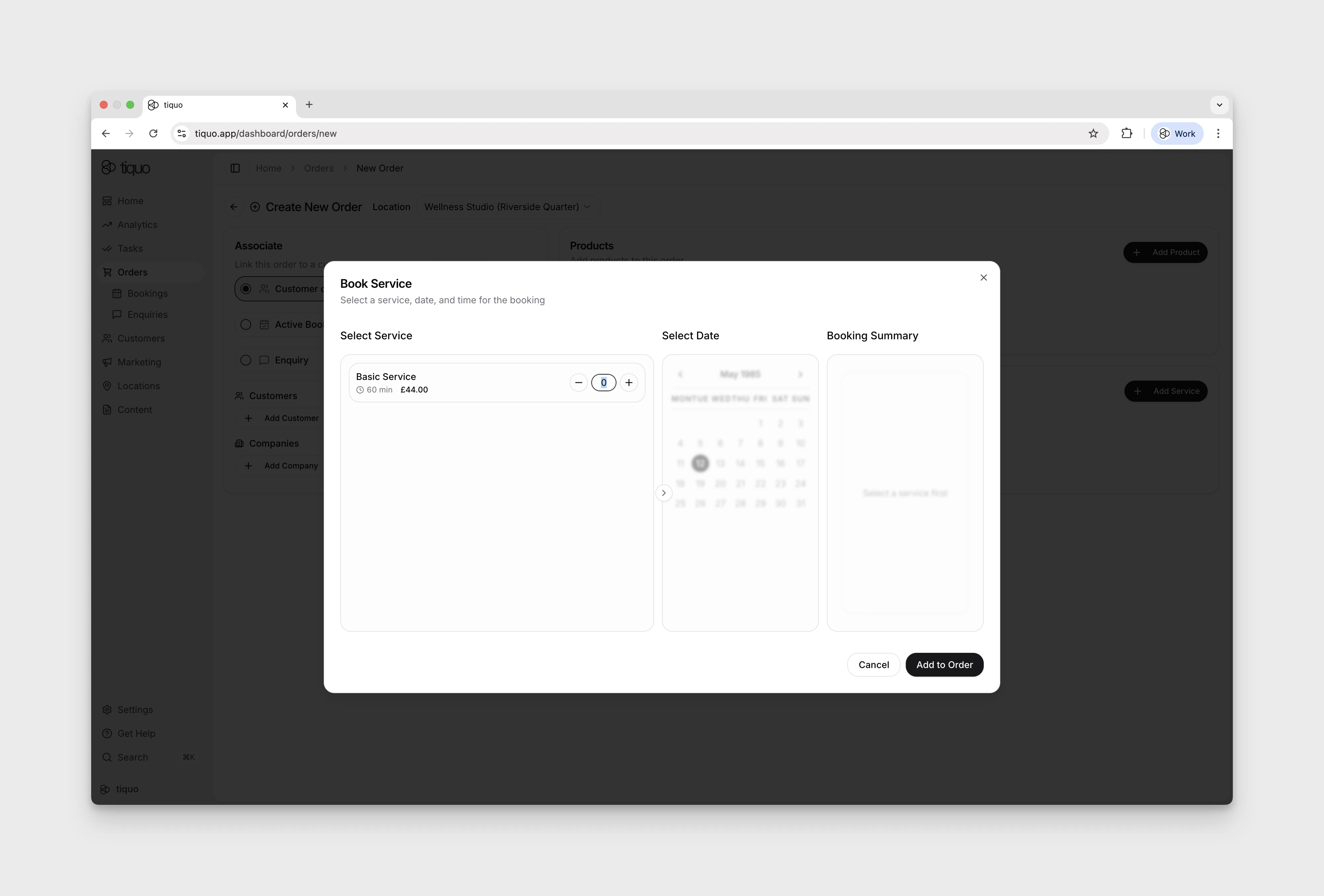
While the order is unsaved, Tiquo holds the chosen slot and inventory for the service so another booking cannot take it. Saving the order, as a draft, an open tab, or through payment, turns the hold into the booking. Removing the service line or leaving the page releases it. The page keeps the hold active while it stays open; if the page closes without saving (for example after a lost connection), the hold expires after 15 minutes.
Save as Draft is available as soon as a product or service has been added. Save as Open Tab additionally requires a customer or company association. Proceed to Payment opens the Process Payment dialog covered below.
Opening an order
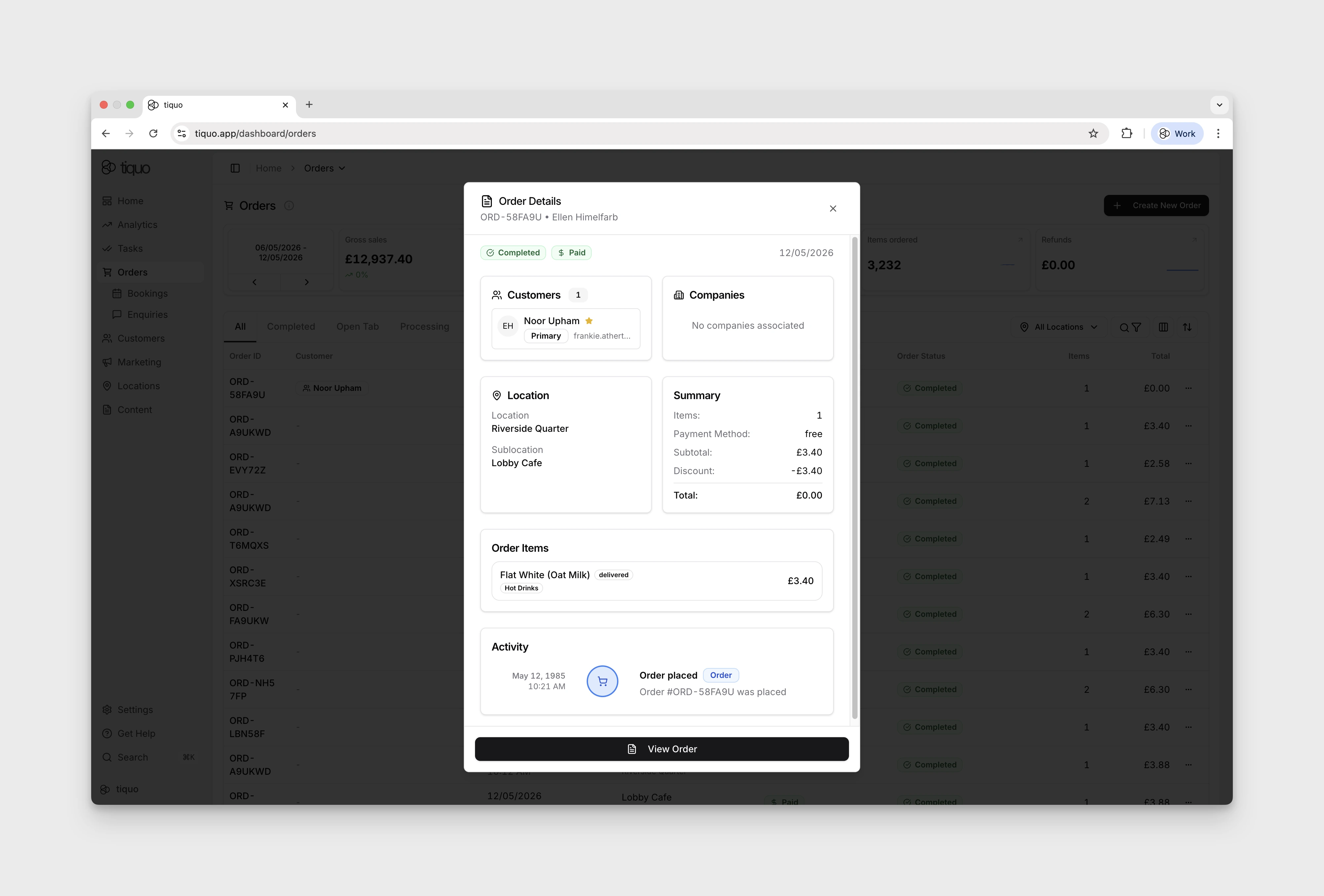
Clicking an order row on the Orders page opens an Order Details preview modal. The modal shows the order’s current order and payment states at the top, then cards for Customers, Companies, Location (with Sublocation), Summary (Items, Payment Method, Subtotal, Tax, Discount, Total), Order Items, and a short Activity timeline. It is useful for quick checks without leaving the Orders list.
A View Order button at the bottom opens the full order page for editing and actions.
Working in the full order view
The full order page is where staff actually build the transaction: add products and services, edit customer and company details, attach notes, and take payment.
- Items tab: add more items with + Add Products and + Add services. The running Subtotal, Tax, and Total update as items are added or removed.
- Notes tab: capture any context about the order that should travel with it (for example, dietary requests, delivery instructions).
- Activity tab: a chronological record of everything that has happened to the order, handy when investigating a dispute or reviewing history.
- Right sidebar: shows Customers, Companies, Location, and Payment Information. Customers and companies can be added or removed directly here. Once the order has at least two customers and companies between them, each entry has a role menu, with roles such as Booker and Travel Agent. See Roles on orders and enquiries.
The header shows the Order ID, current order and payment states (such as Completed and Paid), a share/link icon, and a more-actions menu. A prominent Process Payment button is both in the header and in the Payment Information sidebar.
Processing payment
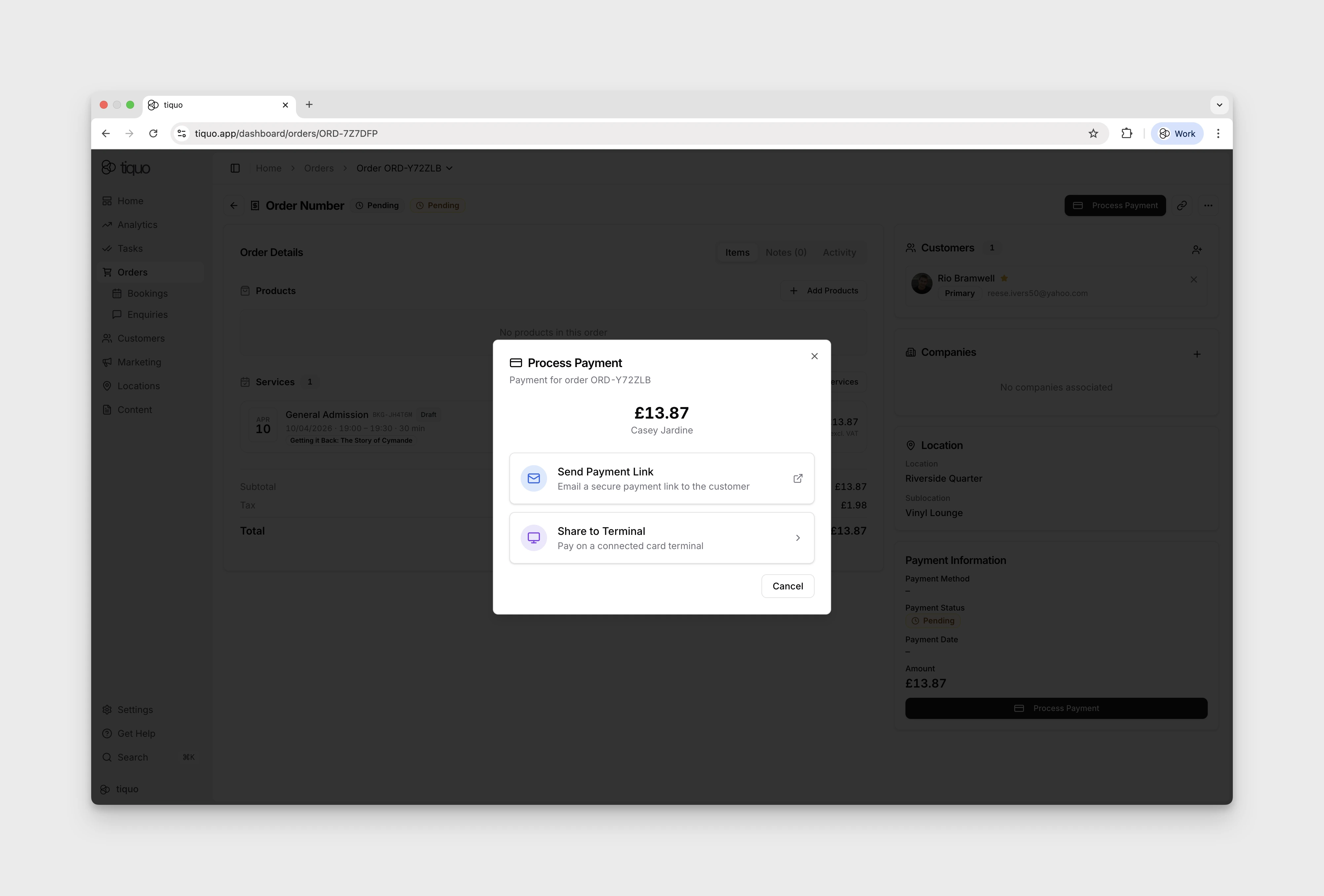
Clicking Process Payment opens the payment options available for that order. Availability depends on the connected Stripe account, country, currency, device, customer, and order context.
Supported methods can include:
- Card payments
- Apple Pay
- Google Pay
- Klarna
- Revolut Pay
- A customer's saved or tokenized card
- Other payment methods enabled for the connected payment account
Tiquo then provides the eligible way to collect or record that payment, including:
- Send payment link: emails the customer a payment link they can complete remotely. Useful for invoices and deposits where the customer is not on site.
- Share to terminal: pushes the payment to a connected card terminal on site.
- Charge a saved card: shown when the associated customer has an eligible tokenized payment method and the order can use it. A card can be charged until the end of its expiry month in the venue's time zone. After that it is refused with This card has expired. The same check applies to Charge Open Tabs, no-show fees, and saved-card charges from the POS.
- Bill to room / booking: shown for eligible active booking contexts where charges are being added to the guest's running order.
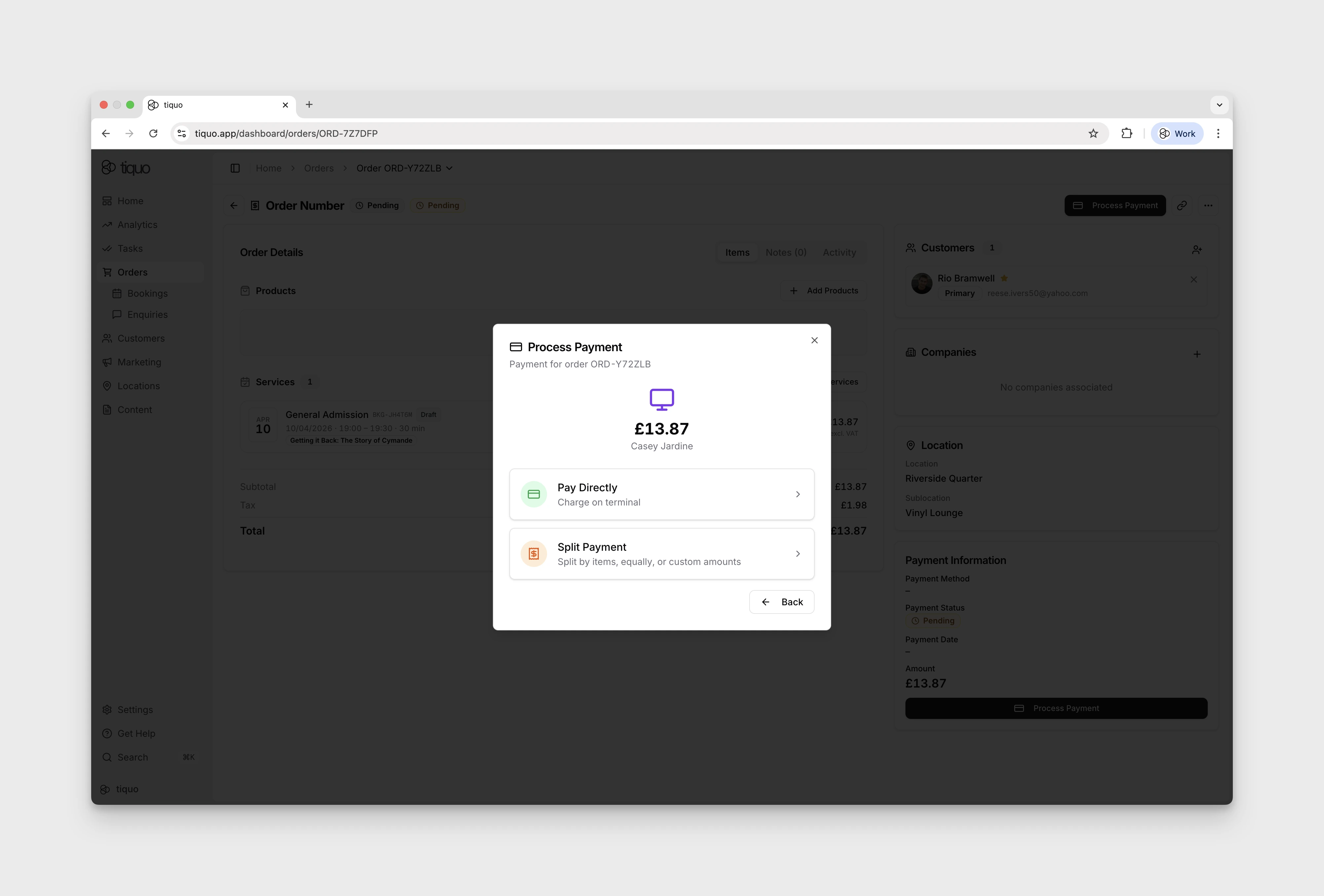
When Share to terminal is selected, two further options appear:
- Pay directly: the customer pays the full amount on the terminal in one go.
- Split Payment: the dashboard terminal flow offers Item Split, Equal Split, and Custom amounts. Review the remaining balance before each payment. Available controls may differ on native devices.
Choosing a terminal option displays a time-limited linear barcode called a Share Code. Scan the Share Code with the terminal to connect it to the payment session; the customer can then use an eligible terminal payment method.
Attach an order to a booking or enquiry
Before taking payment, the order can be associated with an Active Booking. In a restaurant this can represent adding charges to a table booking; in a hotel it can represent adding an order to a room booking. The order remains the commercial record while the booking provides the operational context.
An order can also be associated with an Enquiry. Staff can build the requested products or services into the order and issue an invoice when that is the appropriate next step for the enquiry.
Order actions menu
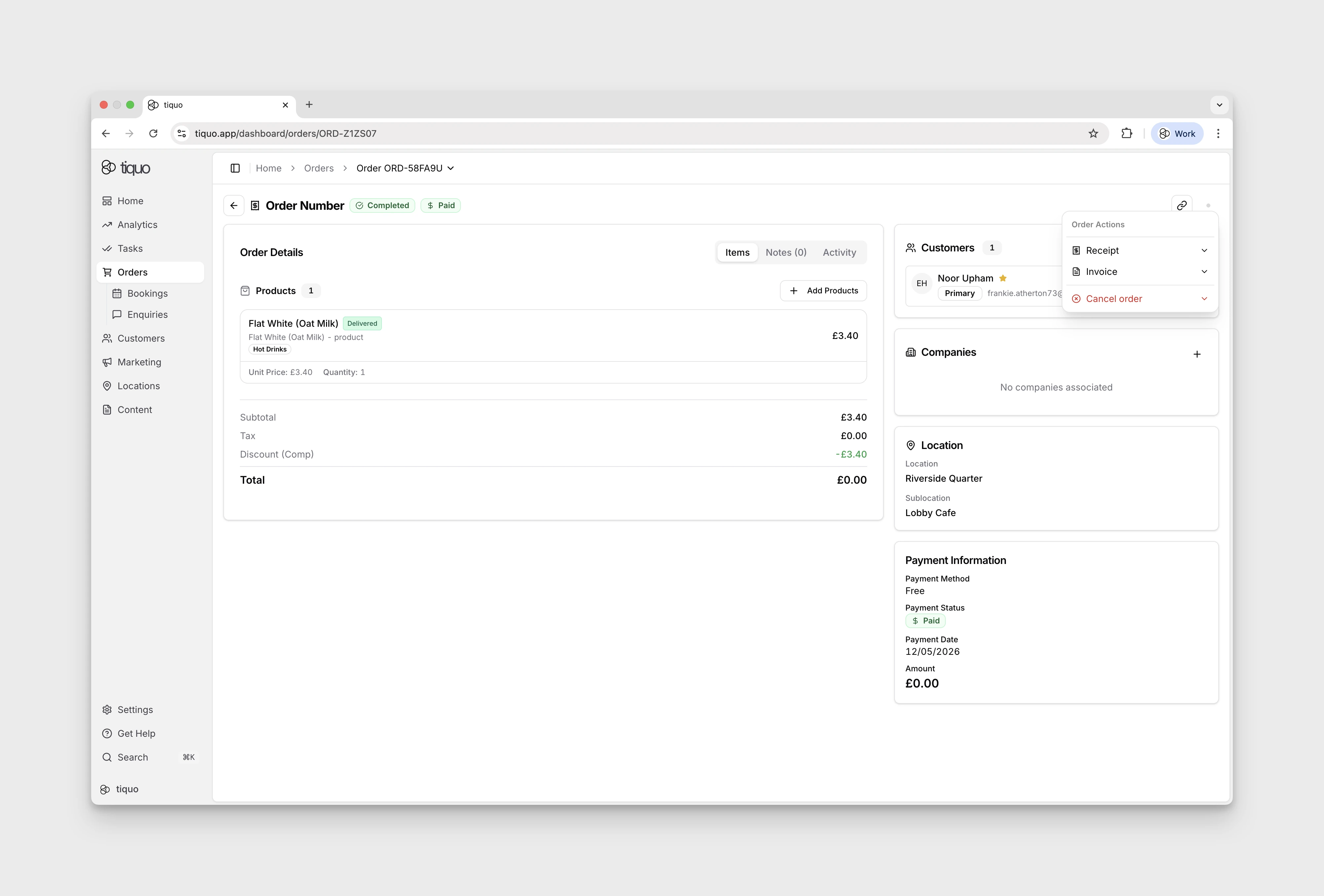
Open More in the full order view for the available actions. The menu adapts to the order's current status:
- Documents: lists each document the order has, under its title and number. A receipt offers Email Receipt, Print Receipt, Download Receipt, and Cloud Print. An issued invoice offers Email Invoice, Print Invoice, Download Invoice, and Re-issue invoice…. Credit notes, refund documents, and receipts of payment offer Print and Download. When the sale has no invoice yet, Issue invoice… appears instead. See Receipts and invoices.
- Cancel order (Draft / Pending orders and open tabs with no payment taken): cancel the order before any payment has been taken. Restores the tracked stock deducted for the order and closes it.
- Cancel & Refund (Completed / Paid orders): cancel the order and trigger a refund. Opens the Refund Order dialog (see below). On an order that is already cancelled but still holds a payment, the action is labelled Refund.
Both cancel actions need the Cancel orders & issue refunds permission. When the organisation has configured void reasons, staff choose one before cancelling (see Voiding products on an open tab).
Orders imported from a CSV file, Shopify, or another integration were paid outside Tiquo, so cancelling or refunding them in Tiquo could not reach that money. Their order page, the Orders list, and the customer's Orders tab do not offer Cancel order, Cancel & Refund, or Refund for them. Orders imported from Mews keep these actions. A paid order charged to a Mews room has no refund action, because the charge is reversed in Mews. Lines on an imported order whose type the source system did not record are listed under Items rather than as products or services.
Shopify orders arrive as imported orders numbered SHOPIFY-…, and Shopify abandoned checkouts appear as imported Lost Cart orders. See Shopify.
Refunding an order
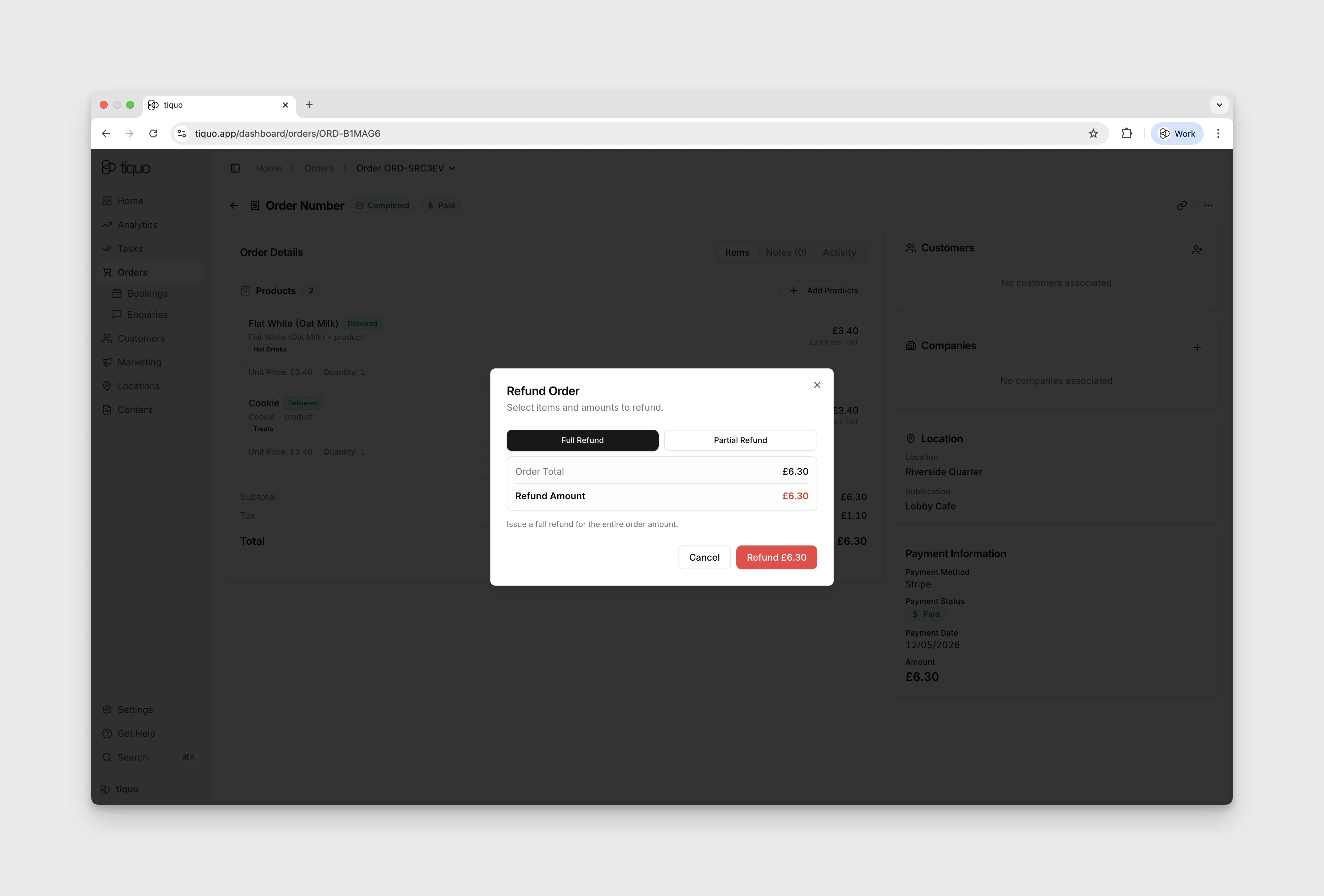
Selecting Cancel & Refund on a paid order opens the Refund Order dialog. Staff choose the refund scope at the top:
- Full Refund: issue a refund for the entire order amount. The dialog shows the Order Total, any amount already refunded, and the Refund Amount. A tip is not included in the refund.
- Partial Refund: select the order lines to refund. A selected line with more than one unit left to refund shows a quantity stepper, so you can refund 2 of 6 drinks, for example. The line's refund is its share of the line total at that quantity, including its share of any service charge, and the Refund Amount updates as you change the selection. A line that has already been partly refunded shows how many units were refunded and offers only the rest. Useful when only part of an order needs to be returned: a single damaged product, one course from a meal, one night from a multi-night stay.
- Custom Amount: refund a specific amount without refunding a line, for a price correction or an overcharge, up to the amount still refundable. The credit note lists the order's lines pro rata.
The order keeps its subtotal, tax, and total as sold. After a refund, two rows appear under the total: Refunded with the amount returned, and Net collected with what the venue kept. A partly refunded line is split into two rows in the order's items: one for the units still sold and one, marked Refunded, for the units returned, each with its own amount.
A refund never changes an issued invoice. When the sale was invoiced, Tiquo issues a numbered credit note for the refund, which references the invoice and appears in the order's Documents menu. See Refunds and issued documents.
Orders and bookings
Bookings are operational records representing time based services. Any time based service in Tiquo is managed as a booking.
Bookings appear in orders as order items.
The relationship between the systems works as follows:
Service → Booking → Order Item → Order
This means:
- The booking controls scheduling and resource allocation
- The order records the commercial transaction associated with that booking
Example:
A customer books a massage.
The booking contains:
- Date and time
- Duration
- Assigned inventory resource
The order contains:
- The booking
- Pricing
- Taxes
- Payment activity
Orders and bookings are separate but linked. Bookings manage operations, while orders manage commerce.
On the order page and the order preview, a booking line that is Scheduled while its order still has money to collect shows the amber Awaiting Payment label. The label is display only. See Awaiting Payment for when it applies.
An order holding a stay imported from Mews is labelled Mews stay and Billed in Mews. The Orders list shows no total for it, and the order page has no payment card, because the stay's nights, extras, and payments are on its Mews bill. See Mews.
Order identification
Every order has a unique Order ID.
Example: ORD-J98UBC
This identifier is used for:
- Transaction tracking
- Support and operational reference
- Linking tasks and activities
- Reporting and analytics
Order status
Orders move through several statuses during their lifecycle.
Draft
The order has been created but is not yet active. Draft orders are typically created before items are finalised or before the transaction begins.
Draft orders do not count toward reporting metrics.
Open tab
An open tab allows items to be added over time before payment is taken.
This is commonly used in environments such as:
- Bars
- Restaurants
- Hospitality venues
- Events
While an order is an open tab:
- Additional items can be added
- Payment is taken later
- Stock is updated as items are added
When an open tab is fully paid, the order moves to Completed.
Pending
The order has been submitted and is waiting to be processed. Items may include products, bookings, or services.
Processing
The order is currently being processed. Payment may be authorised, fulfilment may be in progress, or both.
Completed
The order has been paid and fulfilled. Completed orders count toward sales reporting.
Cancelled
The order has been cancelled. Cancelled orders are no longer active and do not count toward sales reporting.
Refunded
The order has been refunded after payment was taken. Refunded orders remain visible in reporting with the refunded amount recorded.
Lost cart
The customer began an order but did not complete checkout. Lost Cart orders are surfaced separately so teams can follow up or analyse drop-off, and do not count toward completed sales reporting.
Booking-only order status
For an order containing only bookings, the displayed order status follows both payment and the linked booking decisions. A free or paid booking-only order stays Pending while any booking still requires staff approval, becomes Completed when no approval is outstanding, and becomes Cancelled when every linked booking is cancelled. Payment status remains a separate financial record. Orders containing a mixture of products and bookings retain their normal order status.
Order fulfilment
Order fulfilment tracks whether items in the order have been delivered or completed.
Examples of fulfilment include:
- Food delivered to a table
- A product handed to the customer
- A service appointment completed
Fulfilment and payment are tracked separately, so you can handle them in the order your workflow requires.
Example:
A customer books a massage → The service takes place → The service is completed → Payment may occur before or after the appointment
This separation allows Tiquo to support both fulfil-first and pay-first workflows.
Payment status
Payment status tracks the financial state of the order. Payment processing is independent from fulfilment.
For example, you can:
| Scenario | Fulfilment | Payment |
|---|---|---|
| Restaurant | Food delivered | Customer pays after |
| Spa | Service completed | Payment after treatment |
| Retail | Payment first | Item delivered immediately |
Offline card sales
When Tiquo App or Tiquo PDQ approves a card while the device is offline, the order reaches Tiquo when the device reconnects. The order is dated when it was sold, not when it was uploaded, and its products are treated as handed over. Its payment status stays Pending until Stripe collects the money, and a tab closed with an offline card stays owed until then. Tiquo collects the payment as soon as the card reader forwards it to Stripe, even if the till has not uploaded the order yet, so a late upload cannot let the card authorisation expire.
The order's Payment Information shows the card it was taken on and one of these states:
- Card taken offline, not collected yet: Stripe collects it when the card reader that took it is back online.
- Card taken offline, collected: the money has arrived and the order is paid.
- Offline payment failed to capture: the card hold expired or the card was declined, so no money was collected. The card brand, last four digits, and payment ID stay visible to help you follow up. If the order is later paid another way, the message adds The order was paid another way.
- Offline card payment needs review: the money was collected but does not match the order, so the venue has not been paid yet.
When the order reached Tiquo more than ten minutes after the sale, the message also shows when it was sold and when it reached Tiquo. The order's Activity records each step, for example Card taken offline and Offline card payment collected.
Editing orders
Once a non-tab order has been fully paid, additional items cannot be added. However, certain details can still be updated.
The following actions remain possible:
- Adding or editing the customer
- Issuing an invoice, or re-issuing one to a corrected buyer
- Adding notes
- Printing additional receipts
- Resending invoices
If new items need to be sold, a new order must be created.
Open tabs
Open tabs allow businesses to keep an order open while customers continue to add items.
Typical use cases include:
- Bar tabs
- Restaurant tables
- Hospitality venues
- Events
While the tab is open:
- Items can be added to the order
- Available stock updates as items are added
- Payment is taken later
When the tab is fully paid, the order is completed.
Restaurant rounds and repeat actions
Sending an order records the sent round and routes eligible products to their configured kitchen locations. On supported Restaurant and Bar POS surfaces, staff can Repeat item using the current catalogue rules or Repeat last round to rebuild the most recently sent round.
Move a tab or selected products
Move a complete open tab when the entire order should follow the customer to a different table. The destination table can belong to another sublocation in the same organisation. The order retains its original sublocation, pricing, and connected payment account while using the destination booking and table as its dining context.
Alternatively, transfer selected products that have already been saved on an open tab. Tiquo keeps their sent-round and kitchen state, recalculates both orders, and does not deduct inventory a second time. Products cannot be moved from a wastage order or from a tab that already contains a payment.
Settle all orders on a booking
When a table or booking has several unpaid orders, staff can select one order or settle all of them together. A combined card settlement presents one customer payment while retaining each underlying order and payment allocation.
If the orders use different connected Stripe accounts, Tiquo routes each order's allocated amount to its own account. Each order keeps its own receipt, produced in sequence after settlement.
From the Customers page, staff can select multiple customers and choose Charge Open Tabs. Tiquo groups each customer's outstanding tabs by currency and attempts each group against that customer's default saved card. Customers without an eligible default method are skipped, and successes and failures are reported separately for review.
Voiding products on an open tab
Staff void a saved product on an open tab from Tiquo App or Tiquo PDQ when it should no longer be charged, and choose one of the organisation's void reasons. Manage the list under Settings > Reporting > Default reasons for voiding an item; every sublocation uses it, and the dashboard's cancel dialogs offer the same reasons. The default reasons are Input error, This item is no longer available, and The customer changed their mind.
- Part of a line: staff can void some of a line's units. The rest of the line stays on the tab at its saved price.
- What stays on the order: a voided product remains in the order's items, struck through and marked Voided, with its reason, the staff member on the till, and the time. Its tracked stock is returned. A product recorded as wastage instead stays deducted, because it was made.
- The whole tab: voiding every product on a tab voids the tab. The order becomes Cancelled, its uncollected payment is cancelled, and the reason is recorded when every void used the same one.
- Tabs with a payment: products cannot be voided once the tab has a payment. Refund the paid item instead.
- Retries: if a void is sent twice, for example after a timeout or a double tap, Tiquo applies it once.
- Out-of-date screens: a saved product never disappears from a tab without a record. When a device saves an out-of-date copy of the tab, products already saved on the tab are kept. If an older app build leaves out a saved product without voiding it, Tiquo records the product as voided with the reason Removed without a reason, and refuses the change on a tab that has a payment.
When the kitchen already has a voided product, the sublocation's Void tickets setting decides whether a VOID ticket prints at its station. Voiding or cancelling a whole open tab, including from the dashboard, prints a VOID ticket for everything the kitchen has on paper unless that setting is off. See Void tickets.
Payment disputes
When a card payment connected to an order is disputed, the Orders page shows a Disputes view and marks orders that need attention. Open the order to review the disputed amount, reason, response deadline, status, and linked payment.
Authorised staff can accept the dispute or counter it. A counter-response guides staff through the relevant case details, supporting text or files, and a final review before evidence is submitted. Treat the displayed deadline as final; a late response will normally lose the dispute automatically.
Inventory behaviour
Tracked inventory changes when an order mutation is saved:
- Creating an order deducts the tracked quantity for its product lines.
- Adding a product to an existing order deducts that new quantity when the item is saved.
- Editing quantities restores the previous quantities and then deducts the newly saved quantities.
- Removing an item, cancelling an order, or refunding an order restores the applicable quantity.
- Voiding a product on an open tab restores its quantity. Recording it as wastage keeps the quantity deducted.
- A customer-ordering cart that becomes a Lost Cart restores its deducted stock.
Fulfilment does not perform a second stock deduction or “confirm” a provisional reservation. Marking an item delivered is operational status only. Tracked stock and stock groups are clamped at zero rather than becoming negative when a requested quantity exceeds the quantity available.
Wastage orders
For product-capable sublocations with wastage enabled, Orders > Wastage records products that were prepared, damaged, expired, dropped, or otherwise cannot be sold.
Create a wastage record by choosing the sublocation, adding products and quantities, and selecting a configured reason or Other. Staff can close it immediately or keep it as an open wastage tab while more items are added. Saving deducts tracked inventory, later edits adjust stock to the newly saved quantities, and closing finalises the record. The reason and responsible staff member remain in the order history.
Enable the feature in Sublocation Settings > Wastage. Manage the standard reason choices in Settings > Reporting. A sublocation can require administrator approval before wastage is finalised.
Orders and reporting
Orders contribute to reporting and analytics.
| Metric | When Counted |
|---|---|
| Gross Sales | Revenue counts toward Gross Sales when payment is received |
| Items Ordered | Items count toward Items Ordered when the item is ordered |
| Draft Orders | Draft orders do not count toward reporting metrics |
Orders and customers
Orders can be associated with customers.
Adding a customer to an order allows the system to:
- Track purchase history
- Generate invoices
- Maintain customer records
- Link bookings and purchases to customer profiles
Customer information can be added or updated on an order.
When an otherwise anonymous paid order uses a card that resolves to exactly one active, confirmed customer, Tiquo can associate it automatically. Existing order associations are never replaced, and shared or ambiguous cards are not used for automatic identification. The relationship is labelled Card match.
For an order linked to a booking, the order view separates booking customers and guests from customers or companies associated independently with the order. It also shows allergen warnings retained from the products added at the POS.
A pickup ordered through Order & Pick Up without signing in is named by the name the customer typed. The name shows in order lists, in search, and on the order's Customers card, without creating a customer profile.
Receipts and invoices
Tiquo builds each receipt, invoice, credit note, and receipt of payment once, on the server. Every channel shows that same document: dashboard printing and PDF downloads, receipt and invoice emails, the SMS receipt page, the customer portal, and Tiquo App and Tiquo PDQ. The layout follows the legal format of the venue's country.
Documents are written in the location's Receipt & invoice language. It is chosen when the location is created, defaults from the location's country, and cannot be changed afterwards. Sublocations inherit it, and receipt emails use it too. See Locations and sublocations.
Receipt or invoice
Tiquo decides once per sale which document the customer gets:
- Invoice: when a company is associated with the order, for online sales, enquiries, and memberships, and whenever staff or the customer ask for one.
- Receipt: every other in-person sale.
An invoice names the buyer and gives their address. When an invoice would be due for a consumer whose name and address are not known, the sale gets a receipt instead. A sale to a company always gets an invoice. Enquiries, and memberships billed by invoice, are invoiced before payment; once paid, Tiquo also issues a numbered receipt of payment. A free order gets an order confirmation, not a financial document. Imported orders keep the documents of the system they came from.
In the United Kingdom, a requested invoice, or one made out to a business, over £250 including VAT (in GBP) is a full VAT invoice. Tiquo does not number it until the buyer's name and address are both present, and asks staff to add them. When staff deliver a UK receipt over £250 from the dashboard, the per-item VAT breakdown is required.
In Spain, an invoice must show the buyer's NIF (or a buyer's tax number from another country), so the invoice dialog labels the field NIF and requires it. Without it, the sale keeps its receipt. A sale above the venue's simplified-invoice limit needs a full invoice: the order shows Buyer NIF needed until staff select Add buyer details and save the buyer's details, which issues the invoice. See Invoicing in Spain for the limits.
Issue an invoice after a receipt
To give a receipted sale an invoice, open More > Documents > Issue invoice…. Choose how to deliver it under Deliver as (Email, Print, or Download), then enter the Customer display name and Street address, which an invoice requires, plus any Postal code, City, Country, Customer VAT no., Reference (such as a PO number), and Note. Confirm Issue invoice: this assigns the next number in the invoice series, which cannot be reused or removed. The receipt already issued stays valid, and the invoice is listed next to it and references it.
The invoice number is separate from the order number, which stays on the document as a reference. An issued invoice is final: emailing, printing, or downloading it again delivers it exactly as issued, with the same number, and only asks where to send it.
Choose what a document shows
Before delivering a receipt, or an invoice that has not been issued yet, staff choose which optional details to include: Customer details, Business contact details, Item categories, Per-item VAT breakdown, Payment details, Discount breakdown, Tips and service charges, and Refund details. Customer details and the per-item VAT breakdown are always included on invoices. Financial values, tax, dates, and document numbers never change.
A receipt names the customer (name only, never their address or contact details) when Customer details is included. Receipts from venues in Portugal and Spain never name the customer; a customer who wants to be named there needs an invoice.
What a receipt shows
A receipt shows the venue's name and address, the date and order number, the staff member when one is recorded, eat in or take away and the table, the products, the breakdown of discounts, service charges, and tips, the total with how it was paid, and the VAT summary. VAT rate letters (A, B, and so on) appear on the lines and in the VAT summary only when the receipt mixes VAT rates.
For a card payment taken on a card reader, the payment line shows the card brand and last four digits, and a card section adds the details the reader returned: the card application, the account type (outside the United States), the AID, and the authorisation code.
Tiquo App and Tiquo PDQ print receipts in a ticket layout: a two-column header, thin rules, and small icons in place of the word labels for the date and order number, the staff member, eat in or take away, and the table.
Re-issue an invoice
An issued invoice cannot be edited. To correct the buyer, open More > Documents > Re-issue invoice…. Check or correct the Customer or company name, address, Country, and tax number. Blank fields are filled from the order's customer or company record as it reads now, for example a Tax ID saved after the invoice was issued. Enter a Reason (printed on the credit note), then select Issue credit note and new invoice.
Tiquo cancels the original invoice in full with a credit note naming the reason and issues a new invoice to the corrected buyer. Both take the next numbers of their series and cannot be undone. No payment is refunded, and the original invoice stays in the records as cancelled. A later refund credits the new invoice. Re-issuing needs the Create & manage orders permission.
Refunds and issued documents
A refund never changes an issued invoice. When the sale was invoiced, Tiquo issues a numbered credit note for the refunded amount, which references the invoice. A receipt can show the refund as Refunded and amount-paid rows when Refund details is included.
Document numbering
Each connected Stripe account numbers its own documents. Open Settings > Payments (which needs the View payment data permission) and find Document numbering on the connected account's card to see the current series. Select Edit to change them:
- Invoice prefix, Credit note prefix, and Receipt of payment prefix (defaults INV, CN, and RCP). The Simplified invoice prefix is used for receipts in Spain. Each prefix uses 1 to 12 letters, digits, or dashes, and every series needs a different prefix.
- Include the year and restart at 1 every year, which is on by default.
- First invoice number (migration only) and First credit note number (migration only). Set these only when all of your invoicing moves to Tiquo. If you also issue invoices elsewhere, keep a distinct prefix so the two sequences never overlap.
The series lock once a document has been numbered with them, and can no longer be renamed or restarted. Editing them needs the Manage organization settings permission.
SMS receipts
Where SMS receipts are enabled for the sublocation, staff can send one manually from Tiquo App or Tiquo PDQ. Tiquo does not send an SMS receipt automatically. The message contains a branded, secure link to a receipt PDF on the customer-order domain.
Provisional receipts
Before payment, the order summary can print a Provisional receipt. It is clearly labelled provisional and is useful for checking the items, VAT, service charges, and total with the customer. It is not proof of payment and does not replace the final receipt or VAT invoice.
Order and end-of-day exports
Open Settings → Import & Export for export options. In demo Preview Mode, data imports and exports are disabled, including Orders and End-of-day sales report. The export workflow below requires a live account.
The export wizard supports two order layouts:
- Order summary creates one row for each order.
- Itemized orders creates one row for each sold line item and keeps the order reference on every row.
Choose the sublocation, date range, fields, and either CSV or Excel format. Legacy orders are excluded from these exports.
The End of day export creates one summary row per trading day for one sublocation, using that location's timezone. A single export can cover up to 31 days. It includes order counts, gross and net takings, refunds, VAT, discounts, service charges, shipping, tips, payment breakdowns, VAT-rate breakdowns, and sales by category.
The report groups orders by the date they were created. Refunds are cumulative amounts recorded against those orders. It does not close or reset a till, and it cannot compare expected cash with a counted drawer because Tiquo does not record opening and closing drawer counts.
Order activity timeline
Each order includes an activity timeline showing key events.
Examples include:
- Order placed
- Order completed
- Payment confirmed
- Products sent as a round
- Stage held, fired, or released
- Tab or products moved
- Receipt sent or printed
- Product voided or recorded as wastage
- Card taken offline, then collected, failed, or flagged for review
The activity timeline provides a chronological history of the transaction and helps teams understand what occurred during the order lifecycle.
Saved open-tab prices
Reopening an open tab preserves the saved line's price, VAT, quantity deal, booking length, and takeaway setting. A later catalogue change does not reprice an unchanged sold line. Newly added or repeated products use the current catalogue rules.
See Restaurant and Bar POS for merging unpaid tabs and Deposits and outstanding balances for completing deposit-paid orders.
Financial document history
An order can have several issued documents, including a receipt, an invoice, credit notes, refund documents, and a receipt of payment. Use its Documents menu to choose the relevant document instead of assuming every entry is a receipt.
Free-order confirmations and provisional receipts are different from issued financial documents. A document export includes PDFs that were actually issued. Its index can include a record without a PDF when issuance is pending or unavailable; check that state before treating the export as complete.
A custom-amount refund from the order dialog can produce a pro-rata credit note. Review the requested amount and the result on the order before sending the document.