

Content
View and manage Tiquo-connected sites, their pages, collections, and media
Content lists Tiquo-connected websites that have been enabled for your organisation. It is not a self-service website-creation product: contact Tiquo support to add a site or arrange content access.
Connecting your own website
Use the documented web packages and APIs when you control an existing website or application:
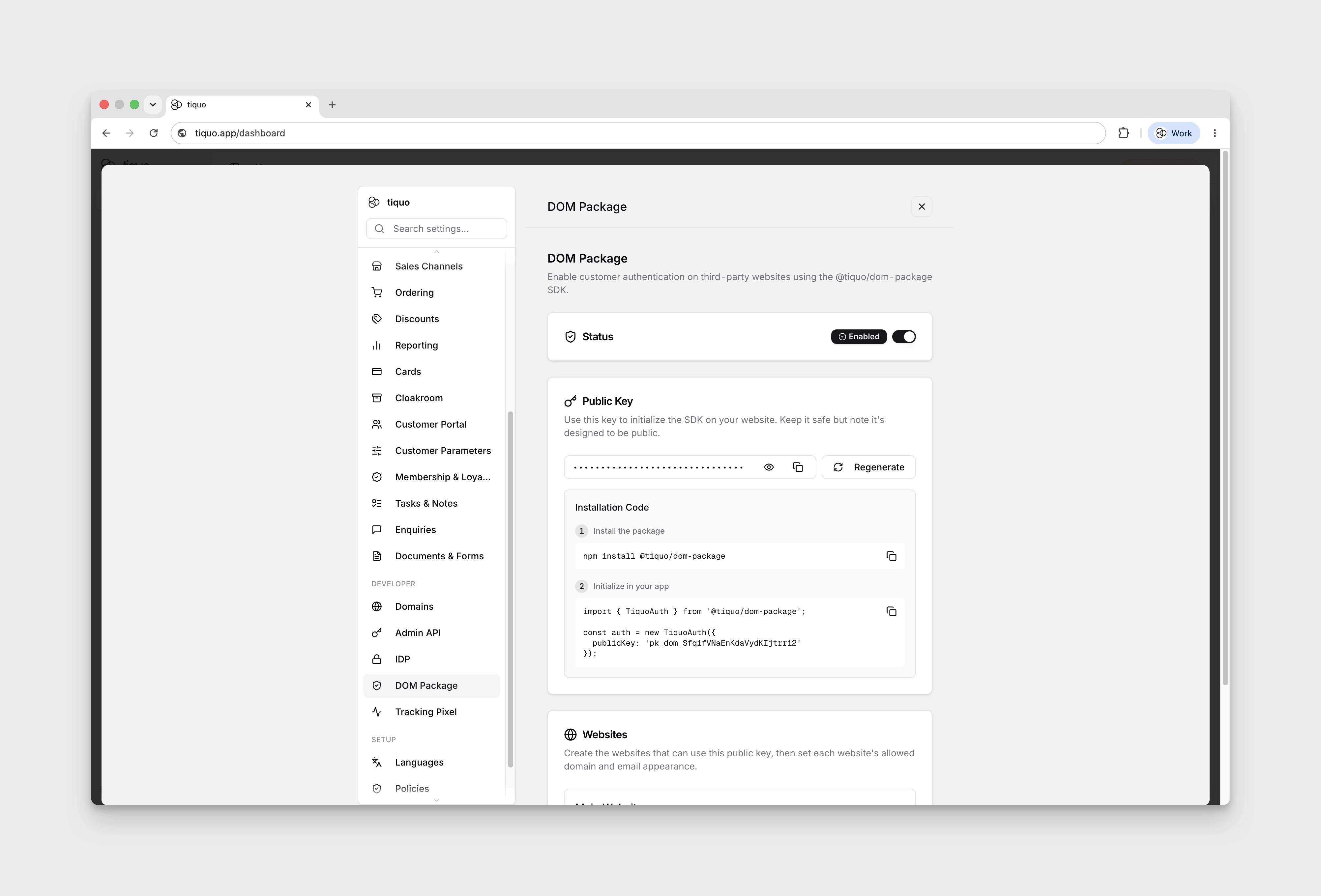
- The DOM Package is a headless npm SDK for customer authentication, profiles, orders, bookings, enquiries, service catalogs, membership and booking embeds, and first-party website analytics. Your application supplies the finished interface.
- The Hosted Package provides script-tag integrations for Webflow, Wix, Squarespace, Framer, Shopify, and other hosted site builders.
- The OAuth/OIDC IDP integration lets external applications authenticate customers through Tiquo for single sign-on style customer experiences.
These options are configured from the Developer section of Settings. Follow the dedicated API reference rather than the Content page when installing them.
Tiquo-managed sites
When Tiquo has built or connected a site for your organisation, the site can appear under Content. Your organisation must have content access enabled, and your user account needs the Manage content & pages permission.
Open content
- Open Content from the main sidebar. The Sites tab lists your sites and the Media tab opens the media library.
- Select a site card. Cards show the site name, status, type, page count, and configured domains.
- The site opens on Website Analytics. Open Website opens the live website.
- Select Open CMS to work with the site's collections and pages.
If no CMS is enabled for the organisation, the Content page explains that the feature must be enabled before sites can be managed.
Site settings
Open the ... menu on a site card and choose Edit Site to change the Site Name or its Custom Domain list. Add every domain that serves the site. Local addresses such as localhost, *.localhost, 127.0.0.1, or ::1 can't be used as site domains: the field shows "Localhost can't be added as a website domain. Use your live website's domain instead." and Save stays disabled until you remove it. A domain can only belong to one site.
Delete Site asks you to confirm twice: choose Continue in the menu, then confirm in the dialog. Deleting a site permanently removes its pages and media.
Website CMS
Open CMS shows the site's Collections first, then its Pages.
Pages
The page table lists the site's pages with their path, type, and status. Use the ... menu on a page to open its editor. For a website, Re-sync pages reloads the page list from the website.
Contact Tiquo support to add a new top-level page.
Collections
Collections hold repeatable content such as articles, authors, events, banners, or settings. Each collection has its own fields, set up by Tiquo for your website. The CMS page lays each collection out by what it holds:
- Posts show the newest entries as cards, with each entry's date and status.
- Authors show people as name chips with their picture.
- Tags and categories show one button each, with the number of entries.
- Other collections, such as pages, redirects, or settings, are listed in a table with their path and their published and total entry counts.
Select View all, a button, or a table row to open the collection.
Find entries
A collection page lists its entries with a thumbnail, title, slug, status, and date. Search finds words in an entry's title, text fields, and body. Filter by All statuses, Published, Draft, or Archived, and use Load more to see older entries. On a phone, each row shows the thumbnail and title, with the status and date underneath.
Entry statuses are:
| Status | Meaning |
|---|---|
| Draft | Not on the website yet |
| Published | Live on the website |
| Unpublished changes | Live, with saved changes that aren't on the website yet |
| Scheduled | A draft that will publish itself at the time shown |
| Changes scheduled | Live, with saved changes that go live at the time shown |
| Archived | Removed from the website and kept for reference |
Create an entry
- Open the collection and select New followed by the collection's item name, for example New article.
- Enter a Title. The Slug is filled in from the title; edit it if you need a different web address.
- Select Create. The entry opens in the editor as a draft.
Some collections have a fixed set of entries, such as a set of home page banners. In those collections, the New button is turned off, with a tooltip saying new entries can't be added, and Duplicate isn't offered. Edit the existing entries instead.
Edit an entry
The editor shows the Title and the collection's fields on the left, and the Slug and, for collections with their own pages, the SEO settings on the right. Required fields are marked with an asterisk.
- Fields that only show when they apply. Some fields appear only after you make a choice in another field. For example, a banner might show an article picker only when Link to is set to an article, and a website link field only when it is set to another website. Hidden fields aren't required, and their values aren't saved.
- Image fields use Choose image to pick from the media library or upload a new image, and Replace image to swap it. Add alt text under the preview. Gallery fields use Add image for each picture.
- Date fields use a date picker, and Date and time fields use the Tiquo date-time picker.
- Reference fields, such as an article's authors, let you search for and add entries from another collection.
- Live at under the slug shows the entry's web address, for example
/articles/my-article. For a published entry, it links to the live page, and View page opens it in a new tab. - SEO settings are Meta title, Meta description, Social image, Canonical URL, and Hide from search engines. Collections whose entries have no page of their own, such as banners, don't show them.
Tiquo backs up unsaved edits in your browser. If you leave the editor without saving and come back, it offers Restore unsaved changes or Discard.
Rich text
Body fields use a rich-text editor. Its toolbar stays at the top of the field while you scroll down a long entry. It has:
- Undo and redo
- Paragraph, Heading, Subheading, Small heading, and Quote
- Bold, italic, underline, strikethrough, and code
- Links, bulleted and numbered lists, and alignment
- Image, Image carousel, Embed video or player, Insert HTML block, tables, and Divider
- HTML, to edit the entry's HTML source directly. Select Back to editor to return
Images. The Image button opens the media library. Search for an existing image and choose Select Image, or drop a file on the upload area (or click it) to upload a new one. The image goes in below the paragraph you were in, with the alt text saved in the media library. Images you paste or drag straight into the text are uploaded to the media library too, so you can use them again later. Select an image in the text to add a Caption, edit its link, or choose Replace image to swap it for another library image while keeping its size, alignment, caption, and link.
Carousels. Image carousel opens the media library so you can pick several images, in the order you want them. The carousel shows a strip of slides: select a slide to edit its Caption and Alt text, move it left or right, or remove it. Use Add images to add more slides. Captions can be edited as text, or with Edit HTML when they contain links or formatting. Your website shows the carousel as its own slider.
Video and audio. Embed video or player asks for a link or embed code from YouTube, Vimeo, SoundCloud, Spotify, Mixcloud, or Bandcamp. Links must use https. Embeds and HTML blocks show a preview in the editor; select Edit HTML on the block to change its code.
Save and publish
| Action | What it does |
|---|---|
| Save | Saves a draft. For a published entry this is Save draft: the changes are saved but stay off the website |
| Publish | Puts the entry on the website. For a published entry with saved changes, this is Publish changes |
| Discard changes | Throws away a published entry's saved changes and keeps the live version |
| Unpublish | In the ... menu. Takes a published entry off the website and keeps it as a draft |
| Duplicate | In the ... menu. Makes a copy of the entry as a new draft |
| Archive / Restore | In the ... menu. Archives the entry, or brings an archived entry back |
Preview before publishing
Select Preview to see the entry on your real website before it goes live. Tiquo saves any unsaved edits first, then opens the entry as last saved, unpublished changes included. Switch between desktop, tablet, and mobile widths, or select Reload preview after saving more changes. The preview is only visible inside the dashboard until you publish.
Preview appears for collections whose entries have their own page on the website, and for some other collections. If you don't see it, the collection has no page to preview.
Schedule publishing
Select Schedule to publish an entry at a set time:
- Tiquo saves any unsaved edits.
- Pick the date and time in the Tiquo date-time picker. Times are in your own time zone, which the dialog shows. The time must be at least a minute from now and within the next two years.
- Select Schedule.
A draft is published at that time. For a published entry, its saved changes go live at that time. Changes you save before then are included. The entry shows Scheduled or Changes scheduled with the time.
To change the time, select Reschedule. To stop it, select Reschedule and then Cancel schedule. Publishing, unpublishing, archiving, discarding changes, or deleting the entry also cancels the schedule.
If a scheduled publish can't go through, for example because a required field was emptied after scheduling, the entry stays as it was and the editor shows why, with Schedule again and Dismiss.
Delete content
Deleting an entry, page, site, or media file takes two steps so nothing is removed by accident. Open the ... menu, choose Delete, then Continue, and confirm in the dialog that follows. The dialog says when the item is live and will be removed from your website. Deleting can't be undone; if it fails, the dialog stays open and shows why.
On a phone
The CMS works on a phone. In the entry editor, the status sits under the title, Preview and Schedule show as icons, and View page and Discard changes move into the ... menu. The rich-text toolbar scrolls sideways.
Media library
The Media tab under Content holds your organisation's reusable images and PDFs. Upload by browsing or by dragging files onto the upload area; each image or PDF can be up to 20 MB. Supported image formats are JPEG, PNG, GIF, and WebP.
The library is searched and paged on Tiquo's servers, so it stays quick with tens of thousands of files. Search uses file names, alt text, and keywords. The grid shows 50 files a page, with page controls underneath.
Select a file to edit its Alt text and Keywords (press Enter or a comma after each keyword), then Save. Deleting a file is permanent, so check where it is used before you confirm.
When Settings > Tiquo AI > Media Intelligence and Semantic Search is enabled, newly uploaded images can receive generated searchable keywords and existing unindexed images are processed in the background. Disabling it stops new image analysis without removing keywords already saved on media assets.
Permissions
Working in Content needs the Manage content & pages permission. If Content is unavailable, ask your organisation administrator or Tiquo support to check your organisation's content access and your user permissions.
Analytics
Tiquo records first-party website analytics for connected content sites.
Site analytics can show page activity, sessions, traffic sources, devices, and known-customer behaviour where customer authentication is available.
For more detail, see Website Analytics.