

Customer Portal
Configure the hosted account, booking, and self-service experience for your customers.
The Customer Portal is the quickest way to provide a hosted self-service area. Use the DOM package, Hosted Package, or Customer API when the experience needs to be built into your own website or application.
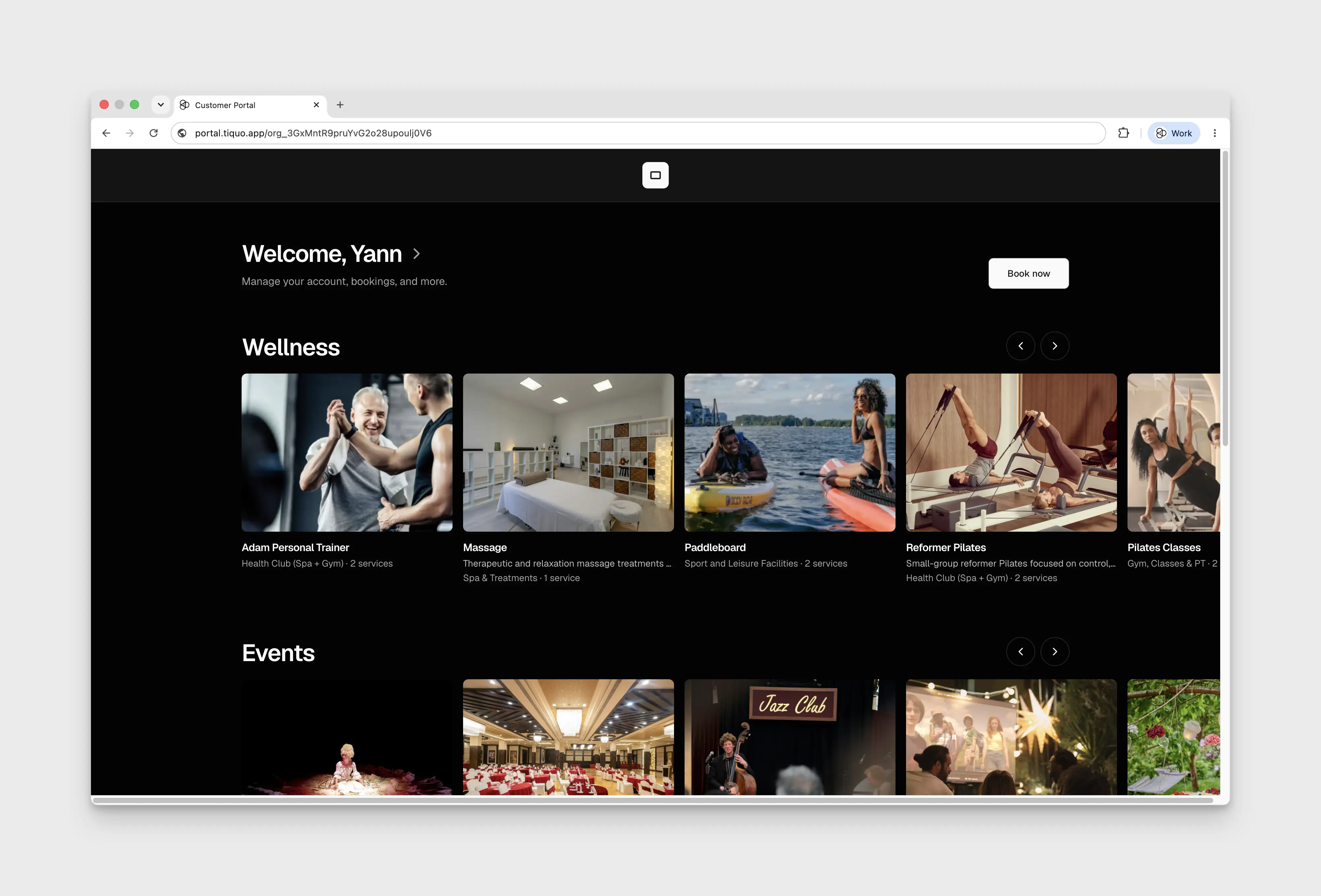
The Customer Portal gives signed-in customers one place to book, review recent activity, manage their account, and access billing information. An organization can have several portals, with one marked as the primary portal.
Open Settings > Customer Portal and select an existing portal to edit it. The demo currently shows Preview Mode and No Customer Portals, with New Portal and Create Portal disabled. The editor steps below require an existing, editable portal.
Portal address
The default address uses portal.tiquo.app. You can select a verified Customer
Portal domain from Settings > Domains instead. Changing the selected domain
changes the public URL, so update links in emails, websites, QR codes, bookmarks,
and integrations after saving.
Customers sign in with a one-time code sent to their email address. The session is shared with supported Tiquo customer flows and website integrations, so a signed-in customer can move between them without another login while the session remains valid.
If delivery to the address has previously bounced, sign-in, booking, ordering, and portal handoffs show a recovery step before depending on another email. Correct or reconfirm the address, then retry the one-time code.
Install the portal
Customer portals publish install metadata and icons for supported browsers. A customer can use the browser's Add to Home Screen or Install app action to launch the portal from their device like an installed application. The installed portal uses the configured name, theme, and portal address.
Build the homepage
The Homepage tab controls the welcome area and three sections:
- Explore shows services and booking carousels.
- Recent activity shows the customer's latest bookings, orders, and open tabs.
- Account and billing links provides shortcuts to profile, membership, payment methods, invoices, receipts, and company details.
Each section can be shown or hidden and moved up or down. Explore and Recent activity also have editable titles and descriptions. Hidden sections keep their settings and can be restored later.
The welcome heading supports {firstName}. You can also change the description
and the label on the main booking button.
Use Homepage content to choose the exact records and shortcuts that may appear. Available controls include:
- Book now and Explore
- upcoming bookings and booking history
- open tabs
- profile and membership
- payment methods
- invoices and receipts
- company details
Where available, Hide when empty removes a shortcut or activity group until the customer has a matching record.
Organize booking choices
The booking catalog lists customer booking flows connected to the organization. You can hide a flow, change its customer-facing name and description, and sort the flows that are not in a section.
Use Show service overview before booking to choose how a catalogue card opens. When enabled, the customer first sees the service image, title, and full description, then continues to booking. Turn it off when the card should open the booking flow immediately.
Create booking carousels to group related flows on the homepage. Each carousel has its own name and description. A flow can be moved into a carousel and sorted within it.
A carousel can be marked as relevant to selected membership plans. Matching members see it earlier in the catalog, but it remains visible to other customers. When several plans are selected, choose whether a customer must match any or all of them.
Appearance
Choose a regular header or a banner header. Header layouts support a larger organisation logo where the selected layout provides the necessary space. A banner can use a wide image or a short MP4 or WebM video. Video plays muted and loops. Add a fallback image with the same crop so the header has a useful image while the video loads or when it cannot play.
The Appearance tab also controls the theme and whether the welcome area shows no call to action, one main action, or main and secondary actions.
For the membership shortcut, select a wallet card design or leave it on Automatic to use a card based on the portal theme.
Profile fields
The portal can let customers edit their address and selected customer parameters. Only active parameters that allow customer editing can be added. Up to 25 parameter fields can be shown in the portal profile editor.
Use this list carefully. A field shown here changes the customer's saved CRM profile when they submit it.
Account menu
The account menu can include:
- profile
- membership
- guest registration
- payment methods
- orders and bookings
- policies
Enable only the areas customers should manage and drag them into the order you want. Guest registration lets a signed-in customer create and share a secure invitation. Orders and bookings combines booking history, orders, invoices, and receipts in one account area.
Above the Guest registration forms, the portal lists live sent Guest Passes as Assigned and live received Guest Passes as Accepted. Each entry shows the visit date, location, and who sent or received it. This list is available even when the customer has no flow they can use to send a new invitation.
The inviter chooses a location when a flow has several eligible locations. With one location, it is selected automatically and no dropdown is shown. The invitation's venue is the location name, not a list of sublocations.
Sending the invitation reserves the Guest Pass, and acceptance keeps it held for the guest. It is consumed when staff register the guest at an eligible sublocation, not when the link is opened. Consumed, expired, and revoked invitations leave the portal's live list; their history remains available to staff on the customer profiles. Standalone Guest Flows only provide the invitation form, without this portal pass list.
See Guest Passes for allowance settings, invitation expiry, and what happens when a guest does not arrive.
Customers can also manage supported SMS preferences from the portal. Preference and unsubscribe links return the customer to the appropriate portal handoff without requiring staff to change the CRM record manually.
Eligible saved payment methods can appear during booking checkout and when a customer provides a no-show card guarantee. Tiquo verifies that the displayed method belongs to the booking customer before it can be reused.
Preview and publish
Changes are saved as a draft while you work. Use the device preview to review desktop, tablet, and mobile layouts without exposing the draft on the public portal. Publish when the copy, links, catalog, and permissions are ready.
If the draft should not go live, discard it to return the editor to the current published version. Before publishing a domain change, test the new address and prepare updates for every place where the old portal URL is used.
Homepage banners and custom tiles
Add homepage content blocks for promotional banners or rows of custom tiles. A tile or banner can open a booking, an external web address, or a published document or form. Documents open within the signed-in portal with a Back action; external web addresses open in a new tab. A draft or unavailable document has no active link.
Publish the destination document as well as the portal draft before checking the customer experience.
Automatic booking groups
Choose custom grouping to place booking options by hand, or rules to fill groups from locations, sublocations, and service categories. New matching options join a rules group automatically.
A category rule takes precedence over a sublocation rule, which takes precedence over a location rule. If two groups have equally specific rules, the first group wins. Options without a match remain in Explore. Switching grouping mode keeps the other layout saved. Visibility and card overrides apply in both modes.
Customer booking actions
The Book now action takes customers to Explore on the homepage. Recent activity can show Orders and receipts independently from bookings and disappears when all its groups are disabled.
Customers can open a booking or order detail page from recent activity. Booking details offer cancellation and rescheduling when the service allows them. Customers can reschedule slot and calendar bookings by picking a new date on a month calendar and then a time; Tiquo emails them the updated confirmation. A booking within the cancellation deadline explains that online changes have closed and directs the customer to the venue. A blank Cancellation Deadline on the service means 24 hours before the start.
Customers can't cancel or reschedule imported bookings, such as stays synced from Mews or bookings added through a data import. The portal hides Cancel and Reschedule on these and asks the customer to contact the venue to change or cancel the booking. Stays and bookings seated across combined tables can't be rescheduled online either.
Booking confirmation and reminder emails include a Manage Booking button that opens the booking in the portal's upcoming bookings. The button links to the primary portal, or the first active portal when the primary one is not active, and uses the portal's custom domain when one is set. Organisations without an active portal get no button.
Completed bookings in the booking history have a Book Again button while the portal still offers a booking flow for that service. It opens that flow at the same service and carries over the previous party size.
An unpaid scheduled booking can show Awaiting payment. A waitlist Place offered label takes precedence when an offer is available. These labels help explain the next customer action without changing the underlying booking status.
Tax ID and profile changes
Enable the built-in Tax ID profile field beside Addresses when customers should update their personal tax number for invoices. It is separate from custom customer parameters. The profile shows a Save action when it has unsaved changes.
A paused membership can prevent access to a members-only portal. Review the membership state with the venue if the customer can sign in but cannot enter.