

Tasks
Track internal operational actions, assignments, and workflows across the platform
Tasks represent internal operational actions that need to be completed by staff.
Tasks allow teams to track work that needs to be completed across locations, services, orders, customers, and other operational activities. Tasks are designed for internal use only and are not visible to customers.
Examples include:
- Preparing a treatment room before a booking
- Following up with a customer
- Checking inventory levels
- Reviewing a booking request
Use tasks to assign and track operational work.
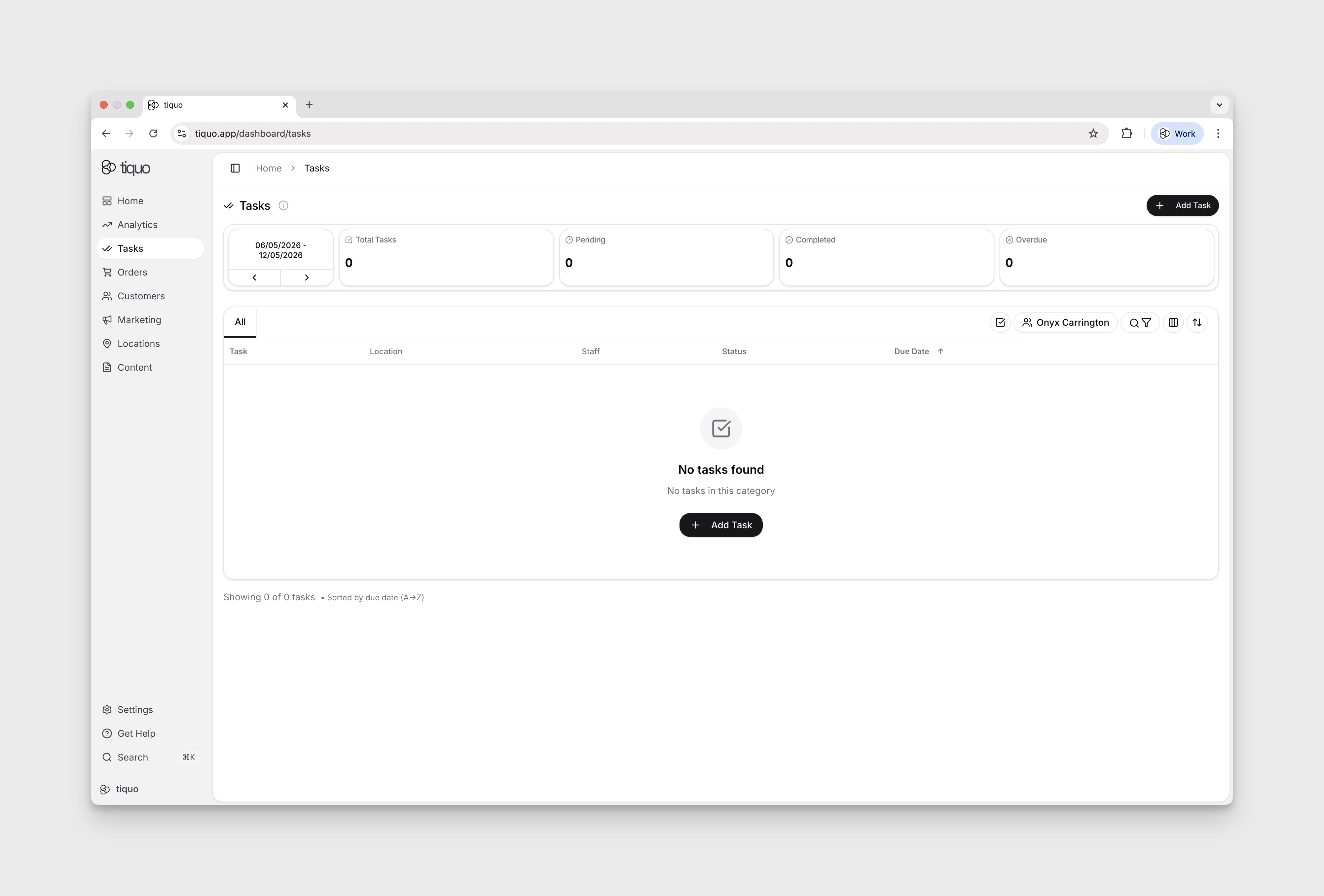
Navigating to tasks
Open tasks from the main sidebar by selecting Tasks.
Creating a task
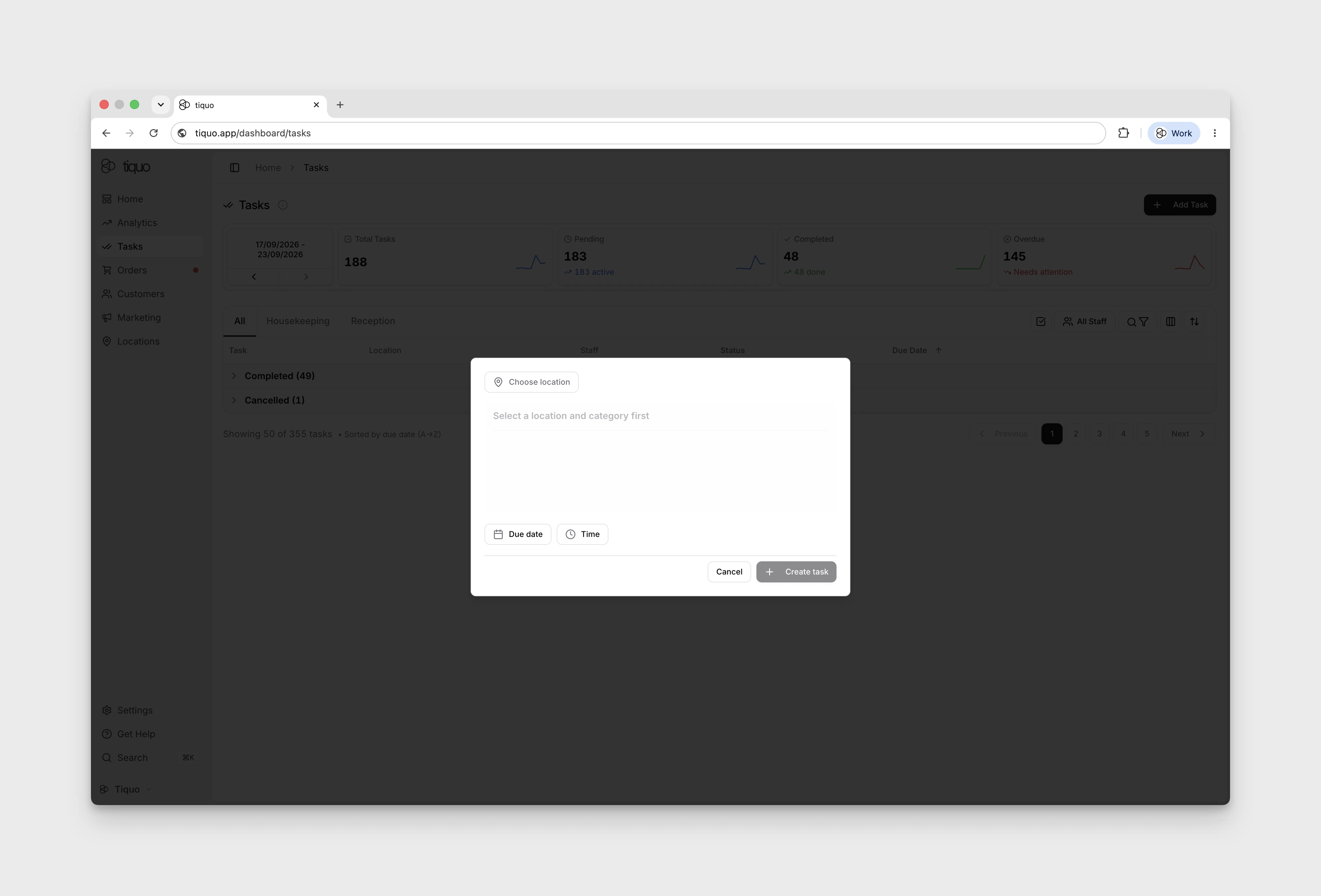
Select Add Task on the Tasks page to open New Task. Choose the scope and category before entering the title and optional description. In the description, Add mention offers Staff, Customers, Orders, Sublocations, Companies, and Enquiries.
When creating a task, the following fields are required:
- Location or general scope
- Task category
- Task title
Optional information may also be added, including:
- Due date and time
- Repeat schedule
- Task description
Select Create task to save the task to the list, or Cancel to discard the form.
Repeating tasks
A task with a due date can repeat on one of these schedules:
- daily
- weekly
- every two weeks
- monthly
- every three months
- every six months
- yearly
- a custom number of days
Set the due date first, then choose Repeat in the task editor.
When a repeating task is marked completed, Tiquo creates the next pending task from the completed occurrence. The new task keeps the title, description, category, scope, assignees, and customer, company, enquiry, order, and sublocation links. Its due date is calculated from the completed task's due date, not from the day a staff member happened to complete it.
Monthly and yearly schedules keep the original day where possible. When a month is shorter, the occurrence uses the last valid day of that month.
Task scope
Tasks can be created in two scopes.
General
General tasks are not tied to a specific location. These tasks may apply across the organization.
Example: Review monthly sales report.
Location
Location tasks apply to a specific location.
Example: Prepare treatment rooms for today's bookings.
Tasks may also reference sublocations when relevant to the operational activity.
Task categories
Every task must belong to a task category.
Categories help organize tasks and make them easier to filter and manage.
Examples include:
- Operations
- Maintenance
- Customer Follow-up
- Inventory
Categories can be created and managed in Settings > Tasks & Notes, which needs the Manage task & note categories permission. Notes and tasks share the same categories.
Every organisation starts with a General category that is visible in General and isn't tied to any location, so staff can create general notes and tasks straight away. It is an ordinary category: rename, edit or delete it like any other. Tiquo doesn't recreate it after it is deleted.
Task assignment
Tasks can be assigned to one or more staff members.
Assign tasks so staff know what they are responsible for and can track their work. You can assign several staff members to the same task.
Task status
Tasks move through several statuses during their lifecycle.
| Status | Description |
|---|---|
| Pending | The task has been created but has not yet been completed |
| Completed | The task has been finished. Completed tasks remain visible in the task list for reference |
| Cancelled | The task is no longer required and has been cancelled |
Overdue is a due-date indicator, not a fourth stored status. Changing a task out of Pending does not necessarily remove the row's overdue label: the current list can show Cancelled Overdue for a past-due task even when the Overdue summary count is zero. Read the task's status separately from its due-date indicator.
Editing tasks
Tasks can be edited after creation.
Staff can update:
- Task title
- Assigned staff
- Due date and time
- Category
- Description
Task statuses can also be changed. For example, a task can move from Completed back to Pending if additional work is required. To cancel a task, select More → Cancel Task in its row. Expand the Cancelled group to find it again, then select More → Mark as Pending if the work is still needed.
Task history
The task editor shows the task's current saved values. It does not currently provide a dedicated per-task activity-history timeline of every edit and status change.
Staff changes
If a staff member assigned to a task is removed from the location or organization, the staff assignment is automatically removed. The task itself remains active.
Task categories and deletion
Task categories can be deleted from the system.
If a category is deleted:
- Existing tasks remain in the system
- The tasks will no longer have a category assigned
A new category can be assigned to those tasks later.
Task filtering
Open the search/filter control, then Add filter. The available fields are Customer, Company, Location / Sublocation, Enquiry, Order, Staff, Status, Due Date, and Created By.
For example, choose Status, select Pending, then choose Apply to show pending tasks. Reopen the status chip to change the selection. Clear → Apply removes its selected values.
Categories are selected using the tabs above the task list, such as All or your configured category names. They are separate from the Add filter menu.
When multiple filters are applied, tasks must match all selected conditions.
Searching tasks
Task search finds results even when the search term is not an exact match.
Search may return tasks related to linked entities such as:
- Customers
- Orders
- Enquiries
Tasks and platform objects
Tasks can reference other objects within the platform.
Examples include:
- Customers
- Companies
- Orders
- Enquiries
- Sublocations
Link a task to the activity it concerns.
Completing tasks
Open a task's menu in the task list and mark it as completed. You do not need to open the full task view.
Customer notes summary
With Customer Notes Summary turned on in Settings > Tiquo AI, a customer's Notes tab opens with a Customer notes summary: two or three sentences from Tiquo AI covering the most useful context in the customer's notes and any outstanding tasks, with due dates where they help. Pending tasks and pinned notes come first. The footer shows how many notes and tasks the profile has, and says Based on selected notes and tasks when the profile has too many to include them all.
The summary only appears when the profile has at least one note or task that you can see, and only to staff with both the View customers and Manage tasks & notes permissions. Notes restricted to locations you can't access are left out. When a note or task changes, the summary is prepared again.
Email addresses and phone numbers in notes are removed before the text is sent to the AI provider. The setting is on by default, and staff with the Manage organization settings permission can turn it off.