
Point of Sale
Create orders, manage tabs, and take in-person payments
Point of sale overview
Staff can use the Point of Sale to create orders, manage tabs, and take payments on handheld devices, docked setups, and payment terminals. Orders, customers, and payments stay in sync across Tiquo.
The POS works the same way across devices, so staff can switch setups without retraining.
Taking payments via POS
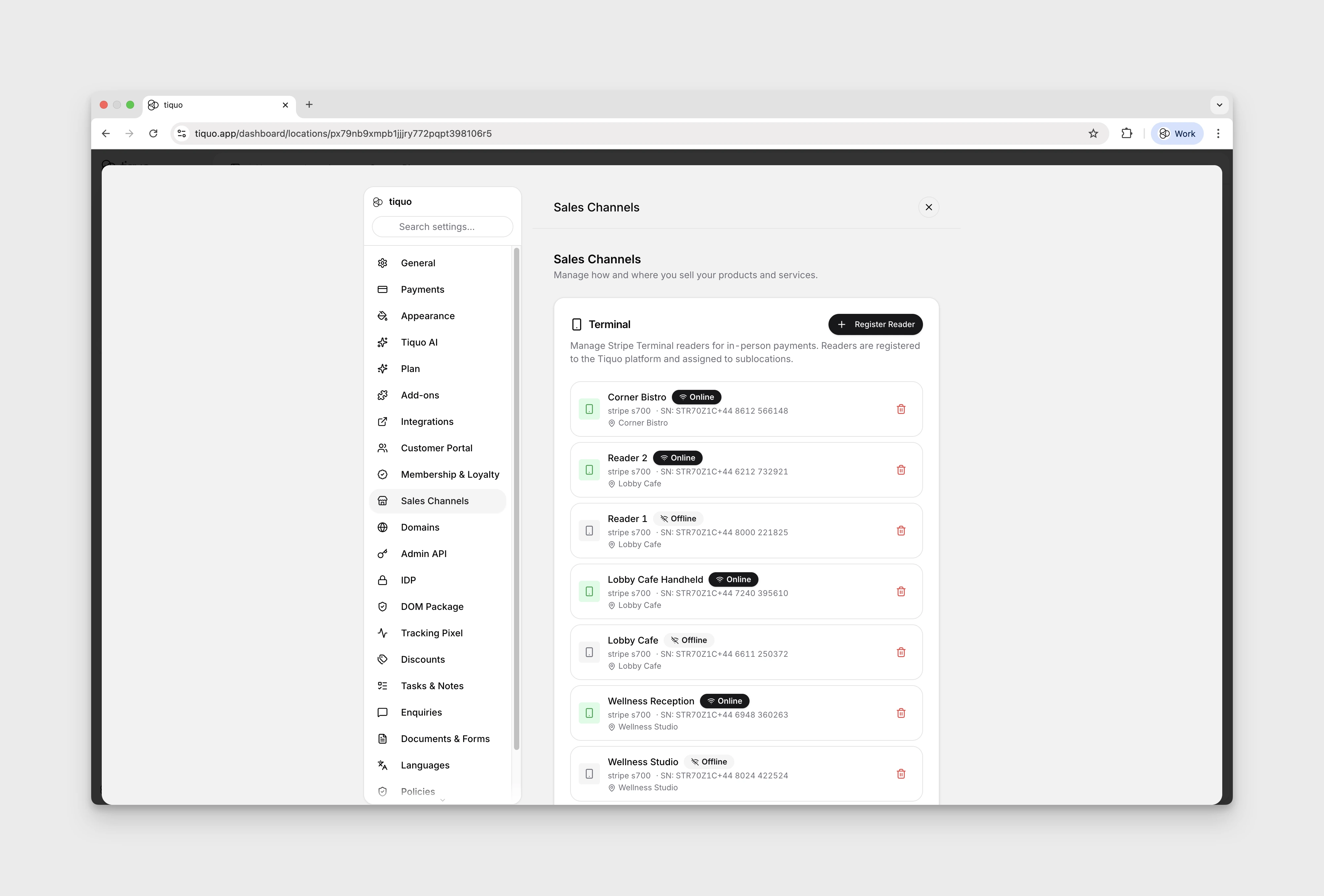
Tiquo supports in-person payments using:
- S700 POS terminals
- Tap to Pay on iPhone
Both methods are fully integrated with orders and Stripe, allowing staff to take payments directly from an active order without switching systems.
Payments taken via POS:
- Are instantly reflected in the order
- Respect sublocation and legal entity configuration
- Support receipts, refunds, and reporting automatically
POS and orders
All POS activity is built around orders.
From the POS, staff can:
- Create new orders
- Add products and bookings to an order
- Open and manage tabs
- Associate customers with orders
- Take full or partial payments
- Close or settle orders
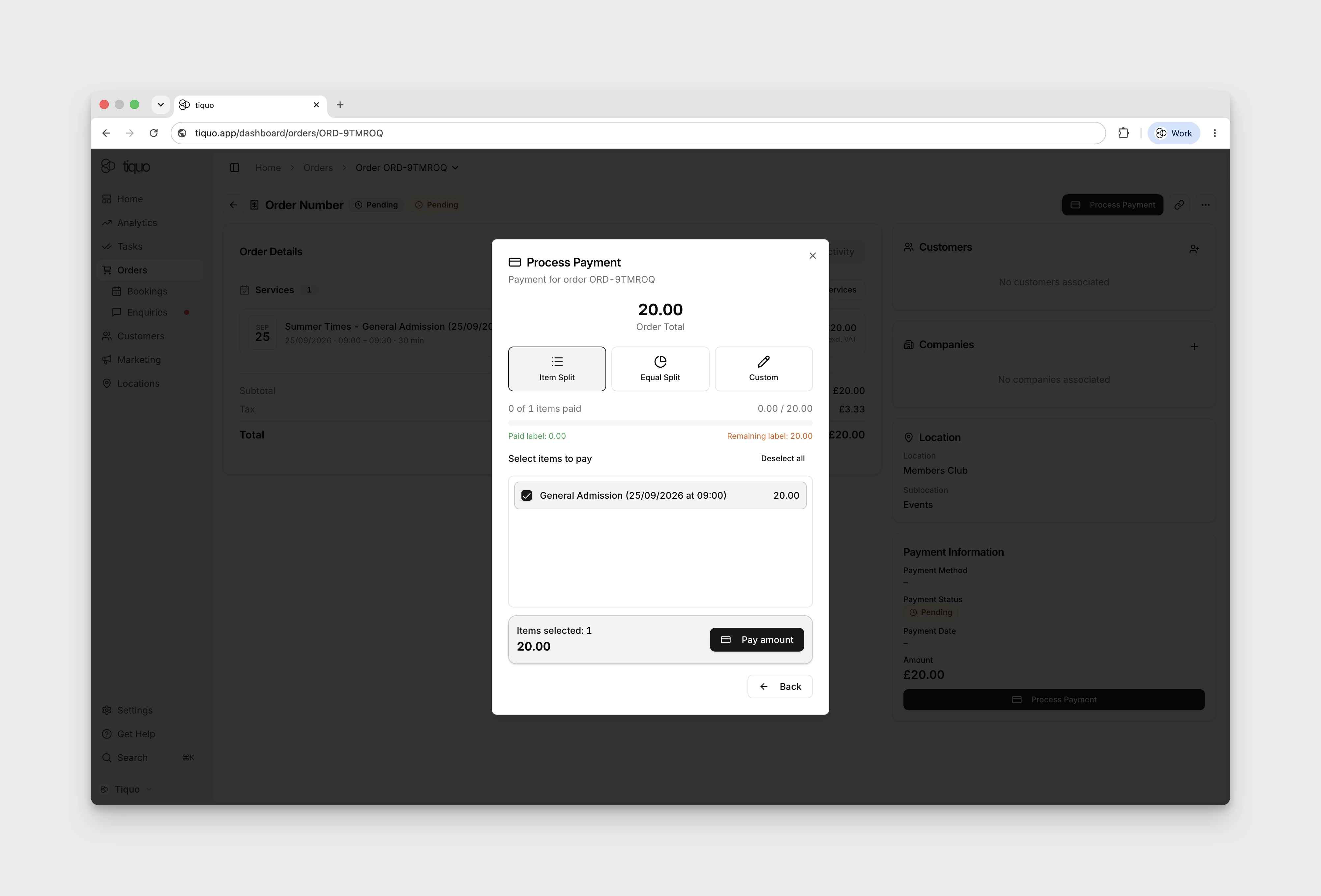
- Split payment by item, equal shares, or a custom amount in the dashboard terminal flow
Staff selection by PIN
In Sublocation Settings, turn on staff selection and then Require PIN to identify the staff member responsible for a POS action. Instead of choosing a name, the member enters their personal four-digit PIN. Tiquo looks up the one person assigned to it: an organisation member, or someone added with a POS PIN but no Tiquo account. People without an account can never pass a step that asks for an administrator's PIN. See People without a Tiquo account.
Staff set their own PIN under Settings > Account > General. Administrators can manage the whole team's PINs from the same area. If a PIN is not accepted, check that it is still assigned and that no new PIN was saved for that member.
The sublocation can require the PIN again after 15 or 30 seconds, or after 1, 2, 3, 4, 5, 10, or 30 minutes of inactivity. Choose Never to keep the selected operator active. Require PIN after every order clears the operator whenever an order workflow finishes.
POS orders follow the same reporting and analytics rules as orders created elsewhere in Tiquo.
Receipts and sharing
After payment, receipts can be shared in multiple ways depending on the device setup.
Supported options include:
- Sending the receipt via email
- Printing using a connected receipt printer
- Downloading the receipt
- Sending it to a configured cloud printer
Every option delivers the same receipt, built by Tiquo in the location's receipt language and laid out to the venue country's format. See Receipts and invoices.
Choose the payment flow that fits your service style and the customer's preference.
POS modes and layouts
The POS supports different modes depending on how the setup is configured.
Standard mode
Standard mode uses the regular order flow and is appropriate for retail, reception, and other workflows that do not need table service or kitchen courses.
Restaurant Mode
Restaurant mode uses product-first ordering with floor plans, tables, covers, seats, order stages, HOLD/FIRE controls, kitchen messages, open tabs, and kitchen routing. It is available on supported Dashboard, Tiquo App, and Tiquo PDQ surfaces.
Bar Mode
Bar mode provides the same table, tab, stage, and kitchen controls as Restaurant mode, but opens on a fresh order instead of the POS home. Staff can still return to the POS home when needed.
Till display mode
Till Display mode allows the payment terminal to act as a customer-facing display.
In this setup:
- The terminal mirrors the order basket from a connected iPhone or iPad
- Customers can see items and totals clearly
- The terminal prompts the customer directly for payment
- This mode is typically used in a docked setup with an iPad or iPhone nearby
This creates a clear and transparent checkout experience while keeping staff control on the main device.
The T600 is a dedicated dock-only Till Display. It does not expose the standard POS or application tabs.
Split payments
For an existing unpaid dashboard order, open its details and choose Process Payment > Share to Terminal > Split Payment.
Choose Item Split, Equal Split, or Custom. Custom lets you enter an amount and provides Half and Full shortcuts. Review the remaining balance before each payment. Navigation and available controls may differ on native devices.