

Service Inventory
Manage physical resources used to fulfill services and control booking availability
Inventory represents the physical resources used to fulfill services in Tiquo.
Inventory allows the platform to manage the availability of resources required for bookings, such as rooms, equipment, or spaces. Services can connect to inventory so that bookings are only possible when the required resources are available.
Examples of inventory resources include:
- Treatment rooms
- Massage tables
- Equipment
- Meeting rooms
- Activity spaces
Inventory prevents bookings that exceed a resource's available capacity.
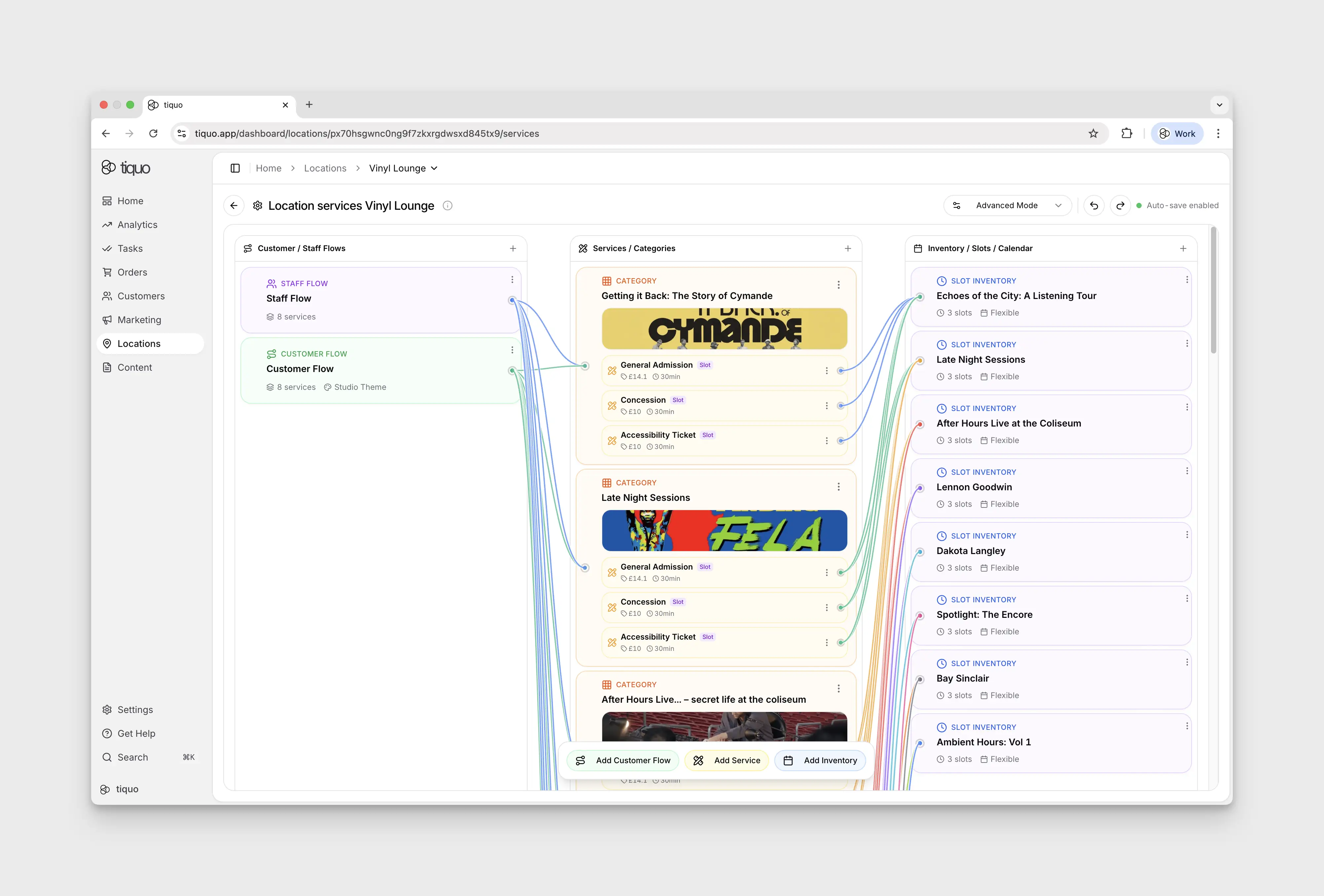
Inventory scope
Inventory items are configured at the sublocation level. Each sublocation manages its own inventory resources.
Example:
Location: Wellness Center
Sublocations:
- Spa
- Gym
- Café
The Spa sublocation may have inventory such as:
- Treatment Room 1
- Treatment Room 2
- Massage Table A
Creating inventory
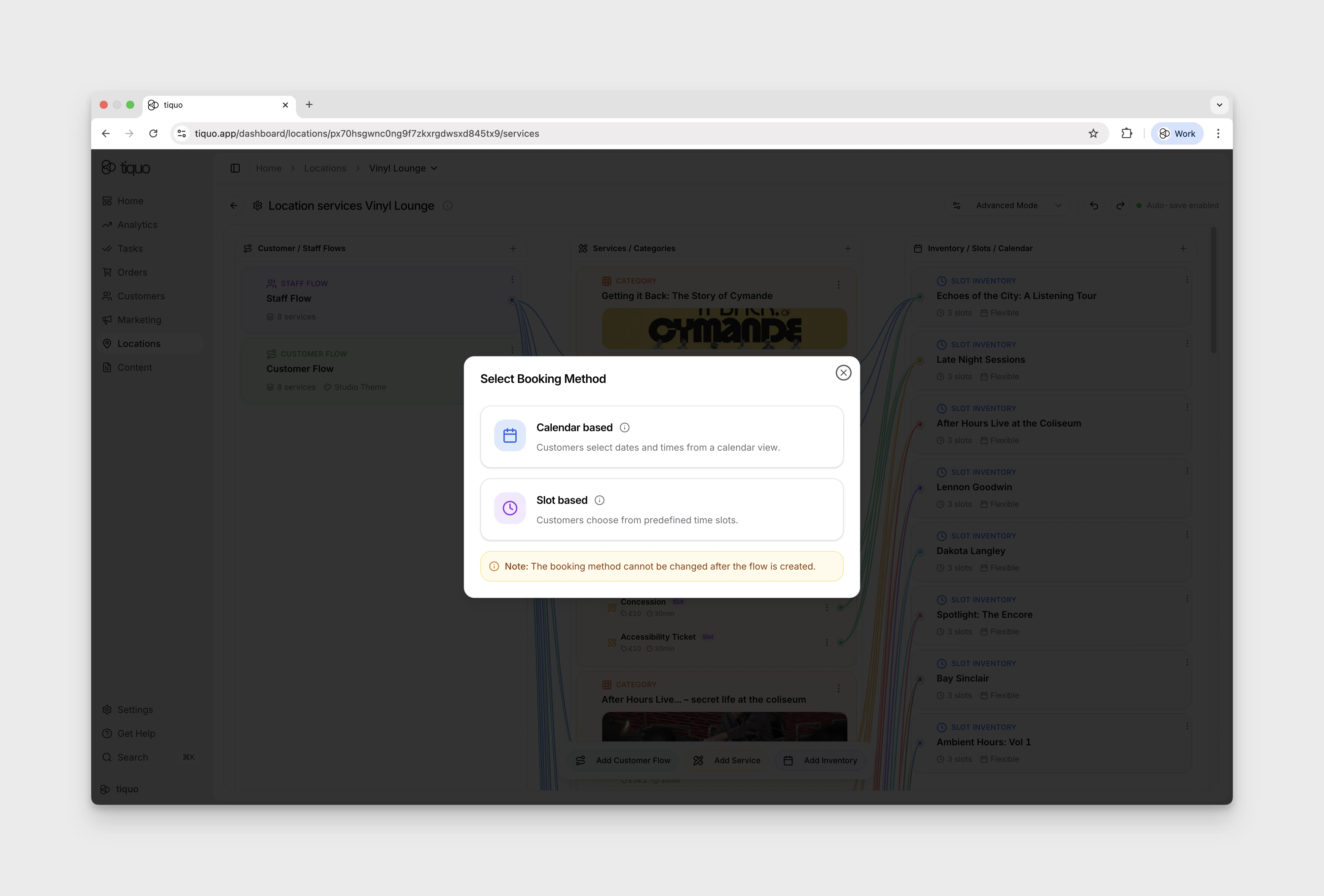
Inventory items are created from the Inventory section of a sublocation.
To create an inventory item:
- Navigate to the relevant sublocation
- Open the Inventory section
- Click Add
- Configure the inventory details
Once created, the inventory item can be connected to services.
Inventory configuration
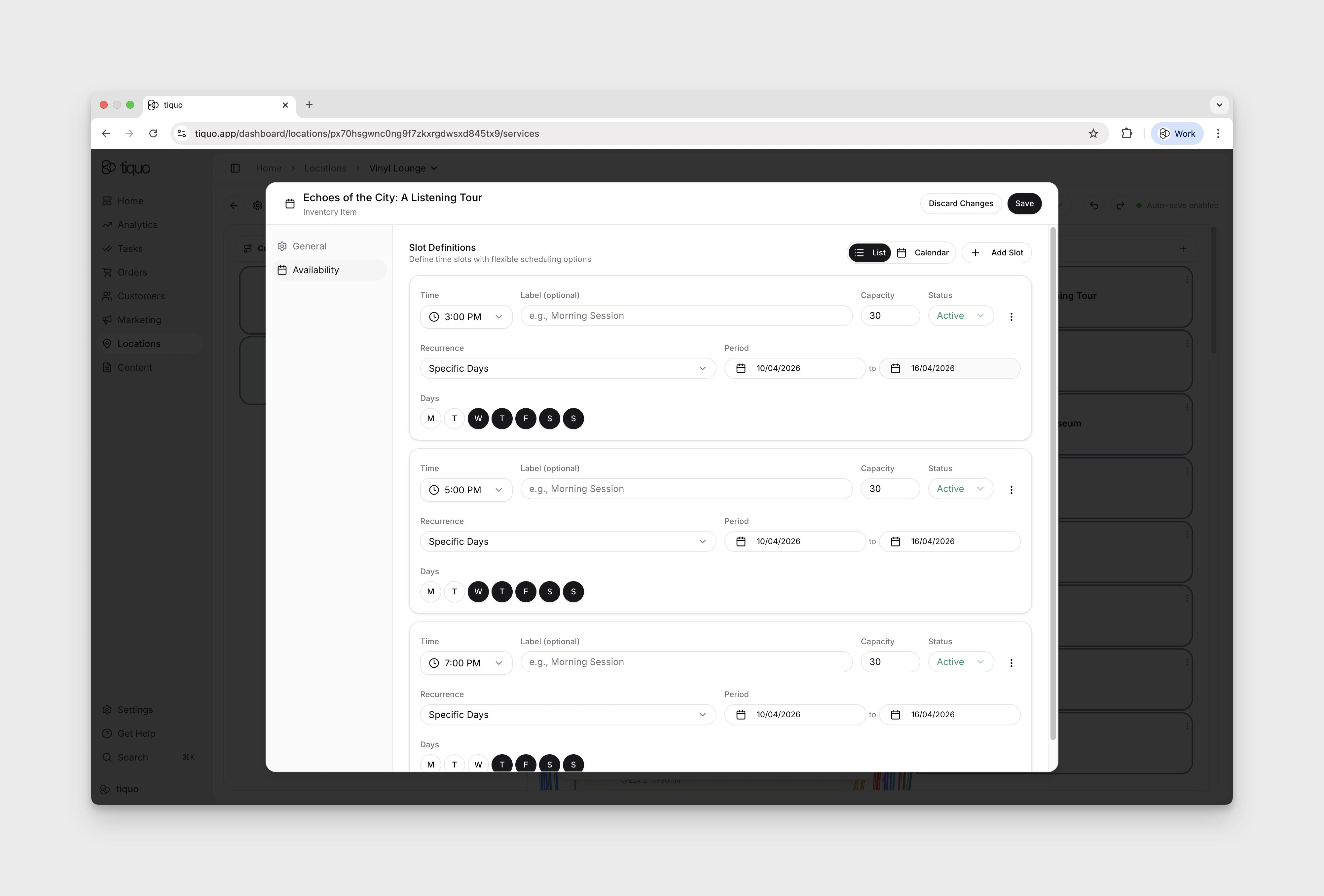
The editor sections depend on the inventory's scheduling type:
- Calendar inventory: General, Capacity, and Availability.
- Slot inventory: General and Availability, with Slot Definitions under Availability.
Open the sections shown for the resource you are editing.
General settings
The General section defines the basic information about the resource.
Fields include:
- Name
- Description
- Waitlist option
Name: the name identifies the inventory resource. Example: Treatment Room 1
Description: an optional description can be added to explain the purpose of the resource.
Enable Waitlist: waitlists allow customers to join a queue when the inventory resource is fully booked. If enabled, customers can register interest in a time slot that is currently unavailable.
Capacity
Capacity defines how many customers can use the resource at the same time.
Simple capacity
Simple capacity uses a single capacity value.
| Resource | Capacity |
|---|---|
| Treatment Room | 1 |
| Meeting Room | 10 |
Instances
Inventory can also be configured using instances. Instances represent individual units of a resource.
Example:
Inventory Item: Massage Table
Instances:
- Table 1
- Table 2
- Table 3
Each instance can be allocated independently during bookings.
Instances are useful whenever staff need to know exactly which room, table, seat, or ticket type has been allocated. Guided setup flows for restaurants, bars, hotels, meeting rooms, spas, and events use instances to make named resources easier to manage.
Availability
Availability determines when the inventory resource can be used. For calendar inventory, open Availability Windows and select Add Window, or inspect an existing window. The window editor includes:
| Setting | Description |
|---|---|
| Start Time | Start of the availability window. Example: 09:00 |
| End Time | End of the availability window. Example: 17:00 |
| Recurrence | How the window repeats |
| Period | The period covered by the window |
| Days | The days included in the window |
| Breaks | Break periods within the availability window |
Break times
Break times represent periods when the resource cannot be booked.
Examples include:
- Cleaning breaks
- Maintenance periods
- Staff preparation time
Breaks prevent bookings from being scheduled during those periods.
Where booking rules are configured
Inventory does not have a separate Limits tab.
- Configure resource instances and capacity under Capacity.
- Configure recurring or one-time availability windows and breaks under Availability.
- Configure duration and before/after buffers on the connected service under Duration & Capacity.
- Configure minimum/maximum advance booking and booking buffer on the connected service under Limits.
- Configure customer-facing start-time spacing with Start times every where that control is available for the connected service/inventory setup.
Connecting inventory to services
Inventory items can be connected to services.
When a service has multiple connected inventory resources, configure allocation priority from the service's Connected Inventory area. Drag the connections into the order in which they should be allocated; the resource at the top is filled first. Priority belongs to the service-to-inventory connection rather than to the inventory item's Availability tab.
In Connected Inventory and the inventory pickers, a calendar that holds a single room is listed by that room's name. For example, a room renamed Main Room shows as Main Room 1 instead of the calendar's default Room 1. Calendars with several rooms keep their own name.
When a service uses inventory, the booking system checks inventory availability before confirming a booking.
Example:
Service: Massage Appointment. Inventory: Treatment Room
When a customer books a massage, Tiquo checks for an available treatment room. If all rooms are booked, the customer cannot book that time.
Inventory and bookings
Inventory works together with bookings to manage resource scheduling.
When a booking is created:
- The service defines the duration and booking rules
- Inventory determines whether a resource is available
- If available, the booking is scheduled
- The resource is reserved for the duration of the booking
This prevents double-booking of physical resources.
Example
Spa booking example:
Service: Massage Appointment. Duration: 60 minutes
Inventory:
- Treatment Room 1
- Treatment Room 2
If Treatment Room 1 is already booked at 14:00, the system may assign Treatment Room 2 instead. If all rooms are booked, the time slot becomes unavailable.