T100 Configuration Guide
Configure the T100 scanner by scanning setup QR codes
Use the QR codes on this page to configure your T100 scanner. Present a code to the scanner as you would any other QR code; the scanner applies the setting immediately.
Before you begin
Make sure Setting Codes On is enabled if the scanner does not respond to a configuration code. Settings marked Default are the factory defaults.
Factory reset
If your T100 is not working as expected, restore it to its original factory settings by scanning the code below. This resets all configuration options to their defaults.
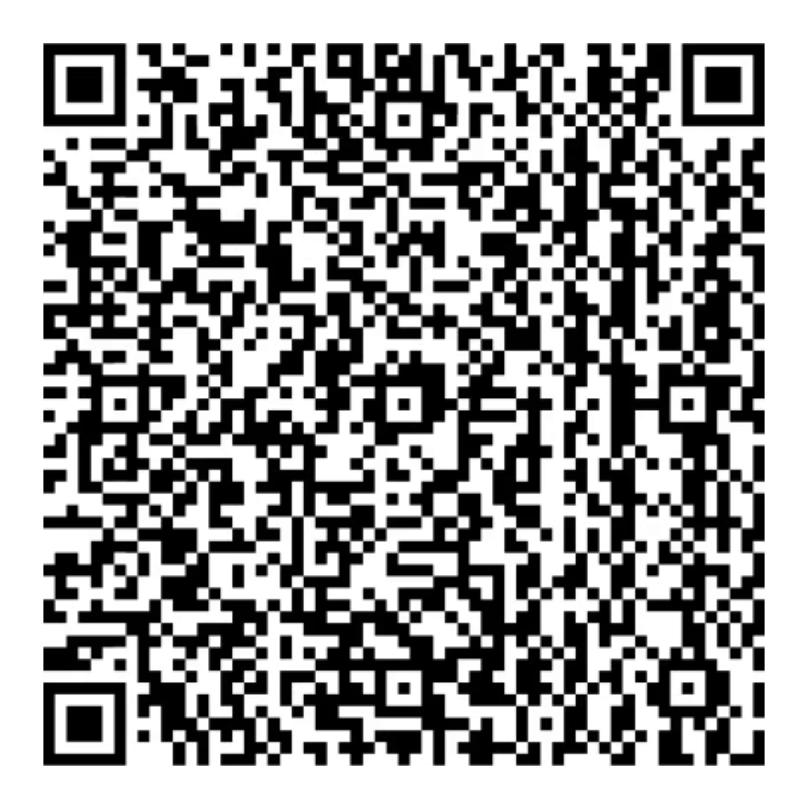
Setting code switch
The T100 can be configured by scanning the setup codes in this guide. This setting controls whether the scanner accepts configuration codes. If the T100 stops responding to setup codes, scan Setting Codes On to re-enable configuration mode.


Connection mode
The T100 connects to your device via USB-C and works as a keyboard input: scanned codes are typed directly into the active field in Tiquo. The scanner uses USB Keyboard (HID-KBW) mode by default. If you need to restore this mode, scan the code below.

Keyboard layout
The T100 uses the United Kingdom keyboard layout by default. If your device uses a different regional layout, scan the code for your country. The scanner must use the same keyboard layout as your operating system to output characters correctly.
Available layouts are United States, Belgium, Brazil, Canada, Czech, Denmark, Finland, France, Austria/Germany, Greece, Hungary, Israel, Italy, Latin America, Netherlands, Norway, Poland, Portugal, Romania, Russia, Slovakia, Spain, Sweden, Switzerland, Turkey F, Turkish Q, United Kingdom, and Japan.




























Keyboard type
Enabling the virtual keyboard allows the scanner to output the correct data in any keyboard language mode. When using the virtual keyboard, make sure the keypad numeric keys are enabled.


Scanning mode
The T100 uses auto-sensing mode by default. The scanner continuously monitors its field of view and activates automatically when a code is presented. No button press is required: hold or place a code over the scanner window to trigger a read. Scan the code below if you need to restore this mode.

Sensing sensitivity
This setting controls how easily the T100 triggers a scan. High sensitivity is the default and responds to smaller changes in the scanner's field of view, making it faster to activate. If the scanner triggers too frequently in a busy environment, use Medium or Low sensitivity.



Sound volume
Choose the volume of the sound the T100 plays after a successful scan. Scan the code for the volume level you want to use.




Click sound / beep sound
Choose the sound the T100 plays after a successful scan. Scan the code for either a click or beep sound.


Lighting
The T100 has built-in LED illumination to help read codes in different lighting conditions. Choose the behaviour that suits your environment:
- Normal: The light turns on only while scanning, then turns off. Best for most environments.
- Always on: The light stays on continuously while the scanner is powered. Useful in consistently dim environments such as event entrances or nightclub check-ins.
- Off (default): The light never turns on. Use this if illumination is not needed or causes glare.



Aiming
The T100 projects a visible aiming beam to help position codes for scanning. For a desktop scanner, the default setting works well in most cases:
- Normal (default): The aiming beam appears only while the scanner is actively reading.
- Always on: The beam stays on continuously, providing a visual indicator that the scanner is powered and ready.
- Off: The aiming beam is disabled.