

Wallet Card Configuration
Configure Apple Wallet certificates for wallet card designs
Setting up Apple Wallet certificate
Google Wallet works automatically once a card design is published. Apple Wallet is different: Apple requires a one-time signing certificate for each wallet card design, generated through your organisation's Apple Developer account. The wizard in Tiquo walks you through the exchange.
The flow is a two-way handoff: you give Tiquo your Apple Developer details, Tiquo generates a Certificate Signing Request (CSR), you submit that CSR to Apple, Apple returns a signed .cer file, and you upload that file back into Tiquo. Once the .cer is uploaded, Apple Wallet flips to Active on that card design and every pass issued from it is signed automatically.
Setup is done once per card design.
Before you begin
You'll need three things ready:
- An active Apple Developer Program membership ($99/year). Register at developer.apple.com.
- A registered Pass Type Identifier in your Apple Developer account. If you haven't registered one yet, go to Certificates, Identifiers & Profiles > Identifiers > Pass Type IDs in your Apple Developer account and create one. Open Apple Developer Portal.
- Your Apple Developer Team ID. Found in your Apple Developer account under Membership. developer.apple.com/account.
Opening the wizard
From the wallet card design, the Apple Certificate row shows Not Configured until setup is complete. Click Setup on that row to open the Apple Wallet Certificate wizard.
Step 1: enter your Apple developer details
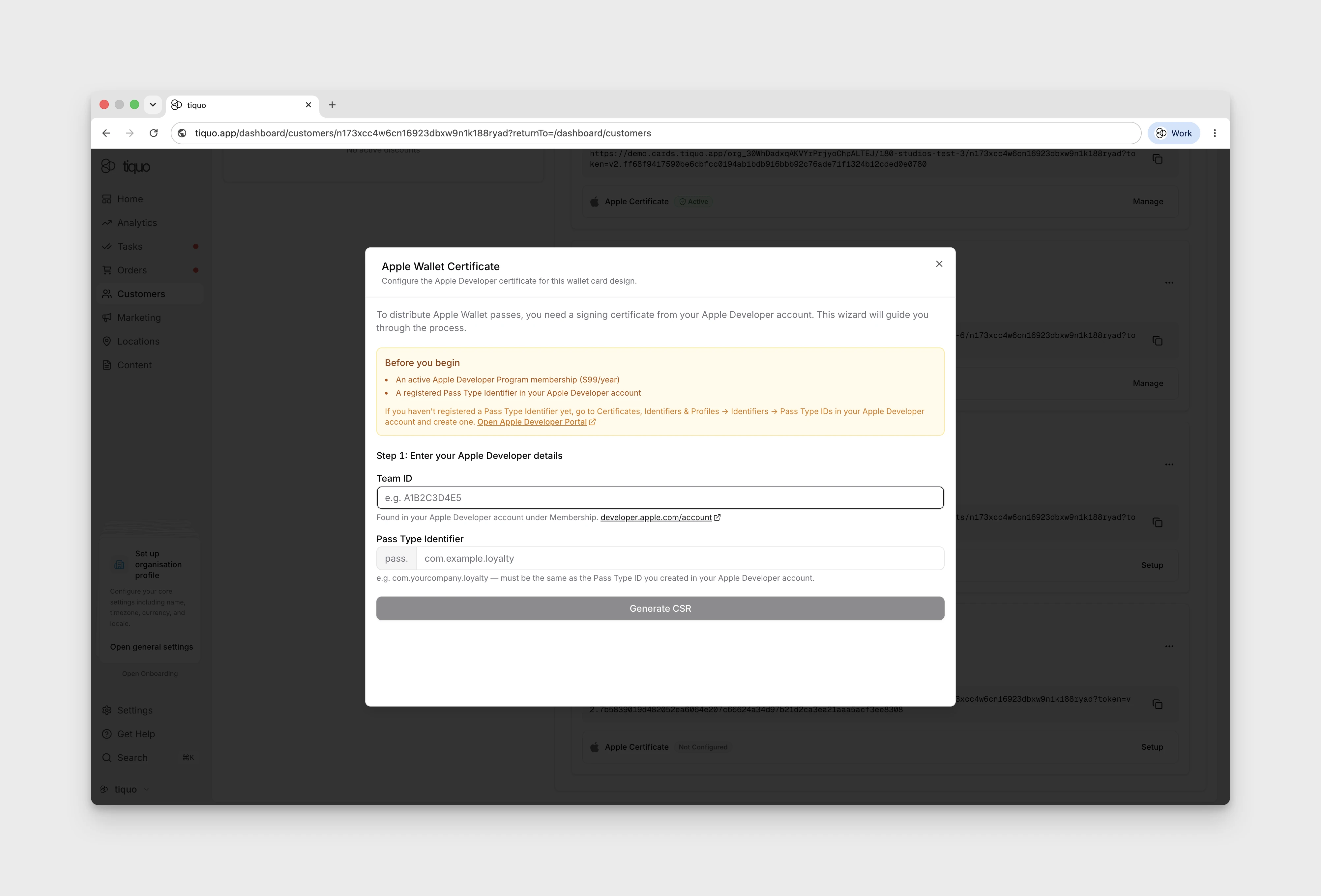
Fill in the two fields:
- Team ID: the 10-character ID from your Apple Developer account under Membership (e.g.
A1B2C3D4E5). - Pass Type Identifier: enter the part after the prefix, for example
com.yourcompany.loyalty. The wizard displays and addspass.automatically. Pasting a full identifier such aspass.com.yourcompany.loyaltyis normalised so the saved value still contains exactly one prefix.
Click Generate CSR. Tiquo generates the Certificate Signing Request and downloads tiquo.certSigningRequest to your device. Keep this file: it is what Apple needs in the next step. If the file gets lost, the wizard has a Download CSR Again button on Step 2, so no need to restart.
Step 2: submit the CSR to Apple, then upload the signed certificate
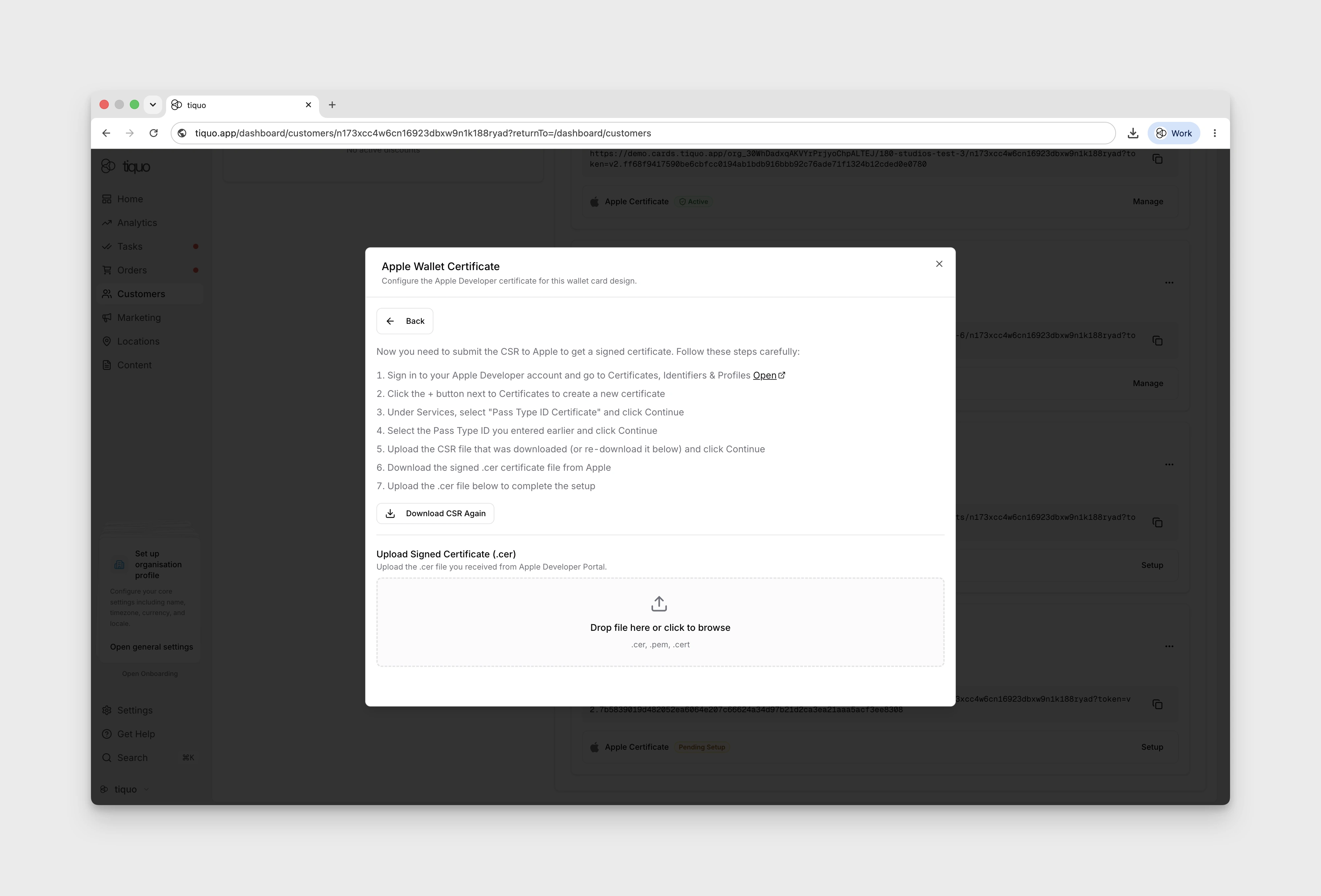
After the CSR is generated, Tiquo advances to Step 2. The numbered instructions in the wizard walk you through the Apple side:
- Sign in to your Apple Developer account and go to Certificates, Identifiers & Profiles. Open
- Click the + next to Certificates to create a new certificate.
- Under Services, select Pass Type ID Certificate and click Continue.
- Select the Pass Type ID you entered in Step 1 and click Continue.
- Upload the
tiquo.certSigningRequestfile you downloaded from Tiquo, then click Continue. If you no longer have the file, click Download CSR Again in the Tiquo wizard first. - Apple returns a signed
.cerfile. Download it. - Back in the Tiquo wizard, drop the
.cerfile into the Upload Signed Certificate area, or click to browse. Accepted formats:.cer,.pem,.cert.
Once the file is uploaded, Apple Wallet is marked Active on that card design and Apple Wallet passes can be issued.