

Customer Activity
Track the timeline of events and interactions associated with a customer profile
Customer Activity lists events on a customer profile in chronological order. Each entry shows what happened, when, and where it originated, covering both customer actions and system events.
Activity timeline
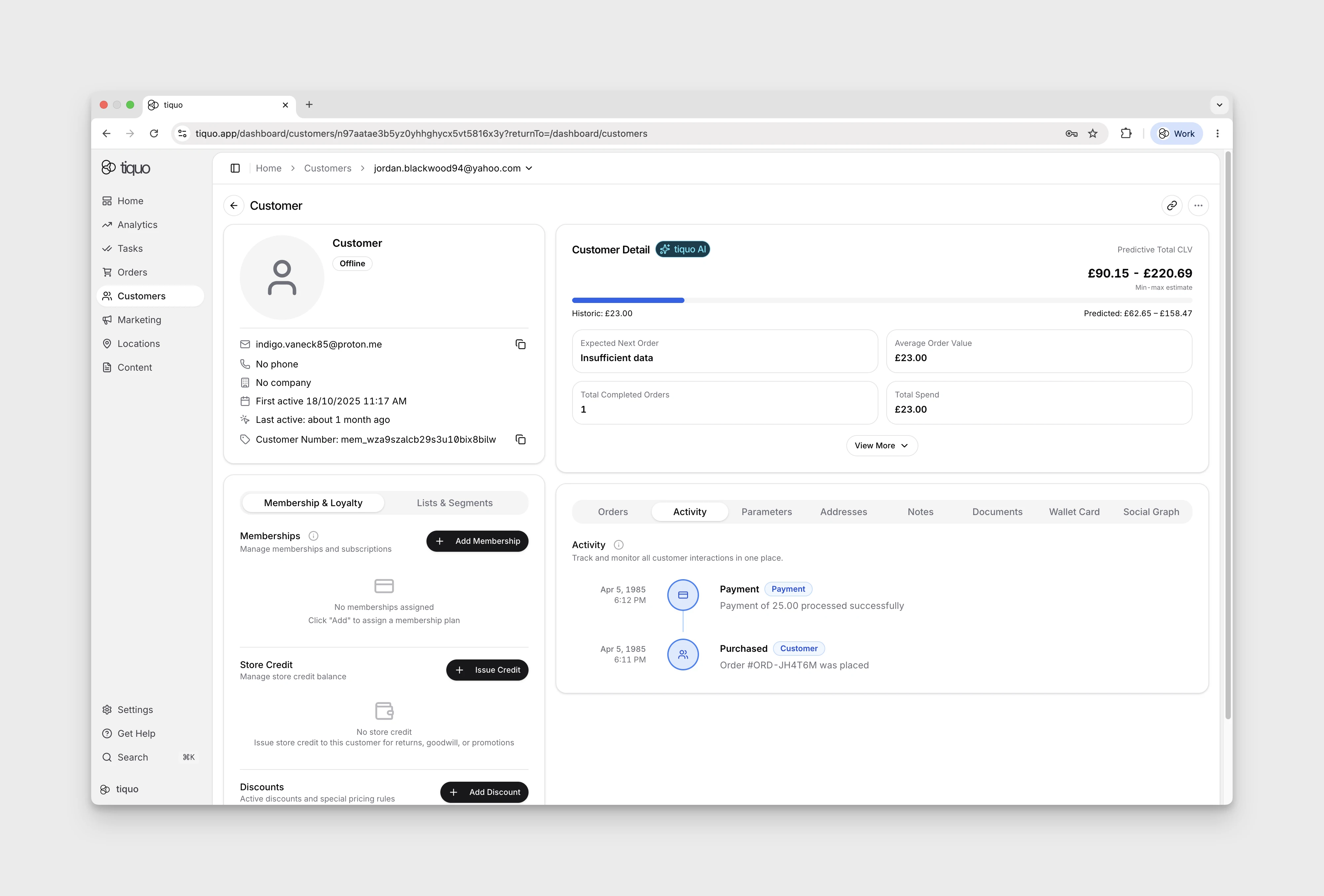
Open the Activity section of a customer profile to review transactions, bookings, system interactions, and profile updates.
Search and filter activity
Open Customers, select the customer, then choose Activity. Select Show activity search and filters to reveal:
- Search activity for a text search.
- All types, with Customer, Order, Payment, Booking, and Communication choices.
- Clear to remove the search and type filter.
If nothing matches, the timeline shows No activity found. Select Clear to return to the unfiltered timeline, then Hide activity search and filters to close the controls.
These are the customer-facing filter labels. They should not be interpreted as a list of every event origin or event category.
Activity details
Visible entries can include a heading, type badge, description and timestamp. The demo profile showed Activity and Site Activity headings. Use the displayed description and time to review the recorded interaction; entries may contain different details depending on the event.
Pass and guest registration activity
The timeline records pass issuance and use, guest invitation events, and customer registrations. Guest invitation and registration events are recorded against both the inviter and the guest once the guest is linked to a customer profile.
Use these entries alongside each profile's Passes section to see who invited the guest, whether the invitation was accepted, and when the pass was consumed. Acceptance and consumption are different events: accepting a Guest Pass holds it for the guest, while registration uses it.
Repeat registrations within the 20-minute Access Pass reuse window are still logged. The registration refers back to the original pass deduction instead of deducting another use.
Booking check-in has its own activity and does not consume Access Passes or Guest Passes. See Customer Registration for the registration workflow.
System transparency
Activity tracking provides a detailed operational record of customer-related actions.
This allows staff to:
- Review customer interactions
- Understand transaction history
- Investigate operational events
- Track system activity related to the customer
The activity timeline functions as an audit-style log of the customer's interactions with the platform.
Example activity events
Examples of events that may appear in the activity timeline include:
- A booking created by a customer
- A payment processed for an order
- A staff member updating a customer profile
- An automated system notification
- A notification or automation email being sent, delivered, bounced, or failed
- A report export related to the customer
Customer activity summary
With Customer Activity Summary turned on in Settings > Tiquo AI, the Activity tab opens with a Customer activity summary: a short Tiquo AI summary of the customer's last 90 days. The footer shows the dates covered. For a very busy customer, the summary is based on the latest events in that period and the footer says how many.
Summaries are cached, so the tab loads quickly, and refresh in the background while the tab is open. Updating… shows while a newer summary is prepared. If a refresh fails, the previous summary stays on screen with Try again. A customer with no activity in the last 90 days shows No customer activity recorded in the last 90 days.
Only counts of activity by type and week, and the types and dates of recent events, are sent to the AI provider. Descriptions, contact details, notes and identifiers are not sent.
The setting is on by default. Staff with the Manage organization settings permission can turn it off, which removes the summary from every profile. The timeline below the summary remains the detailed history.
Booking calendar
On the customer's Orders tab, the Bookings view can show a List or a Calendar. Use the calendar to see overlapping stays and open the existing booking actions from their entries. The browser remembers the view you chose for the next customer you open.