

Lists & Segments
Create and manage static lists and dynamic customer segments for marketing
Lists
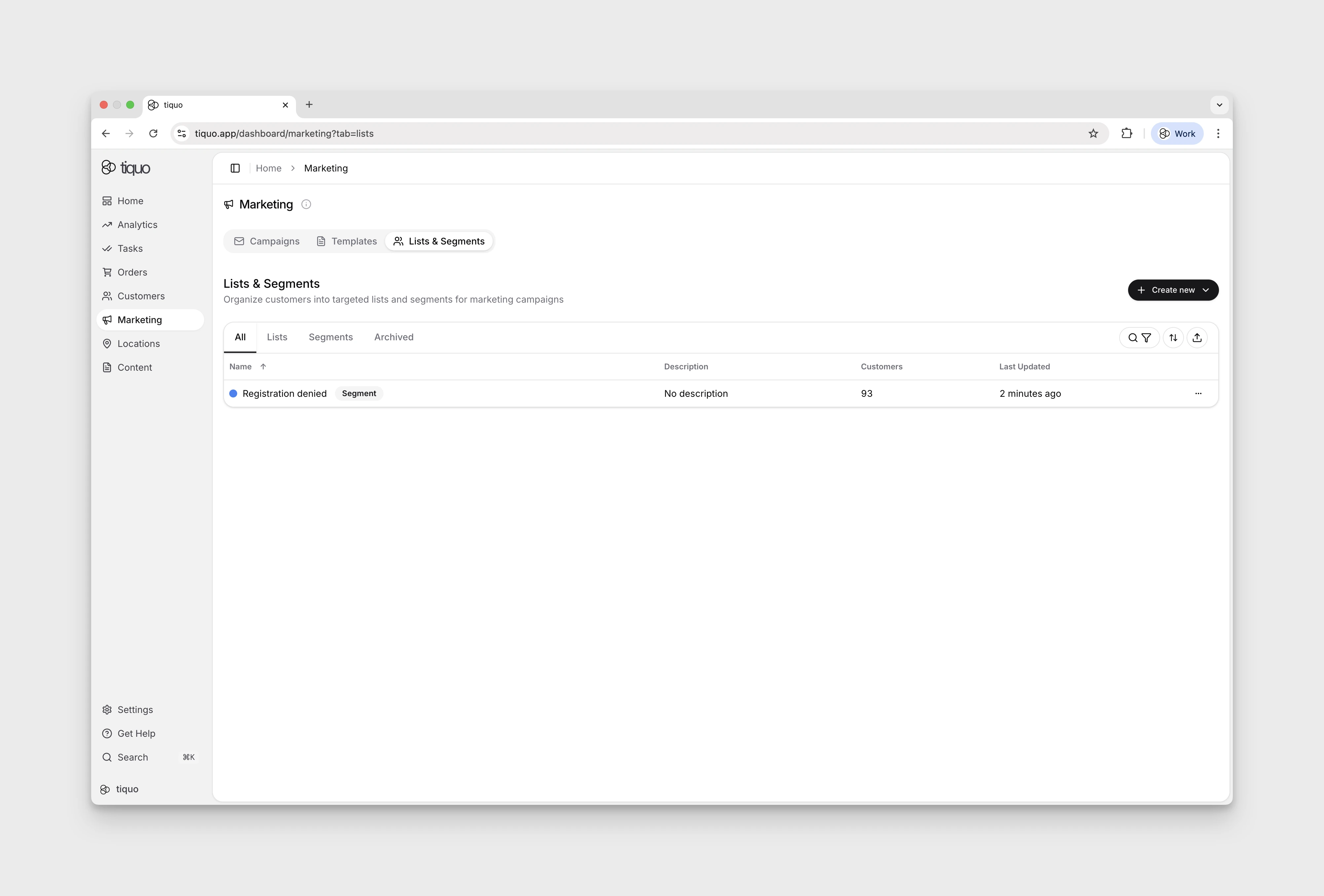
Lists are groups of customers used for marketing communications.
Lists allow organizations to organize customers into manually managed groups that can be selected when sending marketing emails.
Lists are static, meaning customers remain in the list until they are manually added or removed.
Lists are commonly used for:
- Imported customer groups
- VIP customer groups
- Event attendees
- Early access groups
- Internal marketing audiences
Customers can belong to multiple lists at the same time.
Creating a list
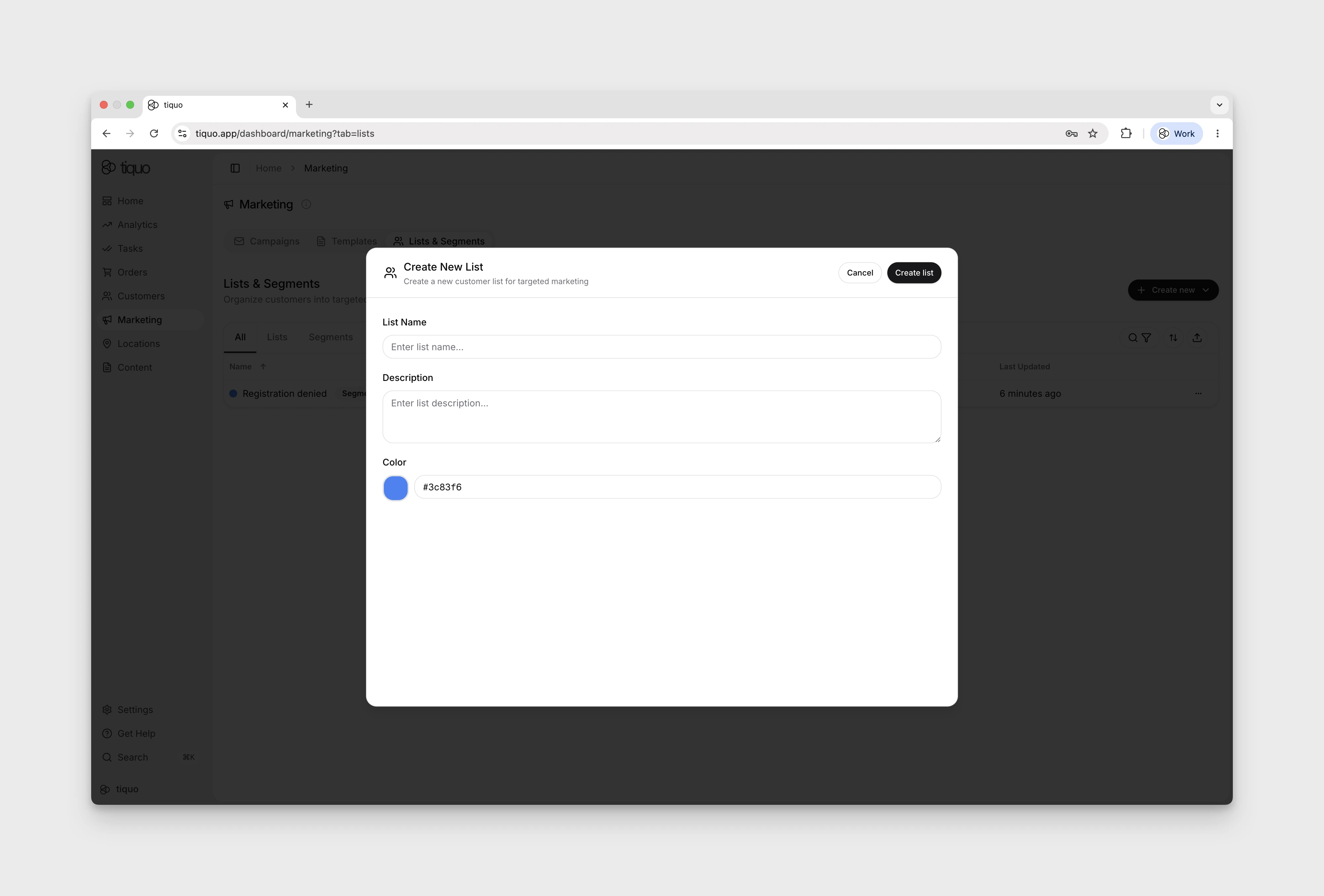
To create a list:
- Navigate to Marketing
- Select Lists & Segments
- Click Create new
- Choose Create list
When creating a list, the following information can be added:
- List name
- Description
- Folder
Once created, customers can be added to the list.
Adding customers to a list
Customers can be added to a list in several ways:
- Manually selecting existing customers
- Importing customers into the list
- Adding customers directly from the customer search interface
Customers are selected from the existing CRM customer database.
Adding a customer to a list does not modify the customer's profile or other list memberships.
Customer membership
Customers can belong to multiple lists simultaneously. Lists do not affect how customers interact with other areas of the platform.
For example, a customer may belong to:
- A VIP list
- A newsletter list
- An event list
Lists define audiences for marketing communications.
Marketing consent
Being included in a list does not guarantee that a customer will receive marketing emails.
Marketing emails are only delivered to customers who have opted in to receive marketing communications. If a list contains customers who have not opted in, those customers will automatically be excluded from email delivery.
Using lists in marketing
Lists can be selected as audiences when sending marketing emails. In the send dialog, lists and segments appear in separate collapsible Lists and Segments groups, each showing how many audiences it contains.
When multiple lists or segments are selected:
- Duplicate customers are automatically removed
- Only eligible recipients are included in the final send
Each customer receives one copy of the email.
Lists can also be selected in Analytics. When used there, customer-backed charts and breakdowns are scoped to the customers in the selected list.
Managing lists
Lists can be updated at any time.
Organizations can:
- Add customers
- Remove customers
- Rename lists
- Update descriptions
- Move lists into folders or back to Unfiled
- Duplicate a list
These changes take effect immediately and apply to future campaigns.
Exporting lists
Lists can be exported when organizations need to work with customer data outside the platform. Exports include the customers currently included in the list.
Archiving lists
Lists can be archived when they are no longer actively used.
Archived lists remain in the system for reference but are not shown in active list views. Archiving allows organizations to keep historical audiences without cluttering active marketing tools.
Segments
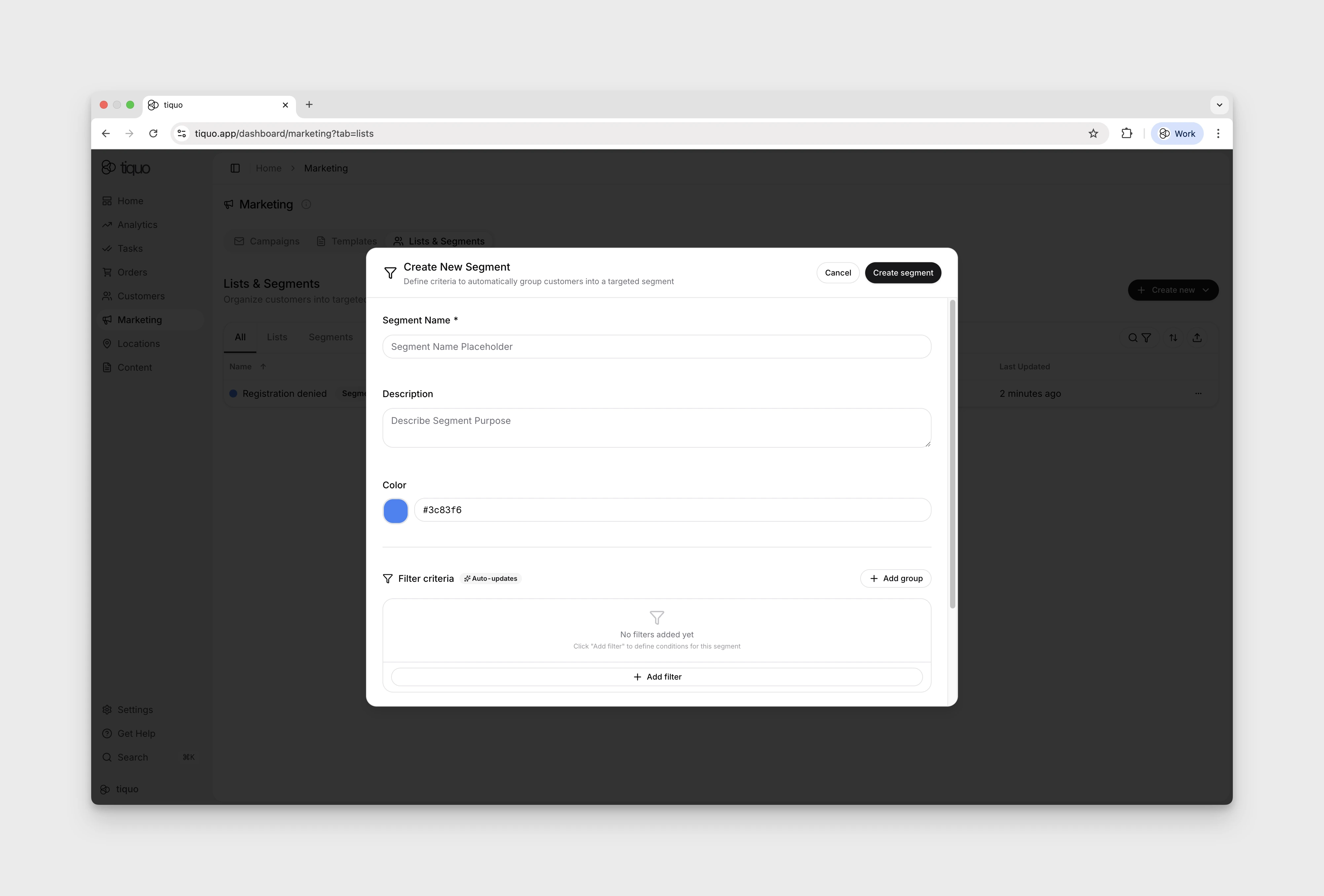
Segments are dynamic groups of customers created using filter criteria.
Unlike lists, which are manually managed, segments automatically include customers who match defined conditions. Segments update dynamically based on customer activity and profile data.
Segments allow organizations to target specific groups of customers based on behavior, engagement, or customer attributes.
Examples include:
- Customers who visited in the last 30 days
- Customers who have spent over a certain amount
- Customers who have not visited recently
- Customers associated with a specific location
Customers can belong to multiple segments simultaneously.
Creating a segment
To create a segment:
- Navigate to Marketing
- Select Lists & Segments
- Click Create new
- Choose Create segment
When creating a segment, the following information can be added:
- Segment name
- Description
- Segment color
- Folder
Define Filter criteria in the creation form using Add group and Add filter, then select Create segment.
Segment filters
Segments are built using filter criteria that define which customers are included.
Filters within one group are combined with AND: a customer must match every filter in that group. Groups are combined with OR: matching any group qualifies the customer for the segment.
Examples of filters include:
- Age range
- Address (the city or country on the customer's address)
- Total spend
- Profile discount (customers who have a given discount on their profile)
- Last visit date
- Marketing consent
- SMS consent
Segments can also use custom customer parameters as filtering criteria.
After Add filter, either open a category or type in the Search filters box to find a filter by its name, description, or category. Search results are grouped by category. Use the arrow keys to move through the list and Enter to add the highlighted filter.
The Address filter is different from the Customers tab's Location filter. Address matches the city or country on a customer's address and lists every country. Location is a customer parameter, so in the segment builder it is under Custom Parameter.
Profile Discount is under Spending & Orders with the other discount filters. Turn on Include discounts inherited from companies to also count discounts a customer gets through an active company relationship.
Dynamic updates
Segments update automatically. The builder's Estimated Results section states Data refreshed every ~5 minutes; this describes the estimate's refresh timing.
Customers are added to or removed from a segment whenever they meet or stop meeting the defined criteria.
Tiquo recalculates segments before sending a marketing campaign so it uses the current audience.
Estimated results
As you configure segment filters, Tiquo estimates how many customers match so you can check the audience size before sending a campaign.
Using segments in marketing
Segments can be selected as audiences when sending marketing emails.
Segments can also be used alongside lists when defining campaign recipients.
When multiple audiences are selected:
- Duplicate customers are automatically removed
- Only customers who meet marketing consent requirements receive the email
Segments can also be selected in Analytics to focus charts on a dynamic customer group, such as members, lapsed customers, high spenders, or customers matching a custom parameter.
Segment visibility
Matching segments appear on each customer's profile, so staff can see which marketing audiences they belong to.
Managing segments
Segments can be edited at any time.
Organizations can:
- Modify filter conditions
- Rename the segment
- Update descriptions
- Change the segment color
The segment audience updates automatically. The approximately five-minute refresh note applies to Estimated Results; it does not establish the timing of audience membership changes.
Segments can also be duplicated. The copy keeps the source criteria so it can be adjusted without changing the audience used by an existing campaign or report.
Folders
Folders organize lists and segments in the same table. Create a folder from the Lists and Segments toolbar, then choose it when creating an audience or move an existing audience into it. Folders can be collapsed, renamed, and deleted.
Deleting a folder does not delete the lists or segments inside it. They move to Unfiled.
Suggested segments
When enough customer data is available, Tiquo can analyze it and suggest useful dynamic segments. A suggestion includes an estimated customer count, a plain description of the audience, and the reason it may be useful.
Open Suggested Segments to review the current suggestions. Create a segment to turn its proposed criteria into a normal editable segment, or dismiss a suggestion that is not useful. Select Refresh suggestions to run the analysis again. No customer is added to a marketing audience until a suggestion is created as a segment.
Card and date-range filters
Segments can target linked payment cards by brand, issuing bank, and funding type. These filters use cards linked to customer profiles; they do not expose full card numbers or guarantee that a card remains available for payment.
For supported days ago filters, use Between to target a bounded range. A range slider's top value can mean and above, so check the label before assuming it imposes an upper limit. Amount filters use the organisation's currency.
Lists & Segments can open customer import directly and add the imported customers to a selected list. When creating a list during import, choose its folder and colour before completing the import.