

Configure Services
Configure bookable services, pricing, duration, capacity, and availability within sublocations
A service defines an appointment, experience, or activity that customers can reserve. The service sets what can be booked; each booking schedules it for a particular time.
Examples include:
- Massage appointment
- Spa treatment
- Fitness class
- Private session
- Workshop
Services are configured within a sublocation and determine how bookings are scheduled, priced, and managed.
Navigating to services
Services are configured per sublocation. To open the services workspace:
- From the main sidebar, select Locations.
- Choose a location, then click the sublocation card whose services you want to manage.
- Open the Configure Services section within that sublocation.
Simple Mode
Use Simple Mode on the Configure Services page for everyday service setup. Select a Business Type to apply the terminology, booking order, scheduling method, party-size rules, and workspace structure for your operation without building the full advanced flow graph.
Simple Mode uses these workspace patterns:
- Appointment uses a direct appointment-type-to-calendar workspace for staff, rooms, or equipment.
- Restaurants and bars manage table and seat instances directly.
- Spa & Treatments uses a connected treatment-to-room workspace.
- Hotel Rooms, Meeting Rooms, Gym, Sport and Leisure Facilities, Venue Hire, and Classes & Tutoring use service folders containing connected inventory.
- Exhibitions, entertainment venues, and Events use category folders containing ticket types and a paired schedule.
- Health Club combines the Spa and Gym workspace patterns as separate sections within one customer flow.
Choose the guide for the selected Business Type:
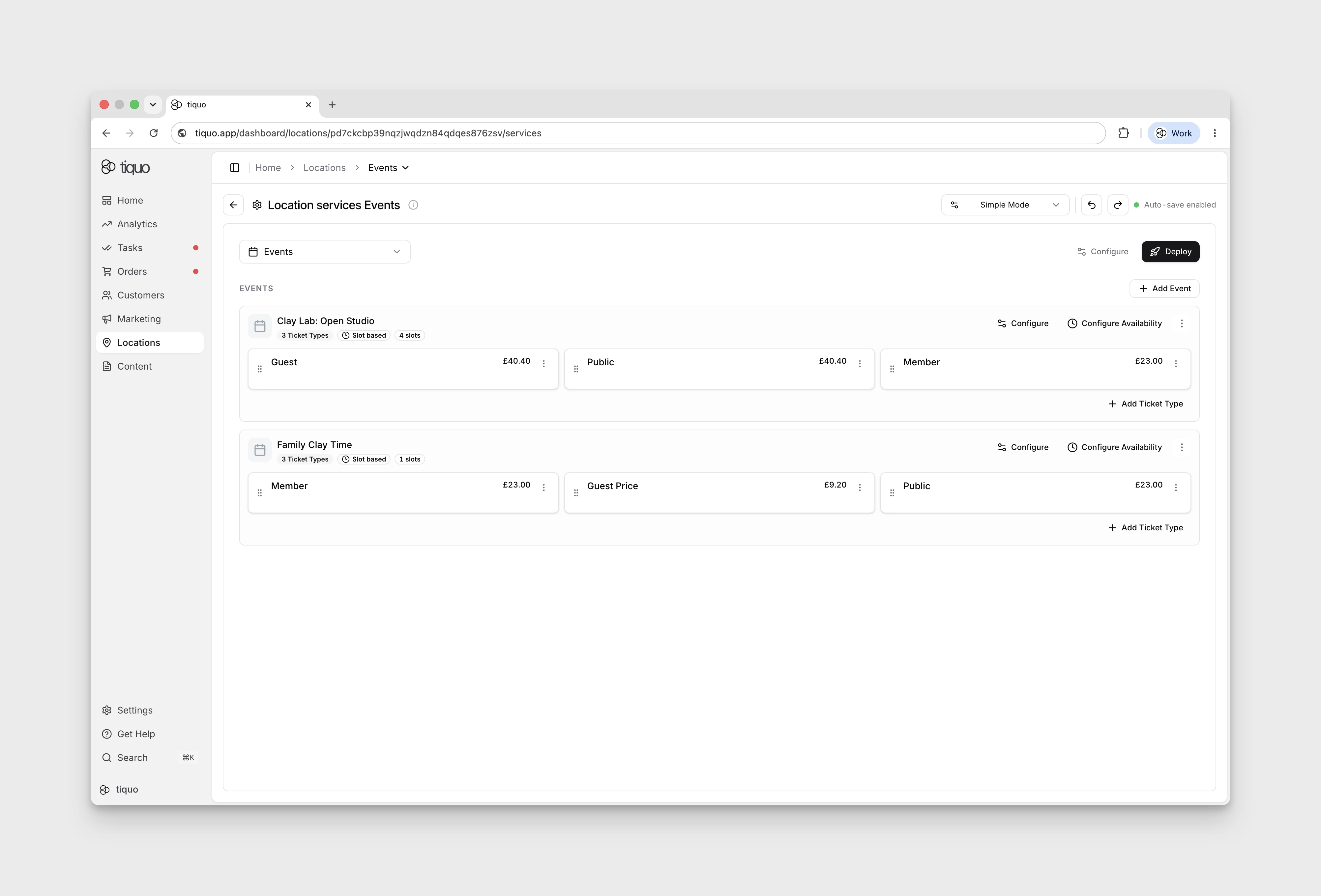
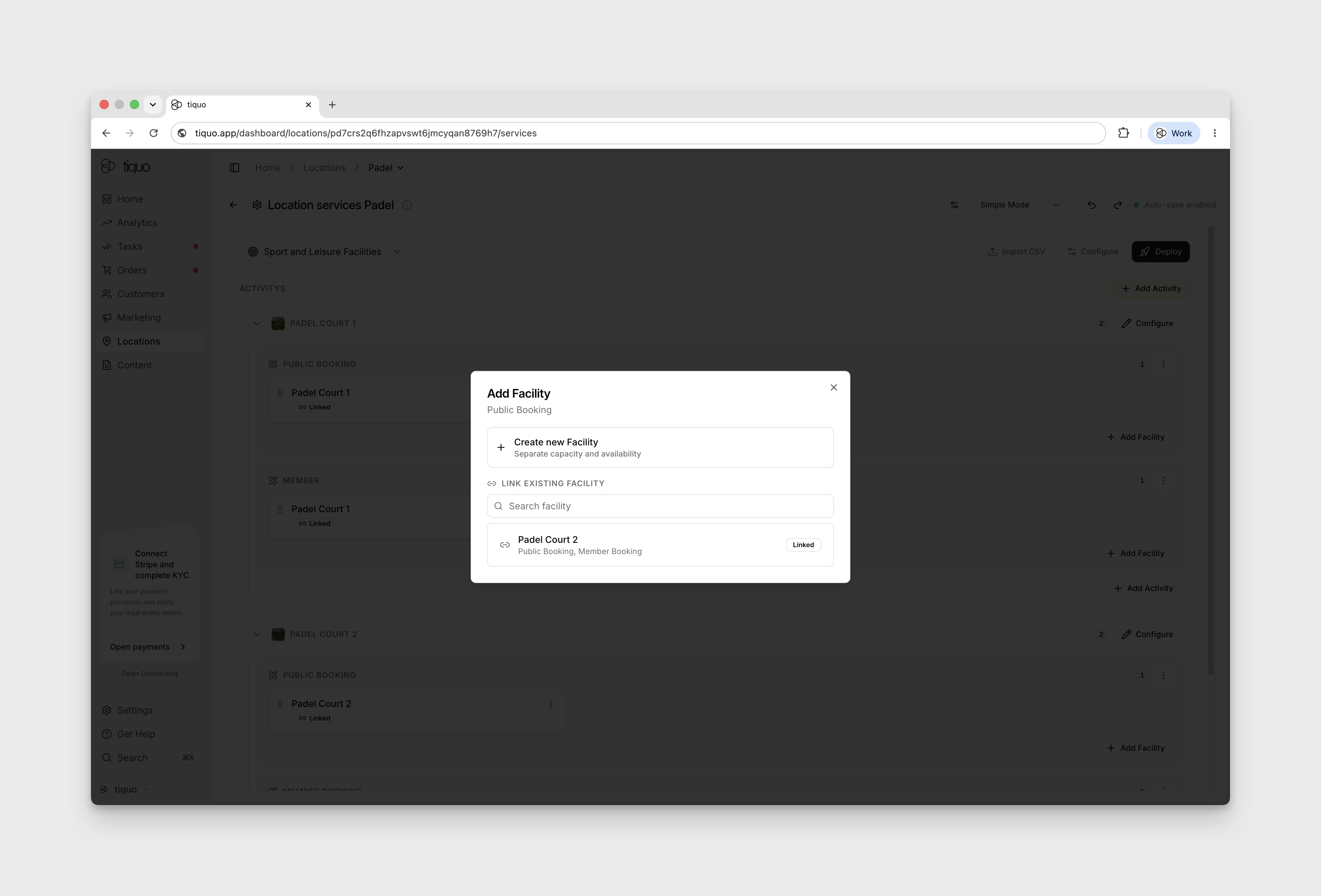
For service-folder modes, an inventory item can be created for one service or linked as existing inventory. Linking the same facility to multiple services shares its capacity across those booking options. For example, one padel court can fulfil member, guest, and public activities; a booking through any of them consumes the court's availability.
The Business Type selector is locked once services or inventory have been created. Delete those items before changing to a different preset.
The Simple Mode sidebar provides the industry workspace, a Booking flow group, and Appearance, Localization, and Notifications. Under Booking flow, select General, Services, Offers, Steps & navigation, Scheduling, Customer details, Payment, Policies, Layout, or Deployment.
Use Download TXT config from the Simple Mode actions to export the visible workspace, booking-flow, service, inventory, connection, category, instance, service-setting, and offer configuration as a readable text file. The export is for review and support; it does not create a second configuration or expose credentials.
Simple Mode handles common day-to-day setup. For multiple customer flows, detailed inventory logic, or custom graph structures, use Advanced Mode. Advanced Mode can return to Simple Mode only when the sublocation has no services or inventory; remove those items first or the Simple Mode option remains locked.
Share a booking link for one category
In Simple Mode, open a service or event category's three-dot menu and choose
Copy booking link. The copied link opens the flow's hosted booking page,
on your custom booking domain if one is live, with that category selected and
locked (it adds categoryId and lockCategory=true to the page address).
Customers choose from the category's services or ticket types and continue
through the flow's usual steps.
The link does not change who can book. If any service in the category has restrictions, a Booking link copied dialog lists them for each service:
- inactive or staff-only services, which stay unavailable through the link
- membership access rules, including required plans and permissions, and those on named prices
- per-customer booking limits
- minimum and maximum advance booking
Availability, capacity, and every other booking rule still apply.
Advanced Mode and flow builder
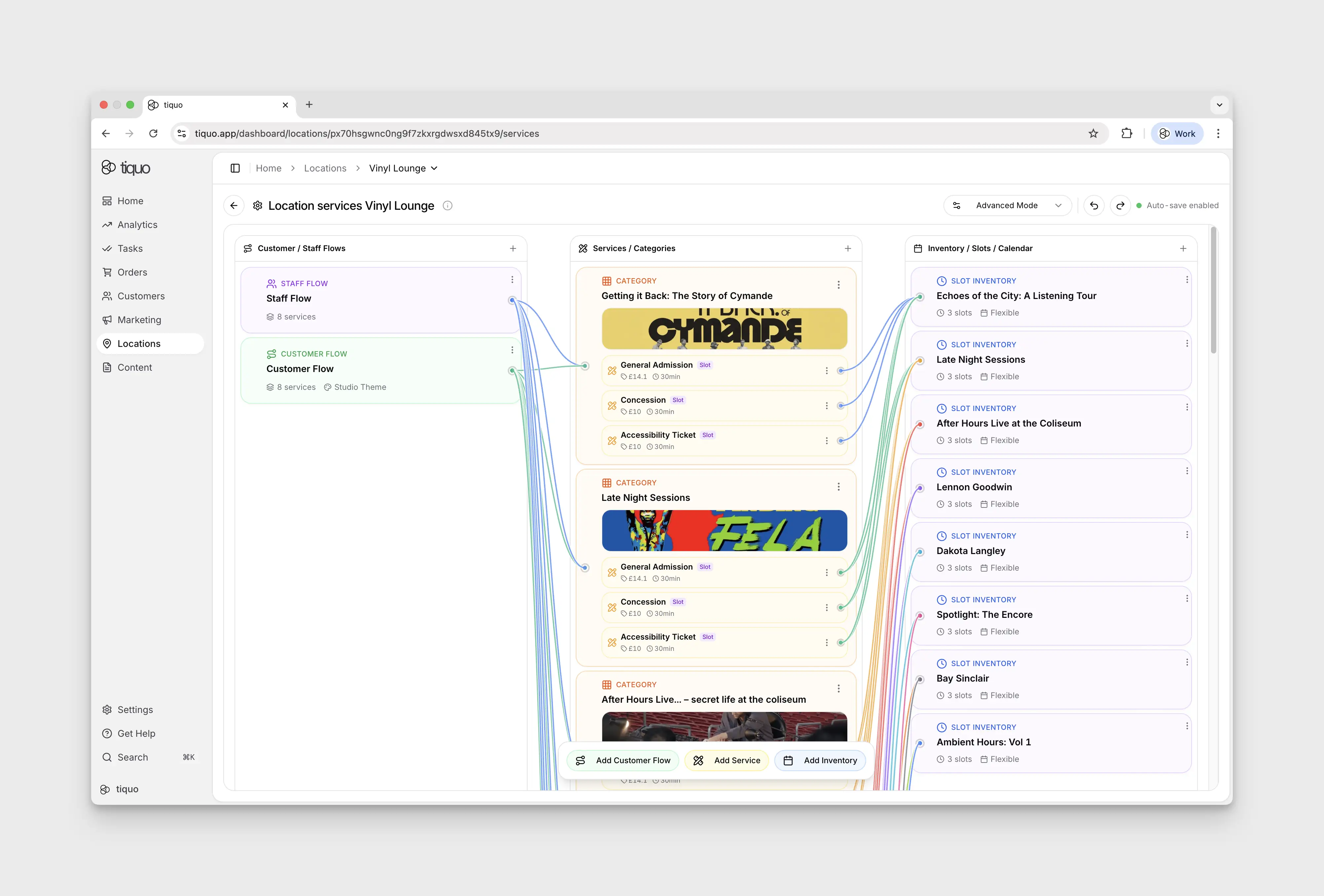
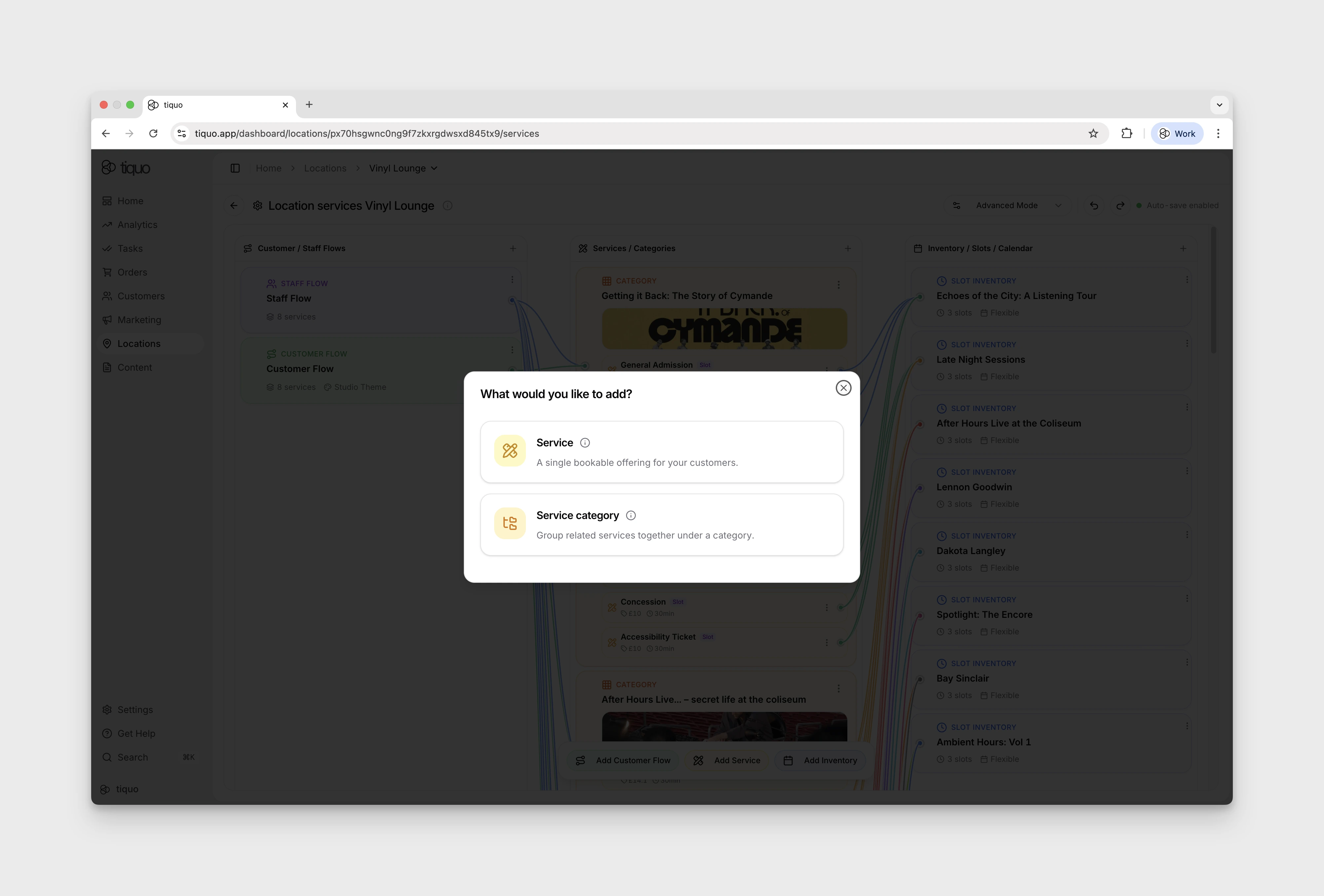
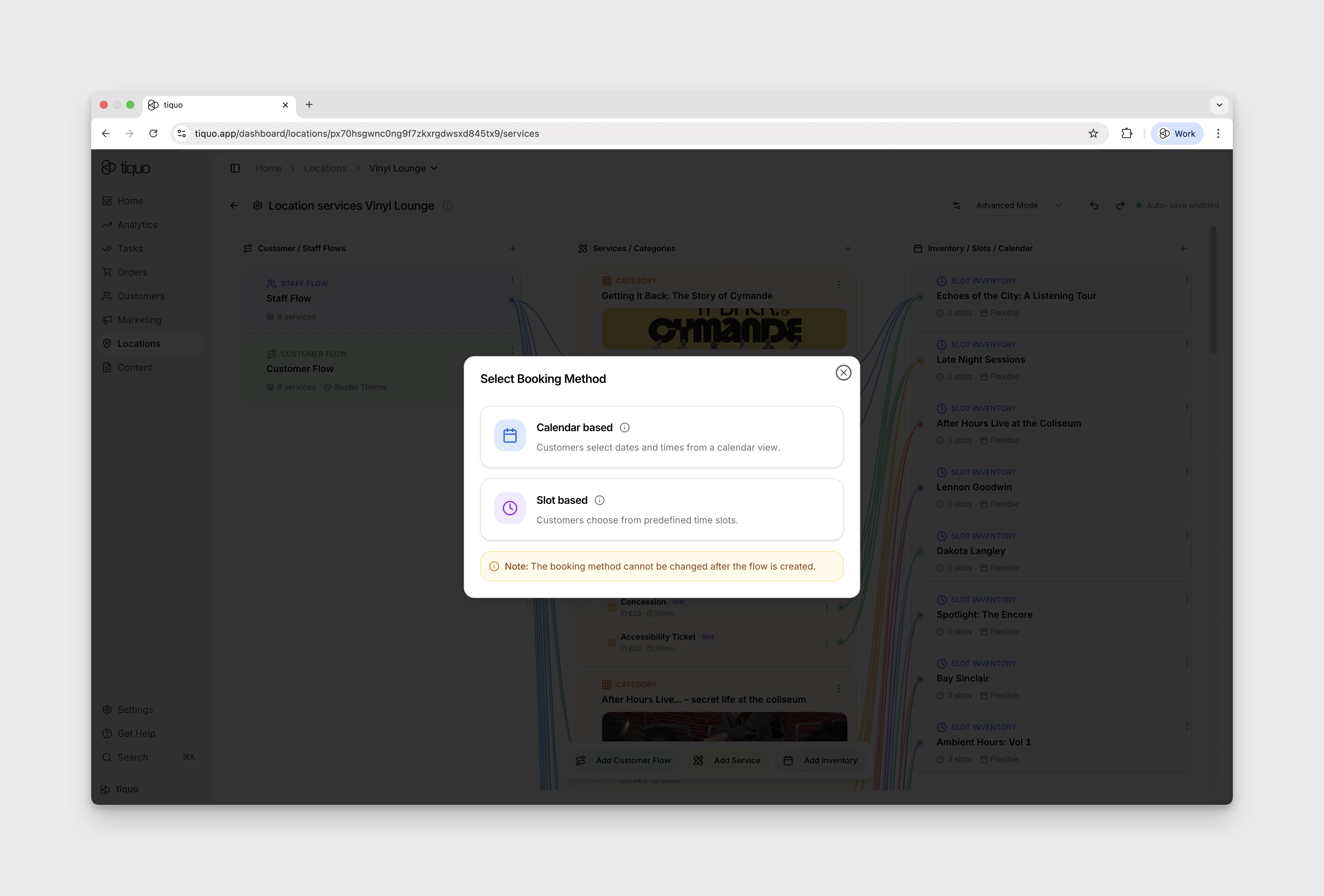
Advanced Mode is a three-column visual flow builder showing how customer and staff journeys connect to services and inventory. The + button at each column header adds a new card for the respective columns. These can also be added from the bottom action bar.
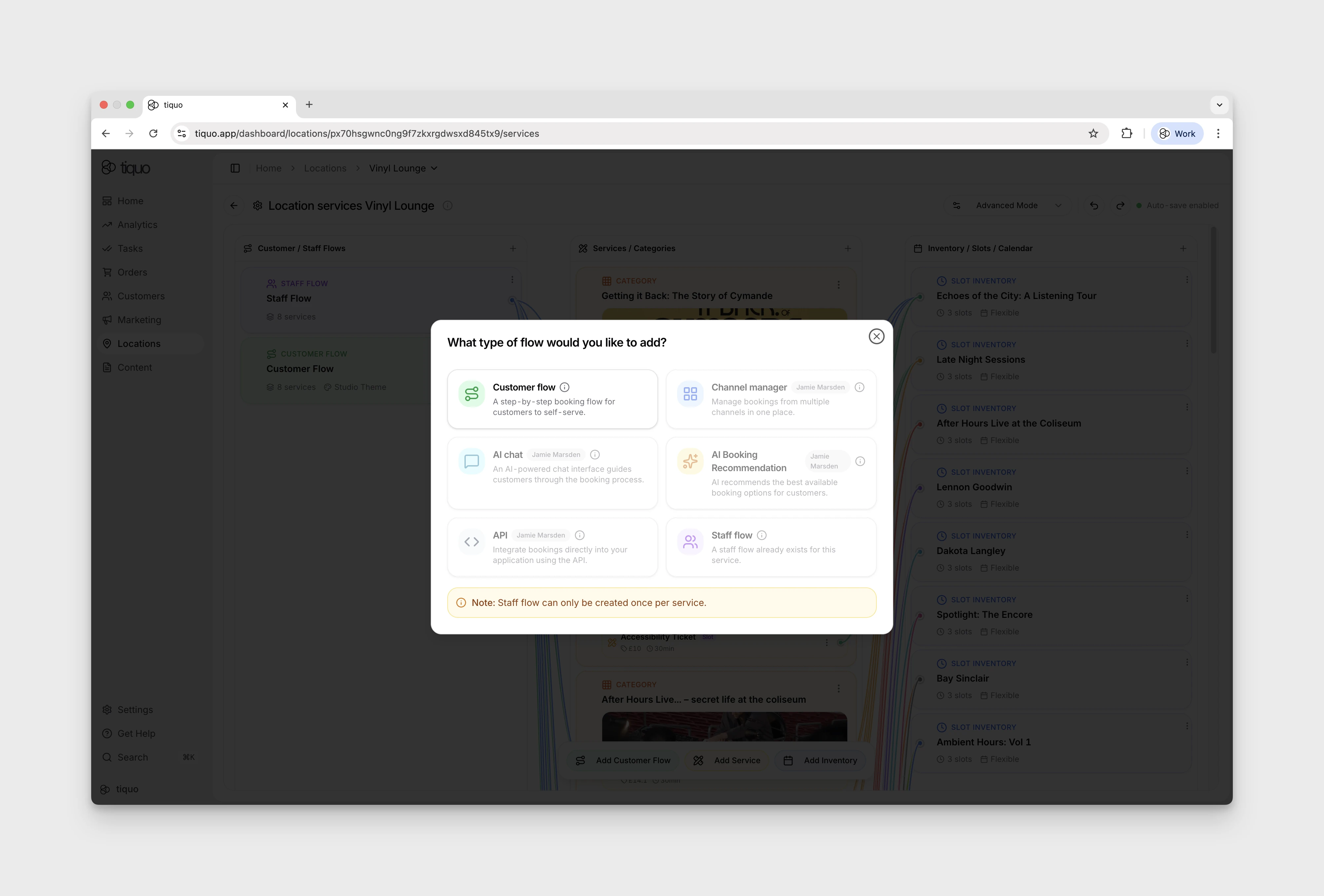
Guided setup and templates
Some sublocation templates use a guided setup flow to create the right services and inventory structure for the type of business being configured.
Guided setup is useful when the inventory is the main thing customers book. For example:
- Restaurants and bars can be set up around tables
- Hotels can be set up around rooms
- Meeting spaces can be set up around rooms or bookable spaces
- Spas can be set up around treatment rooms or therapists
- Events can be set up around ticket types and scheduled slots
These guided flows create normal Tiquo services, customer flows, staff flows, and inventory, with fewer manual setup steps for common venue types.
Advanced mode remains available for teams that need to customise flow connections, service categories, inventory rules, pricing, or availability in more detail.
Customer / Staff Flows
Defines how bookings are initiated. Two flow types exist:
- Customer Flow: the booking journey customers follow when they book themselves (website, portal, branded flow)
- Staff Flow: the booking journey staff follow when booking on behalf of a customer in Tiquo through bookings and orders
Customer-facing booking surface: each Customer Flow deploys to its own Hosted Page URL and Embed Code (see the Customer Flow editor's Deployment tab). Customers reach a flow via that hosted page, an embed on the operator's website, or a branded shareable link. Whatever services are connected to that flow are the services the customer sees; the inventory connections drive resource allocation when the booking is created.
Customer Flow editor
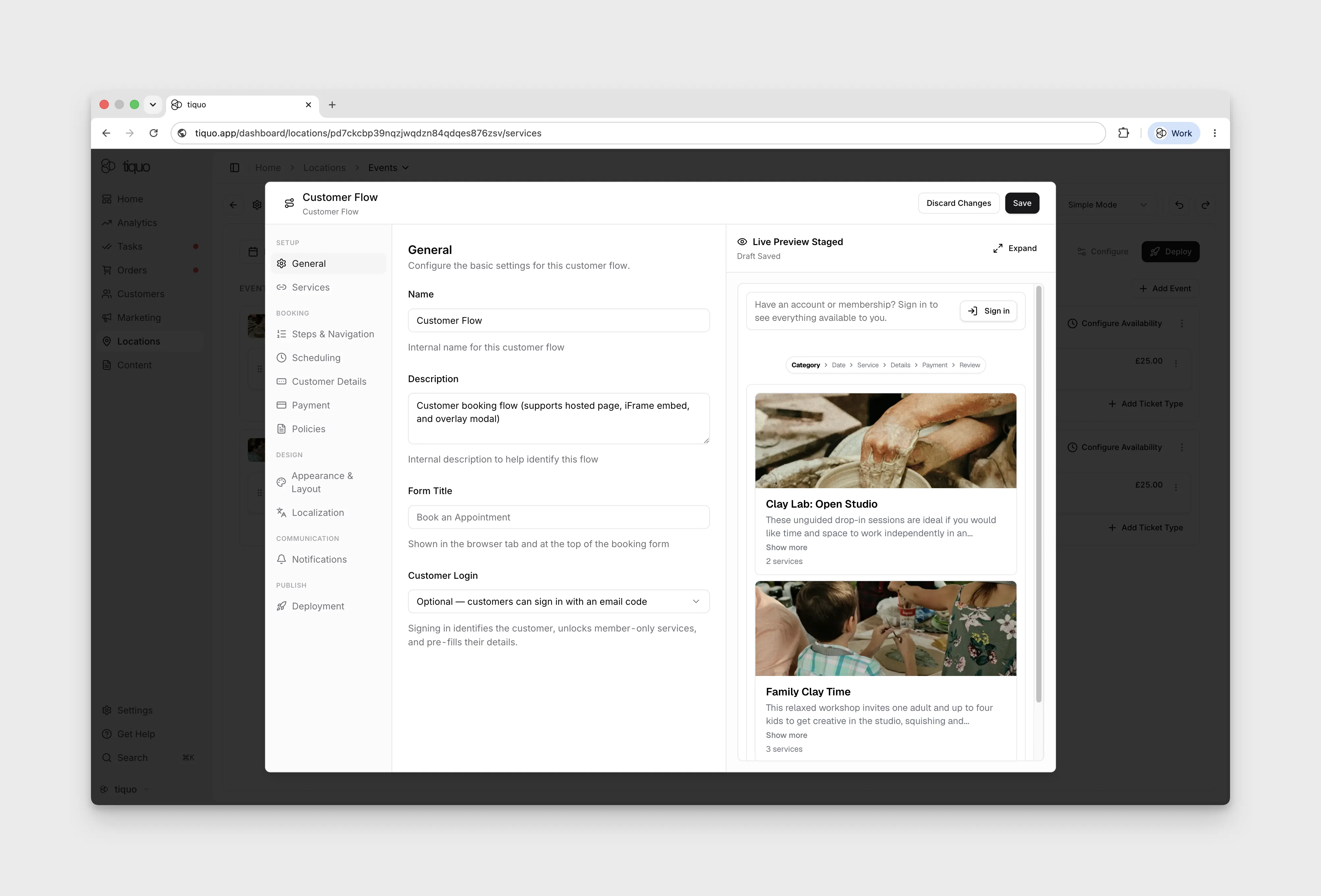
The editor is organised into tabs. Each tab controls one part of the customer-facing booking journey.
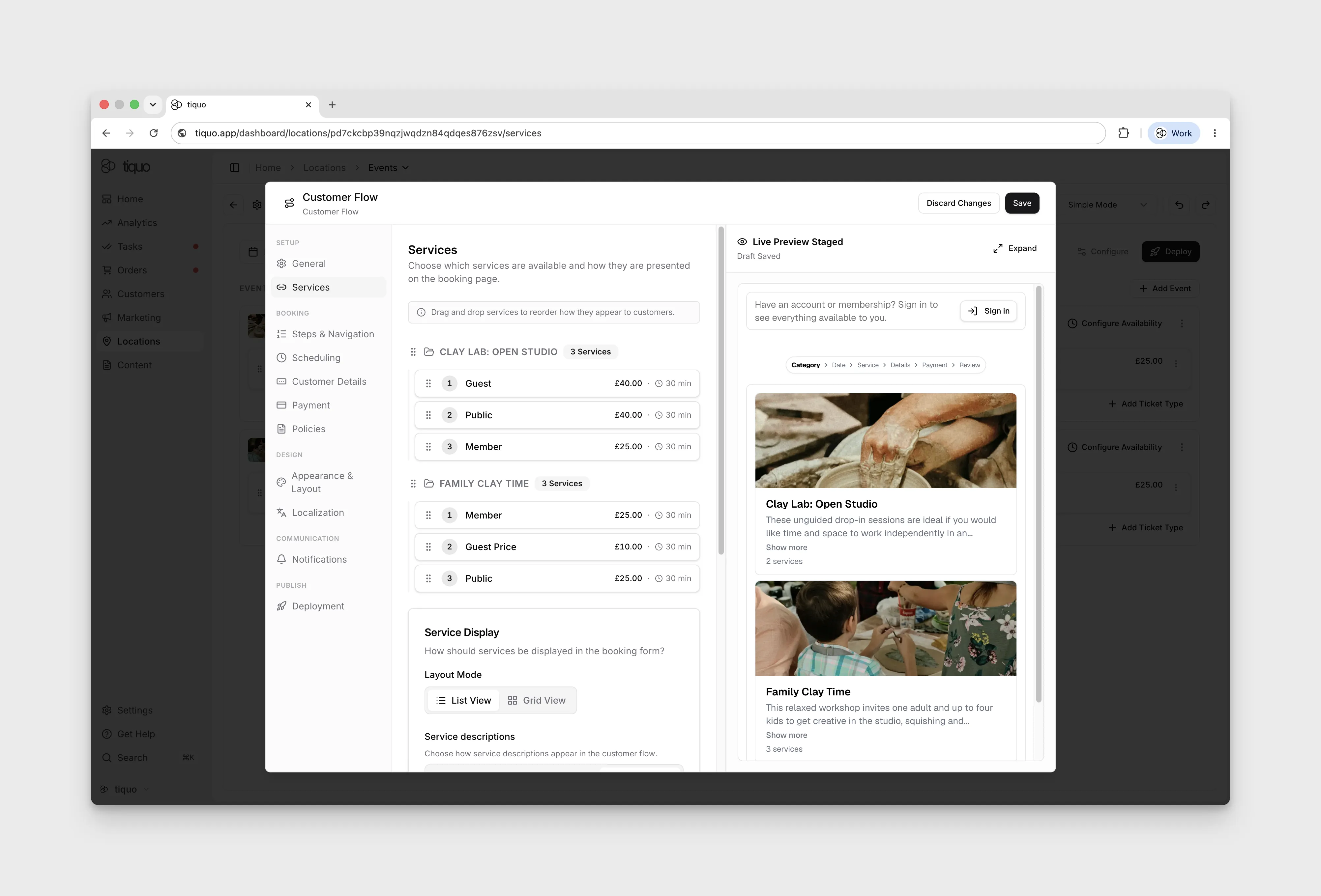
Setup > services
Choose which services are available on the flow and how they are presented on the booking page.
Use Show Capacity to display the exact remaining capacity once both the service and date/time are known. Capacity appears on the choice that completes that context:
- Category → Date/Time → Service: on the service
- Category → Service → Date/Time: on the date/time
- Date/Time → Category → Service: on the service
- Agenda List View: directly on the agenda item
Services with unlimited capacity do not display a remaining-capacity value. Turning this setting off changes presentation only; capacity limits are still enforced.
Each connected service in the list shows its price and duration. A slot-based service shows the length of its slots instead of the service's own duration, or the shortest and longest slot lengths when its slots differ.
Setup > steps & navigation
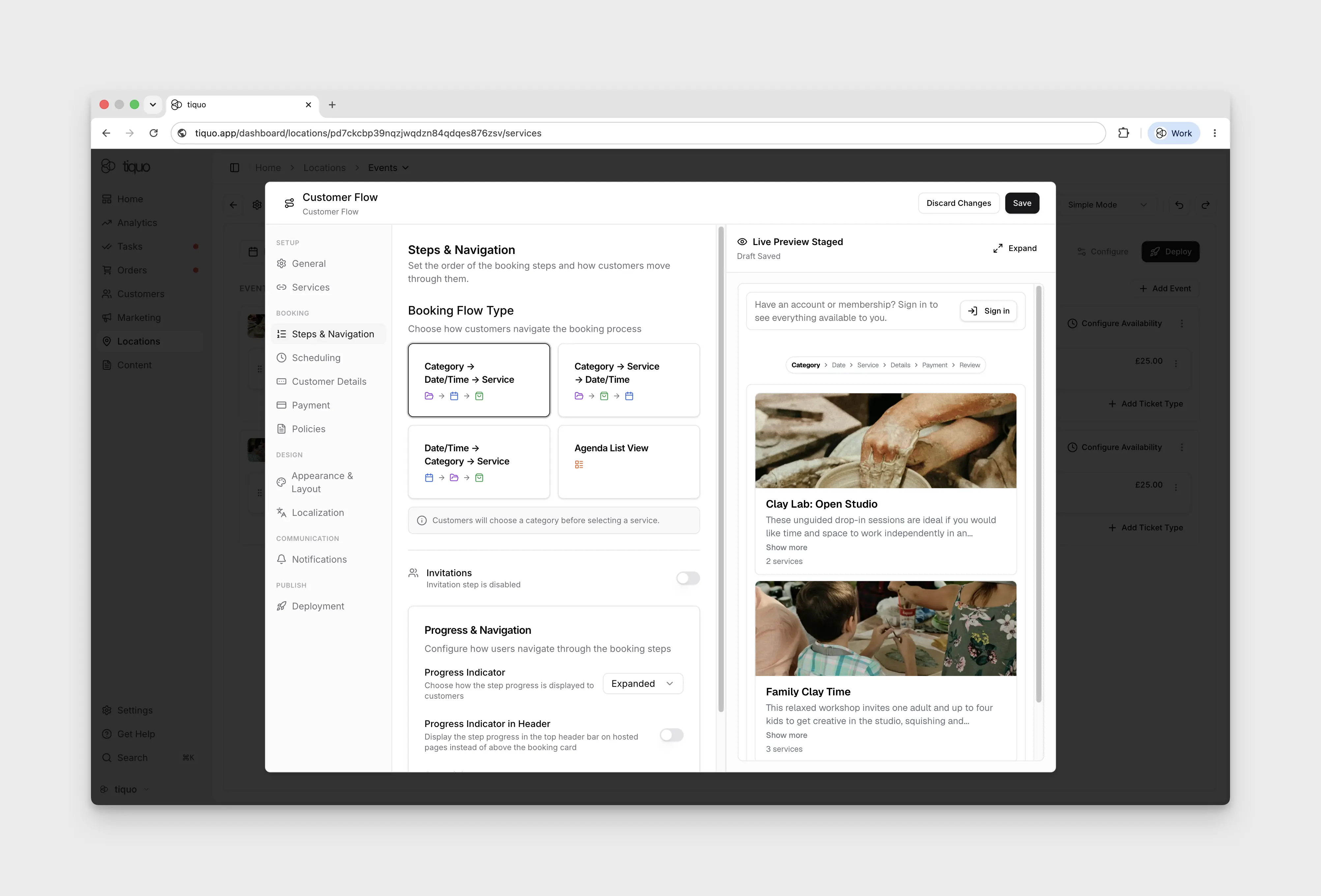
Set the order of the booking steps and how customers move through them.
Setup > scheduling
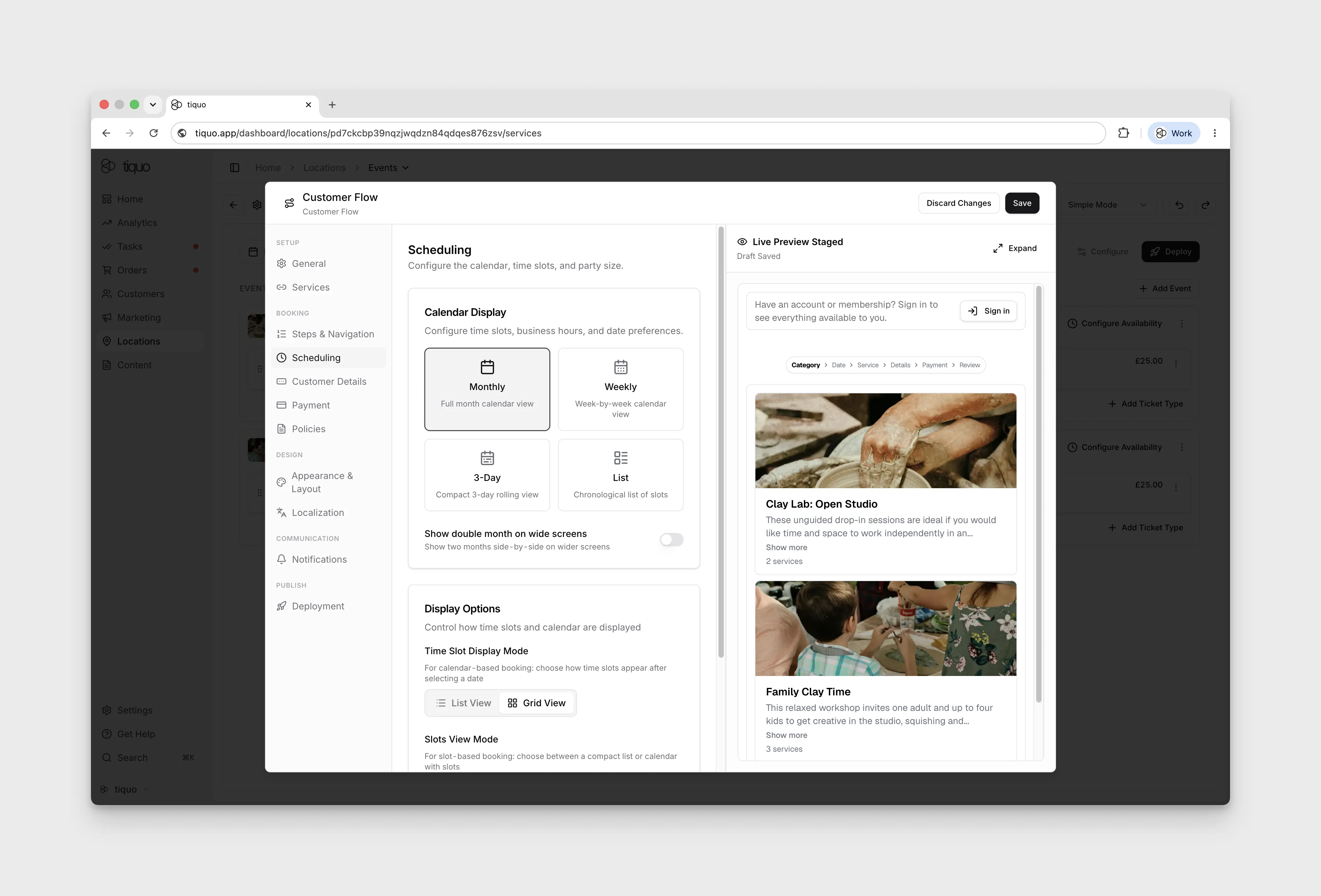
Configure the calendar, time slots, and party size.
Setup > customer details
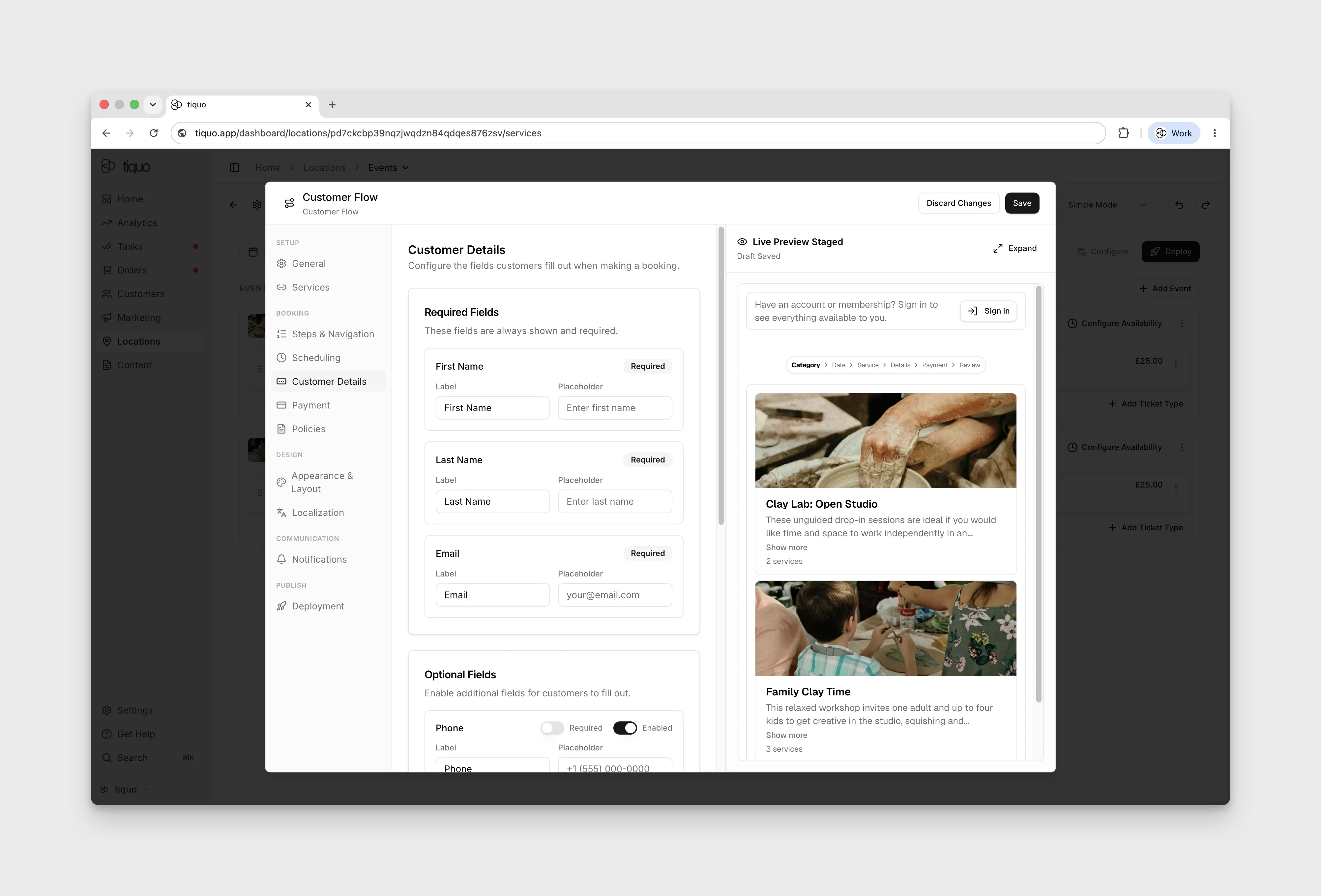
Configure the fields customers fill out when making a booking.
Custom fields can be linked to active Customer Parameters so submitted details are saved as structured customer data. Field and parameter types must be compatible; compound parameters require a nested field, select-based inputs support option mapping, and the field type remains locked while the link is active.
Setup > payment
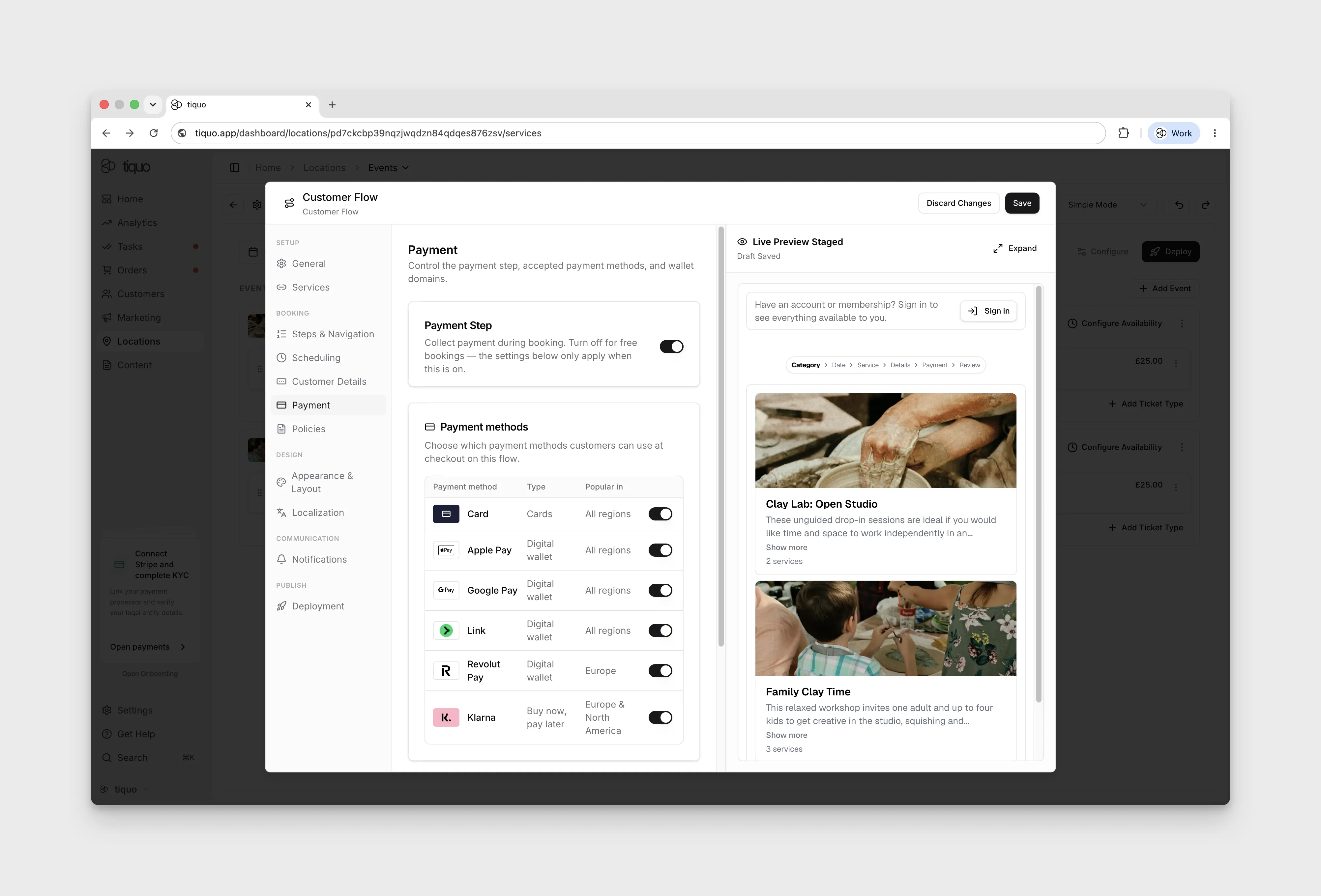
Control the payment step, accepted payment methods, and wallet domains.
In Simple Mode the payment step is Take payment when customers book. The settings below it only apply while it is on.
Payment methods lists Card, Apple Pay, Google Pay, Link, Revolut Pay, and Klarna. Card is always on. Switch a method off to hide it at checkout on this flow; which of the others a customer sees depends on their device, country, and currency. Switching off Revolut Pay or Klarna removes only that method, so the other methods stay available. A no-show card guarantee always collects a card.
Apple Pay & Google Pay lists the websites where those wallets can appear in the payment form:
- Websites already registered, each with an Apple Pay and a Google Pay badge showing whether that wallet is on for the site.
- Your live custom booking and customer portal domains. These are registered automatically when they go live, so a Register button only appears if automatic registration did not succeed.
To accept Apple Pay and Google Pay on your own website where you embed a booking flow, enter its address under Add another website and select Add. Add the www. address too if your site uses it. Registration applies to the whole organisation, so a registered website works for every booking flow. Tiquo's own booking pages need no registration.
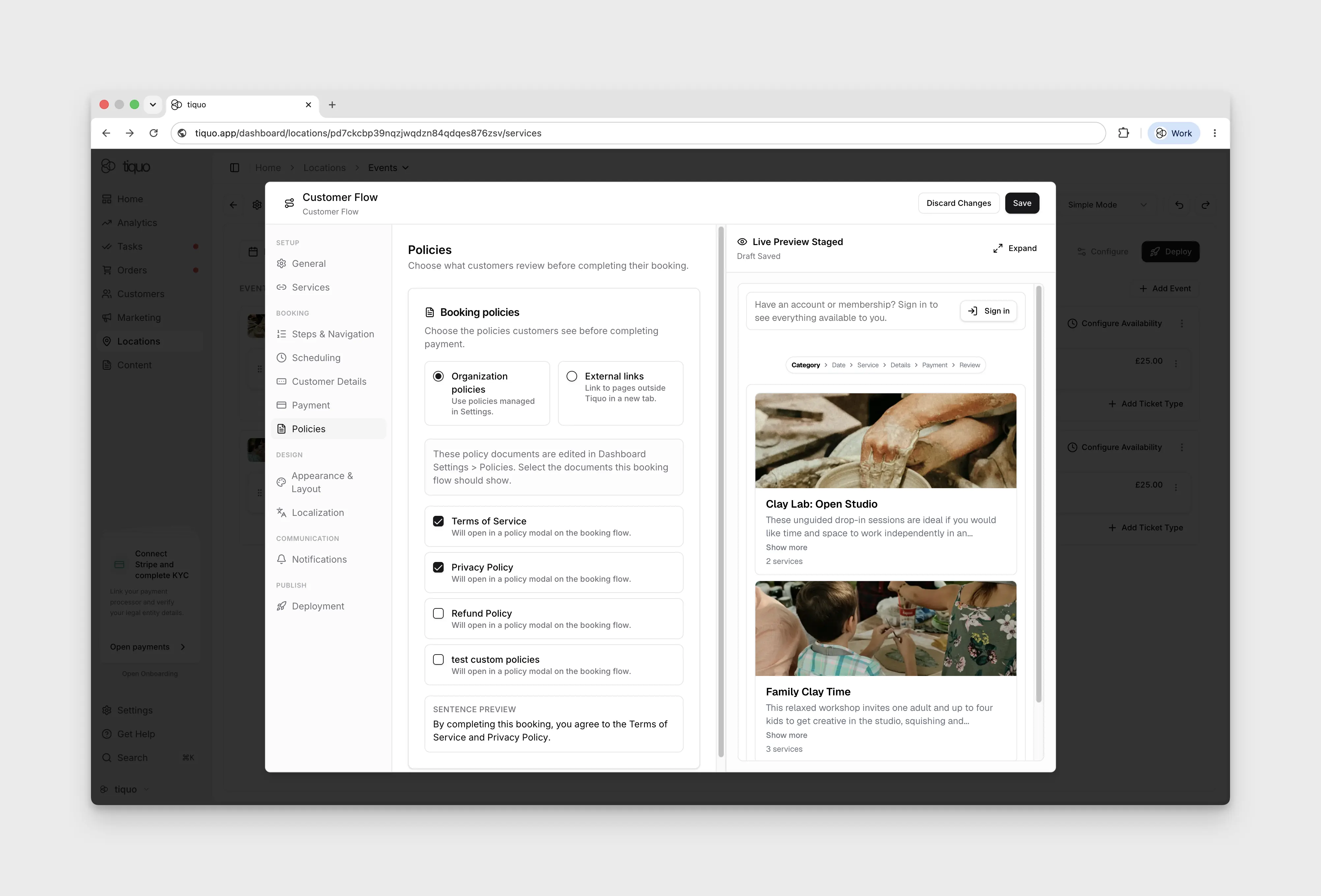
Setup > policies
Choose what customers review before completing their booking.
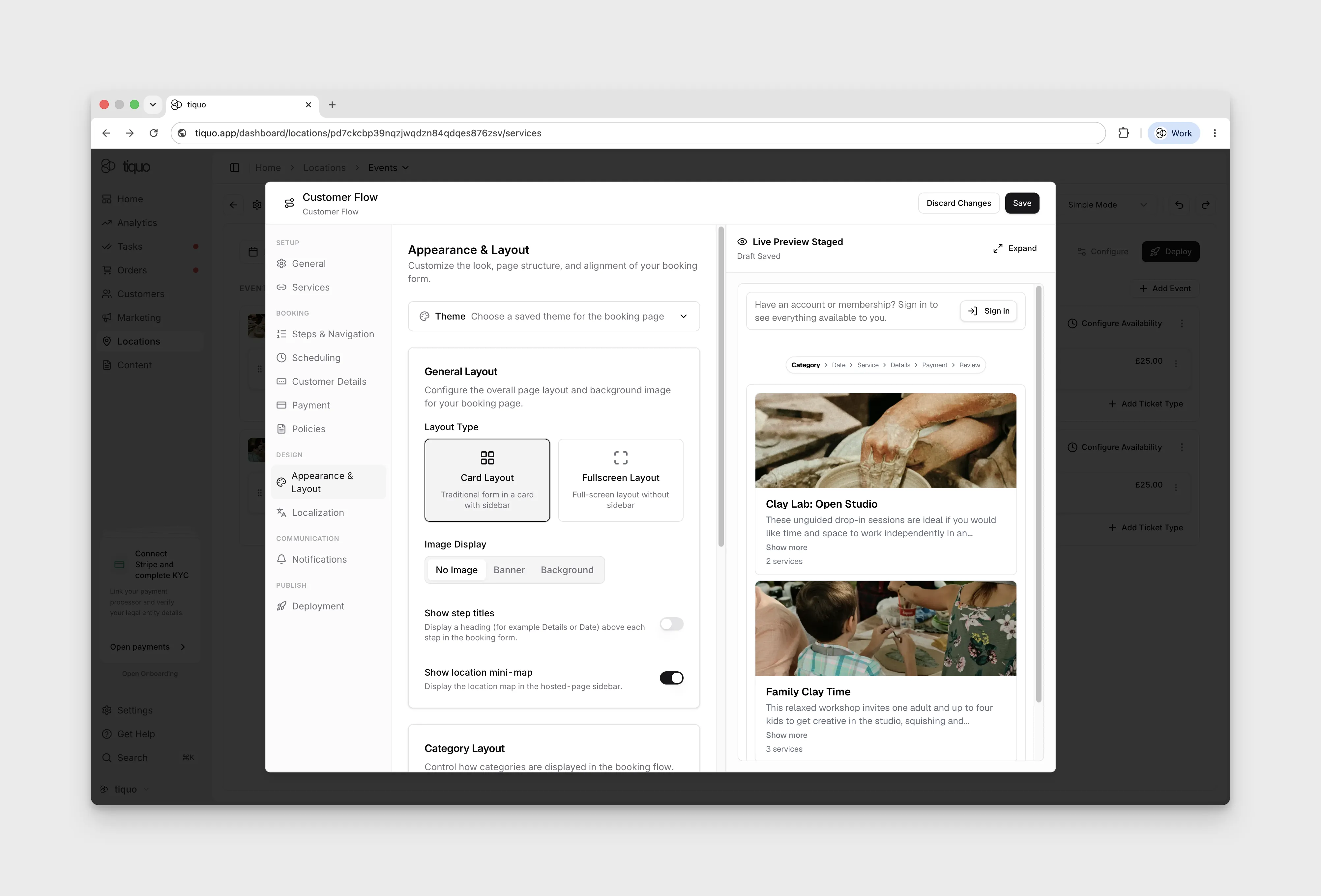
Appearance & layout
Use Appearance to select a saved Theme. With no theme selected, the flow inherits the dashboard or location override. Use Layout for the booking form's page structure and alignment.
In Layout, Header logo position places your theme's logo on the Left, Centre, or Right of the hosted booking page header. The default is left. When you add a page image, you can choose one from your organisation's media library, upload a new image, or enter an image URL. Browsing the media library needs the Manage content & pages permission.
Open Booking flow > Services to find Show Duration. This setting controls whether customers see service duration in service choices, booking summaries, payment details, confirmations, and supported booking tickets. Turning it off changes presentation only; duration still controls availability and booking end times.
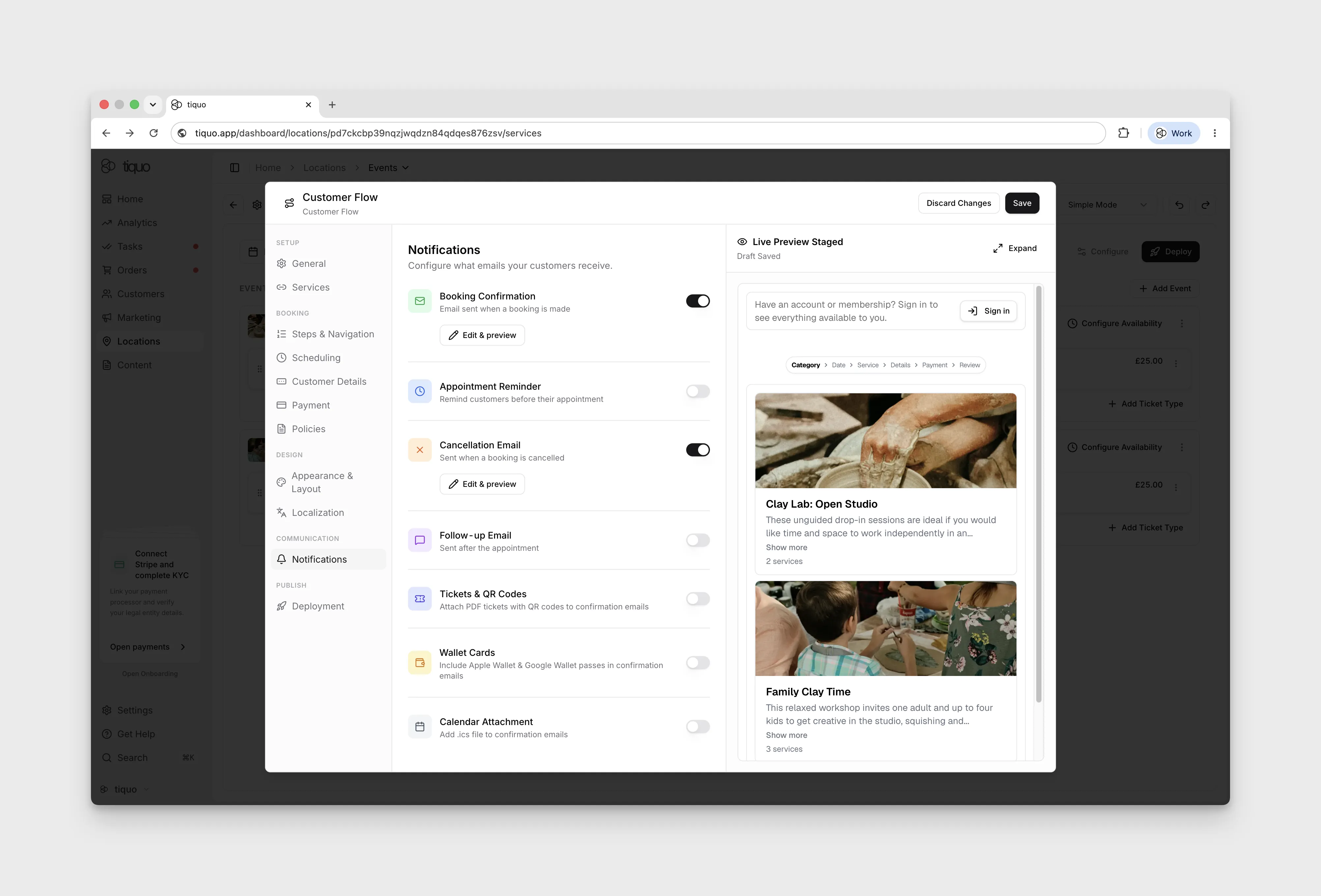
Notifications
Configure which emails your customers receive.
Select Edit & preview to change an email's wording and see a live preview. The booking confirmation and reminder include a Manage Booking button that opens the booking in your Customer Portal, where the customer can cancel or reschedule if the service allows it. Turn off Show button to hide it, or select the button text in the preview to change it. The button only appears when your organisation has an active customer portal.
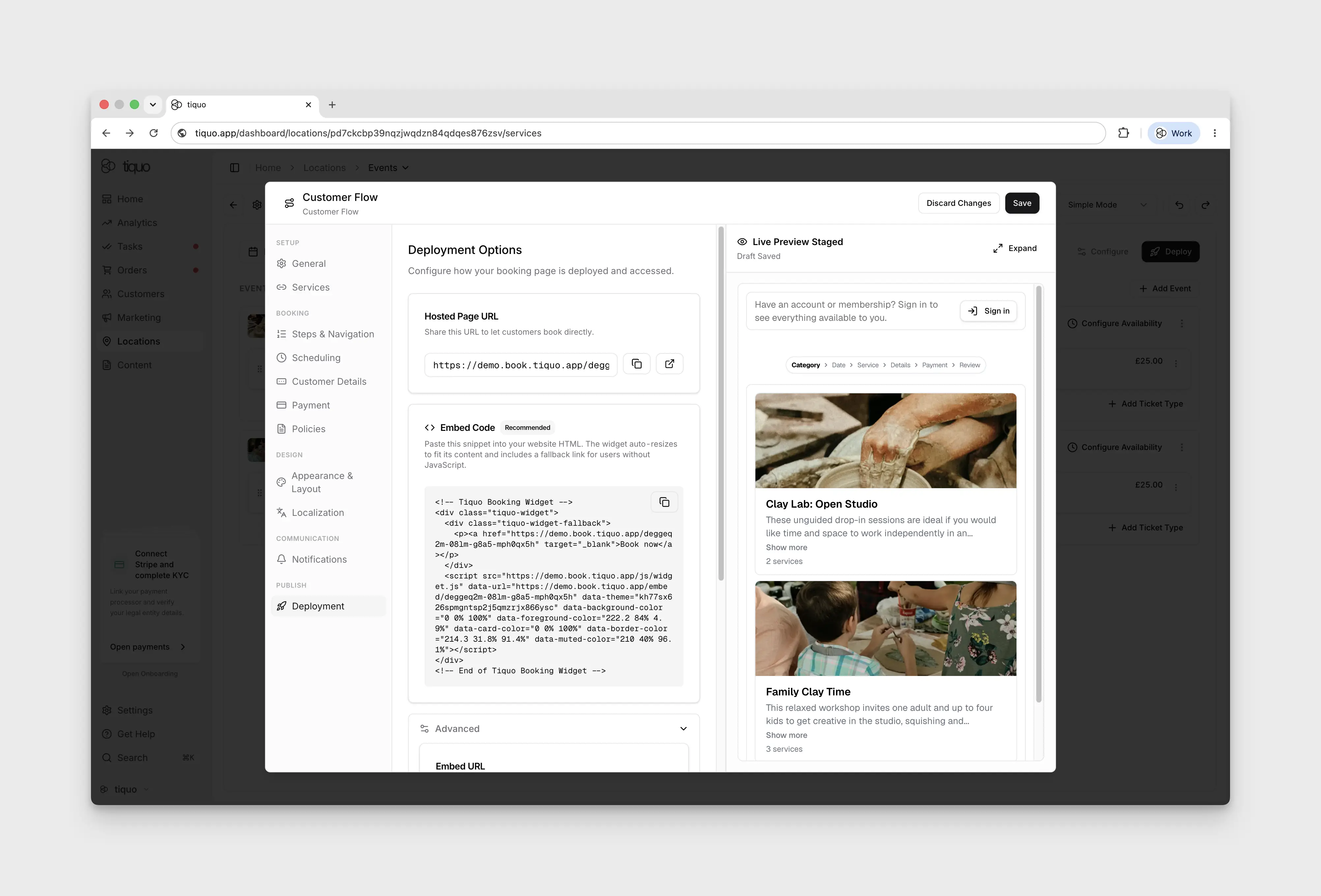
Deployment
Deployment contains the Hosted Page URL and an Embed Code snippet, including in Simple Mode. Apple Pay and Google Pay website-domain registration is under Payment.
Why multiple Customer Flows? Customer Flows multiplex the booking experience: which services appear, which steps the user walks through, which theme renders, which payment and invitation rules apply, and which surface deploys the flow. A sublocation can run several in parallel, for example a public website embed, a VIP shareable link with a different service set and theme, and an in-room iPad self-booking page. Staff Flows by contrast are limited to one per service and cover all staff surfaces uniformly.
Staff-facing booking surface: the Staff Flow drives every staff booking surface across the dashboard, iPhone, iPad, Android, and PDQ (the UK term for a card-payment terminal). A service can have at most one Staff Flow attached, so unlike Customer Flows there is no multiplication of staff experiences.
Editing Staff Flow:
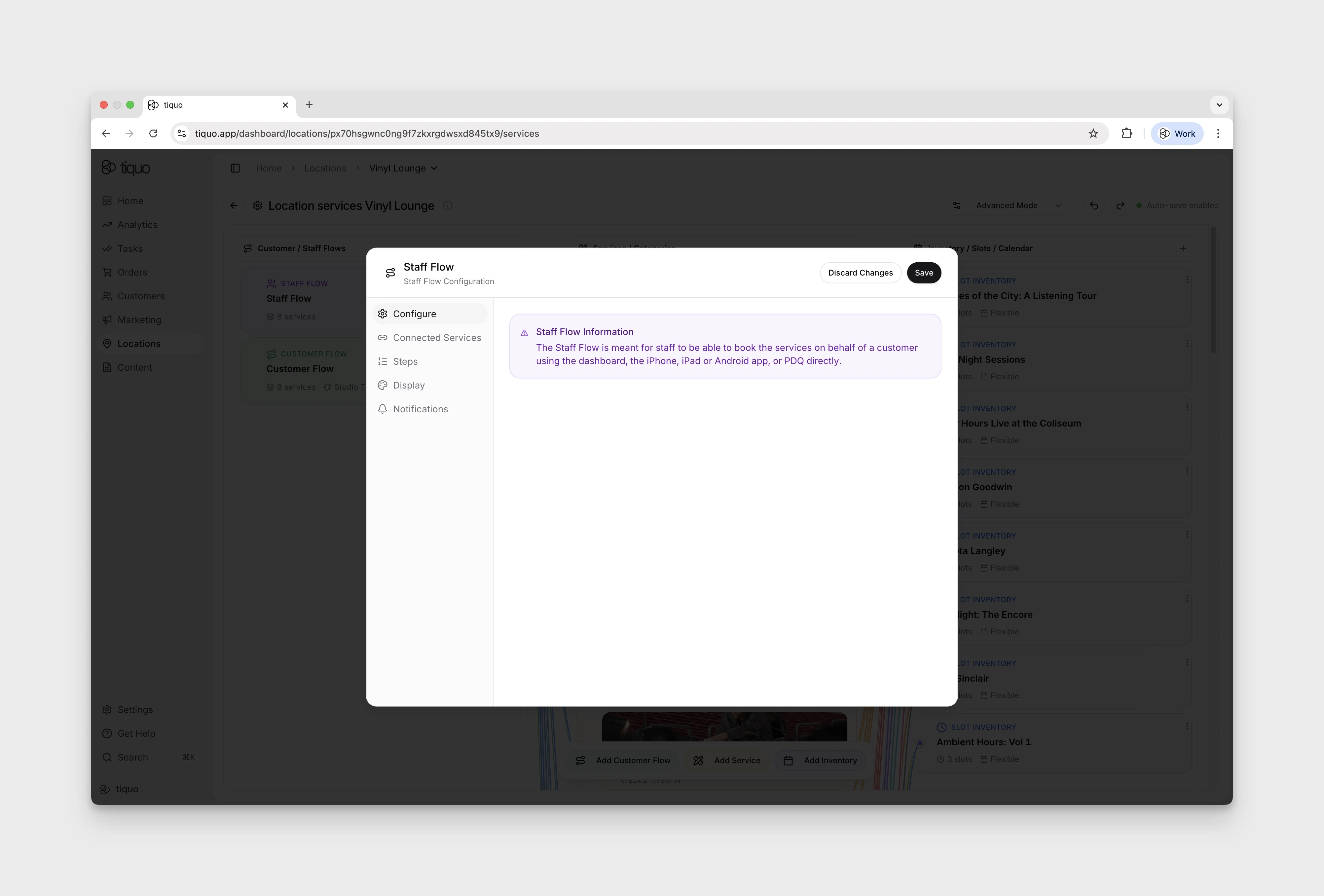
- Configure: confirms the Staff Flow is for staff booking on behalf of a customer across the dashboard, iPhone, iPad, Android, and PDQ.
- Connected Services: which services this flow exposes, drag-and-drop to reorder, grouped by Category.
- Steps: Booking Flow Type (Date/Time → Service, Service → Date/Time, Agenda List View), Party Size (min, max, default, label), Invitations toggle, Payment toggle.
- Display: Quantity Selector toggle.
- Notifications: Booking Confirmation, Appointment Reminder, Cancellation Email, Follow-up Email, Tickets & QR Codes, Wallet Cards, Calendar Attachment toggles.
Services / categories
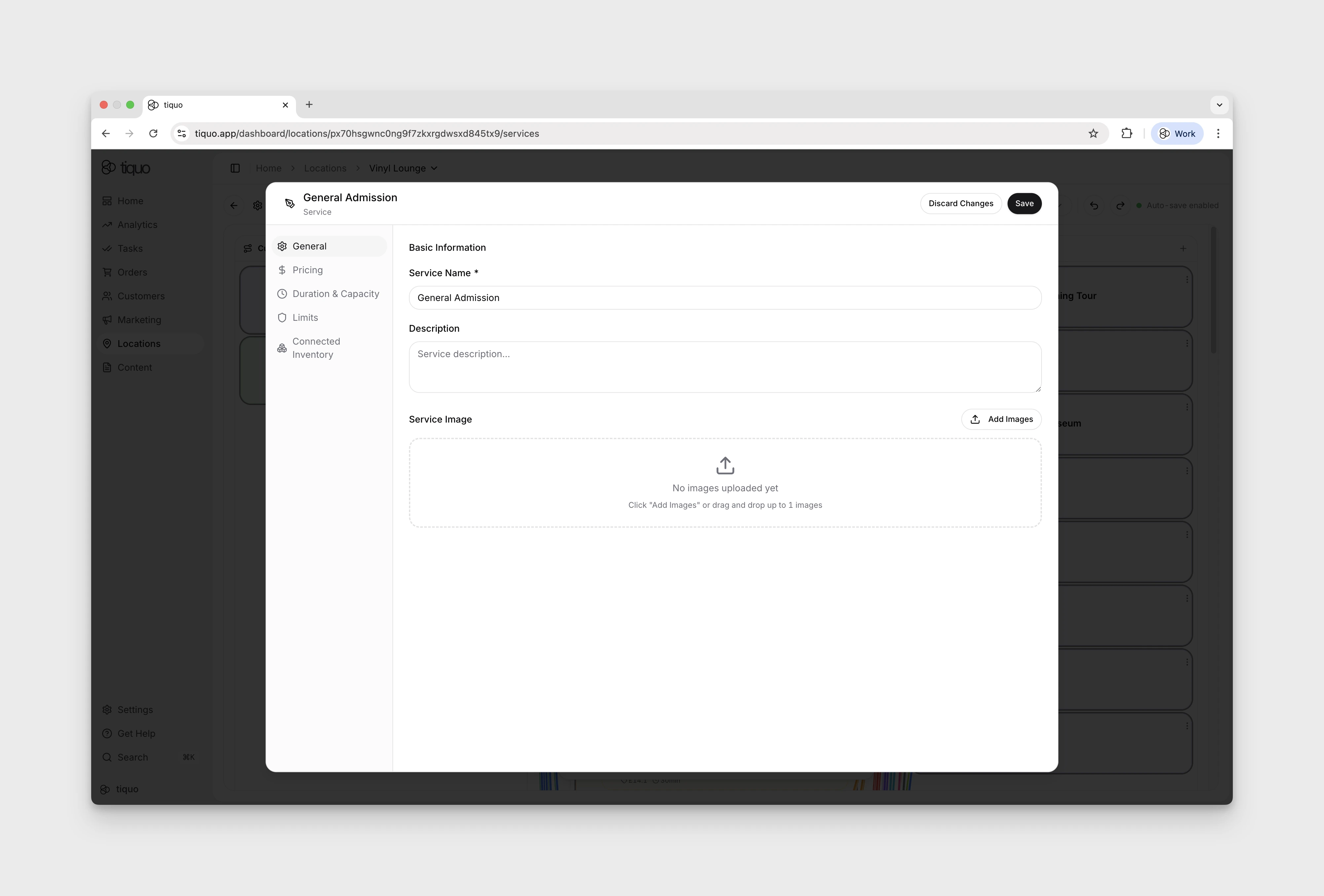
Each service appears as a card showing its name, price, duration, and a short description. Services can be grouped into Service Categories for organisation (e.g., a Spa Treatments category containing Deep Tissue Massage, Aromatherapy Massage, and Facial Treatment).
General Settings: available controls depend on the service type. For a calendar-based Appointment service, General contains Service Name, Description, Hide past events, and Service Images. Active and Featured controls are not part of that inspected General panel.
Images: a service and a service category can each hold up to 15 images. Drag images to reorder them. The first image is the primary image, used wherever only one image fits. Booking flows show a service's other images as a carousel where there is room. Add category images when you edit the category.
Pricing:
- Price: base cost of booking the service (e.g., £60 for a 60-minute massage).
- Named fixed prices: for a fixed-price service, add choices such as Standard and Member rather than duplicating the service. Choose the default option and optionally restrict another option to active memberships, selected plans, or membership permissions. Eligible customers choose from the visible prices in the booking flow.
- VAT: rate applied; the tax portion is calculated automatically (e.g., 20% on a £60 service). New services start with an editable default based on the parent location's country, or the configured US state. Review the rate because local, reduced, service-specific, exempt, and threshold rules are not inferred.
- Payment Requirement: Require full payment (full amount at booking) or Require deposit (deposit at booking, balance later).
- Pricing Levels: multiple price tiers per service (e.g., Economy, Standard, Premium, Rack Rate). Connected to Pricing Seasons.
- Pricing Seasons: apply different pricing levels during specific date ranges (name, start, end, assigned level, optional yearly repeat). Default level applies when no season matches.
- Package rates: set a replacement booking price for selected services. A package rate needs at least one applicable service; it does not add a bundle of extra services or products. Configure its name, description, price, eligible services, and availability conditions.
Restricted named prices remain hidden when the booking flow cannot identify the customer. Require or allow customer login, or identify the customer through a supported website integration, before relying on member-specific price choices.
When an access rule uses Show as locked, an identified customer who is not eligible can still see the service or ticket, but cannot select it. Without this option, the ineligible choice is hidden. Login must be available on the flow, or the customer must be identified by a supported website integration, for locked access to be evaluated reliably.
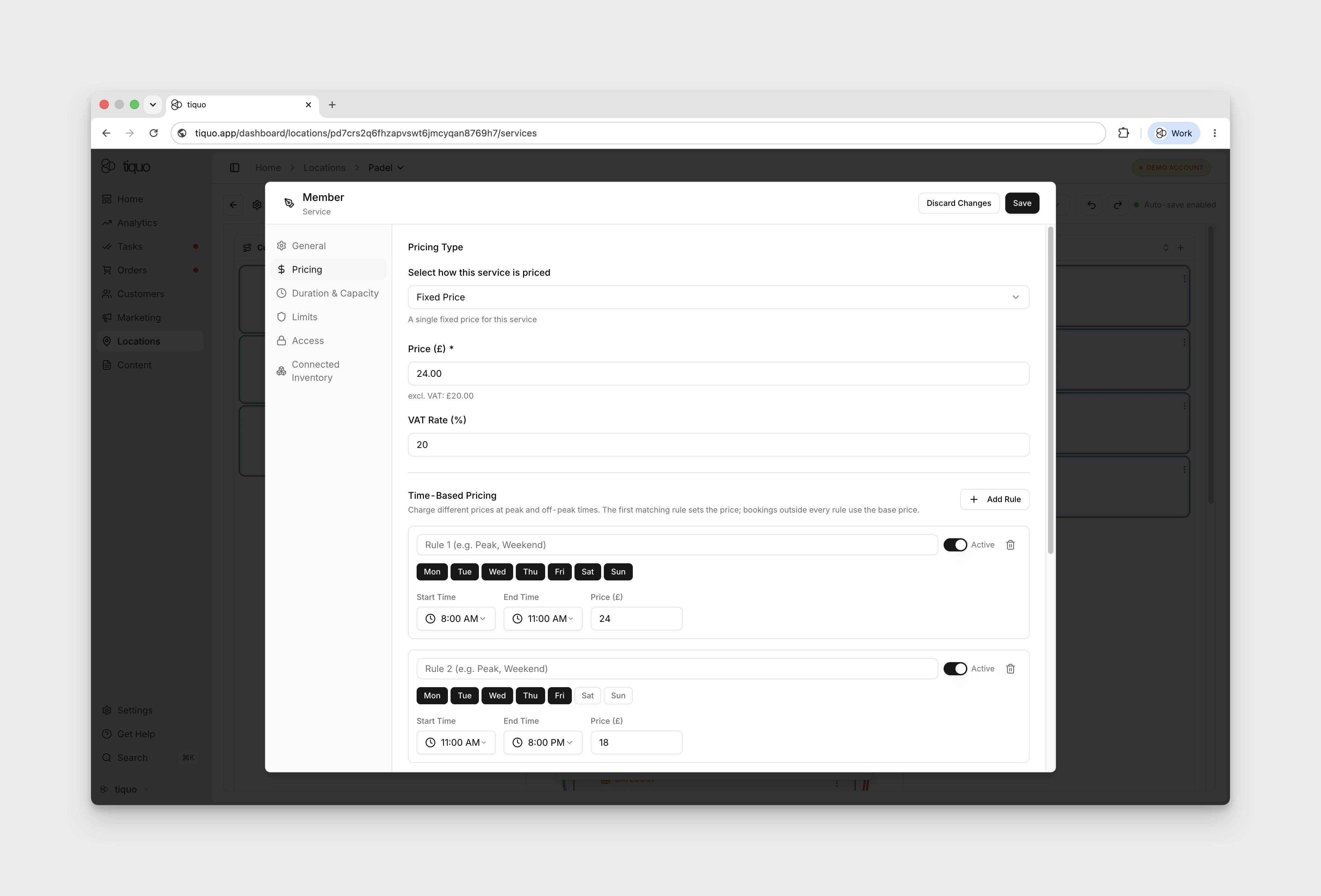
Time-Based Pricing: services can carry variable prices depending on the time of day or day of the week. Each rule defines the days, time window, and price that applies inside that window. When a customer books, the first matching rule sets the price; bookings outside every rule use the base price.
Booking offers: a promotion can be shown as a booking offer with its own name, description, fixed offer price, optional image, eligible services, days, date range, and time window. The customer sees the offer only for matching availability and can open its details before choosing a slot. At least one service and one day are required.
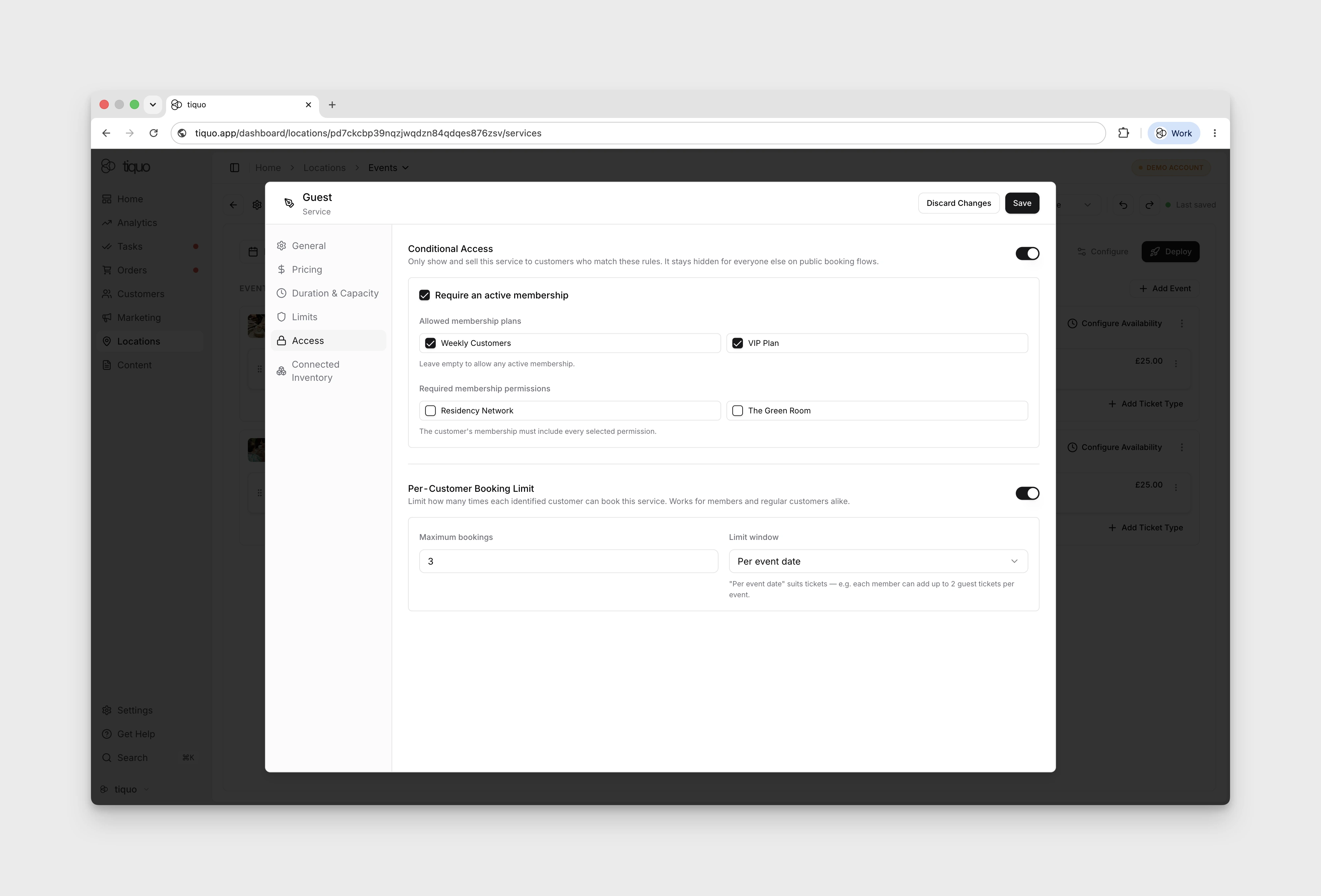
Access: the Access tab controls who can book the service and how many times each identified customer can book it. Access can be restricted to active memberships, specific membership plans, or membership permissions. A per-customer booking limit can also be set, for example one member ticket per event date or two guest tickets per member per event.
An event can have several ticket types, each with its own audience, price, and booking limits.
Duration and Capacity:
- Service Type: Calendar based (duration and capacity defined on the service, used for appointments, classes, treatments) or Slot based (availability controlled by connected inventory slots).
- Duration Type: Minutes, Hourly, Nightly, or Daily.
- Duration: how long the service lasts (e.g., 60 minutes for a massage appointment).
- Capacity: maximum customers who can book the same slot.
- Buffers: Buffer Before adds prep time; Buffer After adds reset time. Prevents overlapping bookings.
- Booking intervals: for calendar-based services, choose Derive from service duration, Custom booking intervals, or Optimise availability. Custom intervals offer starts every 5, 10, 15, 20, 30, or 45 minutes. Optimise availability packs valid starts around availability, existing bookings, capacity, and buffers to reduce unusable gaps.
Whether the duration is shown to customers is controlled separately by the Customer Flow's Show Duration display setting.
Limits:
For a calendar-based Appointment service, the panel includes:
- Min Advance: how far ahead a customer can create a booking.
- Max Advance: how far into the future bookings can be made.
- Cancellation Deadline: how long before the start customers can cancel or reschedule online. Leave it blank for the default of 24 hours, or set 0 to allow changes until the booking starts. It only limits customers: staff can still cancel or reschedule from the dashboard at any time.
- Auto-confirm Bookings: when off, new bookings remain scheduled until staff confirms them.
- Book until service end time: allow customers to book after the start time until the service ends.
- Booking Buffer (minutes): time between bookings for setup or cleanup.
- Auto check out after the booking ends: check the booking out automatically a set Checkout Duration after it ends. See Auto checkout.
Availability:
For calendar-based Appointment services, configure availability windows and breaks on the connected calendar inventory. Configure the service's duration, booking intervals, and buffers under Duration & Capacity.
Inventory / slots / calendar
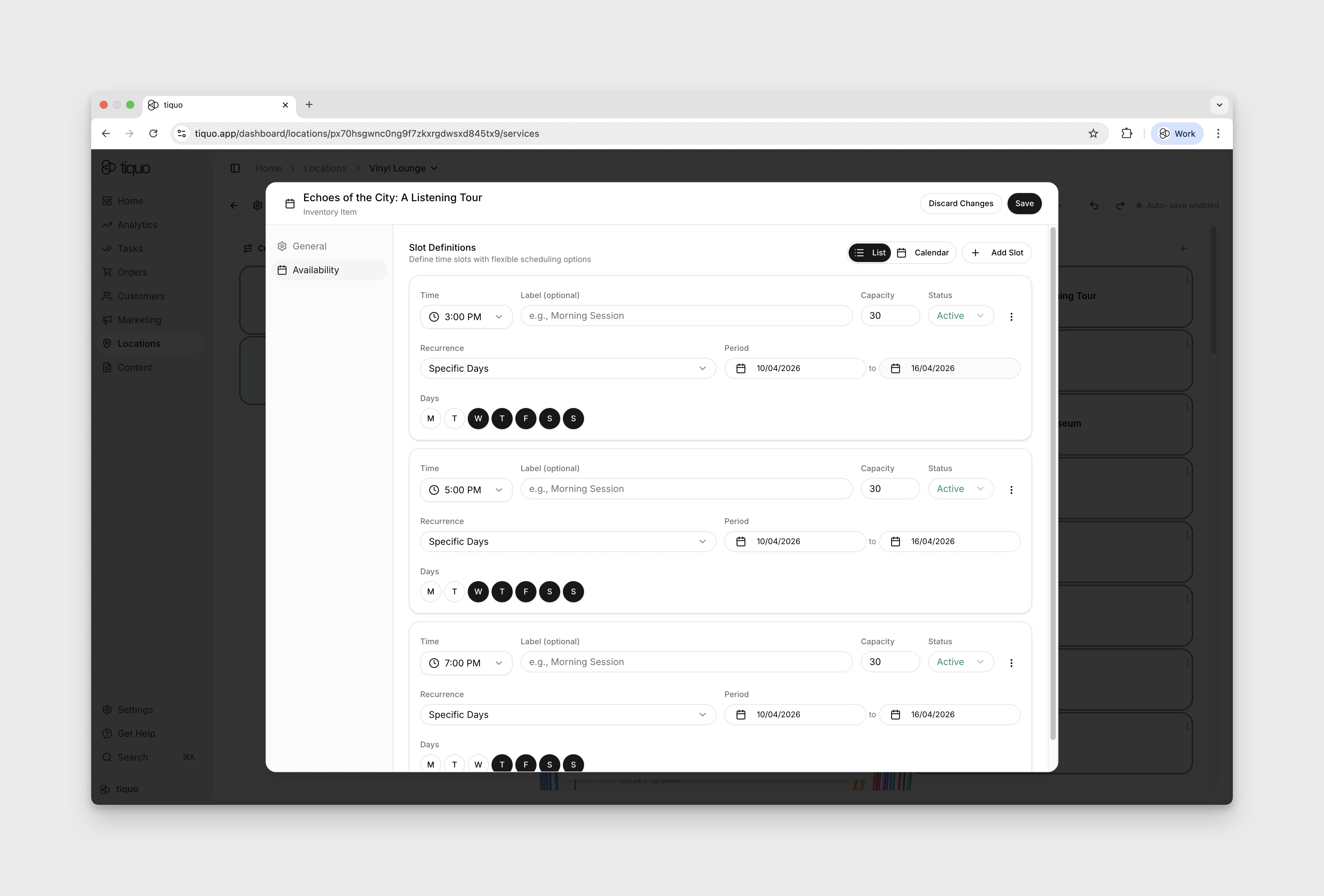
The physical or scheduling resources that services draw on. Each card shows the resource name, capacity, and its scheduling mode (Flexible, Fixed Slots, etc.).
Editing Inventory:
- General: name, description, Enable Waitlist toggle (allows customers to join a waitlist when the resource is fully booked).
- Capacity: for calendar inventory, Manage instances lists the resources and provides Add instance. Expand an existing instance to open Capacity Settings, with Single booking within Capacity Range or Fill Up to Fixed Maximum Capacity.
- Availability: Availability Windows with start/end times, recurrence (Specific Days), day picker, optional break windows.
Calendar inventory uses instances for individually named resources, such as Treatment Room 1 and Treatment Room 2. Configure each instance using the capacity controls available in its editor.
For tables, rooms, ticket types, and similar named resources, instances make each unit visible to staff and allow bookings to be allocated to a specific resource. This is the structure used by guided setup flows for restaurants, bars, hotels, meeting rooms, spas, and events.
Slot-based event inventory can use individual slot durations and recurrence rules so each event date or ticket slot can carry the right timing and capacity.
Connected Inventory: when a service is connected to inventory, bookings can only be created if the required resource is available. Inventory resources can also be prioritized to determine which is allocated first when multiple options are available.
Product add-ons
A customer flow can offer products after the customer chooses their booking. Open Product add-ons, turn it on, and choose active fixed-price products from the same sublocation. Custom-priced products are not available as add-ons.
Set the heading shown to customers and the maximum quantity for each product. The allowed maximum is between 1 and 100. Selected products are added to the same order as the booking and are paid for during checkout. A sold-out product remains unavailable.
No-show card guarantee
Simple Mode services can save a customer's card at checkout without taking a payment. Staff can charge the agreed fee only when they mark that booking as a no-show.
Turn on No-show card guarantee in the Payment settings, enter a fee greater than zero, and choose whether it applies once per booking or once per person. The policy is recorded with the booking at checkout. Marking a booking as a no-show still works when there is no guarantee, but no fee is charged.
With the guarantee on, Collect card when joining the waitlist decides when a waitlisted customer gives their card. Turned on, customers save a card and accept the no-show policy before they can join the waitlist; no payment is taken and no funds are held. Turned off, the card is collected only if a place is offered.
Waitlists
Turn on Enable Waitlist for inventory that customers may request when a slot is full. Joining the waitlist does not take payment, although a service with Collect card when joining the waitlist asks for a card first (see No-show card guarantee). If capacity becomes available, Tiquo sends the customer a temporary offer with an expiry time.
The customer accepts either a free offer or an offer that requires payment. If the offer expires, the request returns to the waitlist instead of becoming a confirmed booking.
Guest invitations
Booking flows can collect guest details when invitations are enabled. Booking invitation emails use the configured booking notification branding and templates. Delivery failures are shown to staff so the invitation can be corrected or sent again.
For visits that use Guest Passes, configure a separate Guest Pre-Registration flow in Settings > Registration. That flow uses a selected location and visit date. Sending a pass reserves it; accepting it does not consume it. Staff consume it through customer registration when the guest arrives.
See Guest Passes for setup and invitation rules. Booking check-in does not use Access Passes or Guest Passes.
Localised time display
Under a flow's Localization settings, choose 12-hour or 24-hour time and turn on
Hide Leading Zeros when customer-facing times should display as 2:30 PM
instead of 02:30 PM, or 8:30 instead of 08:30. The setting applies
to supported slot lists, summaries, offers, and confirmation views.
Services in orders
When a service is booked, it appears in an order as an order item.
Example:
Order:
- Massage Appointment (booking)
- Herbal Tea (product)
- Face Cream (product)
The booking manages the operational scheduling, while the order manages the commercial transaction.
Let customers choose the booking length
Calendar-based services using Minutes or Hourly duration can offer set lengths with a price for each, or a range with minimum, maximum, step, and default length. A range uses hourly pricing and can have a maximum total price.
Lengths use five-minute increments between five minutes and 24 hours. Set-length choices can contain up to 12 options. Availability checks the full selected length and buffers. Nightly, daily, and slot-based services use their own duration model.
Customers choose an available length in the booking flow. Staff can choose it in supported dashboard, Tiquo App, and PDQ booking forms. For a range, peak/off-peak rules can change the hourly price during the booking; a selected named hourly price replaces those rules.
Booking audiences and offers
Services and booking offers can be restricted to staff booking. Review the booking audience before publishing so an internal offer does not appear on the customer page.
For nightly and daily stays, available offers appear under Rate Type. Staff booking also supports selecting an eligible offer. Package rates replace the booking price; check the booking summary with the selected rate before confirming.
Each named fixed price can have its own per-customer booking limit. Customers can select more than one named price where the flow supports it, and each quantity is checked against that choice's limit.
Existing-customer verification
Customer flows verify existing customers with an email code by default. The customer-details settings can switch that check off. Choose the setting for the access and price rules your flow uses, and test both an existing customer and a new email before publishing.
Confirmation display
Booking notifications can hide free-order totals and the repeat-booking button. Use these controls when a free reservation confirmation should focus on arrival details. Hiding the total does not change the order's amount or payment requirement.
Duplicate and import events
Simple Mode supports duplicating services, ticket types, and events. Review the copy's dates, resources, prices, and audience before saving.
Event imports accept a plain spreadsheet, validate its values, and let staff review changes before saving. An availability window can repeat without an end date when its optional Period dates are cleared.