

How do I open a sublocation?
Find the products, services, and settings for an operational space.
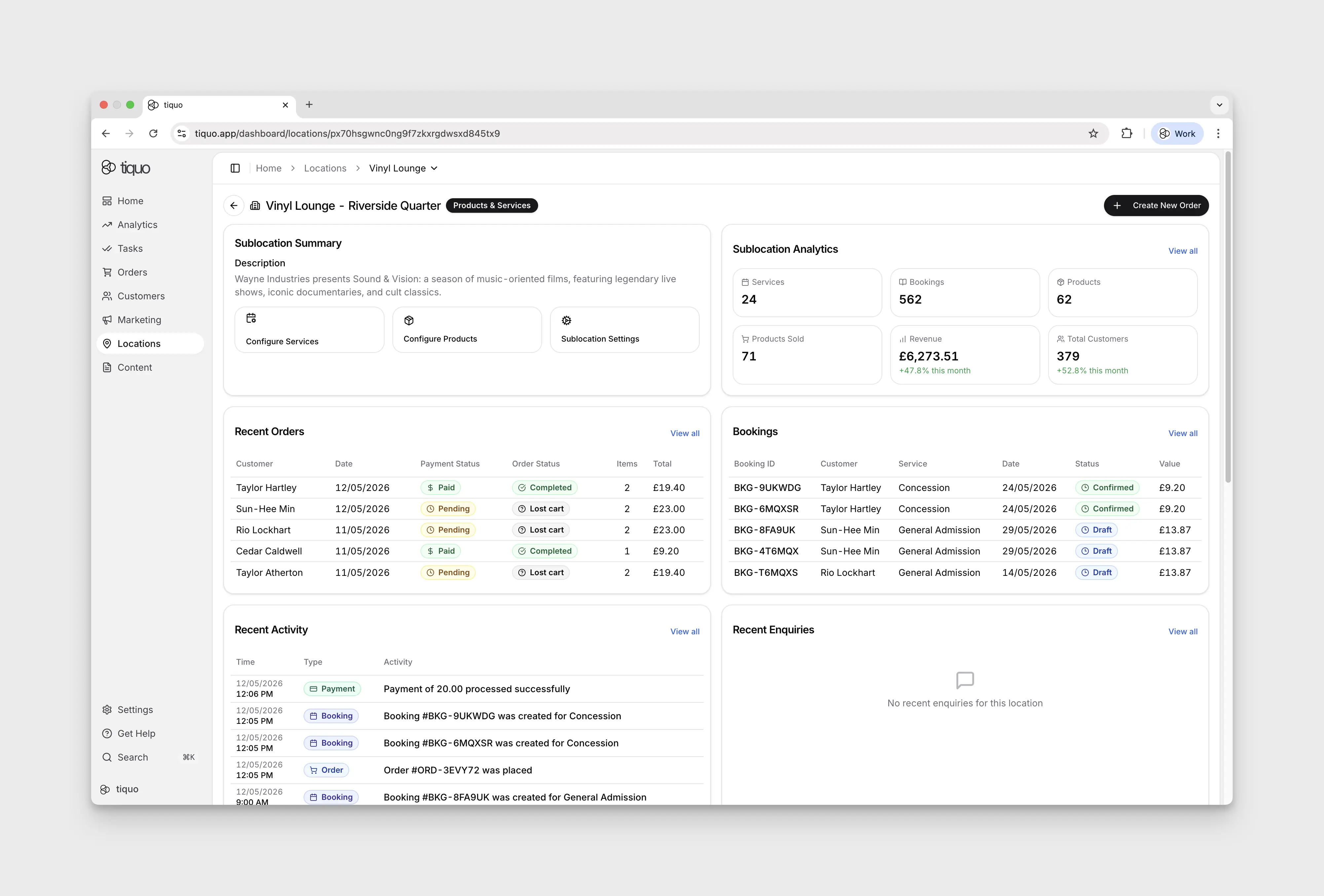
Most operational components of the platform are configured at the sublocation level. Products, services, inventory, bookings, and orders all live inside a sublocation. That lets each sublocation:
- Maintain its own product catalog
- Manage its own services
- Track its own orders
- Control its own inventory
Clicking a sublocation card opens its operational workspace. From there staff can access:
- Products: the sublocation's product catalog
- Services: the visual flow builder for services, inventory, and customer/staff flows
- Sublocation settings: configuration for general details, hours, address, appearance, payments, discounts, notifications, security, mobile behaviour, and the product/service-specific tabs available to that sublocation
Editing the sublocation layout
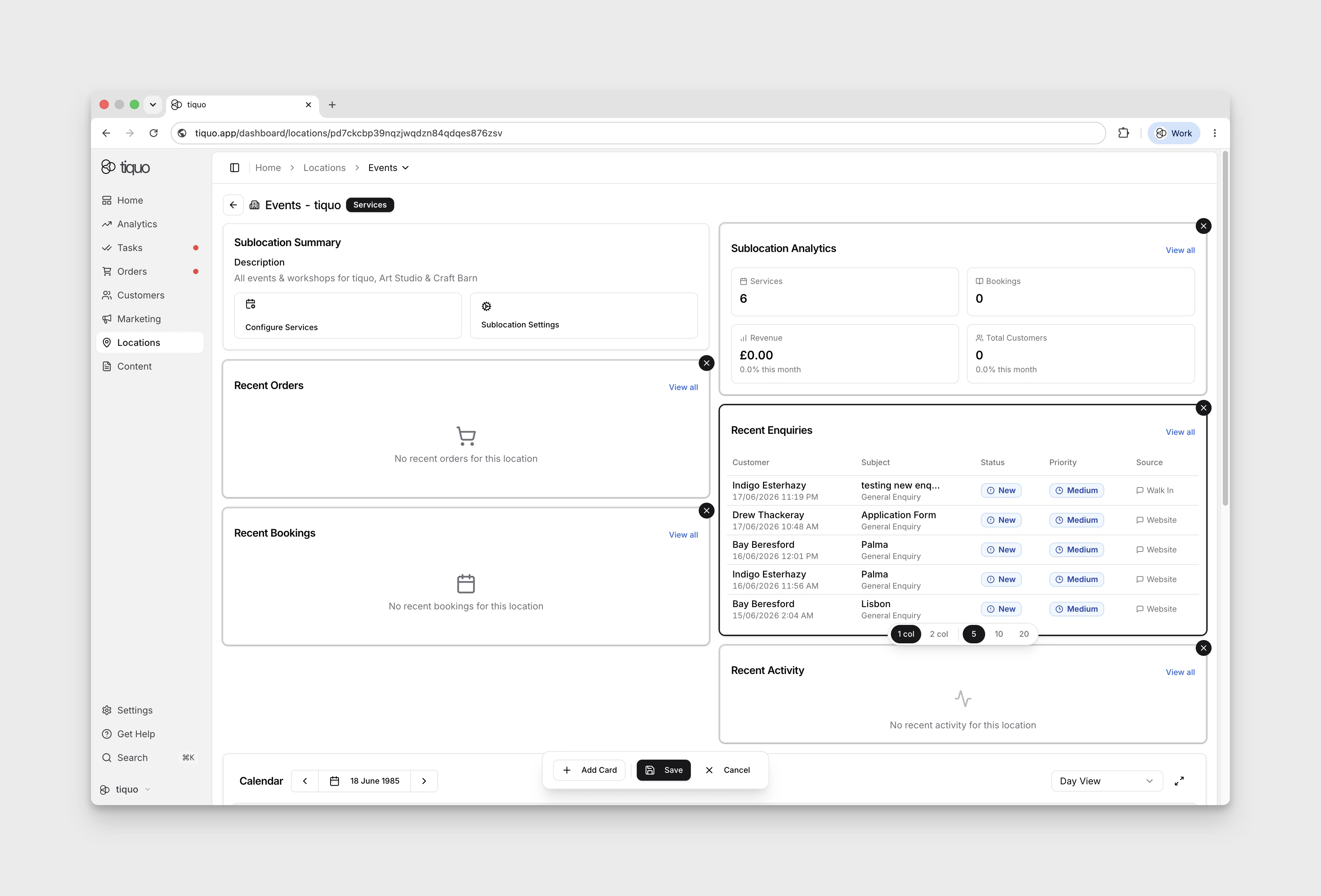
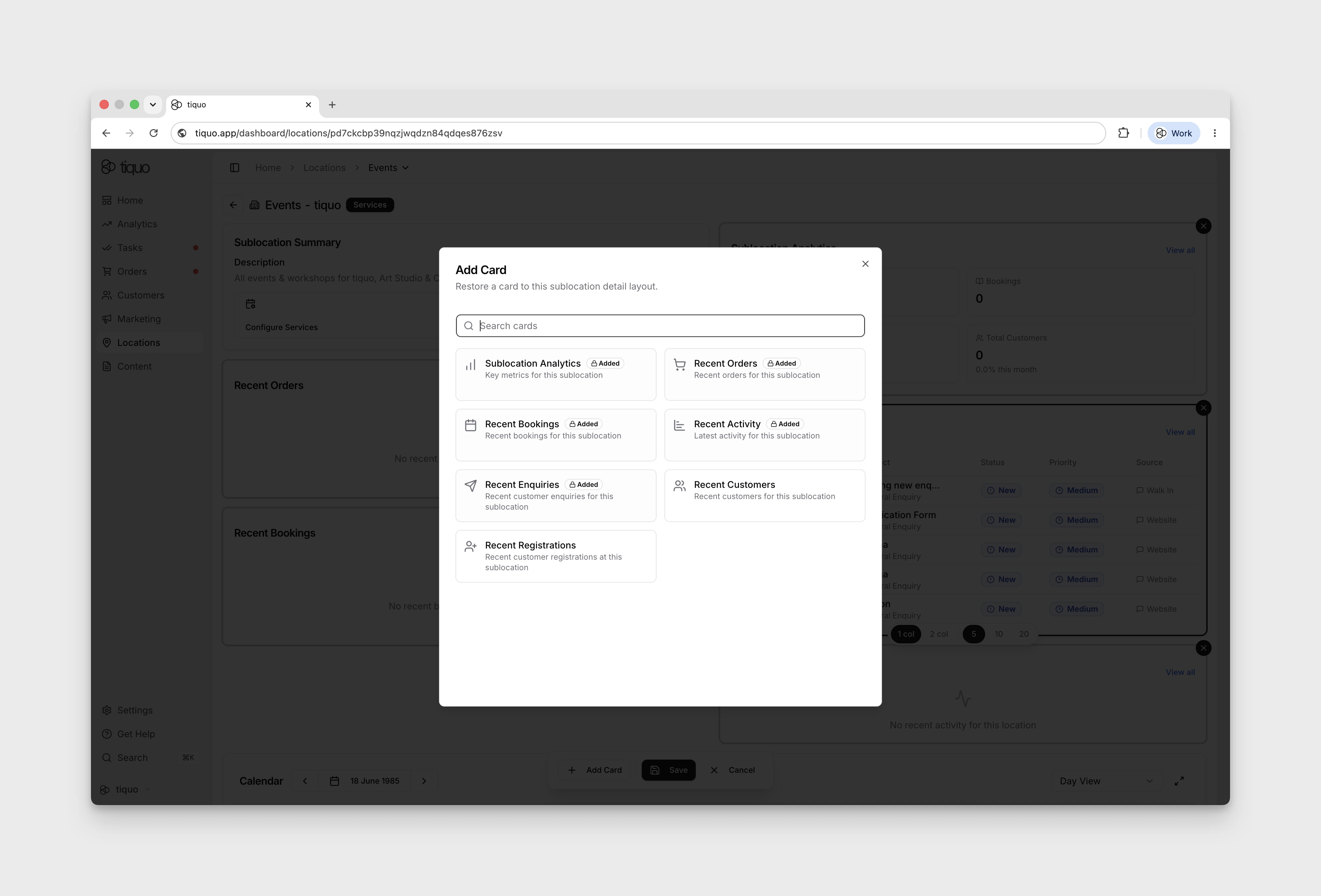
The sublocation detail page is customisable. Press the Edit button at the top right of the page to enter edit mode, where you can add, remove, and rearrange cards on the page. Selecting a card also lets you change its width between a single-column and two-column layout.
Place the cards staff use most often first.
Example structure
Location: Members Club
Sublocations:
- Restaurant A
- Restaurant B
- Main Bar
- Hotel
- Spa
Each inventory record has a home sublocation, and services, products, and orders are configured in a sublocation context. Inventory can still be linked into compatible service configurations across multiple sublocations when the same physical resource is intentionally shared.
More help
Browse Locations help articles · Read the full platform guide