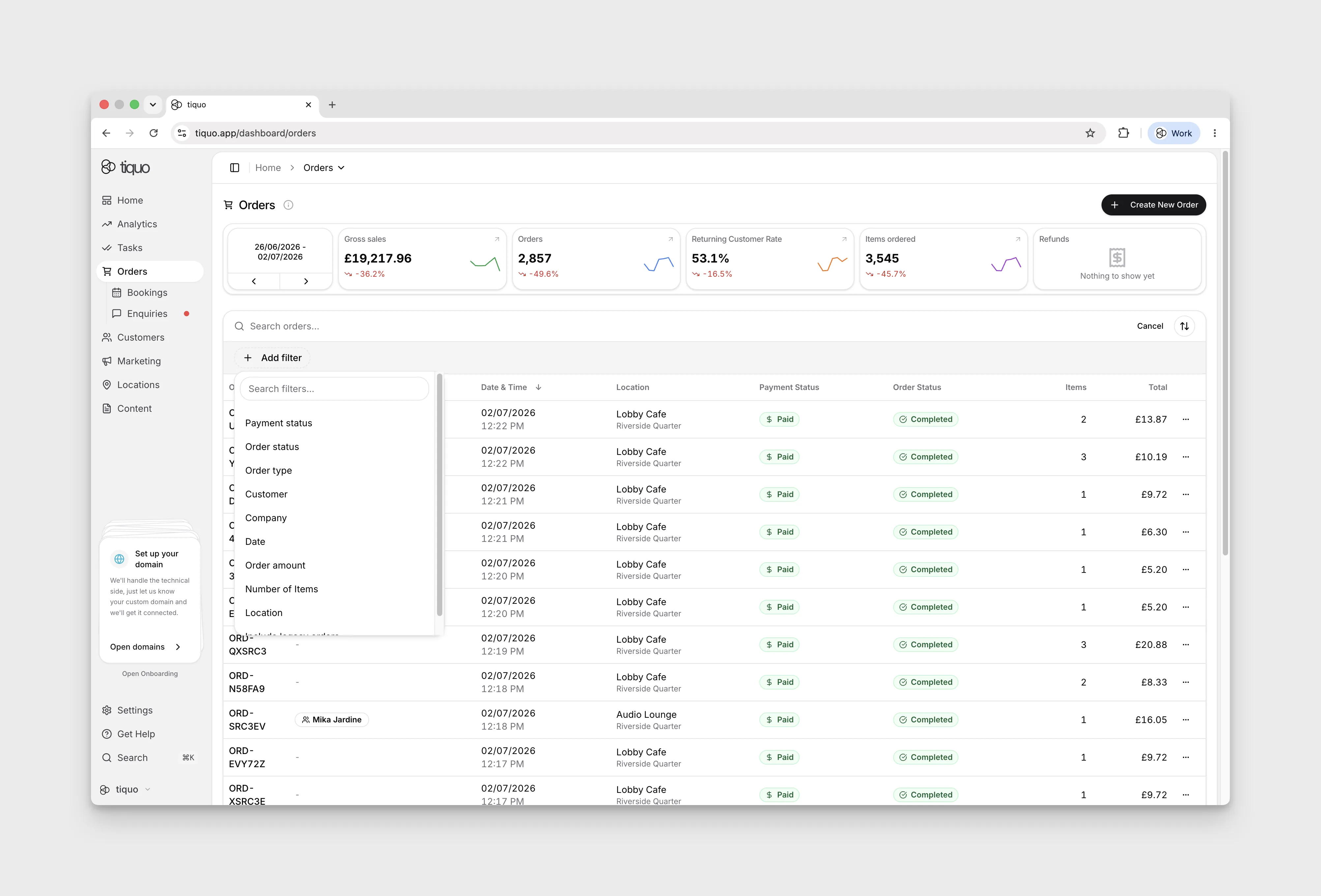

How do I find an order?
Narrow the orders list by date, customer, status, and other filters.
Open Orders, select the Search orders icon, and choose Add filter. The menu includes Payment status, Order status, Order type, Customer, Company, Date, Order amount, Currency (when your venues use more than one currency), Discount name, Discount value, Number of Items, Location, and Exclude legacy orders.
Choose the filter that matches the order information you have. For example, select Payment status, tick Pending, then select Apply to show orders whose payment status is Pending. Check that the filter chip shows a selection. Use Clear all to remove the applied filters and return to the unfiltered list.
Filter by amount
Order amount matches each order's total in that order's own currency, without converting it. Enter a Minimum amount, a Maximum amount, or both. If the maximum is lower than the minimum, the filter shows Maximum must be at least the minimum. and cannot be applied.
When your venues trade in more than one currency, the menu also offers Currency. Add it alongside Order amount, for example GBP with a minimum of 100, so the range only matches orders in that currency.