

How do I create a product?
Open Add Product and fill in the product’s core information.
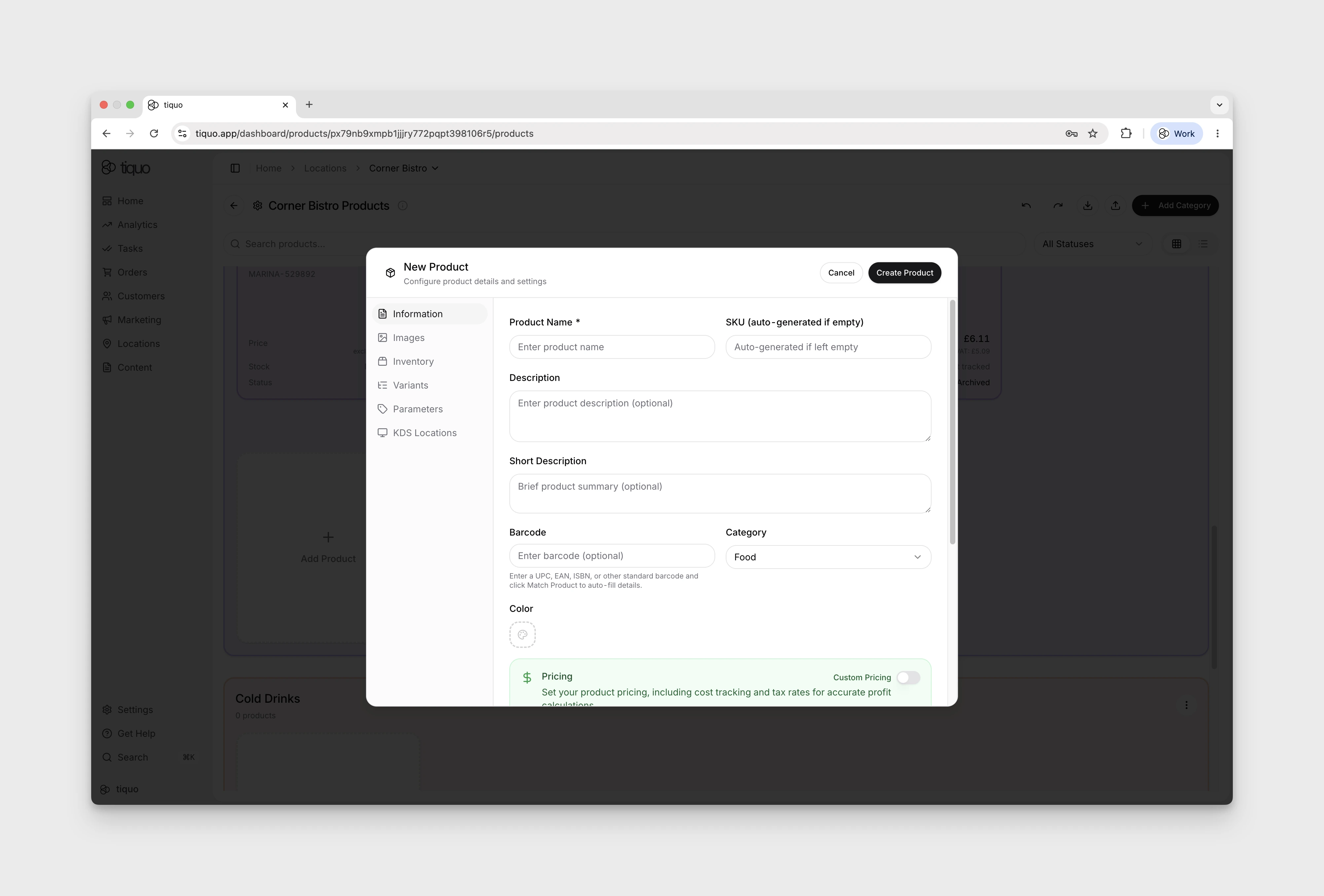
Products are created from the Products section within a sublocation. Clicking + Add Product (inside a category) opens the New Product modal, which lands on the Information tab. The core fields to fill in here are:
- Product Name
- Descriptions: a short blurb (shown in compact places like POS tiles and menu rows) and a long description (shown on detail views).
- Category: the category the product belongs to.
- Pricing: Price (base selling price), Compare-at price (optional, the original or "was" price, for strikethrough-style promotions), Cost price (optional, used for margin tracking and reporting, not shown to customers), and VAT rate.
- Barcode: optional; for scanning at POS or stock management.
- Physical properties: weight and similar fields, used for shipping, integrations, and reporting. Useful for venues that ship retail goods.
Fill in these core fields and press Create Product to save. Once saved, the product appears under its category on the Products page and can be added to orders.
AI-assisted product copy
The product modal includes AI helpers for descriptions. Once the long description is long enough, an AI button appears inside the field so staff can rephrase it in a selected tone of voice. If the long description has enough detail, the short description field can also generate a concise summary from it.
Use the tabs on the left for more product settings:
- Information: core fields above, plus an Advanced accordion further down the tab for food and compliance metadata (see below).
- Images: product imagery.
- Inventory: stock tracking and related controls (see below).
- Variants: size, colour, or other variant options for the same base product.
- KDS Locations: Kitchen Display System routing (bar, kitchen, prep station, etc.).
The images tab
Upload JPEG, PNG, GIF, or WebP product images. The first is the featured image, shown in product grids, POS tiles, and customer booking pages or menus. Add more images, drag them to change the order, or remove them at any time.
The advanced accordion
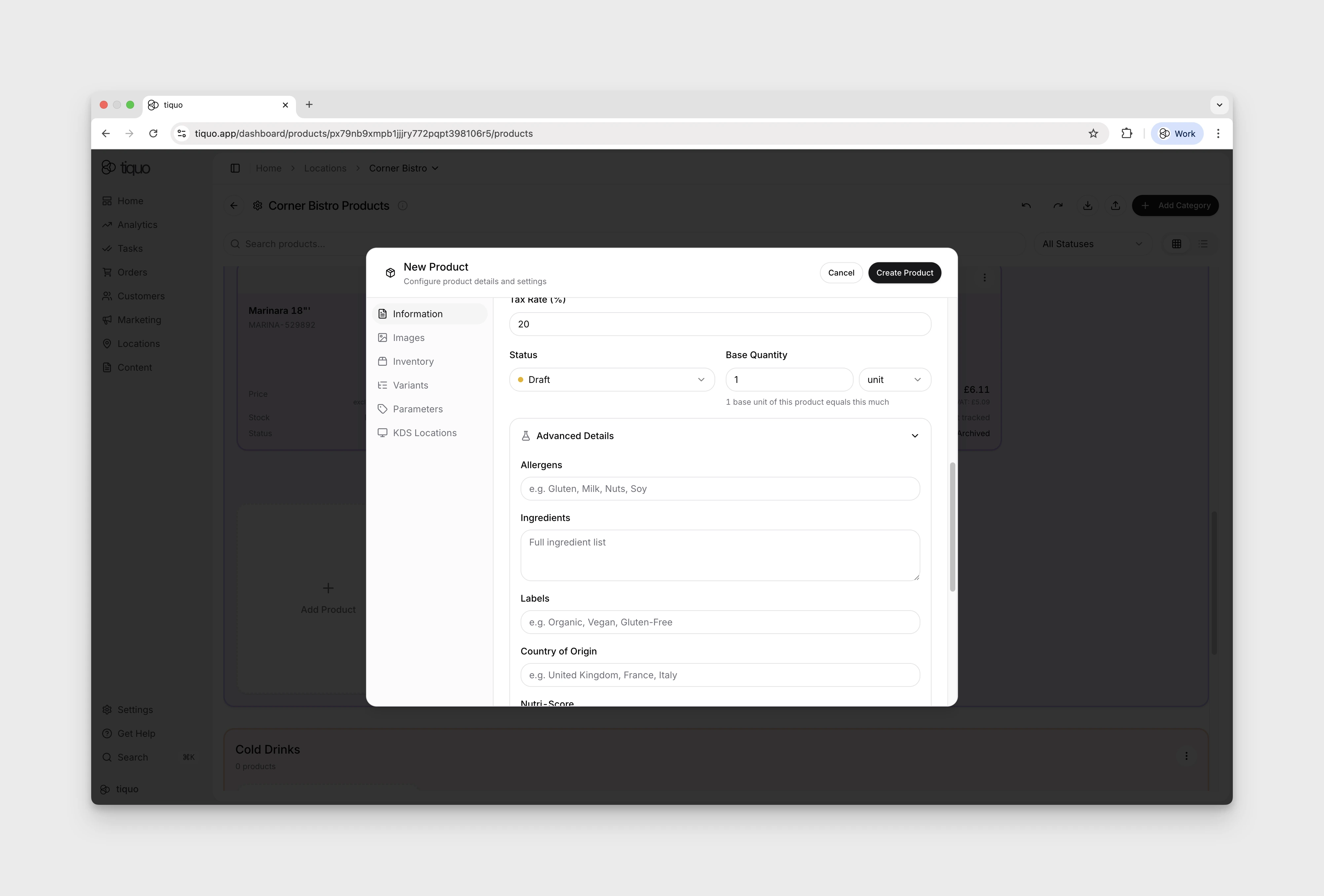
Scroll to the bottom of the Information tab and expand the Advanced accordion to reveal extra information needed for food, beverage, and regulated products. It is optional and most useful for venues that need to display compliance or nutritional information on menus and receipts.
Typical fields include:
- Allergens: flag common allergens (e.g., gluten, nuts, dairy) so front-of-house and customers see them.
- Ingredients: list ingredients for menu transparency and allergen checks.
- Nutritional information: calories, fat, carbohydrates, protein, and similar figures for customer-facing displays.
- Alcohol: alcohol content (ABV) for licensing, pricing bands, and age-restricted sales.
- Nutriscore: the customer-facing Nutriscore label (A to E).
Fill in what applies per product so customer menus, receipts, and compliance reports display the correct information.
The inventory tab
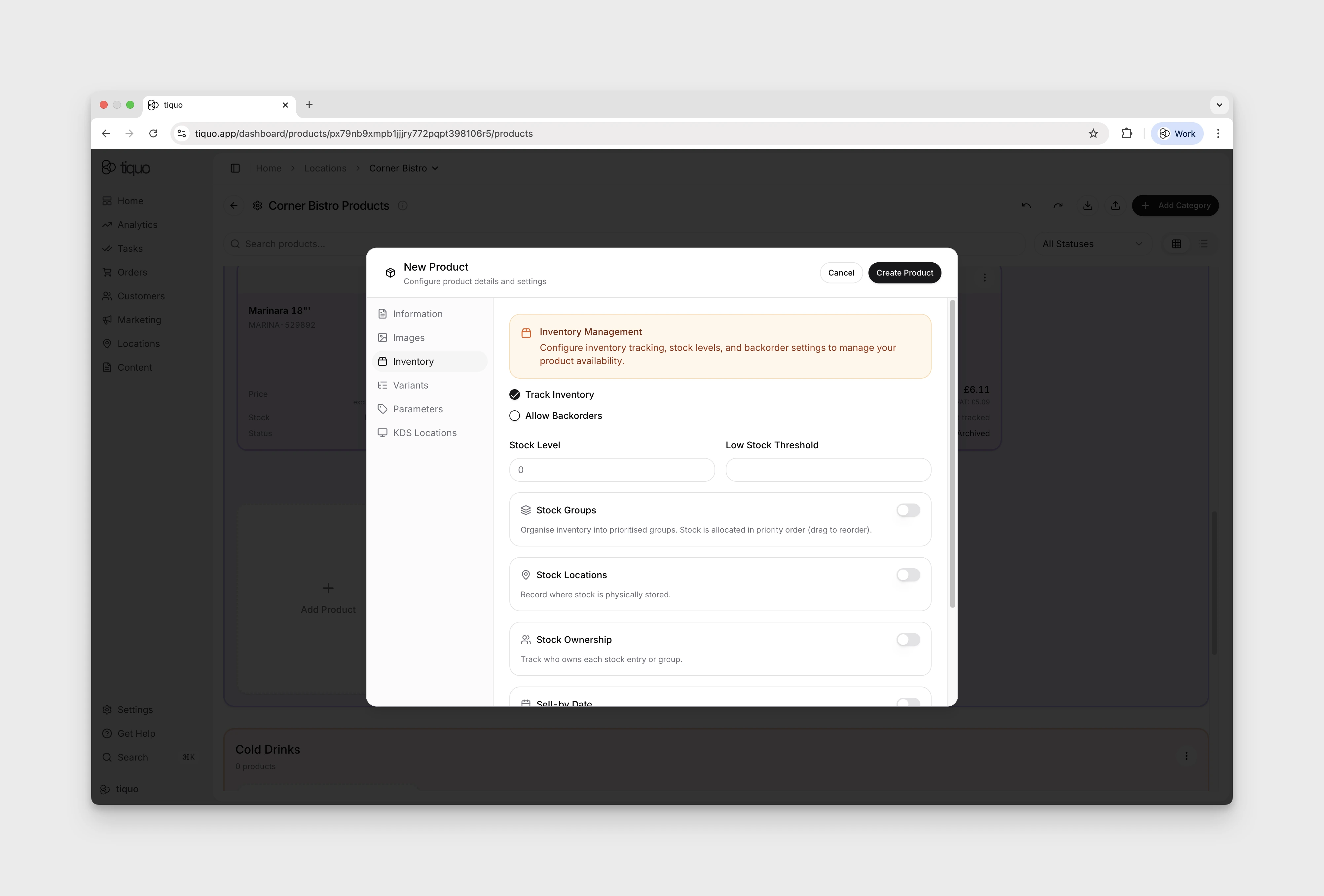
The Inventory tab controls how stock is tracked for the product. Each toggle expands to reveal its own controls:
- Track Inventory: turn stock tracking on or off. When off, orders can be placed regardless of stock level.
- Allow Backorders: when on, sales can continue after sellable stock reaches zero. Stored product and stock-group quantities remain clamped at zero rather than becoming negative. Useful when waiting for a re-stock but you don't want to block sales.
- Stock Level: current on-hand quantity.
- Low Stock Threshold: triggers a low-stock warning when the on-hand quantity falls to this number. The product grid shows Low stock while stock remains above zero, and Sold out when there is no sellable stock left.
- Stock Groups: organise inventory into prioritised groups. When on, stock is allocated from the highest-priority group first; drag to reorder. Useful when the same product is stocked in multiple batches (different delivery dates, vintages, or lots). Stock groups do not receive a low stock threshold by default; set thresholds manually on the groups that should trigger alerts.
- Stock Locations: record where stock is physically stored (warehouse, shelf, back-of-house, etc.).
- Stock Ownership: track who owns each stock entry or group. Ownership can be assigned to the sublocation itself, a customer, or a company set up in the organisation. Helpful when multiple tenants, consignees, members, clients, or suppliers share the same catalog.
- Sell-by Date: set expiry or sell-by dates for stock or individual stock groups. Important for perishable items.
- Availability: set whether inventory is available for sale or marked as not for sale. Useful for temporarily withdrawing a product from the menu or floor without deleting or archiving it.
- Recipes: define which other products' inventory gets deducted when this product is sold. Each ingredient specifies a quantity to deduct per sale. Handy for composite items: a cocktail deducting its spirits, a dish deducting its ingredients, a bundle deducting its components.
When stock groups are enabled, each group can have its own low stock threshold. If one group is at or below its threshold, the product card shows a stock-group low-stock badge. If there is no remaining sellable stock across the product's groups, the badge changes to Sold out.
Stock ownership and consignment
Use Stock Ownership when the stock belongs to someone other than the operating sublocation. This is useful for consignment, member-owned stock, client stock, shared company stock, or supplier-owned inventory that is sold through the same catalog.
Ownership can be set at product level when stock groups are off, or per stock group when stock groups are on. Available ownership types are:
- Owned by Sublocation: stock belongs to the current sublocation.
- Owned by Customer: select an existing customer as the owner.
- Owned by Company: select an existing company in the organisation as the owner.
Customer-owned and company-owned stock appears on the relevant customer or company profile as Owned/Consigned Products, so staff can quickly see what inventory is being held, sold, or consigned for that profile.
More help
Browse Products help articles · Read the full platform guide