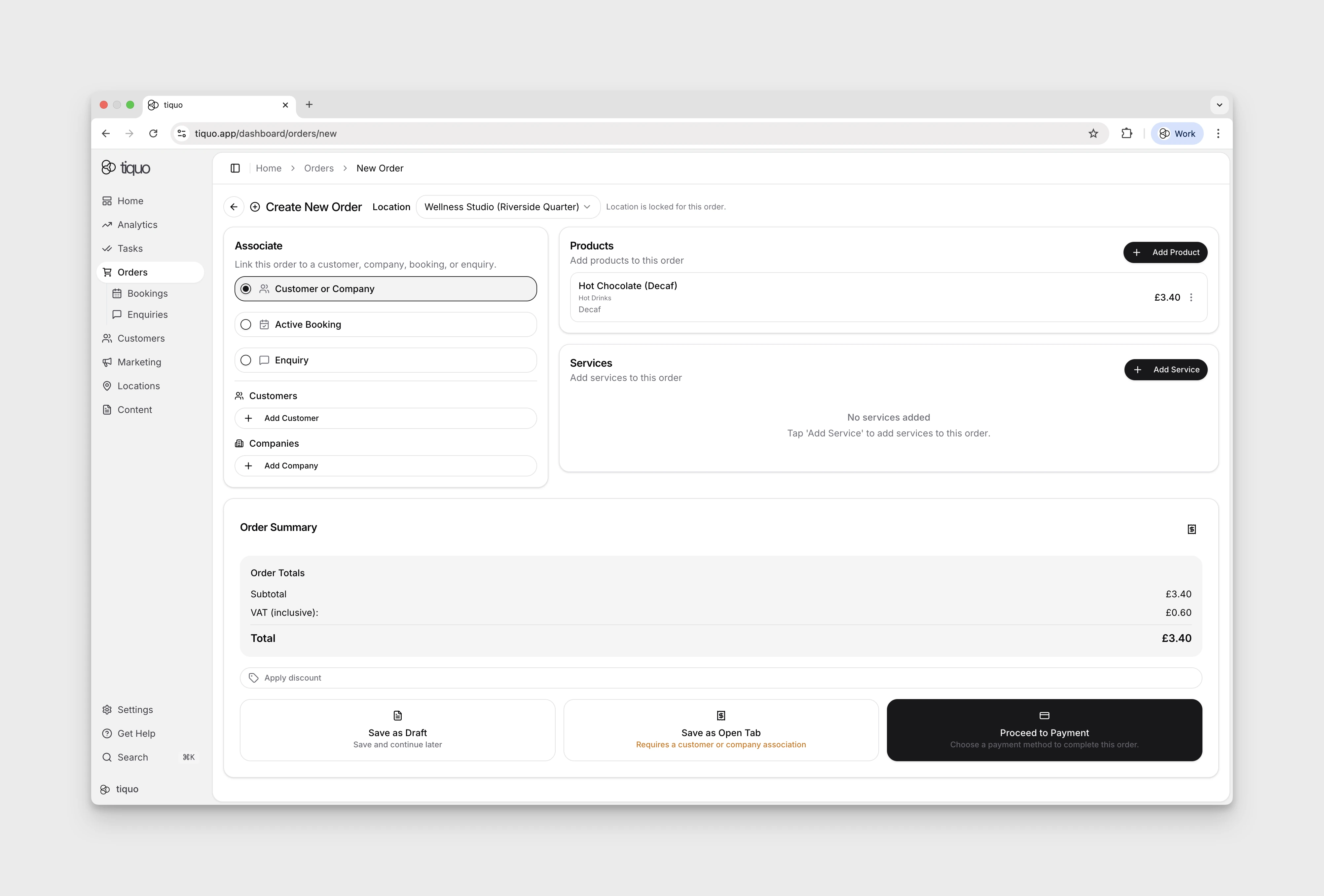

How do I create an order?
Start a new order and choose the customer or record to associate.
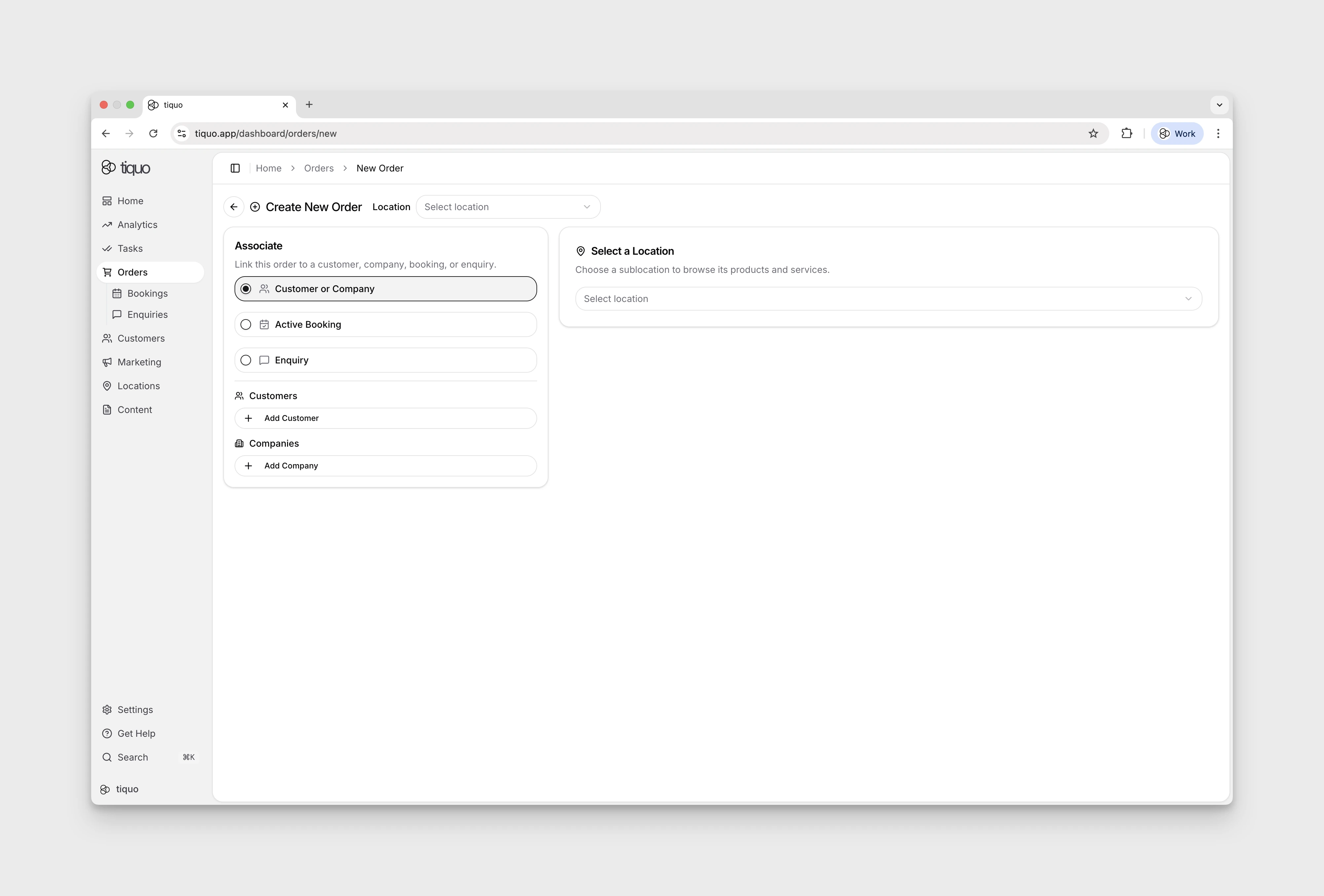
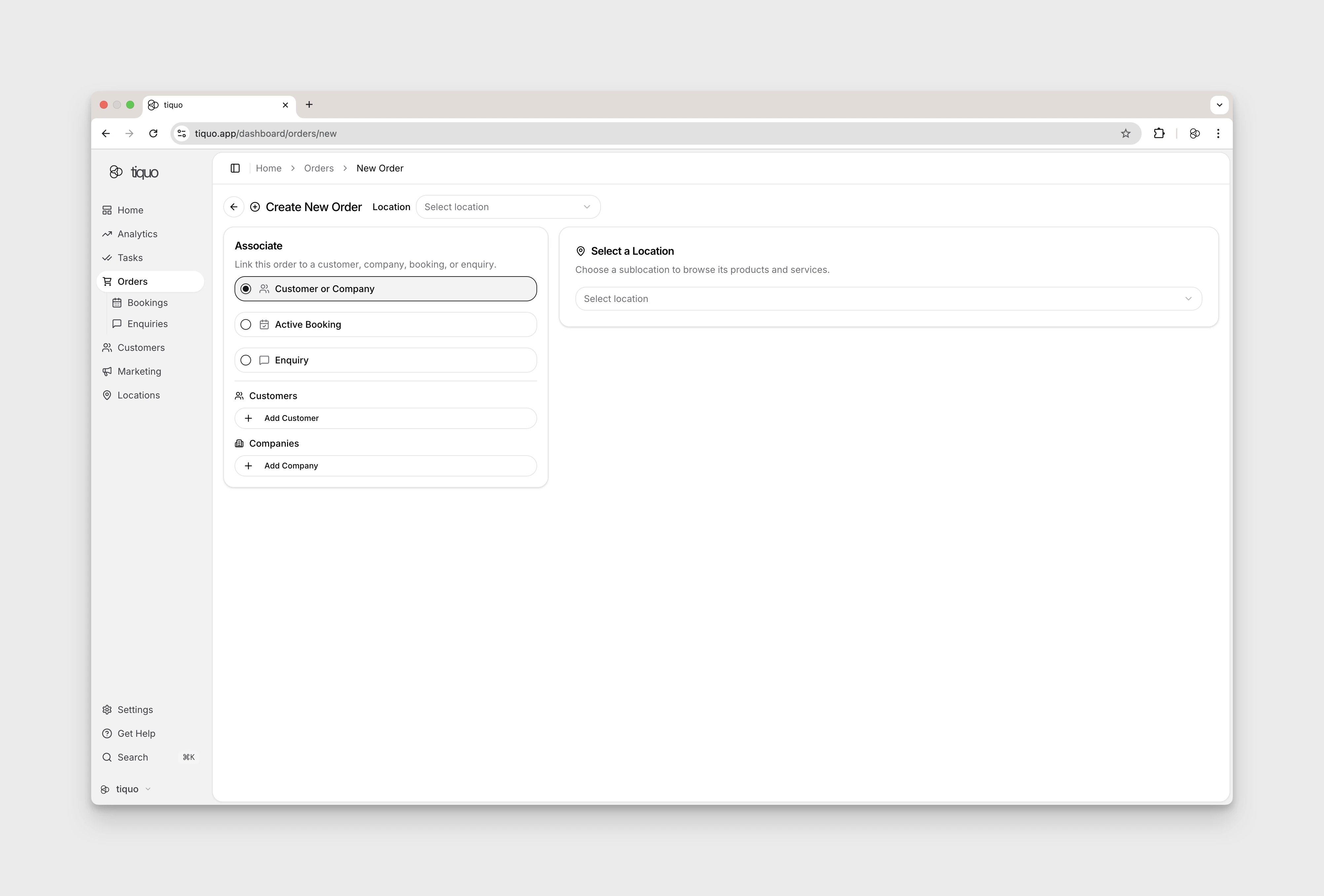
Clicking + Create New Order opens a full-page Create New Order form. The form has two panels:
Associate
Link the order to an existing record so customer history, booked services, and prior context follow through. Three mutually-exclusive options:
- Customer or Company: associate with one or more customers or companies
- Active Booking: select an existing booking from a dropdown to build an order on top of it
- Enquiry: select an existing enquiry from a dropdown to convert it into an order
Select a location
A location/sublocation picker that filters the products and services available to this order.
Orders can also be created from a customer profile via the + Create New Order button in the Orders tab of the profile.
Selecting a location locks the form to that sublocation and reveals the Products and Services cards underneath.
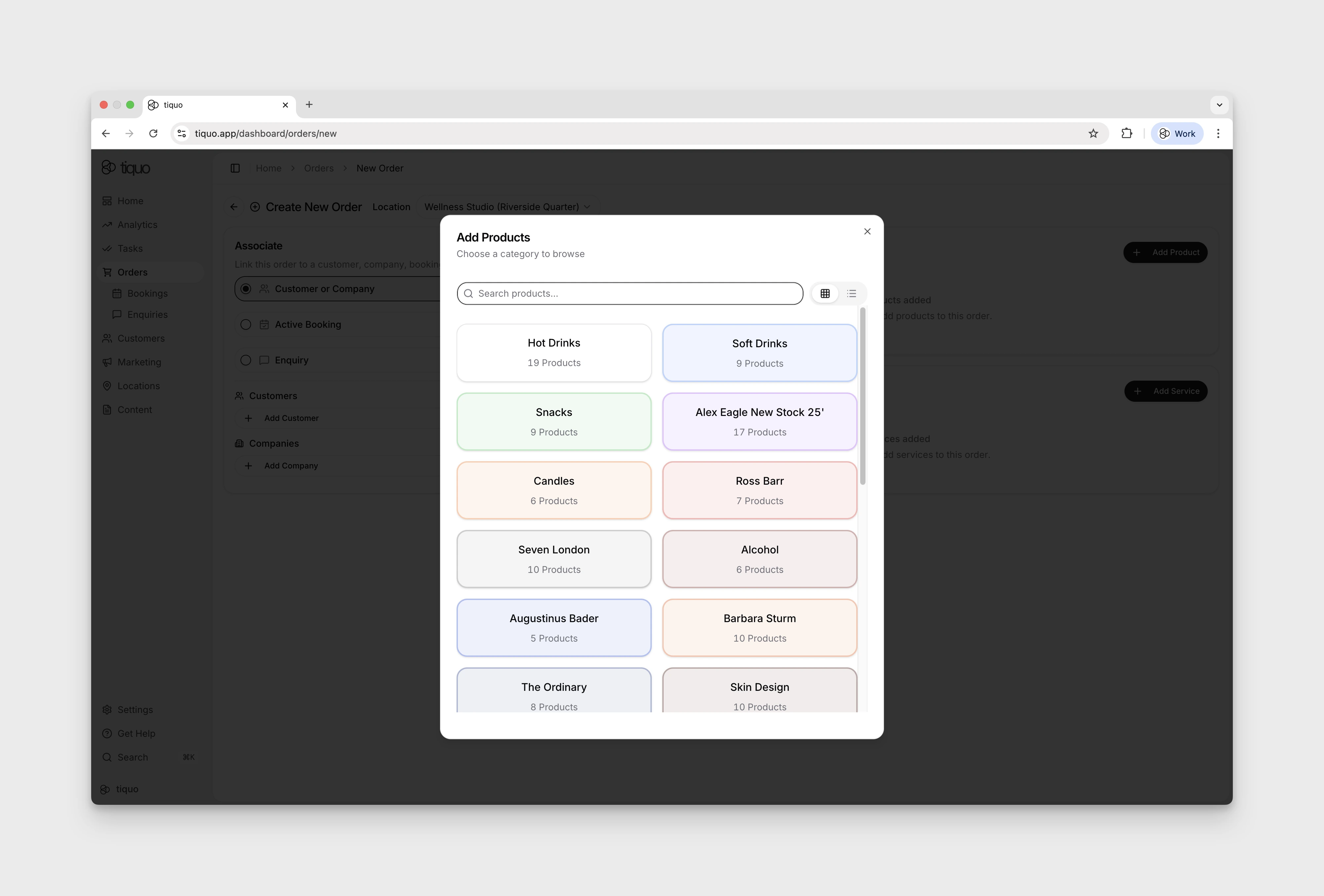
+ Add Product opens a product picker scoped to the chosen sublocation. Selecting a product updates the unsaved form; tracked stock changes when the order is created or saved.
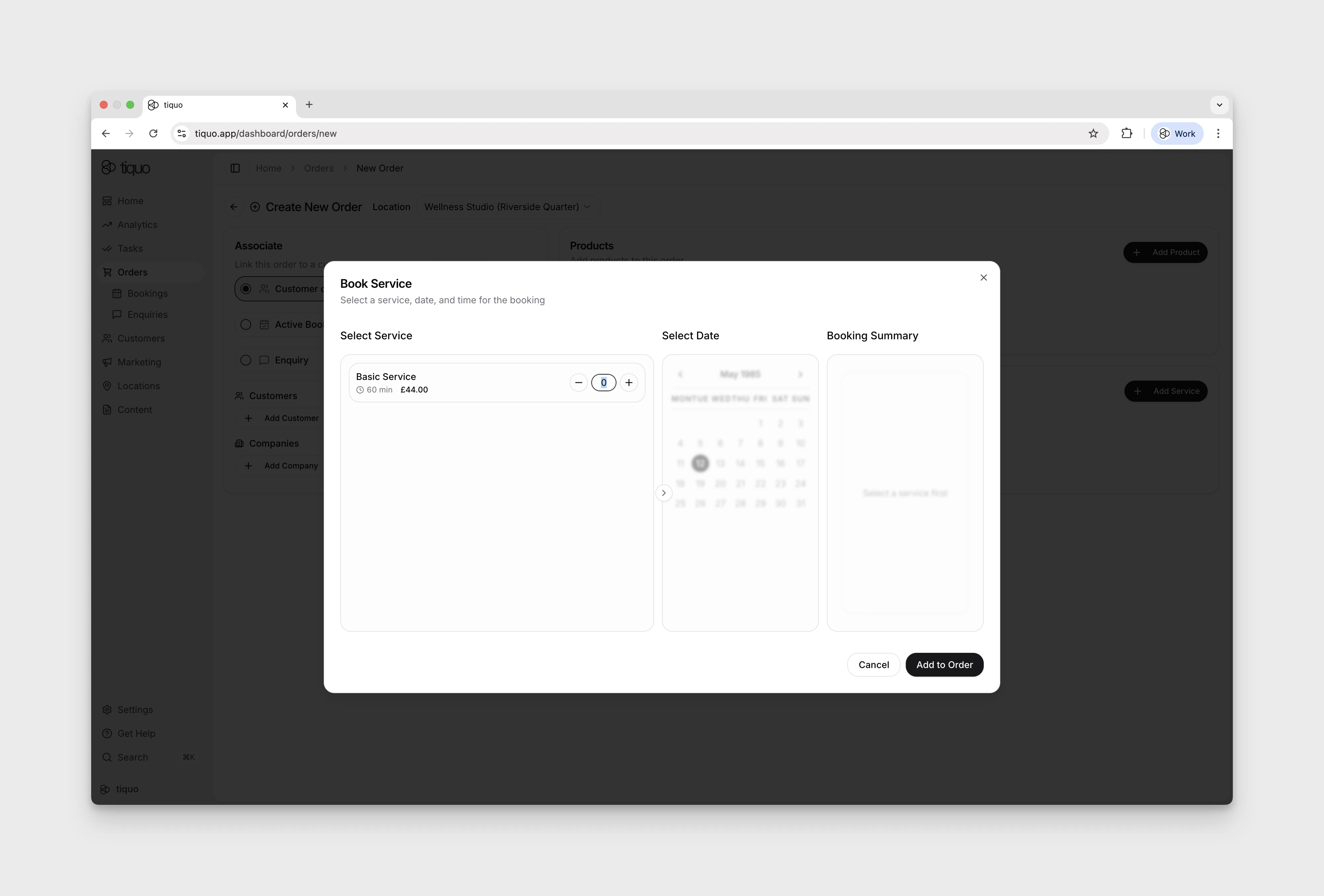
+ Add Service opens the Book Service modal that walks you through selecting the service and date. Adding a service auto-creates the underlying booking.
Save as Draft is available as soon as a product or service has been added. Save as Open Tab additionally requires a customer or company association. Proceed to Payment opens the Process Payment dialog covered below.